
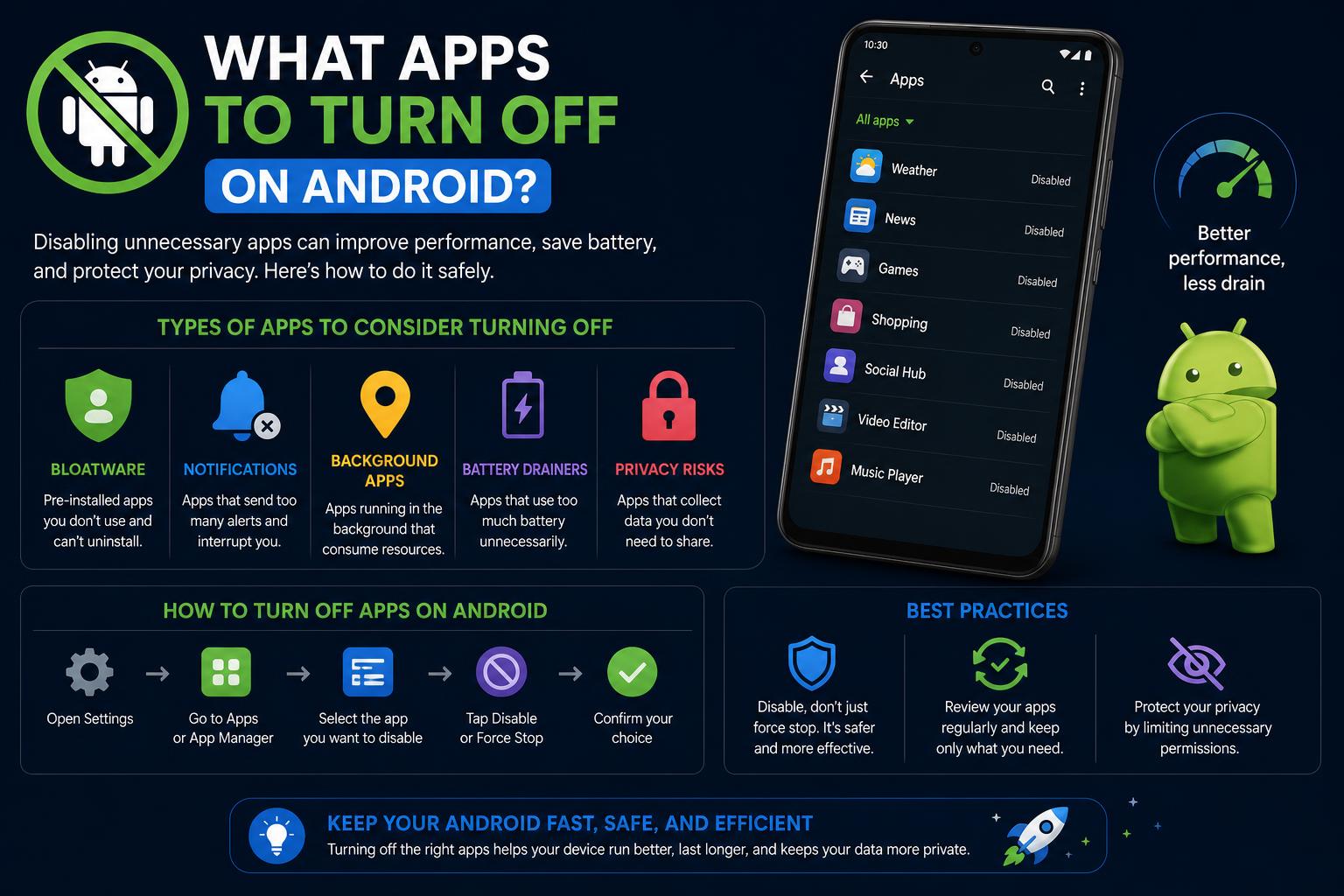
- Disabling or managing non-essential apps maximizes battery and privacy on Android devices.
- Understanding different app management options—delete, disable, archive—prevents accidental removal of critical system features.
- Adjusting app permissions (location, contacts, microphone) drastically reduces data leaks and unwanted tracking.
Tired of your Android phone running out of battery too soon, feeling sluggish, or exposing you to unnecessary privacy risks? Confused by apps that run in the background, chew up data, or demand permissions they shouldn’t? You’re definitely not alone. Every day, millions of users search for ways to take back control of their Android experience and turn off (or uninstall, or at least restrict) the right apps.
Let’s face it: Android devices often come loaded with pre-installed apps, and many new apps ask for all kinds of access they simply don’t need. Some of this is about convenience—some, frankly, is just bloat or even a battery drain. If you want a phone that feels like your own again, runs faster, and guards your data, it’s time to figure out what Android apps you should turn off and how to do it safely. Below, you’ll find the most in-depth 2024 guide for decluttering your phone, protecting your privacy, and extending battery life.
Why Turning Off Apps on Android Matters
Modern Android smartphones are powerhouses, but even the best can be dragged down by unnecessary apps. Whether it’s background services, tracking, or simply apps you never use, your device’s performance, storage, and privacy are at risk. Understanding which apps to turn off—and how to do it without breaking your phone—is a game-changer.
Key reasons to take control:
- Βελτιώστε την απόδοση και τη διάρκεια ζωής της μπαταρίας by limiting background activity.
- Προστασία της ιδιωτικής ζωής by denying permissions and disabling tracking features.
- Clear up storage by removing or archiving apps you don’t use.
- Avoid unnecessary notifications and distractions from pre-installed or rarely-used apps.
Πώς να αποκτήσετε πρόσβαση και να ελέγξετε τις ρυθμίσεις Android: Ο απόλυτος οδηγός για κάθε χρήστη
Pre-installed System Apps vs. User-Installed Apps
Every Android phone arrives with a suite of pre-installed apps. Some are essential—handling system updates, security, accounts, or backups. Others are “vendor” apps (think: Samsung’s multiple tools, duplicate messaging apps, or trialware). The tricky part? Not all pre-installed apps can be deleted, but many can be disabled or at least hidden.
Σύμφωνα με Android.com:
- Διαγραφή (Uninstalling) an app removes it fully—use this for anything you installed but don’t need now.
- Απενεργοποίηση an app keeps it on your phone but prevents it from running or updating. This is often the safest route for built-in apps you don’t use.
- Αρχειοθέτηση (sometimes available via the Google Play Store) removes the app but keeps its icon and data for easy future reinstallation.
Always research an app before removing it—especially pre-installed ones. Disabling is usually safe for non-system apps, while deleting essential apps can brick features or cause errors.
Which Android Apps Should You Turn Off First?
Prioritize apps that:
- Drain battery by running constantly in the background
- Request sensitive permissions like location, contacts, microphone, or camera unnecessarily
- Send too many notifications or run services you never use
- Are pre-installed bloatware (especially on devices from Samsung, some Chinese brands, or carrier models)
Examples of Pre-installed Apps That Are Safe to Turn Off (from user tests):
- Extra browsers (e.g., Chrome on Samsung if you use another)
- Facebook system apps and services
- Vendor duplicate tools (clock packs, reminders, extra messaging, etc.)
- Apps for print services, projection, or device-to-device sharing you never use
- Business tools or trial software you didn’t install
Refer to detailed discussion threads such as this Reddit guide where users list dozens of Samsung/Android preloads they removed with no ill effects. Σημαντικό: Always double-check before turning off or removing a system app, especially on less common phone models.
Πώς να δείτε όλες τις εγκατεστημένες εφαρμογές σε συσκευές Android: Πλήρης οδηγός
Step-by-Step: How to Find, Turn Off, or Remove Android Apps
There’s more than one way to take control, and each has πλεονεκτήματα και τα μειονεκτήματα based on your goal:
1. Through the Home Screen or App Drawer
- Locate the app icon on your home screen or in the apps list.
- Long-press the icon until a menu pops up.
- Select “Disable” (if available) or “Remove.”
- Confirm the action—disabled apps won’t appear or run but can be re-enabled if needed.
2. Via the Play Store
- Ανοικτό Play Store της Google
- Αναζήτηση για την εφαρμογή
- Tap to open its listing, then select “Uninstall” or, for some system apps, “Disable.”
3. Through Settings
- Ανοικτό Ρυθμίσεις > Αιτήσεις (Ή Εφαρμογές και ειδοποιήσεις)
- Scroll to or search for the app
- Select the app, then choose Απενεργοποίηση or απεγκατάσταση
- Some apps will only give the “Disable” option—use this for built-in apps you don’t want running
4. Χρησιμοποιήστε την ασφαλή λειτουργία
- Press and hold your phone’s power button
- Long-press “Power off” and confirm Safe Mode
- In Safe Mode, head to Settings > Apps to disable problematic apps that can’t be managed otherwise
- Restart to return to normal mode
Ο απόλυτος οδηγός για σάρωση ιών και προστασία από κακόβουλο λογισμικό σε συσκευές Android
App Permissions: The Hidden Risk of Unchecked Apps
Many apps ask for more access than they need. By reviewing and restricting permissions, you can stop a huge amount of unnecessary data collection and stop apps from tracking you or draining battery. Here’s how to tackle the big offenders:
Πρόσβαση στην τοποθεσία
- Πηγαίνετε στο Ρυθμίσεις > > App permission
- Prioritize “Allow only while using the app” for trusted apps, and “Deny” for all others
Γιατί έχει σημασία: Turning off location access for non-essential apps prevents unwanted tracking, saves 10–20% battery daily, and keeps movement data out of advertisers’ hands.
Επικοινωνια
- Ανοικτό Ρυθμίσεις > Προστασία προσωπικών δεδομένων > Διαχειριστής δικαιωμάτων > Επικοινωνια
- Set to “Deny” for anything besides genuine dialer, messaging, and communication apps
Γιατί έχει σημασία: Many “free” apps scrape your address book, creating shadow profiles to sell or use for spam. Keyboard, VPN, and game apps don’t need your contacts—deny them access!
Microphone, Camera, Sensors
- Πηγαίνετε στο Ρυθμίσεις > Προστασία προσωπικών δεδομένων > Διαχειριστής δικαιωμάτων
- Αγορά Μικρόφωνο, Φωτογραφική μηχανήκαι Αισθητήρες
- Switch all non-essential apps to “Deny” or “Ask every time”
Γιατί έχει σημασία: Rogue apps have been caught recording or listening silently. Restricting these permissions is one of the best steps for personal security in 2024 and beyond.
Google Play Protect: Ο βασικός οδηγός σας για την ασφάλεια των εφαρμογών Android
Ad Personalization and Background Data: Opt Out, Save Energy
Turn Off Personalized Ads
- Ρυθμίσεις> Google > διαφημίσεις > Το Κέντρο Διαφημίσεών μου
- Disable Personalized ads, then reset your Advertising ID periodically
This prevents ad networks from tracking your device usage across apps and the web, protecting your anonymity.
Περιορίστε τη χρήση δεδομένων παρασκηνίου
- Ρυθμίσεις> Αιτήσεις or Εφαρμογές και ειδοποιήσεις > select app > Δεδομένα κινητής τηλεφωνίας και Wi-Fi
- Turn off Background data for resource-heavy apps like social media or streaming
- Ενεργοποίηση Εξοικονόμηση δεδομένων globally to restrict background activity
Many apps can consume 1–3 GB of data monthly in the background—shut this off to save bandwidth and battery.
Useless or Problematic Apps: The Giant List of Safe Removals
If you’re hunting for apps you can turn off without harm, use guides like as a αφετηρία. Examples from popular phones (Samsung, Pixel, etc.) include:
- Vendor-specific promotional, weather, kids, or theme store apps
- Duplicate apps for gallery, messaging, or notes
- “Max” data management, print service recommendations, or obscure device-to-device sharing tools
- Facebook services and system managers not needed for your usage
Pro Συμβουλή: If uncertain, disable instead of uninstalling. Test your device for a few days. If everything works, you’re free to remove more aggressively.
Πώς να ενεργοποιήσετε και να χρησιμοποιήσετε τις φυσαλίδες ειδοποιήσεων σε συσκευές Android
Special Cases: Instant Apps and Diagnostic Data
Disable Instant Apps
- Ρυθμίσεις> Αιτήσεις > Προεπιλεγμένες εφαρμογές > Άνοιγμα συνδέσμων > Instant apps
- Turn off “Allow instant apps”
This stops Google Play from running app modules in your browser without installation, reducing surprise data collection.
Stop Sharing Diagnostic Data
- Ρυθμίσεις> Google > Tap the menu > Usage & diagnostics
- Set to Off
Stops your device from automatically sending logs, crash reports, and analytics to Google unless truly needed.
Other Tips for Mastering Your Android App Management
- Back up your device before making significant app changes!
- Update your apps regularly (but only ones you keep!) to prevent security risks
- Be cautious with new apps—check developer legitimacy and permissions on install
- Use Safe Mode for troubleshooting if an app makes your phone unstable
Taking command of your Android device is about more than just deleting a few apps. By learning when to uninstall, disable, or simply restrict permissions, and by revisiting your device’s settings every few months, you’ll enjoy a phone that’s faster, safer, and built around your needs—not around someone else’s idea of what should run in the background. The best part? Most changes take just a few taps and can be reversed if you need a particular app later. For the most hassle-free experience, stick to disabling instead of full deletion unless you’re absolutely sure. With a little attention, your Android can be as clean, private, and efficient as you want it to be.
Πώς να εγκαταστήσετε αρχεία APK σε Android: Ο απόλυτος οδηγός ασφαλούς πλευρικής φόρτωσης