
- Understanding the key warning signs of viruses or malware on Android
- Comparing the best free and premium antivirus apps for comprehensive protection
- Step-by-step instructions for scanning and removing threats from your device
Android devices power more than half of all smartphones worldwide, making them a popular target for hackers, scammers, and malware developers. If you’ve noticed strange pop-ups, sluggish performance, or suspicious messages, you may be wondering how to effectively scan for viruses on your Android and ensure your device stays safe. In this comprehensive guide, you’ll learn everything you need to protect your phone or tablet from malicious threats, scams, and unwanted software.
It’s easy to take your device’s safety for granted until a problem arises — maybe it’s persistent ads, new apps you don’t recall installing, or friends receiving strange messages from your account. Fortunately, there are reliable solutions and clear warning signs to watch for. We’ll break down exactly what to look out for, which antivirus tools are worth using, and how you can regain control of your device quickly and safely.
Why Android Devices Are Prone to Malware and Viruses
Since Android is the most widely used mobile operating system, it naturally attracts more attention from cybercriminals. Unlike the tightly controlled app environments on other platforms, Android’s open nature makes it easier for users to sideload apps and for attackers to sneak malware into third-party stores. While technology giants like Samsung have implemented strong security features in their Galaxy devices, no phone is completely immune to threats — especially if powerful social engineering or clever phishing scams get involved. Knowing which Android version you have can also help you check whether your device receives the latest security updates.
F-Droid 2.0: O Guia Definitivo para Distribuição de Aplicativos de Código Aberto para Android
Common Signs Your Android Device Might Be Infected
Spotting the symptoms early can save you from much bigger headaches later on. Here are the most frequently reported signs of malware or a virus infection on Android devices, compiled from support articles, user discussions, and top antivirus providers:
- Constant pop-up ads or fake warnings about viruses when browsing websites or opening apps, especially if they’re accompanied by bright flashing lights or aggressive language urging you to click links.
- Unusually slow device performance—apps sluggish to load, overall system lag, or your phone taking longer than usual to complete simple tasks.
- Sudden drops in available storage space, faster battery drain, or unexplained spikes in data usage, suggesting background activity from malicious apps.
- Malfunctioning or disabled security apps, like your regular antivirus refusing to launch or frequently crashing.
- Unrecognized apps, toolbars, or browser extensions that appear without your permission and often return after removal.
- Browser homepage or search engine settings being changed without your consent, redirecting you to unfamiliar pages.
- Your contacts report receiving strange messages or emails from you that you didn’t send — a sign your account or device could be compromised.
- Unfamiliar charges on your phone bill or premium SMS subscriptions you didn’t initiate.
Beware of Fake Virus Alerts and Social Engineering
Pop-up warnings about ‘Your device is infected!’ are frequently used by scammers to trick users into downloading bogus apps or giving up sensitive data. These pop-ups often appear while browsing and may feature garish designs, flashing visuals, and urgent text. Rarely are these genuine, and more often, they’re fronts for malware or phishing attempts trying to steal credentials or deploy adware. Never click suspicious pop-ups, even if they seem urgent! Instead, close your browser or use your device’s multitasking menu to force the app to stop.
O Guia Definitivo para Bloquear Anúncios em Dispositivos Android
Top Trusted Antivirus Apps for Android
Having a reputable antivirus app on your Android device is one of the easiest ways to automatically scan for threats and block them before they cause any damage. Here’s an overview of some leading options, their features, and how they help keep your phone safe. Each brings unique strengths, from lightweight performance to advanced real-time protection.
Bitdefender Antivirus Free for Android
Bitdefender Antivirus Free for Android uses cloud-based scanning engines, which means the latest protections are always available without downloading big virus databases to your device. This approach gives it extremely low battery consumption and fast threat detection. According to independent tests, Bitdefender accurately detects over 99% of Android malware, and its unobtrusive design means your phone’s speed and battery life are barely affected. Particularly for users who want strong protection without any hassle, Bitdefender is a top pick.
[relacionado url=”https://www.ikkaro.net/how-to-install-apk-files-on-android/”]
Avast One Mobile
Avast One Mobile stands out as a free antivirus app offering real-time malware scanning and blocking for both new installations and files already on your device. Beyond protecting against viruses and malware, Avast also monitors the links you open and the websites you visit — helping flag unsafe sites before you get tricked by a phishing scam or risky download. One cool bonus feature: Avast will alert you if your email password ends up leaked in a data breach, and you can even lock sensitive photos behind a PIN or fingerprint, all free of charge.
ESET Mobile Security
ESET Mobile Security provides a reputable free virus scanning option with compatibility for a broad range of Android devices. ESET is well-known for its powerful detection engine, regularly updated threat database, and user-friendly design. This app excels at scanning both apps and files, offering a great introductory layer of defense for any Android user wanting extra peace of mind.
Malwarebytes para Android
Malwarebytes para Android steps up security by integrating advanced technology such as WireGuard® VPN, which gives your device both faster speeds online and a tougher barrier against hackers. WireGuard offers more efficient, modern encryption than traditional VPN protocols, and by pairing malware protection with a privacy VPN, Malwarebytes delivers robust security for users who often connect to public WiFi or need to shield sensitive information.
Is It Really Necessary to Install an Antivirus App on Android?
There’s ongoing debate among users and even some security experts about whether antivirus apps are essential for Android phones and tablets. If you only download apps from the Google Play Store, are vigilant about permissions, and install official software updates, your risk is considerably lower. Android’s system-level protections and manufacturer features (like Samsung’s security for Galaxy devices) handle many threats on their own.
O Mercado Pago não havia executado campanhas de Performance anteriormente nessas plataformas. Alcançar uma campanha de sucesso exigiria real-world risks remain: malicious apps still slip onto the Play Store occasionally, and phishing attacks targeting users through web browsers, messaging apps, or malicious pop-ups are on the rise. If you use public WiFi, regularly sideload apps, or want extra reassurance, a high-quality antivirus app adds a crucial layer of security and peace of mind.
How to Scan Your Android for Viruses and Malware
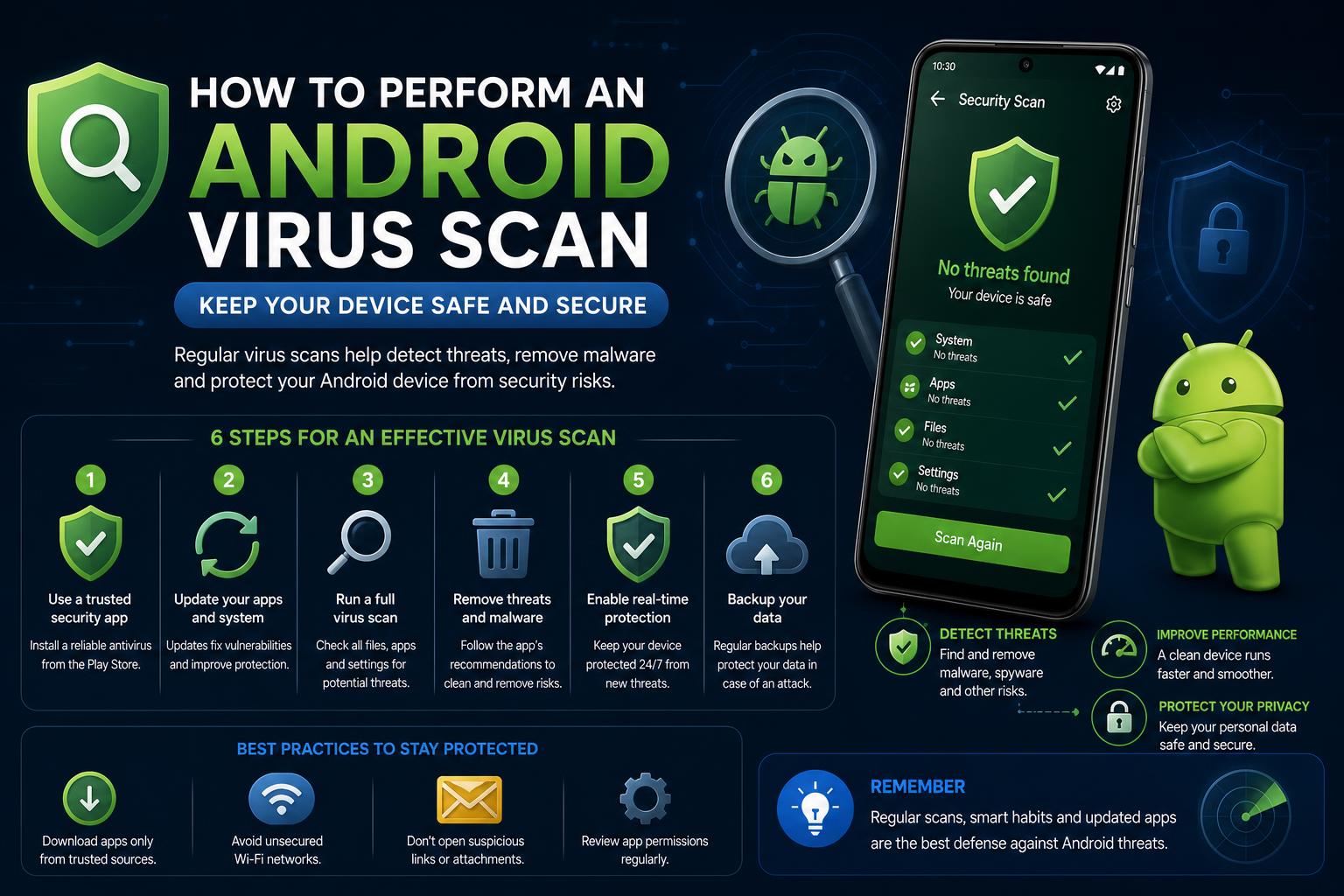
Scanning your phone for viruses doesn’t require any advanced technical know-how. Here’s a simple workflow you can follow using any of the top antivirus apps mentioned above:
- Download a trusted antivirus app (such as Bitdefender, Avast, Malwarebytes, or ESET) from the official Google Play Store or the official site.
- Open the app and follow the initial setup steps, which usually involve granting permissions for full device scanning.
- Start a full device scan. The app will check all apps, files, and system settings for signs of infection or suspicious activity.
- If something’s flagged, follow your app’s recommendations — you’ll usually get the option to quarantine, delete, or whitelist the suspect item. Always remove anything you didn’t install or recognize.
- Agende exames regulares: most security apps allow you to set up automated checks daily or weekly, keeping you protected round the clock.
- Check for open browser tabs and strange extensions. Close tabs or uninstall extensions that return repeatedly.
- If your security app can’t remove certain items, try restarting in Safe Mode and running a scan again — this can help isolate malware that protects itself during normal use.
Extra Steps to Boost Your Android Device Security
Antivirus software is only part of the equation — good digital habits help you avoid most dangers. Here are extra defenses you should add to your playbook:
- Only download apps from the Google Play Store or official sources. Avoid clicking on links in messages or emails that offer APK files or ‘special editions’.
- Be skeptical of apps asking for excessive permissions — for example, a flashlight app shouldn’t need access to your contacts or SMS.
- Keep your software and security patches updated at all times. Enable automatic updates for the OS and apps whenever possible.
- Lock down sensitive data with app-specific security features (such as photo vaults or email breach alerts in Avast, or advanced encryption with Malwarebytes’ VPN).
- Avoid using public WiFi for sensitive transactions if you don’t have a VPN enabled. Always look for ‘https://’ in websites handling your private information.
- Don’t ignore minor warning signs like pop-ups, battery drain, or slowdowns — catching infections early is key to minimizing damage.
- Warn friends and family if your account has been sending spam. Changing your passwords quickly can disrupt the spread to others.
Como contornar a proteção contra redefinição de fábrica (FRP) no Android: o guia completo para segurança, recuperação e riscos.
Understanding What to Do When Infected
If your device still shows infection symptoms after running antivirus scans, there are further steps to take. Some malware is stubborn, so don’t panic — try the following methods:
- Reiniciar no modo de segurança. On most Android phones, hold the Power button, then tap and hold ‘Power off’ to get the option. This disables all third-party apps temporarily — if the problems stop, it’s likely one of your downloaded apps is to blame.
- Uninstall suspicious apps manually. Go to Settings > Apps and look for anything you don’t recognize or remember installing, particularly those with generic icons or names.
- Clear cache and storage for browsers, especially if you face pop-ups or redirected homepages.
- If nothing works, consider a factory reset as a last resort. This wipes your device entirely, so back up data first.
- Change passwords for any accounts used on the infected device, including email, banking, and social media.
Built-in Android Security Features
Before jumping to third-party software, it’s worth knowing that modern Android devices include several built-in security features. Major manufacturers like Samsung have industry-leading protections as part of their devices. For example, Samsung’s Smart Manager application can scan for malware or viruses and report on suspicious activity. While these features significantly lower overall risk, they’re best used alongside good security habits and, for maximum protection, a dedicated antivirus app.
Community Opinions: Is Antivirus Necessary?
User forums and message boards like Reddit are filled with debates about whether Android actually needs antivirus protection. The main arguments against antivirus apps are that they can become resource hogs, slow down phones, and sometimes provide redundant protection. However, users who have experienced infections firsthand, especially after downloading from unofficial sources or using public WiFi, overwhelmingly recommend having at least a lightweight scanner installed. Ultimately, the choice comes down to your behavior and risk tolerance — but given the quality of today’s free tools, there’s little reason not to play it safe.
Staying secure in the Android world isn’t just about defending against viruses. It’s about a combination of vigilância, smart download choices, As atualizações automáticas, careful attention to warning signs, and regularly scanning your device. Leveraging trustworthy antivirus solutions (like , , , or ) together with the proteções integradas offered by modern Android devices provides an excellent defense against malware and scams. By paying attention to unusual behaviors e mantendo seu software atualizado, you can make your Android experience as safe as possible — allowing you to focus on what matters to you, rather than worrying about digital threats lurking in the background.