
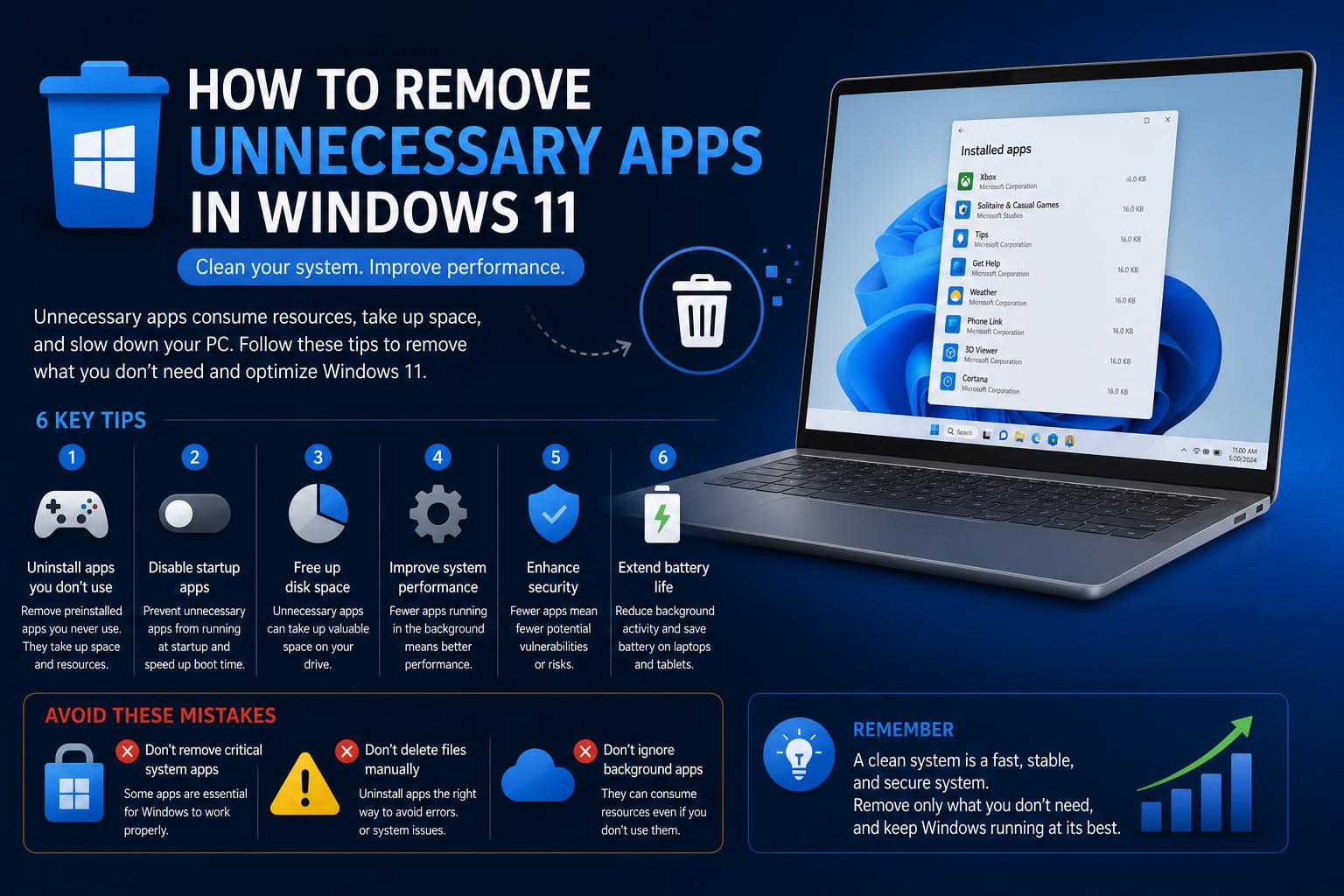
- Windows 11 includes both essential tools and unnecessary bloatware by default.
- Identifying and removing unwanted apps improves usability, not just speed.
- Safe removal depends on app function—some Microsoft apps are best left alone.
Windows 11 arrives fresh and shiny on most new computers, but it doesn’t take long to notice the cluttered presence of unnecessary apps, bloatware, and tools you never asked for. The process of figuring out what’s safe to remove—and what’s best left alone—can feel both overwhelming and risky. The preinstalled landscape has only grown more complicated in recent years, with a mixture of Microsoft-branded software, third-party “partner” programs, and manufacturer utilities vying for your attention.
Many users are eager to trim down their Windows 11 installations, not just for performance or aesthetics, but for peace of mind and ease of navigation. Deciding which apps and features can safely be uninstalled can save time, reduce distractions, and even sidestep potential security concerns posed by rarely updated or unsupported software. This guide brings together real user insights, curated advice from tech experts, and official recommendations to give you an exhaustive roadmap on which unnecessary Windows 11 apps can be safely removed, when to resist the urge, and how to proceed efficiently.
Understanding Why Unnecessary Apps Exist in Windows 11
Out of the box, Windows 11 includes a mix of required system components, genuinely helpful utilities, and a range of preinstalled extras that may not serve every user’s needs. Some of these apps are there for compatibility, others are “value adds” mostly for Microsoft’s benefit (e.g., promoting paid cloud storage or subscriptions), and still others are vendor-specific bloatware installed by your PC’s manufacturer. Recognizing which apps you use—and which simply take up space or add clutter—is the first step toward a streamlined Windows environment.
Why does Microsoft and PC makers bundle so much software? For Microsoft, it’s partly to promote services like Microsoft 365, OneDrive, and Xbox, along with showcasing new features or integrating with the company’s ecosystem. PC manufacturers, meanwhile, often bundle partner products or their own utilities to differentiate their hardware, support warranty operations, or earn affiliate revenue. The result? A crowded Apps list that’s rarely one-size-fits-all.
Како безбедно онемогућити непотребне Windows 11 сервисе за боље перформансе
Types of Unnecessary Apps Found in Windows 11
- Microsoft-branded Apps: Not all Microsoft apps are essential. Many are simply installed to promote their wider services, yet are not required for Windows itself to run smoothly.
- Third-party Promotions: Trial versions of antivirus, music streaming, games, or social media apps are often present—even on business machines.
- Manufacturer Utilities: OEMs (Original Equipment Manufacturers) like Dell, HP, or Lenovo frequently include support tools, system optimizers, and customer service apps that may duplicate built-in Windows features or remain unused.
- Legacy Apps and Placeholders: Some programs are remnants of older Windows versions, while others are minimally maintained utilities that see little real-world use.
The Case Against Bloatware and Unhelpful Apps
Keeping unnecessary software may not always have immediate impacts on computer speed, but it does contribute to visual clutter, increases potential update headaches, and potentially exposes your system to security issues if abandoned by the vendor. Every extra app means another potential source of update notifications, another collection of background processes, or simply another icon in your Start Menu to ignore—until it becomes a nuisance.
Yet, not every option you see in the Start Menu or Settings can (or should) be removed. Some built-in apps take up little space and do nothing unless run. For others, safe removal may be possible, but you risk disabling features you might unexpectedly need. Knowing the difference is half the battle.
How to Find All Installed Windows 11 Apps
Before you start deleting, you need a clear overview of what’s actually on your system. On a fresh Windows 11 machine, follow these steps:
- Го то Подешавања (click the Start Menu, then the gear icon).
- Иди на Apps > Инсталиране апликације.
- Review the complete list—long, but essential to examine. If your machine has been in use for a while, consider typing “Microsoft” in the search bar to isolate native apps.
This helps you distinguish between core system components, helpful tools, and true bloatware or unwanted extras.
Дефинитивни водич за добијање помоћи са оперативним системом Windows 11: стручни савети, алати и поуздана подршка
A Comprehensive Guide to Unnecessary Apps in Windows 11
This section blends insights from real users, Microsoft community advice, leading tech publications, and independent blogs to map out the most common unnecessary apps, their use cases, and safe removal guidance.
Third-party Preinstalls and Bloatware: Remove Freely
- Trial Antivirus Programs: Often bundled from companies like McAfee, Norton, or other random vendors. If you don’t plan to use them, uninstall immediately. Windows Defender (Microsoft Defender Antivirus) is robust enough for most users.
- Music and Streaming Apps: Spotify, Pandora, and similar platforms sometimes appear without invitation, thanks to partnership deals. Unless you’re a regular user, these are safe to remove.
- Third-Party Utilities: Apps like WhatsApp, Kindle, Camo Studio, LinkedIn, and similar can clutter up your new system. Unless you rely on them, don’t hesitate to uninstall. Their removal is completely safe and they’re always available for download later, should you need them.
Removing these apps can be as easy as accessing the Settings, finding the three-dot menu next to each app, and selecting ‘Uninstall’. If you want to go further, you can use third-party tools or scripts, but for most users, the built-in method is the safest approach for avoiding mistakes.
Windows 11 Apps Often Considered Unnecessary
The following Microsoft-bundled applications are commonly considered redundant or rarely used. Removal is safe, but be sure you don’t need their functionality before deleting:
- Microsoft Office (trial): Often useless if you have no Office subscription. It’s just a placeholder for Microsoft 365 or the Office web apps.
- Xbox Game Bar and Analytics: Unless you game on your PC or use Xbox services, the related apps can be deleted. Note, however, that the Game Bar provides screen recording tools some users find useful.
- Copilot (standalone): Microsoft’s generative AI tool is in active development, but if you have no use for AI automation or don’t want it running, removal is straightforward—but keep an eye on updates, as the branding and capabilities keep evolving.
- Media Player (не Windows Media Player Classic): The Media Player in Windows 11, successor to Groove and Zune, is functional but redundant if you prefer VLC or another popular player.
- Филмови и ТВ: This app was primarily for watching DRM-protected content from Microsoft’s store, which is no longer available. Most users will find VLC Media Player or a web browser preferable.
- Мицрософт 365 Цопилот: Distinct from the default Windows Copilot. If you do not use cloud-based Microsoft Office web tools, you can uninstall this shortcut without risk.
- Microsoft Maps: Rarely useful on desktop compared to Google Maps or Bing Maps in the browser.
- News and Weather: These apps have been deprecated in favor of the Widgets panel and Edge homepage features. Remove if you find them redundant.
- Снимање гласа: Unless you frequently capture voice notes with your PC microphone, there’s generally no harm in removing this tool.
- Лепљиве белешке: Unless synced with mobile devices or forming part of your workflow, this can be deleted—Outlook’s Notes feature now offers more cross-device consistency.
- Мицрософт задатак: A solid task list manager, but adds complexity some users don’t need. Plenty of alternatives like Тодоист exist, or you may not use digital task management at all.
- цлипцхамп: Windows 11’s default video editor is decent for quick clips but is unnecessary if you already use more advanced tools. Uninstall if your needs are simple, or you use alternatives like Adobe Premiere, DaVinci Resolve, or online editors.
Алат за исецање на Windows 11: Врхунски водич за снимке екрана и снимање видео записа
There’s no harm in removing these apps unless you specifically rely on them for a daily task.
Apps Best Left Alone (System Critical or Occasionally Useful)
While it’s tempting to purge every item you don’t recognize, a handful of Windows 11 apps are better left untouched. Their presence supports system stability, updates, or less obvious tools that occasionally come in handy:
- Мицрософт Сторе: Essential for updating many system apps and for securely acquiring new software. Removing it can cause update failures or compatibility issues—avoid even if you rarely use it actively.
- Мицрософт ивица: As the default web browser, Edge powers several Windows functions. You can change your default browser or remove shortcuts, but uninstalling Edge itself is not recommended.
- Алат за исецање: The quickest way to capture screenshots or record screen activity. Lightweight and constantly improving, it’s handy to keep installed even if only used occasionally. You can review the Snipping Tool features in Windows 11 before deciding whether it belongs in your setup.
- Terminal/PowerShell: Advanced users may already know its value. For everyone else, it’s a basic component for running commands and scripts. No need to remove; just ignore if you never use it.
- Quick Assist: Excellent for helping friends or family troubleshoot their PCs remotely. It poses no performance risk when unused.
- Classic Utilities (Notepad, Paint, Calculator, Clock): Despite their vintage, these tools are regularly updated, small in footprint, and can be surprisingly useful. Their absence may be felt when you least expect it.
- Један погон: Many users never use Microsoft’s cloud sync, but OneDrive is woven deeply into Windows, especially if you use a Microsoft account. Careful configuration is advised—disable unwanted features or unlink your account rather than uninstalling unless you’re an advanced user.
- Апликација за камеру: Helpful for testing webcam functionality and security. Removal is possible, but there’s no performance gain and you lose a basic troubleshooting tool.
- Центар за повратне информације: Keeps you looped into troubleshooting channels and lets you report bugs. Negligible impact if ignored, useful during troubleshooting.
- Bing Search Integration: Powers the built-in search bar and Start menu queries. Essential for core Windows search functionality, so best left intact—even if you disable the icon.
System components listed as services or “System Apps” in Settings should generally remain untouched, as they manage updates, security, and hardware compatibility.
How to Remove Unnecessary Apps Safely
Microsoft has finally made uninstalling most preinstalled apps far easier, especially for EU users after a 2023 regulatory shift. Here’s how to safely approach app removal:
- Отвори подешавања: Use the Start Menu or search bar for fast access.
- Идите на Апликације: Check the Installed Apps list for everything present.
- Click the three-dot menu next to any app you wish to remove. Select Деинсталирај. Потврдите када се то од вас затражи.
- For stubborn apps: If an app is ‘greyed out’ or the Uninstall option is missing, it’s either a protected system component or must be removed through PowerShell or a third-party removal tool. Exercise caution here.
- Rinse and repeat for each unwanted app. Take your time—there’s rarely a need to rush a mass uninstall and risk losing features you might later miss.
Исправљање грешке 0x80073CF3 у Microsoft продавници у систему Windows 11: Свеобухватни водич
Special Cautions: What NOT to Remove
- Apps linked to Windows security, device drivers, or hardware functionality should never be uninstalled. If you’re unsure, it’s better to hide shortcuts than to risk breaking crucial system features.
- Manufacturer drivers or support tools—even if annoying—often enable driver updates, warranty support, or diagnostics. Research each before removal, or simply disable startup processes.
Third-party uninstallers and scripts can sometimes overreach—avoid unless you’re familiar with what each app does and have reliable backups. Microsoft’s built-in uninstaller is intentionally conservative, favoring system stability over aggressive removal.
Препоруке стручњака и корисничка искуства
Across the community, both casual and expert users agree that carefully pruning bloatware is a personal process, and no two systems arrive with exactly the same set of pre-installed apps. Here are some recurring expert recommendations, blended with personal anecdotes and pro tips:
- Take inventory before removing anything. Don’t just delete apps by name—check what functions or integrations you might lose, and learn whether the app can be safely redownloaded later if regret strikes.
- Keep security in mind. Windows Defender is sufficient for most users, making third-party antivirus bloatware mostly redundant. That said, enterprises or users with specific needs may still want alternatives—uninstall trialware, keep what’s required.
- Regularly update the apps you keep. Even legacy tools like Notepad and Paint receive useful improvements, and neglecting updates opens up unnecessary risk.
- Lean into cloud flexibility but disable what you don’t use. OneDrive, Outlook, and the Store are deeply embedded into Windows, but you control how much (or little) they touch your workflow.
- Manufacturer “help” apps: If you use their support channels, keep their utilities. If not, ensure you can replace driver and firmware update tools before removal.
One frequent user frustration is Microsoft’s tendency to bundle apps and partner programs for profit—even when they’re irrelevant to most end users. While unfortunate, users retain ultimate control with a bit of patience and care.
Frequently Asked Questions About Removing Windows 11 Apps
- Will removing bloatware speed up my PC? Not always—but you’ll enjoy faster boot times, tidier menus, and fewer background notifications.
- Is it possible to break Windows by uninstalling too much? System-critical apps are protected, but aggressive use of PowerShell or third-party cleaners can remove more than intended. Always research and back up before deep removals.
- Can I reinstall built-in apps if I remove them by mistake? Yes. Most essential apps are available in the Мицрософт Сторе for reinstallation. For more technical components, PowerShell scripts or Windows Features can restore what’s missing.
- Do I need third-party tools to remove unwanted apps? Typically not. Windows Settings is sufficient after recent updates, but apps like Revo Uninstaller—or tools like ТиниАппс for those who seek minimal installs—exist for power users and IT professionals.
What About Enterprise and Work Computers?
On company-managed devices, additional restrictions (set by IT) may limit which apps can be uninstalled. Always consult with your IT department before removing software—even if it seems pointless or is labeled as a trial—since remote tools, compliance products, and monitoring agents often appear under neutral names.
Systems joined to a domain or under device management tools (like Microsoft Endpoint Manager or Intune) may re-install apps automatically after you delete them. Changes made to software catalogs may also carry policy implications for security and licensing.
Should You Install a Stripped-Down Windows Instead?
There’s growing interest in projects like Тини11, a community-driven, minimal Windows installer that removes nearly all non-essential apps and bloatware. However, most users—especially in business or warranty contexts—won’t have the option to deploy a custom Windows variant. For everyone else, standard Windows uninstallation is the safest route, even if it takes longer.
IT enthusiasts and power users may explore more aggressive debloating via scripts, open-source tools, or custom ISOs. These approaches require more technical expertise and increase the risk of removing dependencies or breaking essential functions. Proceed with caution and always create system backups first.
Ongoing Changes: What to Expect in Future Versions
The trend in Windows development, especially in reaction to antitrust scrutiny in the European Union, is toward greater user freedom to remove bundled software. Where earlier Windows versions rigidly protected dozens of built-in apps, recent updates have made it far easier to uninstall everything from Edge (in some regions) to Copilot, Photos, and even system utilities. Expect further decoupling as Microsoft adapts to regulatory, user, and competitive pressures.
Manufacturers, too, increasingly feel the pressure from users and regulators to offer decluttered, “clean” Windows installations. This may mean less bloatware over time, but for now, most new systems arrive with a collection of utilities, pop-ups, and unnecessary offers. Until true minimal builds become the norm, pruning extras is a part of every Windows user’s experience.
- Windows 11 installations ship with a blend of necessary tools, genuinely useful apps, and a healthy dose of bloatware and redundant utilities.
- Identifying what’s safe to remove depends on how you use your PC, with Microsoft and third-party apps ranging from easily disposable to best left alone for stability or convenience.
- Recent Microsoft policy changes allow users to uninstall more built-in apps than ever before, through straightforward Settings menu tools and with less risk of breaking system functions.
- Proceed carefully, do your homework, keep essential backup and support tools, and remember that your ideal Windows setup is personal—there’s no one-size-fits-all decluttering strategy.
By thoughtfully removing what you don’t use, you can keep your computer lean, focused, and uncluttered—making Windows 11 not just look cleaner, but actually feel more personal, intuitive, and enjoyable to use every day.