
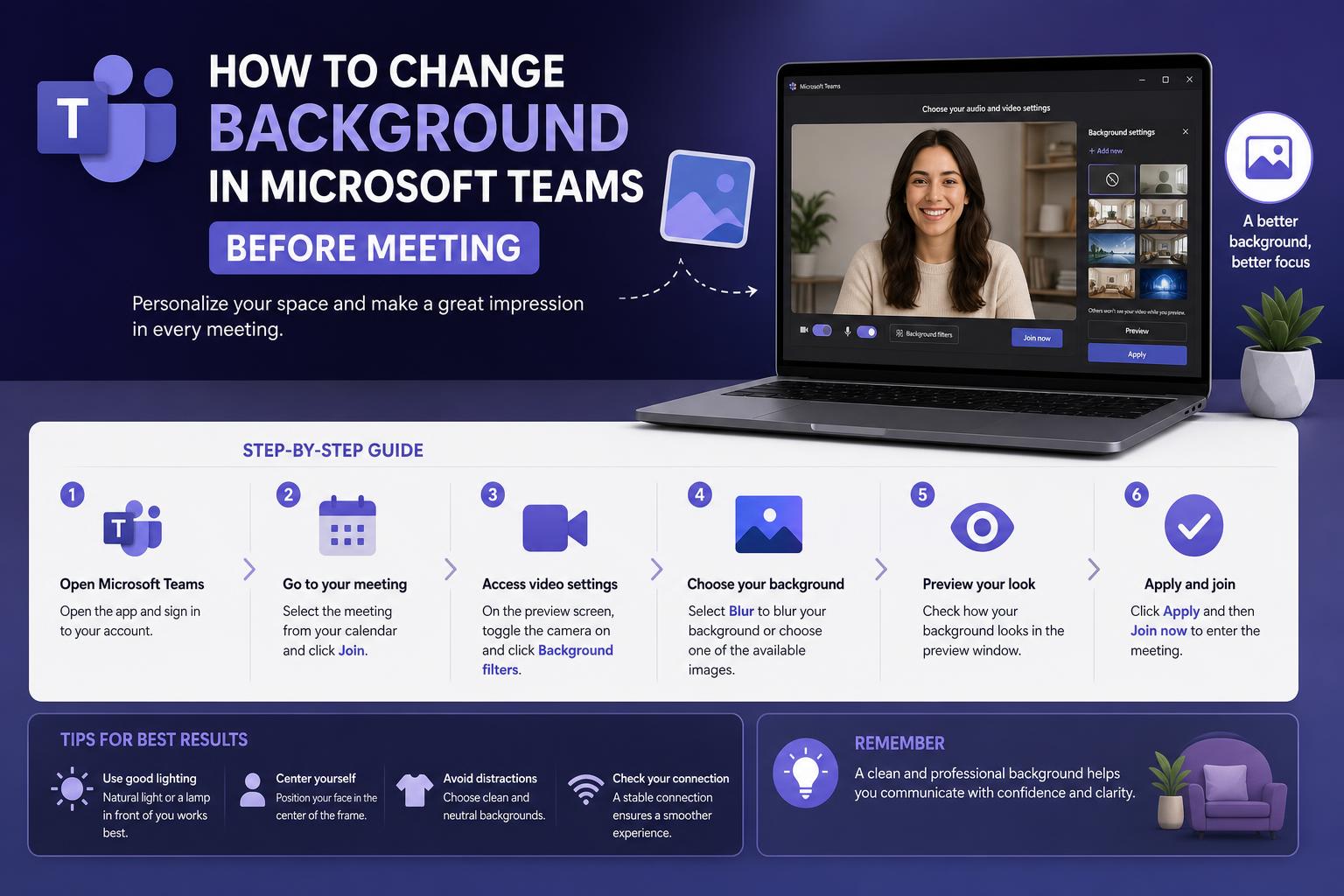
- Customize your Microsoft Teams background or blur distractions with built-in and custom options available pre-meeting.
- Understand the latest AI-powered effects in Teams and their practical applications for privacy and professionalism.
- Troubleshoot common issues that stop background changes from working and learn how to fix them quickly.
Preparing for a Microsoft Teams meeting isn’t just about having the right agenda or background notes—how you appear on camera can make a big difference. One of the best features Teams offers is the ability to change or blur your background, keeping your space private and your presence professional. Whether you want to tidy up your surroundings, inject a bit of personality, or just hide a messy room, knowing how to set your background before you join a call can boost your confidence and help you make a polished impression right from the start.
If you’ve ever been caught off guard by an untidy room behind you or felt uncomfortable about colleagues glimpsing your home, you’re not alone. Microsoft Teams has continually improved its background effects, making it easy to choose from built-in images, upload your favorite photos, or add blur for a subtle camouflage. With recent updates, even more advanced background tools are at your fingertips—think AI decorations and branded logos. This guide distills the very best tips and troubleshooting steps from official sources and savvy users to help you master Microsoft Teams backgrounds before any meeting starts.
Why Change Your Background in Microsoft Teams Before a Meeting?
Changing your background in Teams before a meeting isn’t just a matter of aesthetics—it also involves privacy, professionalism, and personal comfort. Whether you work in a busy home, a basement office, or simply want to avoid distractions, setting your background allows you to control what others see before you go live. Furthermore, the feature is designed to be straightforward, letting you preview options and make quick adjustments so you are always ready to present your best self.
Main Ways to Adjust Your Background Before Joining a Meeting in Teams
In Teams, there are several background options: Blur, built-in backgrounds, custom images, and advanced AI effects. Depending on your device and the version of Teams (classic or the new app), the steps may vary slightly, but the basic methods are the same for desktop, mobile, and web users. Let’s explore them all.
Change or Blur Your Background in Teams (Desktop and Web)
- Open Microsoft Teams and navigate to the calendar from the left sidebar. Find the meeting you wish to join or use “Meet now” for a quick test.
- Click on Join on the selected meeting—this opens the pre-join screen before you go live.
- Look for “Background effects,” “Background filters,” or “Video effects and settings” near the camera toggle. (Names may vary, for example, “Effects and avatars” in some macOS versions.)
- Turn on your camera to preview your video feed with background options.
- To blur your surroundings, choose “Standard blur” to soften the background or “Portrait blur” for a more cinematic depth-of-field effect.
- For built-in backgrounds, scroll through and select one of Teams’ default images.
- To upload your own image, click “Add new” and select a JPG, PNG, or BMP file from your device. Teams will display a preview so you can verify how it looks.
- Use the “Preview” button to view your selection in real time before entering the meeting. This step is essential—if you are not satisfied, change or remove the effect immediately.
- Satisfied? Click Join now to enter the call with your chosen background. To turn off all effects, select “None.” Your background selection will remain active for future meetings until you decide to change it.
Using the Teams Mobile App to Change the Background Before a Meeting
- Open the Microsoft Teams app and navigate to your calendar.
- Select the meeting and tap “Join.” This will open the pre-join screen.
- On the pre-join screen, tap “Background effects.” You will see a carousel with effects and images.
- Preview available backgrounds or upload your own by tapping “Add new.” If you don’t want any effect, tap “None.”
- Tap “Done” to confirm and enter the meeting.
The selected background on mobile persists for all future calls and meetings unless you manually change or remove it. Keep in mind that on Android devices, certain hardware and software requirements may apply—older phones might not support advanced effects.
Advanced Background Effect Options: AI, Branding, and More
With the latest updates, Teams has moved beyond static images and blurs by incorporating AI decorations and corporate branding—especially in Teams Premium. Here are some of the most interesting effects available to many users:
- AI Decoration: Automatically declutters your visible space, adds plants or festive decorations, or toggles styles such as underwater, animated blocks, or a spaceship. Options include: Clean Up (removes clutter), Elegant (adds sophistication), Greenhouse (adds virtual greenery), Celebration (party decorations), and Surprise (rotating unique themes).
- Branding: In Teams Premium, organizations can apply logos or themed backgrounds with their brand for a professional, unified look.
These advanced features make Teams meetings more engaging and help maintain a consistent visual identity across large organizations. For updated information, always consult the official Microsoft support page.
Troubleshooting Common Issues When Changing Backgrounds in Teams
Although Microsoft Teams regularly updates background functionality, issues sometimes arise. Here are some common problems and how to resolve them effortlessly:
I Don’t See the Background Options
If the “Background filters,” “Video effects,” or similar options do not appear, first update your Teams application. Features like portrait blur and AI backgrounds are typically available in the newest versions. On desktop, click your profile icon > Check for updates. On mobile, visit the app store to ensure you have the latest version installed.
I Can’t Upload Custom Images
Your organization may have restricted custom backgrounds for security or privacy reasons. If you don’t see “Add new” or “Upload,” contact your IT administrator to review or modify meeting policies.
The Background Is Not Applying
Occasionally, you select a background and attempt to apply it, but it does not appear on the call. This is usually a temporary glitch in Teams. Try closing Teams completely, reopening it, and repeating the steps. If it persists, restarting your computer can resolve the issue.
Device Requirements Are Not Met
Virtual backgrounds, especially advanced ones, require modern hardware. Older computers, entry-level devices, or outdated graphics drivers may not support video effects. Ensure your laptop or phone meets Microsoft’s minimum specifications—a quick check or system update can make a big difference.
Previewing Backgrounds Without Starting an Actual Meeting
If you want to see how your background will look before a live meeting, Teams offers a temporary workaround. Simply use the “Meet now” or “Start meeting” button in your calendar—this launches the pre-join screen for a solo meeting. You will have access to all effects, filters, uploads, and the preview tool to experiment without any participants. On macOS, the feature may be labeled “Effects and avatars” or “Background settings.”
Currently, Teams does not offer a real-time preview of new backgrounds outside of a pre-join or ongoing meeting screen—you must enter the pre-join screen to see how it looks.
Will My Background Persist for the Next Meeting?
Yes, absolutely. When you choose a background on the pre-join screen or during a call, Teams remembers your preference and will use the same background in your upcoming meetings and calls until you choose another or disable background effects. This is convenient if you have a go-to image for work, a template with your company’s branding, or a blur effect for home privacy.
How to Change Your Background During a Meeting (In Case You Forget)
- Inside the meeting, locate the control bar and click “More actions” (usually represented by three dots or an ellipsis).
- Select “Video effects and settings” or “Effects and backgrounds.”
- Choose a built-in background or click “Add new” to upload your own image. You can preview and apply it immediately.
- Blur effects are also available from this menu for extra privacy during the call.
Any changes made during a meeting take effect instantly and will be remembered for future calls.
Expert Tips to Get the Most Out of Teams Backgrounds
- For a professional look, choose clean, neutral images or ones featuring your company’s branding.
- For casual or fun chats, feel free to use lighthearted personal photos—but always consider the context of each meeting.
- Use “Portrait Blur” for a sharper finish that mimics a high-quality camera lens, especially on calls where video quality matters.
- If you are hosting a large meeting or giving a presentation, test your background beforehand using the “Meet now” feature.
- Keep image files at a reasonable size and ensure they are appropriate for a professional work environment.
Useful Tools for Enhanced Teams Meetings
Beyond background effects, third-party tools like Tactiq can enhance your Teams experience with real-time transcriptions, instant summaries, brainstorming features, and automated task assignments—all integrated and free. This boosts productivity, allowing you to stay focused on the discussion while AI handles note-taking and follow-ups automatically.
Frequently Asked Questions About Teams Backgrounds
Can I use any image as a background in Teams?
Yes, Teams allows you to upload images in JPG, PNG, or BMP formats, as long as they adhere to your organization’s guidelines and technical specifications.
How often are new backgrounds or effects added?
Microsoft regularly updates default backgrounds and releases new effects. Keeping Teams updated ensures access to the latest options.
Are background customization features free?
Most core features are free for all Teams users. Custom branding and AI-driven effects may require Teams Premium.
Why don’t I see background options on my device?
Ensure your application is updated and running on compatible hardware. Some older or unsupported devices may lack these features.
Mastering background features in Microsoft Teams helps you look and feel confident, no matter where you join from. With tools for every level—from simple blurring to custom images and AI enhancements—anyone can maintain privacy, convey professionalism, or simply make meetings more pleasant. Don’t hesitate to explore your settings, update your app, and test new backgrounds before your next important call. With the right preparation, every meeting starts on the right foot.