
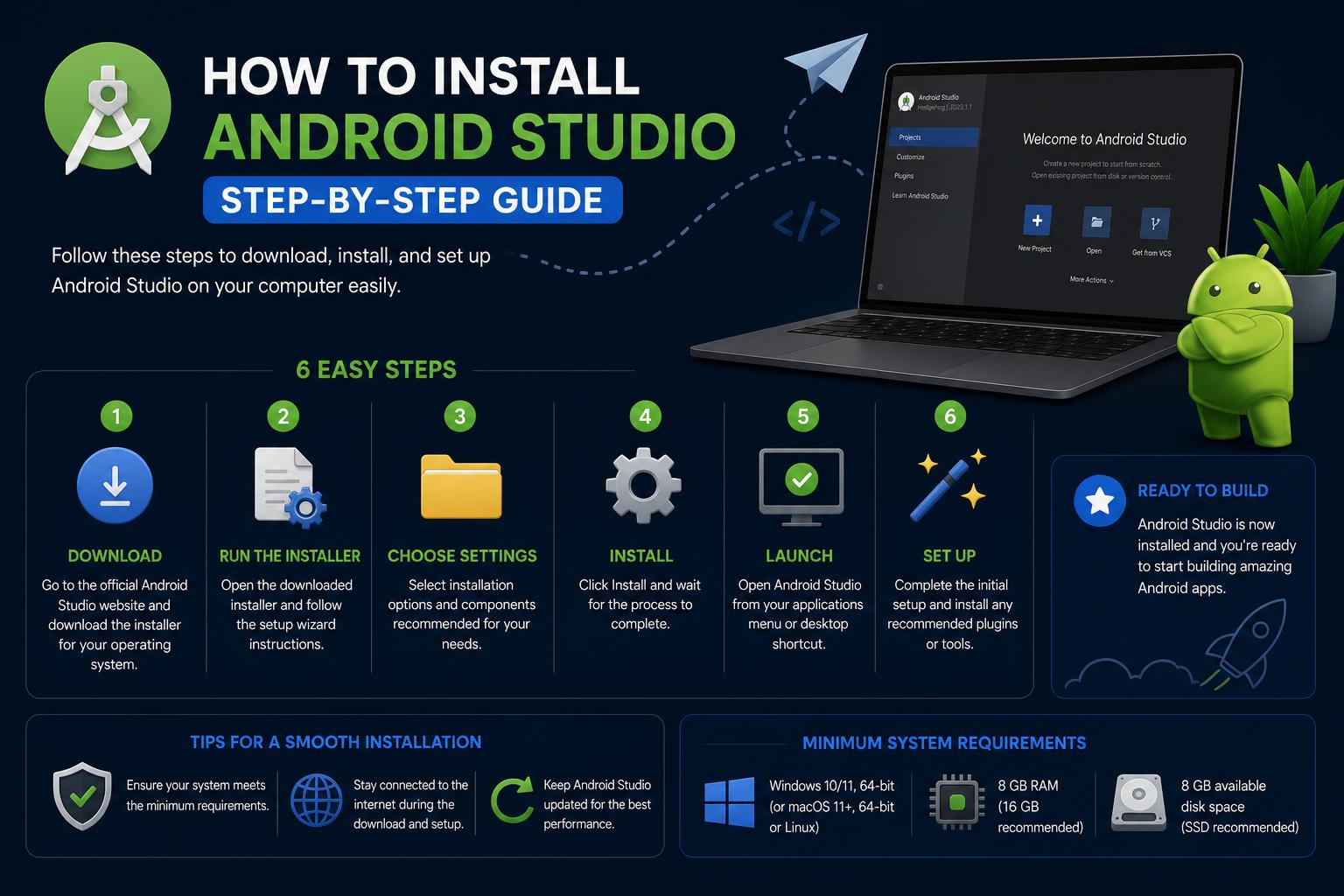
- Clear system requirements ensure smooth installation and performance
- Comprehensive setup walk-through covers every Android Studio installation step
- Highlights essential features and customization options for optimal development
Ready to dive into Android app development but unsure how to get started with Android Studio? You’re in the right place! Whether you’re an absolute beginner or looking to fine-tune your setup for optimal performance, this in-depth guide will walk you through every step of installing and configuring Android Studio on Windows. We’ll clear up common confusions, provide practical tips, and make sure you’re set up for success before you even write your first line of code. So, take a deep breath, grab your favorite drink, and let’s turn your PC into an Android development powerhouse.
If you’ve browsed around for installation guides, you’ve probably encountered a mix of official documentation, forum posts, and scattered tips. In this article, we’re bringing together ALL that useful information, weaving in official requirements, hands-on steps, troubleshooting advice, and a peek at what you can do with your fresh new dev environment. Everything is explained in a friendly, easy-to-follow style, with every paragraph emphasizing what truly matters.
Android Studio: What It Is and Why You’ll Love It
Android Studio is the official Integrated Development Environment (IDE) for Android development. Created by Google and based on JetBrains’ IntelliJ IDEA, it’s purpose-built for Android app creation. Designed to streamline and supercharge your coding experience, Android Studio offers a toolkit loaded with features that make code writing, resource management, testing, and even design far less of a chore than you might expect!
So why do developers flock to Android Studio? Let’s run through a few of its strongest facets:
- Unified environment for developing across all Android devices – phones, tablets, TVs, and more.
- Lighting-fast emulators with gorgeous, realistic UI renderings and responsive controls.
- Apply Changes feature for pushing code and resource updates without having to restart your app in the emulator or on a device.
- Flexible build system powered by Gradle – automate builds, manage dependencies, and customize build variants with ease.
- Built-in integration with GitHub and predefined code templates for rapid prototyping and importing sample projects.
- Powerful debugging, profiling, and automated testing tools baked into the IDE.
- Support for C++, NDK (Native Development Kit), and even Google Cloud Platform integration – think Firebase, Cloud Messaging, and App Engine baked right in.
- No more wrangling with confusing command-line tools – intuitive GUI interfaces make building, running, and debugging apps a breeze.
System Requirements: Can Your PC Handle Android Studio?
Before you start downloading gigabytes of SDKs and plugins, let’s make sure your computer fits the bill. Android Studio is a feature-heavy IDE, so you’ll want hardware solid enough for smooth running. Here are the official minimum and recommended requirements for Windows:
- Operating System: Windows 7, 8, 10, or 11 (both 32-bit and 64-bit supported)
- RAM: Minimum 4 GB, but a comfortable 8 GB or more is highly recommended (the Android Emulator itself loves an extra 1 GB or more)
- Disk Space: At least 2 GB free, but plan for 4 GB or more (Android Studio IDE is around 500 MB, but SDKs and emulator images take up plenty of space)
- Screen Resolution: Minimum 1280 x 800 pixels
Pro tip: If your PC feels sluggish, close background apps before running Android Studio, and consider using the light theme. Try to keep your primary partition (usually C:\) spacious, as the SDK defaults install there. You’ll thank yourself later!
A Step-by-Step Guide to Installing Android Studio on Windows
Okay, you’re ready! Here’s a complete, easy-to-follow walk-through for installing Android Studio on Windows (works on 7, 8, 10, 11). Grab your mouse and let’s go!
Step 1: Download Android Studio
Head over to the official Android Studio download page. (…Avoid third-party download sites!) Click on ‘Download Android Studio’. Usually, the site auto-detects your operating system and suggests the right version, but you can always select Windows manually if needed.
- The download is provided as an executable installer (.exe) or, optionally, a zip file.
- You must accept Google’s SDK License Agreement before you can grab the download. Check the box confirming you agree to the terms.
- Click the big, inviting download button.
In the dialog that pops up, choose ‘Save File’ and wait for the download to finish (it’s a hefty package, so give it a few minutes).
Step 2: Run the Installer
Once your download is done, locate it in your Downloads folder and double-click the installer. If you’re prompted by UAC (User Account Control) about installing software, give it the nod!
The setup wizard will launch and walk you through the following screens:
- Welcome Screen: Click ‘Next’ to get started.
- Choose Components: Usually, the default option is fine (includes Android Studio and the recommended Android Virtual Device (AVD)).
- Select Installation Location: The wizard will suggest a folder. Unless you have strong preferences, stick with the default. If you’re low on disk space on your C:\ drive, pick a roomier partition.
- Start Installation: Click ‘Next’, then ‘Install’. The process will take a few minutes as files unpack and utilities are set up.
- Finish the installer. If offered, choose to ‘Start Android Studio’ after setup completes.
Step 3: First Launch and Initial Configuration
When you run Android Studio for the first time, you might be asked if you want to import previous settings. If you’ve never installed Android Studio before, pick ‘Do not import settings’ for a truly fresh start.
After a short wait, you’ll be greeted by the Android Studio ‘Welcome’ screen.
- Click ‘Next’.
- Select ‘Standard’ installation unless you have advanced needs.
- Pick your preferred IDE theme – ‘IntelliJ Light’ for brightness, or ‘Dracula’ for a dark, eye-friendly look. Choose what feels right; you can always switch later!
- Click ‘Next’.
The wizard may run a quick check for required SDK components. This ensures your environment is up-to-date and compatible. If anything’s missing, it will fetch it automatically.
Step 4: Downloading the Android SDK and Essential Components
Now, Android Studio needs to grab some more pieces: the Android Software Development Kit (SDK) and the necessary platform tools. These are what enable you to build and run actual Android apps.
Select “Finish” and allow the process to continue. Your internet connection speed will determine how swiftly these downloads and installations complete. (This can take 5-10 minutes, so maybe time for a quick stretch!)
Once the downloads are finished, you’ll see the ready screen – congratulations! You are mere moments from coding your first Android app.
Getting Comfortable: Android Studio’s User Interface Overview
With everything installed and configured, let’s take a bird’s-eye tour of what you’ll see inside Android Studio.
- Project View: This is your main navigation area, showing all your project’s folders, files, and resources.
- Code Editor: The heart of Android Studio where you’ll spend the most time typing, refactoring, and navigating your codebase.
- Toolbar & Tool Windows: Access build tools, run configurations, version control, and more. Tool windows make tasks like debugging, managing resources, and accessing logs ultra-efficient.
- Emulator Integration: Run, debug, and interact with your app inside an Android device simulation, directly from the IDE.
The UI is highly customizable – dock, float, or rearrange panels to fit your workflow. Use keyboard shortcuts to maximize productivity (they’re similar to other JetBrains IDEs, so if you’ve used PyCharm or IntelliJ IDEA, you’ll feel right at home).
Creating and Launching Your First Android Project
Let’s get hands-on and create your initial app! From the main Welcome screen, pick ‘Start a new Android Studio project’.
- Choose a Project Template: Android Studio offers a bunch of starting templates – ‘Empty Activity’ is perfect for most beginners.
- Name Your Project: Pick something fun! The default save location is usually good; you can customize it if you want.
- Select the Programming Language: Kotlin is now the preferred language for Android, but you can also choose Java if you’re more comfortable with it.
- Set Minimum SDK Version: This decides which devices can run your app. Keeping the default is safe for learning.
- Click ‘Finish’: Android Studio will generate your basic project structure and start syncing files and dependencies. This may take another minute or two – some downloads may happen in the background.
Once ready, you can run the default “Hello World” app using the green play button! Pick either the built-in emulator (if you set it up) or a real Android device plugged in over USB with Developer Mode enabled.
Key Features and Integrated Tools
Android Studio is more than just a code editor. Its arsenal of features and utilities is what sets it apart from more basic IDEs. Let’s spotlight a few that will quickly become your favorites:
- Apply Changes: See code and resource tweaks reflected in your running app without full recompilation.
- Version Control Integration: Built-in support for Git/GitHub streamlines collaboration and project management.
- Instant Emulator Launch: Test apps on a wide range of virtual hardware, with adjustable specs and pre-set device images.
- Build Variants and Flavors: Seamlessly switch between debug and release builds, or configure multiple flavors (free vs. pro, for example) in the same project.
- Templates and Wizards: Scaffold new activities, fragments, or entire apps with just a few clicks.
Advanced Support: C++ and the NDK
If your apps need superfast logic or you’re working with native libraries, Android Studio offers built-in support for C++ via the NDK (Native Development Kit). This is crucial for game development and performance-heavy applications, making Android Studio a powerful choice for any developer – not just Java/Kotlin coders.
Connecting to Cloud Platforms and Firebase
Out of the box, Android Studio can connect directly to Google Cloud Platform and Firebase – invaluable for adding cloud messaging, authentication, real-time databases, and more to your apps. The integration process is slick, often just a few clicks through the IDE menus to get connected!
Managing SDKs and Virtual Devices (AVDs)
Your journey doesn’t stop at installing Android Studio itself. To target different Android versions and devices, you’ll need to occasionally install new SDK packages and configure Android Virtual Devices:
- SDK Manager: Open from the menu or toolbar to browse, install, or update platform tools, build tools, and system images. Always keep critical tools up to date! Learn more about managing SDKs and tools.
- AVD Manager: Easily add and customize emulated devices (different screen sizes, OS versions, hardware specs) for testing your apps across the Android ecosystem.
Tip: For the best possible performance with emulators, enable hardware virtualization in your system BIOS/UEFI. Windows users can check for ‘Intel VT-x’ or ‘AMD-V’ support.
What is Android Studio? A Complete, Detailed Guide for Android Developers