
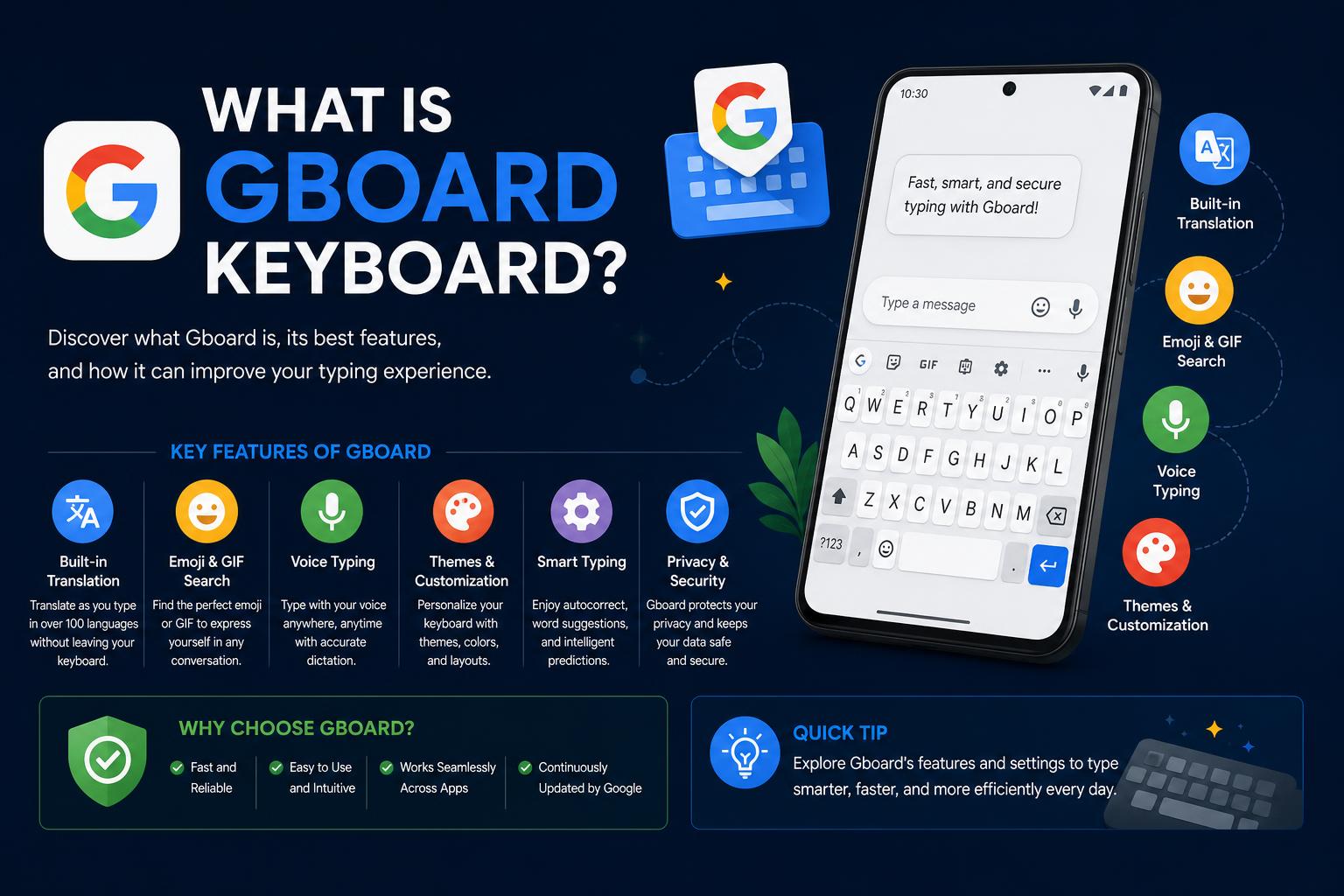
- Gboard is a feature-packed virtual keyboard from Google, supporting hundreds of languages, glide typing, voice input, gesture controls, emoji and GIF search, and in-keyboard translation.
- It’s easy to install on Android and iOS, highly customizable with themes and layouts, and offers dedicated support for wearables and accessibility needs.
- Gboard’s seamless Google integration and frequent updates make it a powerful choice for productivity, multilingual typing, and creative expression.
Have you ever wondered what all the fuss is about with Gboard, Google’s very own keyboard app? Whether you’ve just spotted it on your phone for the first time or you’re puzzled by the icons and settings you see every time you want to type a message, you’re not alone. Gboard is one of the most popular mobile keyboards in the world, but its true capabilities and features are still a mystery to many users. You’re about to discover not just what Gboard is, but exactly why so many people are raving about it—and how it could change the way you type forever.
This guide will take you on a deep dive into everything Gboard offers. From core features and language support to customization tricks and pro tips, we’ll walk through everything you need to know if you’re just getting started, upgrading, or simply want to get the most out of your keyboard experience. You’ll also find resources to set up Gboard, maximize efficiency, and answer all those questions you never thought to ask.
What Exactly Is Gboard?
Gboard is a free virtual keyboard app developed by Google that’s available for both Android and iOS devices. It replaces your phone’s standard keyboard, and once installed, it becomes the main input method for typing text, entering emojis, sending GIFs, voice dictation, and much more. As an official Google product, Gboard integrates seamlessly with the rest of the Google ecosystem and offers a rich set of features aimed at making typing faster, smarter, and more fun.
At its core, Gboard is designed for both speed and reliability, featuring smooth performance even on lower-spec phones. Its interface is user-friendly, highly customizable and jam-packed with thoughtful tools that go far beyond just tapping out letters.
Key Features That Set Gboard Apart
- Glide Typing: With this feature, you can type by just sliding your finger between letters—no need to tap each key. This can make typing one-handed or on the move much faster and less strenuous.
- Voice Typing: On the go and need to get a quick message out? Gboard lets you dictate text with impressive accuracy. Just tap the microphone icon and start speaking.
- Handwriting Input: Prefer to write instead of type? Gboard allows you to write in cursive or print, converting your scribbles into text instantly. (Note: This feature may not be available on Android Go devices.)
- Emoji and GIF Search: Finding the perfect emoji or GIF has never been easier. Start typing how you feel or what you want to express, and Gboard suggests relevant emojis and GIFs right from your keyboard.
- Multilingual Typing: Tired of switching keyboards for each language? Gboard can handle autocorrect, suggestions, and even translation in any of your enabled languages—no manual swapping required.
- Google Translate Integration: Within Gboard, you can instantly translate your text as you type, making conversations across languages feel effortless.
- Wear OS Support: Gboard is available on smartwatches with Wear OS, bringing features like glide typing, voice typing, and emoji input to your wrist.
- Pro Typing Tricks: Gboard comes with advanced touch gestures for moving the cursor, deleting text in bulk, activating a dedicated number row, quick access to symbols, a one-handed mode, and visual theme options.
Supported Languages and Layouts
If you’ve ever been frustrated searching for your language when setting up a keyboard, Gboard will blow you away with its range. It supports hundreds of language varieties and keyboard layouts, including major languages like English, Spanish, French, Hindi, Chinese (Mandarin, Cantonese, and more), Japanese, Russian, Arabic, and regional variants like Afrikaans, Xhosa, Uzbek, Yoruba, and many others. This means whether you write in standard language, a regional dialect, or with unique alphabets or scripts, there’s a pretty good chance Gboard has you covered.
For full details on supported languages and to see if yours is included, check out the official Gboard language support list.
How To Install and Set Up Gboard
Getting started with Gboard is straightforward. You can download it directly from the Google Play Store for Android or the Apple App Store if you’re on iPhone or iPad. Some Android devices already have Gboard as their default keyboard. If so, just make sure it’s up to date to access the latest features.
Here’s a basic setup guide for Android users (steps for iPhone are similar, with slight differences):
- Open any app you can type in—Gmail, Keep, or your favorite messenger.
- Tap on a field to bring up the keyboard.
- At the top left of the keyboard, tap the ‘Open features menu’.
- Head to ‘More Settings’.
- From here, you can choose features like Glide Typing, text correction, voice input, and customize your language preferences.
If your device uses Android Go Edition, note that some features (like handwriting or advanced layouts) may not work.
To add the Google Search button directly to your keyboard for quick access:
- Follow the steps above to reach Gboard’s settings.
- Tap on ‘Search’.
- Toggle on ‘Show “Search and more” button’.
Pro Tips and Hidden Features
- Gesture Cursor Control: Move the cursor left or right by sliding your finger across the space bar. Perfect for edits without fumbling for the precise tap spot.
- Gesture Delete: Slide left from the delete (backspace) key to wipe out multiple words in one go—way faster than holding down delete!
- Number Row: If you enter numbers frequently, you can make the number row always visible by enabling it in Settings -> Preferences -> Number Row.
- Quick Symbol Access: Show hint symbols on your keys for an easy long-press. Set this up in Settings -> Preferences -> Long press for symbols.
- One-Handed Mode: On larger-screen phones, you can pin the keyboard to the left or right, making it more comfortable to reach all keys with one thumb.
- Themes: Tweak the keyboard’s look and feel with various color themes, background photos, and the option to show or hide key borders.
Gboard for Wear OS and Smart Devices
If you use a smartwatch with Wear OS, Gboard isn’t just for phones and tablets—it’s optimized for your wearables too. On Wear OS, Gboard supports all the features you expect: swift glide typing, voice typing, emoji input, and compatibility with all the same languages. Emoji-typing on your wrist has never been so efficient!
Wear OS supports numerous layouts: you can communicate in Chinese, Czech, Danish, Dutch, English, Finnish, French, German, Hindi, Indonesian, Italian, Korean, Norwegian, Polish, Portuguese, Russian, Spanish, Swedish, Thai, Turkish, Vietnamese, and many other languages—right from your watch.
Multilingual and Multiscript Mastery
Gboard’s multilingual support is a big step above most mobile keyboards. You’re not stuck with just one language, and you don’t need to manually switch between them all the time. As you switch between typing in English, Hindi, Japanese, or any other enabled languages, the keyboard automatically applies the right spellcheck, autocorrect, and even predictive suggestions. This is incredibly helpful for bilingual/multilingual households or work environments.
The breadth of script support is impressive, too: Latin, Cyrillic, Devanagari, Arabic, Tamil, Bengali, Japanese (Kana/Kanji), and many more. Plus, transliteration is available for select languages, letting you type phonetically and have Gboard transform it into the correct script—lifesaving for anyone typing in regional languages on a phone that doesn’t have those keyboards installed by default.
Accessibility and Universal Design
Gboard is built with accessibility in mind. Its gestures, handwriting support, voice typing, and customizable appearance make it accessible for many with different needs. High-contrast themes, one-handed and adjustable keyboard sizes, and even support for screen readers help make Gboard usable for everyone.
Comparing Gboard With Other Popular Keyboards
There are plenty of other keyboards, like SwiftKey, Samsung Keyboard, and Apple’s own keyboard for iOS. But Gboard holds its own thanks to the sheer number of features packed into a single app, seamless updates from Google, tight integration with Google Search, and a focus on privacy. Unlike some third-party keyboards, all your searches and dictations go straight through Google, and there’s transparency about what data is (and isn’t) collected.
Extra Productivity Boosters
Some users don’t realize what a difference these small quality-of-life improvements make. Here’s more you should try:
- Clipboard Management: Gboard has a built-in clipboard. Copy text and you can access your clipboard history for easy pasting.
- Emoji Kitchen: Create custom stickers by combining different emojis—available in certain apps and devices.
- One-Tap Google Search: Search for information, news, images, or locations directly from your keyboard and paste results instantly.
- In-Keyboard Google Translate: Automatically translate messages as you type—they’ll see your text in their language, you see your input in yours.
Customization and Personalization
Not a fan of the default look? Gboard is extremely customizable. You can change the keyboard background, add or remove key borders, use dark mode, or apply your own photo as the background for a personal touch. This level of customization is rare for default keyboards provided by hardware brands.
Troubleshooting and Updates
If something isn’t working (for example, you can’t enable handwriting on an older device), first check if your device is running the latest OS version and if Gboard is up-to-date. Periodic updates often bring bug fixes and new features, so make sure auto-update is enabled or manually check for new releases in your app store.
Where to Find More Information
Want the official word straight from Google? Visit Gboard’s official support page for setup instructions, language compatibility information, and troubleshooting tips. For language lists and all supported features by device, check the Google help and community pages regularly—they’re always adding support for new scripts and features.
When Reddit threads and app store listings dominate the search results but detailed, up-to-date guides do not, it’s easy to get overwhelmed by fragmented advice. Gboard stands out because it puts enormous power and flexibility into a keyboard you’re probably already using—and upgrading your user experience only takes a couple of taps. With features like glide typing, universal language support, text prediction, voice dictation, and high accessibility, switching to Gboard can be a game-changer for productivity, creative expression, and staying connected across continents and cultures.