
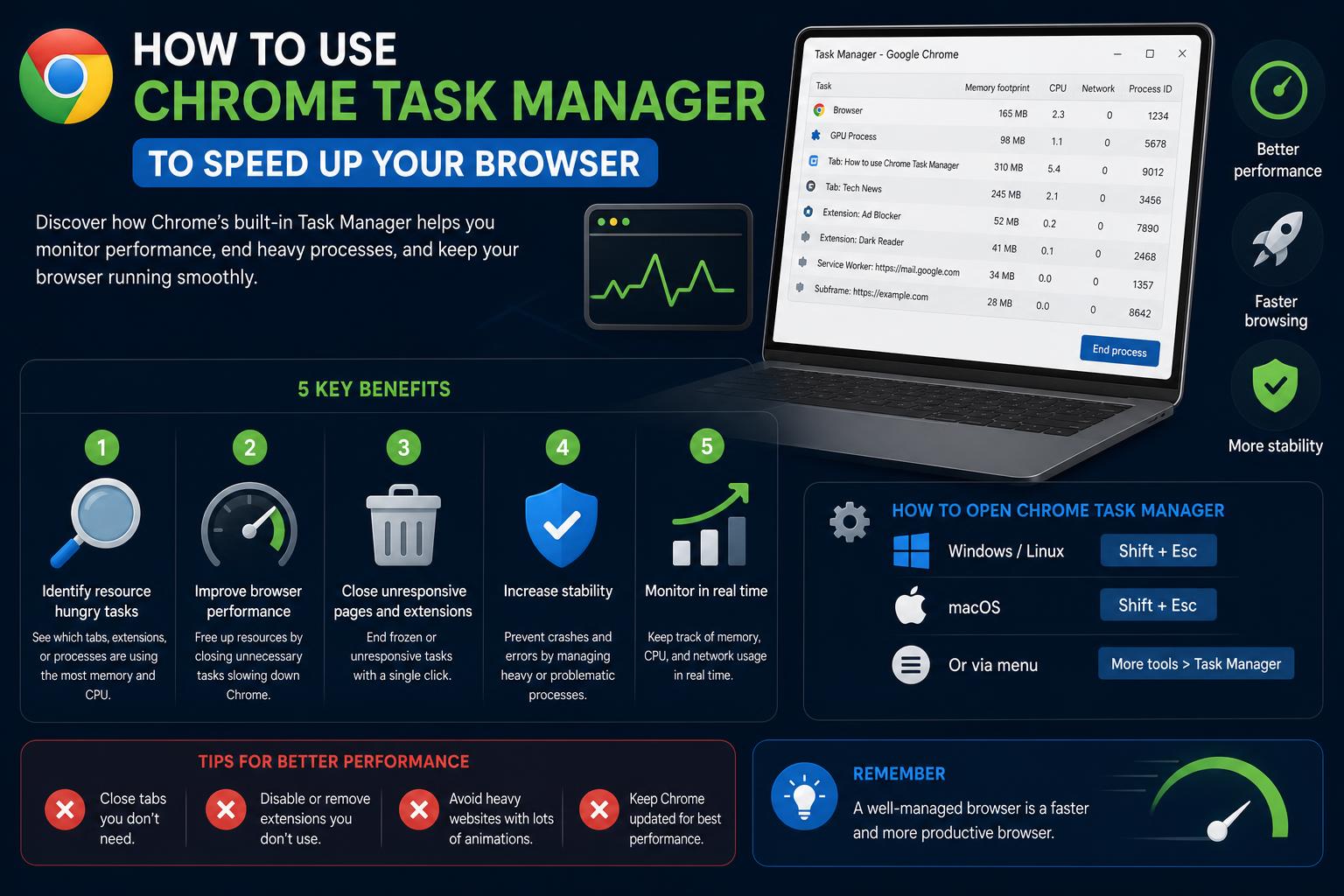
- Discover Chrome Task Manager's ability to diagnose slow performance and high resource usage
- Learn step-by-step methods to launch and use this tool across Windows, macOS, and Chrome OS
- Get practical strategies to identify and handle memory-hungry tabs, extensions, and plugins
If you’ve ever experienced sluggish performance while using Google Chrome, or noticed your laptop’s battery draining faster than usual, you’re not alone. Many Chrome users run into these issues, and it can sometimes feel like a mystery trying to pinpoint exactly which tab, extension, or process is the culprit. Fortunately, Chrome includes a built-in tool designed precisely for this purpose—the Chrome Task Manager.
The Chrome Task Manager is your go-to solution for monitoring the activities inside your browser. It provides up-to-the-moment details about memory, CPU, and network usage for every open tab and extension, making it easy to spot and eliminate those resource hogs. In this guide, we’ll dig deep into how to use the Chrome Task Manager, what insights it offers, and how you can leverage it to improve both performance and battery life.
What is Chrome Task Manager?
The Chrome Task Manager is a specialized utility within Google Chrome that allows you to see how much processing power and memory each tab, extension, and browser process is using in real time. Unlike your computer’s operating system task manager (like Windows Task Manager or macOS Activity Monitor), this tool zooms in specifically on activities within Chrome itself. Learn more about Chrome here.
It displays critical metrics such as:
- CPU usage
- Memory footprint
- Network use
- Process ID (PID)
Armed with these insights, users can quickly identify which web pages, tabs, or add-ons are causing slow-downs and can even terminate (kill) the offending processes without having to restart the entire browser.
Why Should You Use the Chrome Task Manager?
Modern browsing isn’t just about opening pages—many of us juggle dozens of tabs, running several extensions and web applications at once.
This complexity can sometimes become overwhelming for your computer’s limited resources, especially memory (RAM) and CPU. Some common situations where the Chrome Task Manager becomes essential include:
- Browser slowdowns and unresponsiveness: If Chrome feels laggy or certain tabs keep freezing, the Task Manager helps you zero in on the issue fast.
- Unexpected battery drain: On laptops, battery-intensive tabs or extensions can cut your workday short, and the Task Manager quickly shows which are the biggest offenders.
- Extensions running amok: Sometimes, a single overlooked extension or add-on can spiral out of control, guzzling resources. The Task Manager puts the spotlight on these background processes.
- Network-heavy tabs: When your connection seems to slow down, the Task Manager’s network usage stats can reveal which sites or services are hogging bandwidth.
It’s also a solid troubleshooting tool for IT support teams and advanced users, allowing for focused problem solving instead of blind tab-closing or browser resets.
How to Open the Chrome Task Manager
Accessing Chrome Task Manager is simple and works across all desktop platforms, including Windows, macOS, and Chrome OS. Here are several ways to open it:
- Via Chrome’s menu:
- Open Chrome.
- Click the three-dot menu icon in the upper-right corner.
- Hover over More tools.
- Select Task manager.
- With keyboard shortcuts:
- Windows/macOS: Press Shift + Esc.
- Chrome OS: Use Search + Esc.
Tip: Keyboard shortcuts are especially handy when your browser becomes sluggish and navigating menus takes longer than usual.
The Chrome Task Manager Interface Explained
Once you open the Task Manager, a window pops up listing every active Chrome process. This includes:
- Every tab you have open
- Extensions you’ve installed
- Plugins currently active
- Background processes
Here’s what you’ll see in each column:
- Task: The name of the tab, extension, or process
- Memory footprint: Amount of memory (RAM) currently used
- CPU: Percent of processor being utilized
- Network: Active network bandwidth used
- Process ID: System identifier for the process (useful for advanced troubleshooting)
Additional columns can be revealed by right-clicking the header row. This gives access to even deeper info, such as image cache usage, JavaScript memory, or priority levels.
How to Use Chrome Task Manager to Troubleshoot Performance Issues
Diagnosing performance bottlenecks is where Chrome Task Manager truly shines.
- Open the Task Manager as described above.
- Spot high resource usage: Look for processes consuming excessive CPU, memory, or network. These usually show up at the top, but you can click any column header to sort.
- End problematic processes: Select a task, then click the End process button in the bottom right. The tab or extension will immediately close, freeing up resources.
Heads up: Closing a process will shut down the related tab or extension, so save any unsaved work before proceeding.
Advanced Usage: Managing Tabs, Extensions, and Plugins
Monitoring Extensions
Every Chrome extension runs as a distinct process, visible in the Task Manager window. Even if you don’t realize it, some extensions can use surprising amounts of memory, especially if you’ve accumulated many over time. It’s common for long-term Chrome users to have a dozen or more active, many of which go unused.
Take stock: If you notice extensions using significant resources, consider disabling or removing those you rarely use. To uninstall or toggle an extension, visit chrome://extensions/.
Identifying Heavy Tabs
Certain websites—especially those heavy on multimedia, ads, or scripts—can dominate your browser’s memory and CPU. The Task Manager makes it easy to see which tabs are consuming the most resources. Try closing tabs you don’t need, or use Chrome’s built-in “Tab Groups” and “Tab Snooze” extensions to keep things tidy without sacrificing productivity.
Plugins and Background Processes
Some websites load plugins (like PDF viewers) or spawn background processes that stick around even after you close the tab. The Task Manager lists these, so keep an eye out and close anything that’s unnecessarily persistent.
Key Tips to Optimize Chrome Performance Using Task Manager Insights
- Be proactive: Regularly check your extensions and remove what you don’t use. Unused extensions eat away at system resources in the background.
- Watch for memory hogs: If RAM usage stays high despite minimal browsing, use Task Manager to pinpoint the culprit and close or disable memory-heavy tasks.
- Manage tab sprawl: More tabs equals more memory usage. Try to limit the number you keep open simultaneously.
- Update Chrome and all extensions: Outdated software can be buggy or insecure. Checking for the latest updates can resolve resource leaks.
What to Do When Chrome Task Manager Can’t Solve the Problem
Sometimes you’ll find that despite all your best efforts, Chrome is still eating up system resources. In these instances, consider the following:
- Reset Chrome settings: Corrupted settings can sometimes cause issues—use the “Reset” function found under Chrome’s settings menu.
- Create a new Chrome profile: User profiles can get bloated over time with history, cookies, and cache.
- Scan for malware or adware: Occasionally, unwanted software masquerading as a legitimate extension can wreak havoc. Use the built-in Chrome Cleanup Tool on Windows or your favorite security scanner elsewhere.
Other Utilities: Chrome System Tools Beyond Task Manager
The Chrome Task Manager isn’t the only performance tool at your disposal. For especially stubborn issues, complement your troubleshooting with:
- System Task Manager (Windows/macOS): Use your OS-level task manager to spot system-wide problems (e.g., Chrome using excessive total memory compared to all other running apps).
- Chrome Performance Logs: Developers may open Chrome’s DevTools (right-click and choose Inspect, then select the “Performance” tab) for in-depth analysis, like JavaScript bottlenecks and slow page loads.
Frequently Asked Questions About Chrome Task Manager
Does the Chrome Task Manager show all activity within the browser?
It gives you visibility into most, but not all, processes—extensions, tabs, plugins, and certain background workers. Some low-level activities or experimental features may not appear, but nearly everything impacting performance will be listed.
Will ending a process in Task Manager cause data loss?
When you kill a tab or extension, you’ll lose unsaved work in that specific process. Always check that your data is saved, especially with online forms or productivity apps, before hitting “End process.”
How is Chrome’s Task Manager different from my computer’s Task Manager?
While your operating system’s Task Manager gives you a macro view of all running programs, Chrome’s version focuses solely on what’s happening inside the browser. This helps you sort out browser-specific issues without having to dig through unrelated system processes.
Latest Changes and Future Directions
Chrome is constantly evolving, and so is its Task Manager. Every few versions, Google tweaks what you can see or manage inside this tool. For the most up-to-date details, you can follow Chrome’s release notes on their official Chrome Releases Blog.
Recently, more emphasis has been placed on surfacing details about energy usage and tab performance, further helping users identify what’s draining their battery or killing productivity.
To take it further, advanced users and enterprises can explore third-party solutions in the Chrome Web Store, like dedicated Task Manager extensions, to add enhanced analytics or alerts. However, for most users, the built-in Task Manager remains more than enough for everyday troubleshooting.
Getting the most out of Google Chrome means not only knowing how to browse, but how to manage what’s happening behind the scenes. With a few clicks—or a quick keyboard shortcut—you can diagnose, resolve, and prevent the frustrating slowdowns or crashes that can derail your productivity. The Chrome Task Manager is an invaluable companion, whether you’re a casual user trying to squeeze more battery out of your laptop or an IT pro supporting a team of remote workers. By understanding which processes matter, and acting smartly on those insights, your Chrome experience will stay smooth, efficient, and headache-free.