
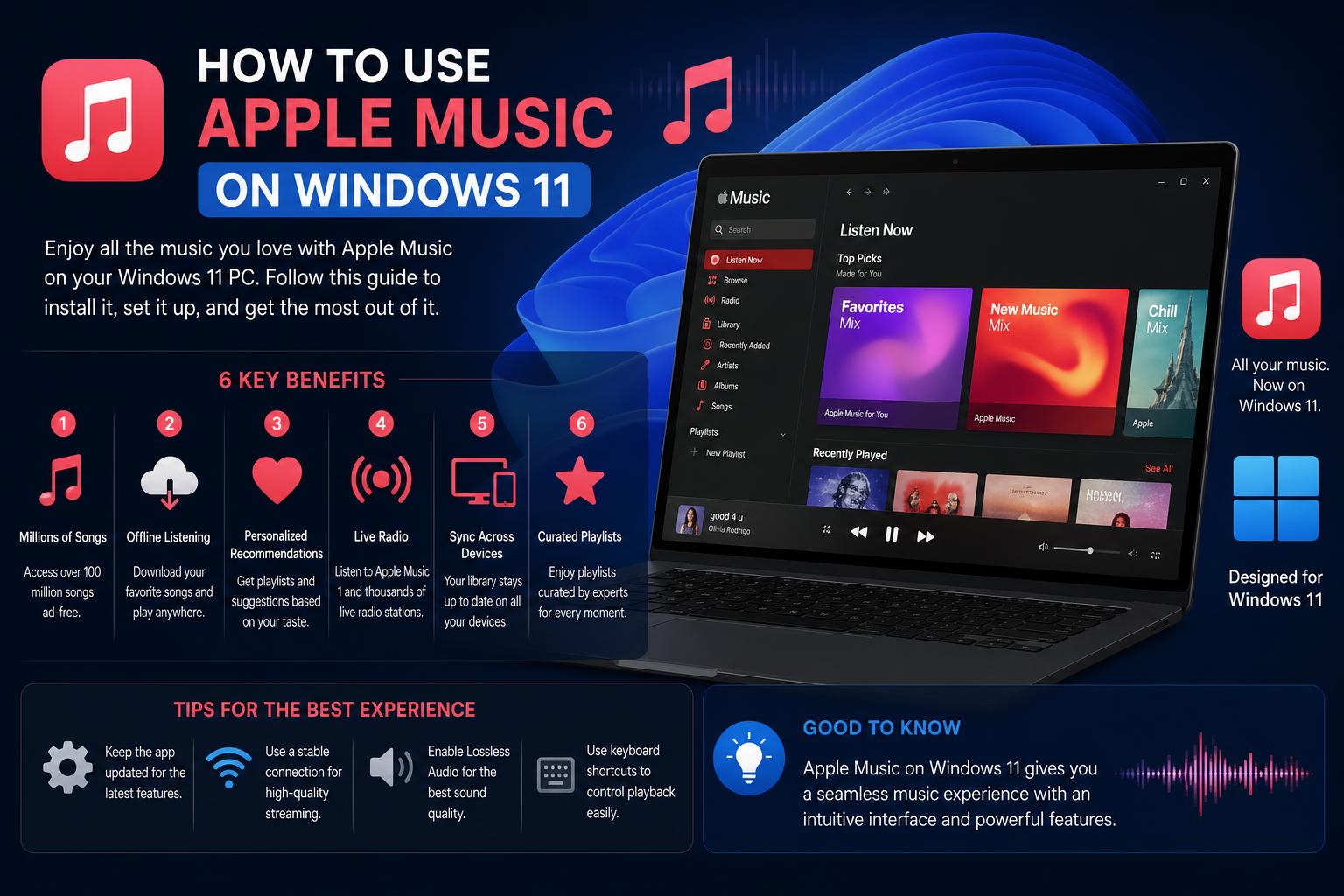
- The Apple Music app for Windows 11 is officially available via the Microsoft Store, bringing the complete experience to PC users.
- Installation is straightforward, with dedicated apps for Apple Music, Apple TV, and Apple Devices for efficient performance and easy updates.
- Key features include full access to music libraries, playlists, Apple Music Radio, and offline listening, closing the gap with Apple device experiences.
If you’re using Windows 11 and want to get in on the Apple Music experience, the good news is that Apple has finally made this a reality. Gone are the days when you had to rely only on iTunes or complicated workarounds just to enjoy your favorite tracks, curated playlists, or exclusive radio shows from Apple Music. Now, Windows 11 users have full access to dedicated apps designed for music, TV, and seamless device management.
Setting up Apple Music on Windows 11 is straightforward, but you may still have questions about its compatibility, installation, features, or how it compares to what Mac users have. This comprehensive guide will not only walk you through every important detail you need to know, but also fill in the blanks left by short or official documentation, giving you the confidence to start listening right away on your PC.
Apple Music Comes to Windows 11: What Has Changed?
For years, Windows users who wanted to access Apple Music had to make do with the aging iTunes application. While functional, it didn’t provide the full, modern Apple Music experience seen on Apple devices. Recently, Apple has responded to growing user demand by launching dedicated Windows applications for Apple Music, Apple TV, and Apple Devices administration. These apps are available directly from the Microsoft Store, making installation and updates much simpler.
Where to Download Apple Music for Windows 11
You’ll find the official Apple Music app for Windows 11 on the Microsoft Store. It’s important to download ONLY from official sources to avoid malware or security issues. Here’s how:
- Open the Microsoft Store app on your Windows 11 PC.
- Search for “Apple Music” (or click here for the official Microsoft Store page).
- Click “Get” to download and install.
This is a free download, but you’ll need an Apple Music subscription to listen to most content beyond radio previews and samples.
Other Essential Apple Apps for Windows 11
Alongside Apple Music, Apple now offers two other key applications for Windows 11 users:
- The Apple TV app—for streaming TV shows, movies, and original content from Apple TV+.
- The Apple Devices app—for managing your iPhone, iPad, or iPod through your Windows computer, including backups and software updates.
All of these are available on the Microsoft Store. Having separate, dedicated apps means you don’t have to wrestle with the now legacy iTunes program for tasks Apple has moved to these new tools.
Installation and Setup Walkthrough
Setting up Apple Music—and its companion apps—is designed to be straightforward. Here’s a step-by-step to ensure a smooth process:
- Check Windows 11 Compatibility: Make sure your PC is running Windows 11. The new Apple Music app is not supported on Windows 10 or earlier.
- Update Your System: Make sure Windows is up to date to avoid compatibility hiccups with the latest app versions from the Microsoft Store.
- Install via Microsoft Store: Search for and install Apple Music. The process is quick, and you’ll get automatic updates for security and performance improvements.
- Log in with Your Apple ID: Once installed, open the app and sign in with your Apple ID—the same one you use on your Apple devices or previous iTunes library.
- Start Listening: After logging in, you can stream songs, play curated playlists, follow artists, and sync your existing library and preferences in seconds.
What Features Are Included in Apple Music on Windows 11?
The dedicated Apple Music app brings many of the features that Mac and mobile users have come to love. Here’s what you’ll find:
- Full access to your Apple Music library: Including playlists, recently played songs, and any content you’ve added or purchased.
- Integration with your Apple account: Syncing is seamless for music, playlists, likes, and listening history.
- Curated and user-created playlists: Explore all playlists—both those created by experts and your own saved configurations.
- Apple Music Radio: Listen to live global radio stations (such as Apple Music 1) and exclusive artist radio shows.
- Music recommendations: Get personalized recommendations and charts just like you would on iOS or macOS.
- Offline listening: Download songs and albums to your device if your subscription allows.
Note: Legacy features tied to iTunes (like podcasts or audiobooks) are now managed in different ways; podcasts and audiobooks require third-party apps or separate management for now.
Upgrading from iTunes or Previous Versions
Many Windows users wonder what happens to old iTunes libraries when installing these new apps. Here’s the scoop:
- Your music collection and playlists are imported automatically when you first sign in with your Apple ID in the new app.
- Purchases from the iTunes Store are also accessible, so your favorite albums and singles remain at your fingertips.
- The Apple Devices app allows you to continue managing iPhone or iPad backups if you need local copies.
If you still depend on features exclusive to iTunes (like podcasts or ringtones), you might want to keep iTunes installed alongside the new apps for now, but most users will prefer the improved Apple Music experience.
Can You Use Apple Music Offline on Windows 11?
Yes, as long as you’re an Apple Music subscriber, you can download music to your Windows 11 device for offline listening. Simply find your favorite album or playlist, and choose the download option within the Apple Music app. These tracks then appear in your library and can be played without an internet connection—perfect for flights, commutes, or data-saving plans.
How to Keep Apple Music and Other Apps Updated
Apple has streamlined updates for its new PC applications. Updates for Apple Music, Apple TV, and Apple Devices all happen through the Microsoft Store, removing the hassle of manual downloads or software conflicts.
- Open the Microsoft Store app.
- Go to “Library” from the left side menu.
- Click “Get updates” and the latest versions of the Apple apps installed on your device will be downloaded and applied automatically.
This ensures you always have the most secure and feature-rich version of each app with minimal effort.
What About Podcasts and Audiobooks?
With Apple shifting to dedicated music and TV apps for Windows 11, podcasts and audiobooks are NOT supported directly within Apple Music or the Apple TV app. Here’s what you can do:
- For podcasts, use third-party Windows apps like Spotify, Pocket Casts, or others to subscribe and manage your podcast library.
- Audiobook listening and management are also handled by third-party apps, and books purchased through Apple Books are best accessed on Apple devices.
Apple may integrate these features in future updates, but for now, users should plan accordingly.
Apple Music vs. iTunes: Better Experience on Windows 11
Long-time users will notice that Apple Music for Windows 11 is faster, easier to navigate, and much better designed compared to iTunes. The interface is consistent with modern Apple applications, making it familiar if you’ve used Apple Music on your phone or Mac. New features arrive more quickly and the focus is entirely on your music without distractions from video, device management, or other legacy features now handled by their respective new apps.
Security and Privacy on Apple Music for Windows 11
Using official downloads ensures a secure experience—avoid third-party download sites at all costs. Apple’s new PC apps are designed to keep your data and credentials safe, using regular security patches distributed through the Microsoft Store. Always enable two-factor authentication on your Apple ID for added protection.
Troubleshooting and FAQs
Sometimes issues happen, but most are easy to fix:
- App not opening or crashing? Try updating Windows, checking for app updates, or reinstalling from the Microsoft Store.
- Music library missing? Make sure you’re signed into the correct Apple ID, and give the app a few minutes to sync your data for the first time.
- Problems with device management? Use the Apple Devices app for tasks like backups or restores rather than seeking these features in Apple Music.
- Trouble logging in? Double-check your Apple ID and password, or reset your credentials via Apple Support.
If you experience issues, most have a simple solution: update Windows, check for app updates, or reinstall them from the Microsoft Store. Make sure you are signed in with the correct Apple ID and wait a few minutes while your library syncs. To manage devices, use the “Apple Devices” app. If you have trouble signing in, check your credentials or reset your password through Apple Support.
Engaging with Community Resources
If you hit a snag that official Apple Support articles don’t solve, turning to online forums can offer additional advice and community support. While places like Reddit can be valuable for tips and troubleshooting, always be cautious of unofficial advice or third-party download links.
Key Differences: Mac vs. Windows Experience
Most of the core Apple Music features are now on Windows 11, but a few differences remain:
- Better integration on Mac, especially with the operating system and Siri.
- Some advanced features still arrive on Mac or iOS first and may be rolled out later on Windows.
- No direct management of podcasts/audiobooks in the Windows Apple Music app for now.
Overall, the gap is closing fast, and Apple Music on Windows 11 should meet most needs.
Tips to Get the Most Out of Apple Music on Windows 11
- Explore curated playlists: Let Apple Music introduce you to new genres, moods, or artists with expertly crafted playlists updated regularly.
- Follow favorite artists: Receive updates when they release new music, and listen to their radio stations or exclusive releases.
- Create collaborative playlists: Share lists with friends and build group soundtracks for events, work, or study sessions.
- Try lossless and Dolby Atmos options: If your PC and audio setup support it, Apple Music offers high-resolution and spatial audio for an immersive experience.
Recent updates muestran que Apple está comprometido en crear una experiencia de escucha fluida en PC. Con actualizaciones regulares, aplicaciones dedicadas y una interfaz familiar, los usuarios de Windows 11 ahora pueden disfrutar de una plataforma robusta de Apple Music que iguala lo que ofrecen en dispositivos Apple.