
- Windows 11 comes packed with lesser-known tools that can revolutionize multitasking and productivity.
- Features like Clipboard History, Snap Layouts, and Focus Sessions are built-in and free — no third-party apps required.
- Mastering hidden gestures, storage automation, and dynamic display settings can supercharge your workflow and device performance.
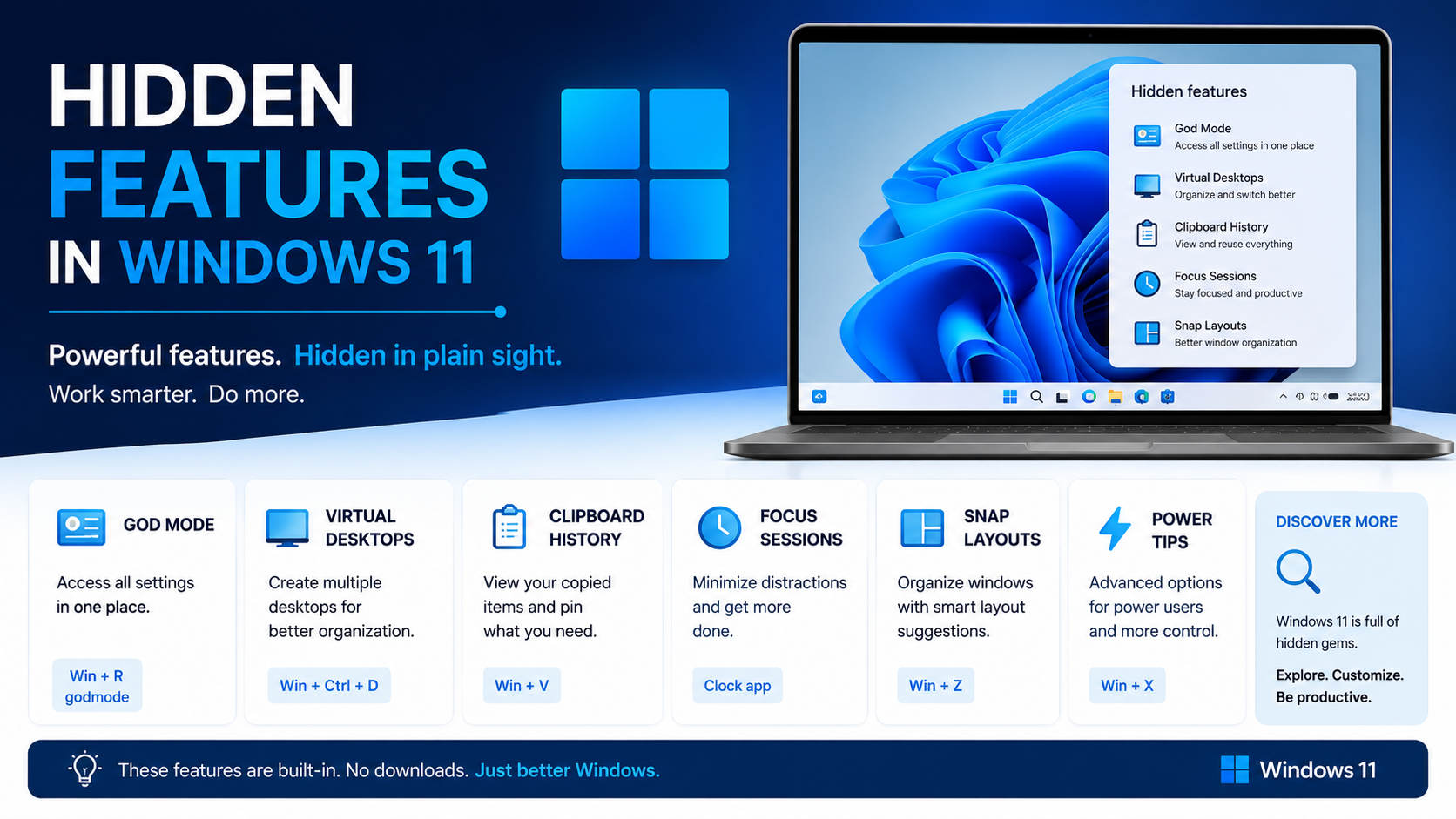
Windows 11, Microsoft’s latest desktop operating system, is celebrated for its refreshed look and improved productivity features. Yet beyond the Start menu redesign and the eye-catching widgets, there’s an entire world of hidden functionalities waiting to be discovered. These features are often buried deep within settings or accessible only through certain shortcuts, so most users miss out on them completely — but if you know where to look, you can truly level up your computer experience.
Whether you’re a longtime Windows aficionado or making the jump from an older version, exploring these secret tools and productivity hacks can help you multitask like a pro, safeguard your data, and personalize your desktop with incredible precision. This article is your all-in-one resource for uncovering hidden gems, expert tips, and clever tricks built right into Windows 11, all of which you can access without the need for third-party software. Let’s unlock what your PC can really do.
Clipboard History: Never Lose What You Copied
Remember the frustration of copying new content only to realize the previous text was overwritten? With Clipboard History, that struggle is finally over. Windows 11 users can enable this clever feature via Settings → System → Clipboard and toggling on Clipboard history. Once activated, simply press Windows + V (instead of Ctrl + V) to summon a pop-up showing your last 25 copied items, whether plain text or images.
This tool is a productivity lifesaver if you regularly work with multiple pieces of information. You can pin items for easy re-use or clear your clipboard history at any time. For those who own multiple devices running Windows, turning on the option to sync clipboard history across gadgets means you can copy text on your laptop and paste it instantly onto your tablet or another PC, making seamless sharing a reality. If you prefer more control, switch to “Manually sync text I copy” so nothing is shared unless you give explicit permission through the three-dots menu.
How to Integrate n8n and WhatsApp Business Cloud: Complete Guide, Features, and Best Practices
Snap Layouts & Virtual Desktops: Master Window Management
Snap Layouts for Effortless Multitasking
If you often have several windows scattered across your desktop, Snap Layouts is one of Windows 11’s biggest time-savers. Hover your mouse over the maximize button in any open window, and a grid of possible layouts appears — from side-by-side, vertical thirds, to four-corner splits.
Choose the arrangement that fits your workflow, and Windows auto-sizes your apps in a snap. This feature is especially useful on ultrawide screens or multi-monitor setups, turning chaotic window juggling into a tidy, customized workspace. Want to swap a window’s position? Just drag and drop — or hover for instant layout suggestions. Smooth productivity is at your fingertips.
Virtual Desktops for Focused Workspaces
Feeling overwhelmed by open windows for work, home, and hobbies? Virtual Desktops let you organize separate taskspaces for each activity, acting as digital “desks” to switch between easily. Using Windows + Tab opens Task View, where you click “New Desktop” at the top. Naming or customizing each desktop (for example, “Work”, “Personal”, “Projects”) helps keep everything organized.
To switch between desktops quickly, press Ctrl + Windows + Left or Right Arrow. This setup allows you to toggle between focused environments in a flash, reducing distractions and enhancing your workflow. It’s highly favored by multitaskers and remote workers alike.
Touchpad Gestures: Powerful Shortcuts Without a Mouse
Using a laptop or convertible device? Windows 11 offers advanced three- and four-finger gestures on precision touchpads, perfect when desk space is limited or your mouse is out of reach. Enable these gestures through Settings → Bluetooth & devices → Touchpad to unlock hidden shortcuts:
- Three-finger swipe: Move left or right to switch between open apps. Swipe up to reveal Task View; swipe down to minimize all windows and show the desktop.
- Four-finger swipe: Switch between virtual desktops by swiping left or right.
Windows 11 visually demonstrates each gesture in the settings panel, allowing you to practice before actual use. If your touchpad is temporarily disabled, these options might appear grayed out; check for a hardware toggle or hotkey. Mastering these shortcuts can significantly boost multitasking.
Storage Sense: Automatic Disk Cleanup
Worried that your growing downloads and project files will slow down your PC? Storage Sense provides a low-maintenance cleanup solution. Enabled via Settings → System → Storage → Storage Sense, this feature automates the removal of unnecessary files — including items from the recycle bin and downloads folder after a period you set (from “Never” to “60 days”).
You can also trigger a manual cleanup at any time, especially after large downloads. While Storage Sense mainly tidies the primary drive (usually C:), other drives require manual management. This feature helps maintain system performance effortlessly.
Focus Sessions: Distraction-Free Productivity
In a world full of notifications, concentrating can be tough. Windows 11’s Focus Sessions, accessible through the Clock app, offers a simple, effective solution. Set a timer for your task, and the system minimizes interruptions to help you stay focused. It acts as your digital “Do Not Disturb” mode for deep work or study sessions.
This feature also includes music integration and progress tracking, which can foster better work habits over time. Once you experience it, you’ll appreciate its usefulness during busy days filled with meetings, emails, and creative work.
Xbox Game Bar: Screen Recording for Everyone
Although marketed as a gaming tool, the Xbox Game Bar works as a powerful screen recorder for all users. Press Windows + G to open the overlay, then click the record button or press Windows + Alt + R to capture your current window. Perfect for creating tutorials, saving video call snippets, or capturing error messages for support.
This built-in feature offers a more convenient alternative to third-party recording tools and provides quick access to performance stats, audio controls, and widgets — making it a valuable productivity enhancer beyond gaming.
Dynamic Refresh Rate: Smoother Visuals, Longer Battery
If you have a modern laptop with a high refresh rate display, Windows 11 introduces Dynamic Refresh Rate, which adaptively adjusts the screen’s refresh frequency based on your activity. Reading or emailing reduces the refresh rate to save battery, while scrolling or gaming increases it for responsiveness.
Find this setting under Settings → System → Display → Advanced display. Compatibility depends on your hardware, so verify your device supports this feature to optimize performance and extend battery life.
Emoji and Symbol Picker: Quick Access to Fun and Function
If searching for Emojis or special characters has been tedious, Windows 11’s Emoji and Symbol Picker makes it effortless. Use Windows + . (period) to bring up a pop-up with emojis, GIFs, punctuation, widgets, and math symbols. Insert special characters seamlessly into your documents or chats with this handy tool.
More Hidden Gems and Pro Tips
- Clipboard Across Devices: Sync your clipboard between devices by enabling this feature, simplifying the transfer of text and images across your Windows-powered gadgets.
- Manual & Automatic File Syncing: Control when data is shared by choosing manual sync options, enhancing privacy and security.
- Gesture Customization: Further tailor touchpad gestures to launch specific applications, switch desktops, or invoke Cortana, optimizing your workflow.
- Scheduled Storage Sense: Automate disk cleanup by setting Storage Sense to run at regular intervals or when disk space is low, maintaining system health without hassle.
Power Features in Windows 11 You Might Overlook
Several advanced features are well integrated or subtly introduced, often missed by users:
- Enhanced Security Settings: Access robust security controls like device encryption and Windows Hello via Security tools.
- Direct Integration with Microsoft Teams: The taskbar “Chat” icon connects you instantly to Teams for messaging and meetings, streamlining collaboration.
- Auto-HDR and Game Mode: These features improve visual quality and performance, benefiting both gamers and regular users seeking smoother graphics.
- Tablet Mode Enhancements: On 2-in-1 devices, switching to tablet mode automatically adjusts icons, touch targets, and gestures to improve usability.
Community Insights and Trending Features
Browsing forums and Reddit reveals additional tips shared by enthusiasts. Some popular suggestions include:
- Hidden Power Settings: Access advanced performance and energy options through “Additional power settings” in Control Panel to maximize battery or performance.
- Optional Features & Components: Use “Turn Windows features on or off” to enable items like Hyper-V or Windows Subsystem for Linux for specialized needs.
- Desktop Personalization Shortcuts: Master context menus and the Win + I shortcut to quickly access personalization and system settings.