
- eMule combines decentralized and server-driven file sharing for reliability
- Proper network configuration unlocks the best download speeds
- The open-source community offers active support and troubleshooting
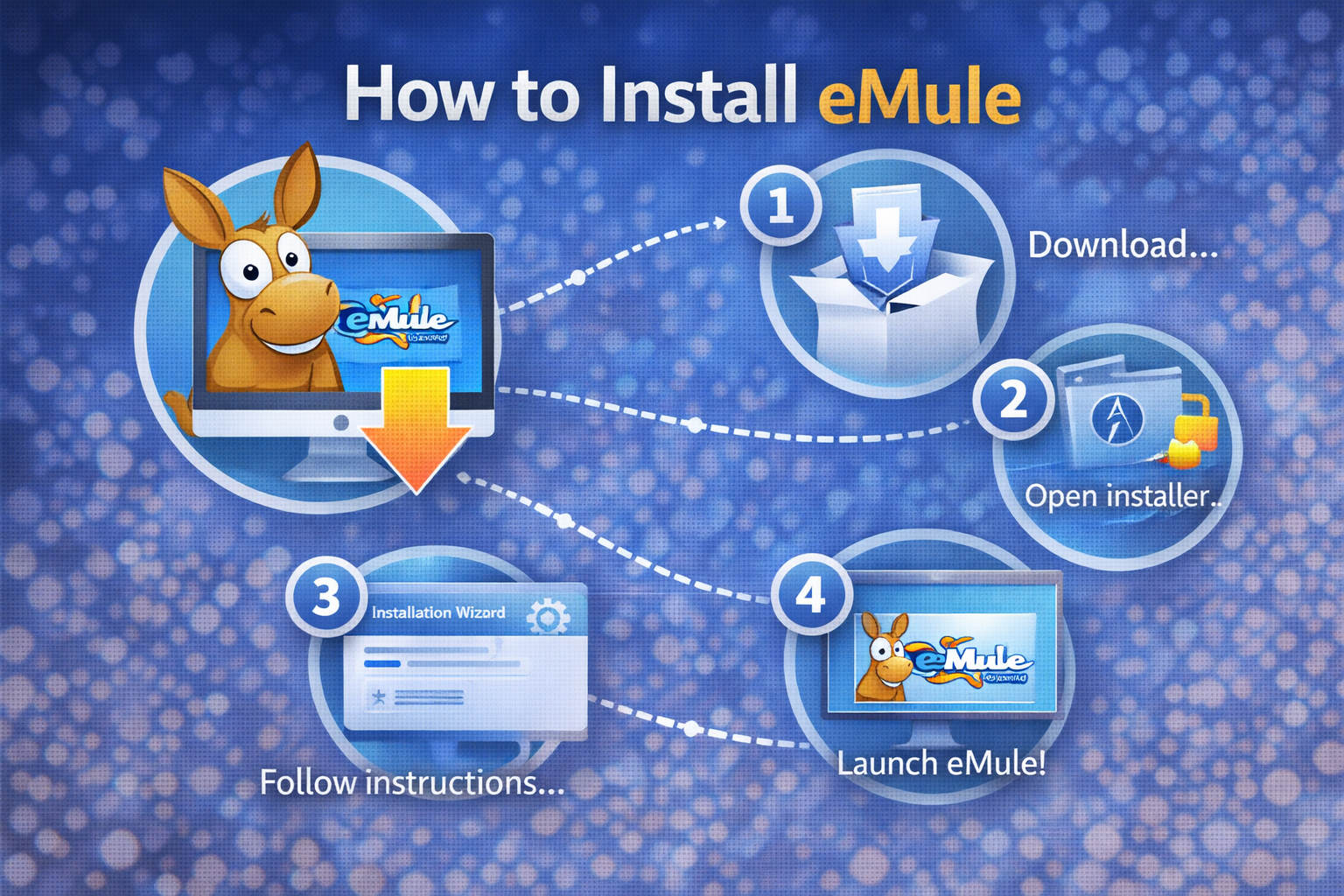
eMule is one of those legendary programs that keeps popping up whenever people talk about peer-to-peer file sharing or nostalgia for the early 2000s internet. Far from becoming obsolete, eMule still offers a robust community and features that make it a great option for anyone looking to share or download files in a decentralized way.
But how do you actually install eMule today? If you’ve ever scratched your head looking for the right guide, you’ve probably noticed there’s a real shortage of fresh, detailed, and friendly resources in English. You’ll find scattered answers on forums, the official site’s sparse documentation, and a handful of aging YouTube tutorials. This comprehensive guide cuts through the confusion and walks you through everything you need to get started, configure, and use eMule like a pro—even if you aren’t super tech-savvy.
What is eMule and Why is it Still Relevant?
eMule is an open-source, completely free peer-to-peer file sharing software that connects users through the ED2K (eDonkey2000) and Kademlia (Kad) networks. Unlike torrent clients, eMule’s approach combines centralized and decentralized searching for files, helping you discover content that isn’t always available elsewhere. It is also ad-free and spyware-free, which sets it apart from many modern alternatives.
The continued appeal of eMule stems from:
- A massive, dedicated user base along with a rich archive of files.
- Support for decentralized file searching, so you’re not dependent on single-server lists.
- A transparent credit and queue system that rewards users that contribute uploads (helping the network grow).
- No built-in advertising, bundled malware, or trackers.
For a file-sharing platform you can trust, eMule delivers on all expectations.
Getting Started: Download and Installation
The first step is to download eMule from an official source. Make sure to avoid websites with excessive ads or modified versions. Visit the official eMule website or use trusted platforms like SourceForge for legitimate downloads.
Key download tips:
- Choose the latest stable version: Currently, version 0.50a, which has been improved by the community over the years for better stability and performance.
- If you use Linux and are looking for ports, check community forums (for example, Puppy Linux forums cover lmule, an early version of eMule for Linux with a similar interface and features).
> After downloading, installation is straightforward. Run the installer and follow the on-screen instructions, accepting the license agreement and selecting the directory where you want to install eMule. The default options work well for most users.
Initial Configuration: eMule Preferences Explained
After installation, the Graphical User Interface (GUI) will appear, designed to balance simplicity with extensive functionality. Let’s look at the most important categories for beginners:
- Connections: Control maximum upload and download speeds, maximum connections, and assigned ports. Properly configuring TCP and UDP ports is essential to ensure correct communication (see more below on firewalls and routers).
- Directories: Allow you to define locations for incoming downloads and temporary files. It is recommended not to store files directly on the Desktop.
- Server: Manages the server list and settings for the ED2K network. Although servers are less important than before (due to the Kad network), they still help with initial searches.
- Kad: Configures the decentralized Kademlia network, allowing operation without relying on servers. Enabling Kad is highly recommended for better search results.
- Web Interface: Lets you control eMule remotely from another device, which is very useful if you want to manage downloads from anywhere.
- Security: Adjust IP filters, protocol obfuscation, and other privacy-related options.
Tip: If you get lost, the official help and FAQ pages explain most configurations. The community also provides answers in forums for more complex questions.
Understanding Networks: ED2K and Kad
The true power of eMule lies in its compatibility with two main networks:
- ED2K (eDonkey2000): A semi-centralized network that relies on server lists to index and share files.
- Kademlia (Kad): A fully decentralized network where users connect directly, making censorship or blocking more difficult.
The best experience comes from combining both networks. ED2K enables fast discovery and efficient indexing, while Kad provides greater resilience and independence from unstable servers. If you’re new, start by connecting to ED2K (updating the list from official sources), and then connect to Kad (you can bootstrap it by copying nodes.dat from a trusted user or official link).
Ports, Routers and Firewalls: How to Get High ID
One of the biggest obstacles for beginners in eMule is network configuration. You’ll hear the terms High ID and Low ID:
- High ID: Indicates that you are accessible to other clients, and your download and upload speeds will be optimal.
- Low ID: Means you are not directly accessible, usually due to closed ports or incorrect router/firewall settings. This significantly limits your speeds and queue priority.
To achieve High ID:
- Open the TCP and UDP ports specified in eMule preferences (by default, TCP 4662 and UDP 4672, though they can be changed) in your router to the IP address of the device where eMule is installed.
- Allow eMule in your firewall software. In Windows, add exceptions for both the ports and the program.
- Check at the bottom of eMule whether the icon is green (good connection) or yellow (issues).
Optimizing network settings helps reduce queue times and maximize performance.
Server Management and Updating Server Lists
Servers in the ED2K network can become outdated or disappear, so it’s important to keep your list updated:
Tips for keeping your server list up to date:
- Update lists from trusted official sources; avoid downloading lists from unreliable websites, as they may be malicious.
- In the server tab, click “Update” and paste the URL of an official server.met file. Restart eMule after updating.
- If you encounter connection errors, download a new list and try different servers.
Although the Kad network has reduced dependence on servers, they still help speed up initial connections and searches.
eMule Features Every User Should Know
eMule offers advanced features beyond simple file downloading:
- Built-in search: Allows searches with custom filters and boolean expressions for more precise results.
- Queue and Credit System: Prioritizes users who contribute by sharing files on the network.
- IRC Chat and Messaging: Enables communication with other users through channels or private messages.
- Remote Web Interface: Manage your downloads from any browser-enabled device.
- Advanced networking capabilities: Features such as real-time compression, error detection, integrity verification, and obfuscation keep transfers secure and discreet.
Its open-source community ensures continuous updates, fixes, and improvements. If you need help, you have access to FAQs, IRC guides, and active forums where experienced users quickly assist.
Understanding the User Interface (GUI)
The eMule interface combines functionality with accessibility. Although it may seem complex at first, a bit of exploration makes it easy to use:
- Main window: Displays current downloads and uploads, with columns indicating name, progress, size, and sources.
- Search tab: Used to submit queries and filter results by type, size, or keywords.
- Server tab: Lists available and connected servers, allowing manual management and connection.
- Statistics: Shows details about overall activity, connections, and sessions.
- Messages and IRC channels: Facilitate communication and chat control.
- Shared Files list: Where you manage the files you share on the network.
Tip: Take advantage of help tools, context menus, and tooltips to make learning easier.
Troubleshooting Common Issues
Despite its stability, occasional issues may arise:
- Firewall warnings or Low ID: Usually resolved by opening ports in the router and adding firewall exceptions.
- Slow downloads: Patience and active participation in the network improve speeds. Some files have few sources.
- Server list errors: Always update from official sources and enable Kad as a backup.
- Corrupted or incomplete files: Routine verification and repair help, but if problems persist, try restarting the download or cleaning temporary folders.
The help and troubleshooting section provides updated community resources to resolve most issues quickly.
Beginner’s Guide: Tips and User Resources
For those starting with eMule, the community provides valuable support. Some recommendations include:
- Start with basic settings. Advanced options can be explored after learning the essentials.
- Keep your program updated. New versions include fixes and security improvements. Check the latest release notes.
- Don’t hesitate to ask for help. Forums and support sections are full of users willing to help beginners.
- For Linux users, there are specific guides for using lmule or running eMule through Wine. Puppy Linux forums, for example, contain step-by-step tutorials.
To dive deeper into eMule, the Guides and FAQ section is a highly valuable resource, with materials for beginners, networking, and troubleshooting shared by the global community.
Popular Questions and Modern Usage
It may seem like eMule is a thing of the past, but it remains valid and useful. However, keep in mind:
- Some older files have few sources, but the community continues to actively share new files.
- Downloads won’t always be very fast; users who share generously speed up the process, so contributing helps significantly.
- eMule does not require API keys or exclusive servers; anyone can connect using official lists and Kad.
- “Ghost files” are partial downloads left incomplete or abandoned and can be safely deleted.
To resolve technical questions or share tips, forums like Reddit /r/Piracy are popular, but the official eMule forums remain the main source for technical guidance.
After following this guide, you’ll have everything you need to install, configure, and optimize eMule, and start sharing files efficiently. Proper port configuration and updated server lists ensure a stable and powerful experience. Its active community, open-source nature, and absence of ads make eMule a reliable choice for those who value decentralization and secure transfers. Give it a try—whether to relive nostalgia or discover it for the first time—your downloads are waiting.