
- Windows 11 widgets allow effortless desktop calendar integration with Outlook.
- The classic Calendar app is obsolete—move to the New Outlook for advanced sync.
- Customizing the Widgets Board brings your schedule, tasks, and reminders to the forefront.
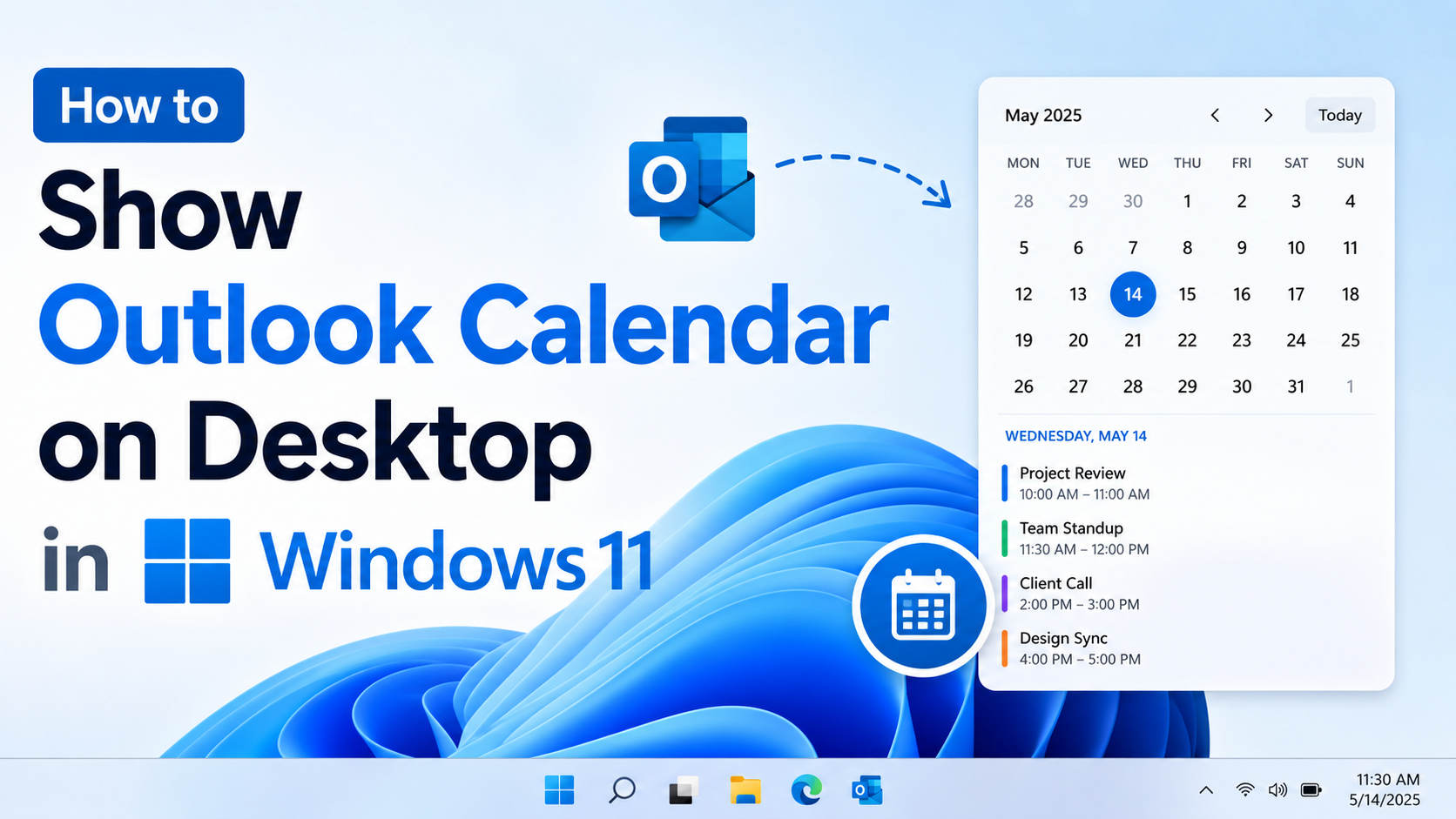
Working professionals and productivity enthusiasts alike often need quick access to their Outlook Calendar right from the Windows 11 desktop. In a fast-paced world, missing an appointment or forgetting an event can spell disaster. The ability to seamlessly display your Outlook Calendar directly on your desktop is more than just a convenience—it’s a productivity game-changer. Yet, many users are unsure how best to integrate this essential tool into their daily workflow, especially with the changes brought in Windows 11 and the new Outlook application.
New features in Windows 11, as well as Microsoft’s evolving focus on widgets and the redesigned Outlook for Windows, have given users fresh ways to keep their schedules front and center. Whether you’re seeking a way to quickly glance at your next meeting, pin your schedule for easy access, or just streamline your digital life, knowing your options for showing the Outlook Calendar on your desktop is critical. This guide will walk you through all the possibilities, tricks, and tools, based on best practices and the latest developments officially documented by Microsoft and other leading sources.
Understanding Your Options: Built-in Widgets, New Outlook, and More
Windows 11 has revolutionized the way widgets work, offering a collection of mini-apps that provide at-a-glance information directly from your desktop or Widgets Board. Among these is the highly valued Calendar widget, which integrates tidily with your Microsoft accounts, including Outlook. Let’s break down how these widgets operate and why they matter in everyday planning:
- Widgets bring key info to your fingertips — Weather, news, to-dos, stocks, and, crucially, your calendar events, all grouped in a convenient panel.
- Calendar widgets automatically sync with Outlook and other calendar accounts you link to your Windows profile, eliminating unnecessary steps.
- Customizable panel layouts and sizing help make sure the information you value most—like meetings and deadlines—are always in view without distracting you from your workflow.
Alongside widgets, the introduction of the new Outlook for Windows reflects Microsoft’s future roadmap. The classic Windows Mail and Calendar apps have reached end-of-support (as of December 31, 2024), pushing users to adopt the consolidated and more powerful new Outlook application. This change affects the way you interact with email and calendar events on Windows 11 going forward.
Why Display Your Outlook Calendar on the Desktop?
The need to keep a calendar visible at all times isn’t just about aesthetics. Quick visibility helps you plan, focus, and avoid missing key appointments without opening unnecessary windows. In a work environment, you might need to:
- Check meeting times on the fly without alt-tabbing between apps
- Monitor team schedules while keeping your email or document view uninterrupted
- Glance at your day’s tasks as you start up your PC
Widgets, as small interactable panels, fit this use case perfectly. Their design is modeled on the digital equivalents of sticky notes or fridge calendars—always there, delivering just the essentials. Add personalized background images or resize them to prioritize your preferred view, and you turn your desktop into a command center tailored to you.
Step-by-Step: How to Show the Outlook Calendar on Your Windows 11 Desktop
The most streamlined method uses the Windows 11 Widgets Board, which brings your Outlook Calendar—alongside news, weather, and more—into one easily accessible space. Here’s how you can set up your Outlook Calendar for desktop viewing:
Step 1: Enable the Widgets Feature
Widgets might not always appear on your taskbar by default:
- Right-click anywhere on the taskbar and select Taskbar settings.
- Make sure the Widgets toggle is enabled.
- If enabled, you’ll see an icon that looks like a window split into four squares.
Step 2: Access the Widgets Board
- Click the Widgets icon on the taskbar to bring up the panel.
- Alternatively, press Windows Key + W for an instant shortcut.
- Touchscreen users: Swipe from the left edge of the screen towards the center.
Step 3: Add and Customize the Calendar Widget
- In the Widgets panel, look for a plus (+) symbol or the Add widgets or Customize button.
- Click it and find the Calendar widget in the available list.
- Click the + icon next to Calendar to add it to your Widgets Board.
- Once the Calendar widget is visible, click the three-dot menu (…) in its corner for further customization.
- Choose Customize widget to select which linked account’s calendar appears (e.g., your Outlook.com, business M365, or other linked calendars).
Step 4: Ensure Your Calendar is Syncing Properly
- Open the Calendar widget and check that your Outlook account is syncing (use the widget’s settings panel).
- If your events aren’t showing up, open the Windows Calendar app (or Outlook, depending on your setup) and go to Settings (the gear icon).
- Confirm your Outlook account is added and properly syncing. For business or school accounts, sometimes extra permissions or reconnection are required.
- If you’re using the new Outlook for Windows, confirm all your calendar accounts are added in the new interface for best integration.
Beyond Widgets: Differences Between Classic and the New Outlook Apps
A significant change in Windows 11 is Microsoft’s push toward the “New Outlook” application, replacing the classic Mail and Calendar apps with a unified experience. Here’s what you need to know about this shift and what it means for calendar visibility on your desktop:
- Support for Windows Mail, Calendar, and People ended on December 31, 2024 (official Microsoft support info).
- New Outlook combines email, calendar, and contacts—providing advanced organizational tools, seamless multi-account integration, and even AI-powered writing suggestions. It’s available for download on the Microsoft Store and requires no paid subscription for general features.
What about showing the calendar at startup or pinning it on the desktop?
- While the New Outlook app is highly integrated, it currently does not offer a native way to always display your calendar in a floating desktop window (a much-requested feature per Microsoft forums).
- Your best alternative remains using the Widgets Board to keep your schedule synced and in view, especially now that classic Calendar is discontinued.
Customizing and Resizing the Calendar Widget
Not all information should take up the same amount of space on your desktop. Windows 11 widgets, including Calendar, are flexible and let you adjust their size:
- Hover the cursor over your Calendar widget and select the three-dot menu (…).
- Choose between Small, Medium, and Large to match your workflow.
- Experiment with arrangement and widget order to create a personalized information dashboard.
The more events, meetings, or reminders you add to Outlook or your connected calendar accounts, the more immediately useful the widget becomes. Everything updates live every time you launch the Widgets Board—no need to relaunch Outlook or refresh any browser tabs.
Widget Limitations and Workarounds
Despite their usefulness, Windows 11 widgets do have some limitations that power users may notice:
- At present, widgets cannot be pinned permanently to the main desktop background—they reside in the sliding panel (Widgets Board).
- There are no official Microsoft widgets for floating “sticky note”-style calendar windows, though third-party tools and Windows apps are occasionally available for this.
- Not all non-Microsoft Outlook accounts (e.g., certain institution or school-provided calendars) may sync instantly; sometimes, additional setup is required.
- If you previously used the classic Windows Calendar, you’ll need to switch to New Outlook or ensure your accounts are migrated to Outlook.com or M365 to benefit from the latest integrations.
What if you want a dedicated floating calendar on your desktop? While not directly supported by Microsoft, you can look into reputable third-party widget apps or use browser-based calendar overlays. Be cautious with privacy and account credentials, as these aren’t always supported by Microsoft.
Common Problems: Missing Calendars and Troubleshooting
Some users have reported that added calendars (especially school or organization-specific ones) don’t always sync to the Calendar widget or Windows Calendar app. Here’s what to check if your calendar isn’t showing as expected:
- Account Sync Issues: Go to Outlook or Calendar app settings and double-check that your account is connected and syncing. Remove and re-add the account if necessary.
- Refresh and Permissions: For work or school accounts, admins can sometimes impose extra permissions or sync policies. Make sure you have the correct permissions or check with your IT department.
- Widget Customization: In the Calendar widget settings, ensure you’ve selected the calendar you wish to display (personal, work, shared, etc.).
- If all else fails, consult the official Microsoft Answers discussion for up-to-date troubleshooting steps and community suggestions.
Other Calendar Widget Features in Windows 11
The strength of Windows 11 widgets is in their diversity and easy customization. Don’t forget to explore:
- Weather: Stay updated on local forecasts.
- To-Do / Tasks: Keep daily checklists side-by-side with your calendar.
- News: See relevant headlines curated to your taste.
- Stocks, Sports, and Photos: Add as much or as little as you need to create your ideal productivity board.
Widgets are entirely personal and can be rearranged and resized as your needs change. Pinning your Outlook Calendar is a smart way to make your desktop work for you, not against you.
Staying Up to Date with New Outlook and Windows 11 Features
The shift to New Outlook is here to stay. Besides offering tighter calendar and email integration, Microsoft continues to update Outlook’s features and the Widgets platform itself. Check out the official support site regularly for news about new widget types, improved calendar sync, or coming enhancements to how information can be displayed on the desktop.
For advanced users, consider getting involved in Microsoft’s Windows Insider Program or Outlook Insider Program to get early access to features and improvements.
By understanding all the available options and setting up your Outlook Calendar with the Windows 11 widgets panel, you will always stay on top of your schedule, no matter how hectic your day gets. Having your daily events just a click or swipe away turns your computer into a true productivity powerhouse, perfect for home users, hybrid workers, and in-office professionals alike.