
- aMule is a cross-platform, open-source P2P client compatible with eDonkey and Kad networks.
- It offers various interfaces like GUI, command line, web, and remote access for maximum flexibility.
- Configuration options and platform support make it ideal for Linux, macOS, Windows, and servers.
- Ongoing community development ensures stability, modern features, and network compatibility.
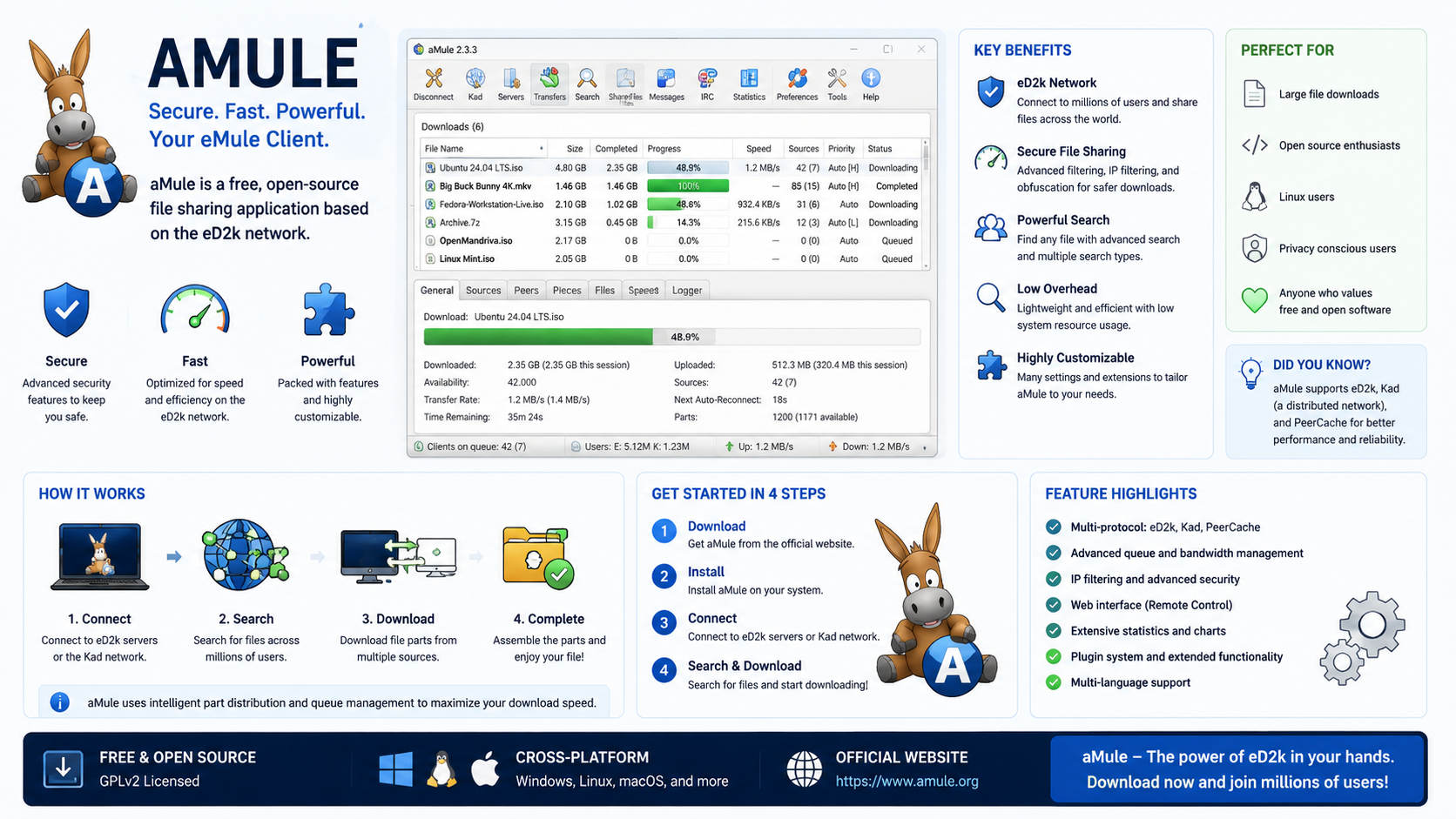
If you’ve ever wandered into the world of file sharing beyond the typical torrent scene, chances are you’ve bumped into names like eMule or even aMule—but what exactly is aMule, and why do entire subcultures swear by it? Let’s unravel what makes this classic open-source platform much more than just another P2P client, and why, even in today’s streaming age, it still has a devoted user base.
Diving deeper into the history and features of aMule, you quickly see it’s not just a relic from the early 2000s. It’s a true survivor, one with a tangled legacy, unique technical perks, and a cross-platform flexibility that has kept it relevant for those who value decentralization and sharing giant files outside the mainstream. aMule is far more than a nostalgia trip—it’s a feature-rich client with modern appeal for geeks, archivists, and power users alike.
The Roots: Where Did aMule Come From?
aMule first burst onto the scene in September 2003, crafted by the aMule Team. But the story doesn’t start there; it traces its DNA back through the source code of eMule, the legendary Windows client that revolutionized P2P sharing on the eDonkey2000 and Kad networks. But while eMule was locked to Windows, the community desperately wanted similar power on Linux and other platforms.
That led to a sequence of forks: lMule (the very first Linux port), then xMule, and, after some drama and discontinuations, the dominant survivor: aMule. Over time, aMule evolved and shed much of its ancestral code but kept the powerful feature set and cross-compatibility. In essence, aMule is the leading multi-platform descendant of eMule, keeping the spirit of those projects alive and relevant.
What Sets aMule Apart?
Let’s break down what aMule really is: an open-source, cross-platform file sharing utility that allows users to connect to both the eDonkey (ed2k) and Kademlia (Kad) networks. That means, with aMule, you can access an absolutely massive archive of shared files all around the globe.
Where it really shines compared to old-school eMule? Platform support. While eMule is typically a Windows affair, aMule runs on:
- Linux
- macOS
- Windows
- FreeBSD & OpenBSD
- Solaris
- Other Unix-like platforms
The secret sauce is the wxWidgets library aMule uses for its graphical environment, letting it feel native on every operating system.
Not only is it open-source and licensed under the GPL, but it’s also focused on making switching between eMule and aMule totally painless—credits for uploads/downloads are transferable, so you won’t lose progress or reputation by swapping clients.
Core Features and Functionalities
aMule packs a surprisingly deep set of features for a P2P app, especially considering its community-driven development roots. Here’s what makes it tick:
- Peer-to-peer file sharing over both eDonkey and Kad networks.
- Support for the massive eD2k/Kad multi-server architecture, meaning huge numbers of available files and users.
- Credit and partial downloads compatibility with eMule, which matters a lot if you’re already part of the network’s trusted user base.
- GeoIP integration, letting you see country flags and details for shared resources.
- Flexible interface options, from GUI to command line, remote web interfaces, and even modular daemon operation.
- Multi-core and multi-threading support for better stability and speed.
- Magnet link and ed2k hash support, so you can effortlessly add files from across the web.
How Does aMule Work? Understanding the Networks
aMule connects to two core P2P architectures:
- eDonkey network (ed2k): A semi-centralized network where dedicated servers help users find resources, but all file transfers happen directly between users (peer-to-peer).
- Kad network (Kademlia): A fully decentralized system, requiring no central servers for searching or sharing. Here, every user is a node in the file-locating and transferring network.
Most users run aMule in a hybrid mode, connecting to both for greater file availability and network resilience.
Installation and Getting Started
Installing aMule is straightforward on almost any operating system. Most Linux distributions offer the “amule” package directly via their repositories (for example, with pacman or apt), and it’s available for macOS and Windows as well.
For those who prefer containerization, aMule is even available as a Docker image, making it dead simple to deploy on any server or NAS. Check the Docker resource if you want a headless, easy-to-upgrade aMule node.
Modular Components Explained
aMule isn’t just a single monolithic app—it’s built to give you freedom on how you run it. Here are the main components:
- aMule (GUI): The classic desktop graphical client. For most users, this is plug-and-play and works out of the box.
- amuled (daemon): A headless server version, ideal for running on remote machines or servers. No GUI is required—it stays out of your way.
- amuleweb (Web UI): An HTTP-based interface for remote management. You can access amuleweb via
http://127.0.0.1:4711(or your server IP), providing basic controls from any browser. - amulecmd (CLI): A command-line interface, perfect for scripting or old-school terminal lovers.
- amulegui (Remote GTK Interface): Lets you connect to a running amuled instance from another machine—even across operating systems. For example, you might have amuled running on your Linux NAS and manage it with amulegui from your Windows workstation.
This flexibility is perfect for power users—you can keep downloads running on a low-power server 24/7 and check in from anywhere without needing a VPN into your home network.
Configuring aMule: Essential Settings for Smooth Operation
Configuring aMule isn’t much harder than setting up other P2P clients, but there are a few steps you’ll want to follow to get the best experience, especially with remote and headless setups.
Creating Users and Securing Your Instance
For Linux installations, the system will typically create a dedicated “amule” user to run the service. It’s a good security practice to ensure all config files and downloaded content live in this user’s home directory (like /var/lib/amule).
When setting up remote access—either via amulegui or amuleweb—make sure to set unique, strong passwords for external connections (and for amuleweb’s admin area). Passwords are stored as encrypted MD5 strings in the amule.conf or remote.conf files, so don’t just copy-paste your plaintext password!
Password Generation Steps (Linux Example)
To get your encrypted MD5 password for configuration, run in the terminal:
$ echo -n 'your-password-here' | md5sum | cut -d ' ' -f 1
Take the output string and set it as the ECPassword value in amule.conf under the [ExternalConnect] header. This setup lets “amule” communicate securely with remote GUIs or scripts.
File Ownership
All files and configs within /var/lib/amule (or whichever directory you use) should be owned by the “amule” user for smooth and safe operation. Use chown amule:amule -R /var/lib/amule to fix permissions.
Customizing and Starting Services
When running as a systemd service (common on Linux), remember:
- Start
amuledfor the always-running core. - Optionally enable
amulewebfor the browser-based interface. - Both can be enabled at boot for a “set-and-forget” download station.
Understanding Ports and Network Access
To make the most of aMule, your device needs to have specific ports accessible for incoming and outgoing connections—this maximizes your download speeds and ensures “HighID” (trusted status) in the network.
Here are the default ports, most of which can be customized:
- 4661 TCP: Main server communications (eDonkey).
- 4662 TCP: Client-to-client file transfers (essential for both eDonkey and Kad).
- 4665 UDP: Global server searches and source queries (Client TCP port + 3).
- 4672 UDP: Extended protocol operations: queue, status pings, reasks.
- 4711 TCP: Default for the web server (amuleweb).
- 4712 TCP: Internal communication between daemon and Web/Command interfaces.
If your firewall/router doesn’t forward these, you may get “LowID” status, which limits your download speeds and makes you harder to reach on the network.
Diving Into aMule’s Interfaces: GUI, Web, and CLI
aMule GUI
This is the familiar graphical application most users start with. It looks very much like classic eMule, offering access to searching, file queues, transfer statistics, and more. If you’re moving from Windows eMule to aMule on Linux, you’ll feel right at home.
amuleweb
amuleweb offers remote browser-based management. It’s not as full-featured as the full GUI—downloads and transfer information are succinct, and you’ll be asked for the password fairly regularly (unless your browser remembers it). It’s fantastic for checking in from your phone or a distant desktop.
To set up, run amuleweb --write-config --password=YOURPASS --admin-pass=WEBPASS as the amule user. The web interface will then ask for the admin password to control settings or downloads.
amulegui
This is a more powerful GTK desktop interface for managing remote amuled instances. It’s faster, more feature-rich, and recommended over amuleweb if you want the full range of controls.
amulecmd
The command-line client is perfect for scripting fans or resource-constrained servers. With amulecmd, you can queue downloads, monitor transfers, and issue almost any command supported by the graphical interface.
Service Management: Systemd, Docker, and Automation
On modern Linux distros, aMule packages ship with ready-made systemd services for amuled and amuleweb. After configuration, you can simply systemctl enable and systemctl start them to have aMule launch at every boot—ideal for seedboxes and NAS units.
If containers are more your thing, Docker images of aMule can be launched in seconds, often exposing expected ports and saving state to your attached storage. This removes “library hell” and makes upgrades trivial.
Notifications, Automation, and Power Features
aMule supports custom notifications for events like finished downloads. For instance, on Linux you might set up a notification command under Settings > Events for “Download completed” such as:
notify-send -i amule "%NAME completed (%SIZE bytes)"
This provides a visual alert (with the aMule icon). You could script these for deeper integrations like SMS or messaging apps if you’re feeling ambitious.
Is aMule Still Relevant? Community and Modern Usage
Though eDonkey and Kad aren’t the hip, headline-grabbing networks they were in the early 2000s, there’s still an active community—thanks in part to aMule’s multi-platform flexibility and the sheer magnitude of unique and rare files on these networks.
You’ll find active GitHub development, helpful forums, and even subreddits or Linux user groups discussing tweaks, tips, and optimizations.
There are even anonymous forks like iMule (optimized for I2P), but for most users looking for speed, compatibility, and ease of use, aMule stands as the gold standard for cross-platform eMule-style P2P.