
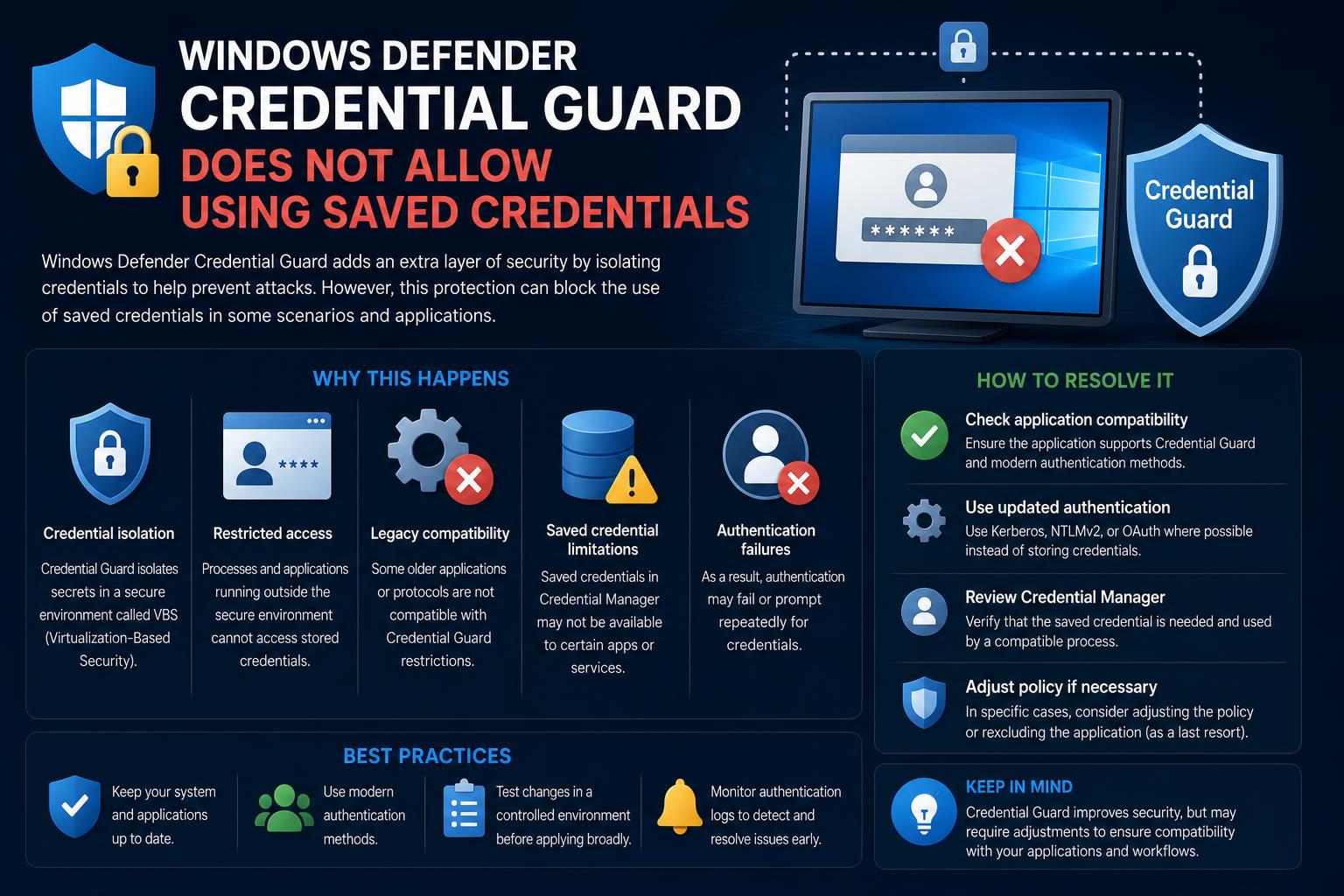
- Credential Guard restricts the use of saved credentials to protect user data during RDP and other sensitive operations.
- There are practical methods and workarounds to manage RDP access even when Credential Guard is enabled, such as using the cmdkey tool or SSO with proper configuration.
- Proper configuration via Group Policy, Registry, or Intune is essential to balance convenience and security, ensuring users can work efficiently while maintaining system protections.
Anyone who frequently uses Windows Remote Desktop (RDP) or manages enterprise computers on Windows 10 or 11 will, sooner or later, encounter the cryptic error: “Windows Defender Credential Guard does not allow using saved credentials. Please enter your credentials.” This message is enough to disrupt the normally smooth workflow of system administrators and power users alike, often causing confusion and triggering security concerns.
This guide breaks down why this error appears, what Windows Defender Credential Guard is actually doing, and how you can solve or work around it while preserving both security and convenience. We’ll walk through real-world solutions, technical explanations, and best practices straight from a deep dive into official Microsoft resources, user experiences, and tried-and-true community advice — all rephrased with clarity and actionable steps.
What Is Windows Defender Credential Guard?
Credential Guard is a built-in security feature in recent Windows versions (Windows 10, Windows 11, and server editions) focused on protecting sensitive credential information like NTLM password hashes and Kerberos Ticket Granting Tickets (TGTs). It achieves this by isolating these secrets within a secure, hardware-backed environment, leveraging virtualization-based security (VBS).
Why does Microsoft enforce such a strict credential strategy? In an age where malware and attackers attempt to steal credentials from memory, this “guard” blocks credential theft techniques such as Pass-the-Hash or credential dumping, often used in lateral movement attacks. When enabled — especially on enterprise devices — Credential Guard enforces a strict environment where credential secrets are not accessible to regular Windows processes, apps, or even administrators.
Why Can’t Saved Credentials Be Used with Credential Guard?
Many users first encounter this limitation while attempting to reuse previously saved RDP credentials. The answer is simple: saved credentials are no longer considered safe in a system where Credential Guard is active.
This is by design, not a bug. Credential Guard’s fundamental goal is to prevent attackers from leveraging stolen or stored credentials. Saving credentials to disk or a credential store (as is possible without Credential Guard) completely undermines the protection that VBS and isolated processes are meant to deliver.
Official Microsoft documentation is clear: When Credential Guard (or its related feature, Remote Credential Guard) is turned on, the use of saved credentials for authentication (especially over Remote Desktop) is explicitly blocked. Users see an error or prompt forcing them to freshly authenticate, ensuring credentials are never left floating in an accessible form.
Typical Error and User Experience
If you are part of an IT department or simply a power user upgrading to Windows 11 22H2 or later, you may suddenly find saved RDP credentials stop working. When trying to initiate a session via mstsc.exe (the native Microsoft RDP client), a popup reads:
Windows Defender Credential Guard does not allow using saved credentials. Please enter your credentials.
This message can surface even if you are certain you never explicitly enabled Credential Guard. This is because Microsoft has begun enabling Credential Guard by default on compatible hardware and newer versions of Windows 11 after 22H2 and beyond. In some rare cases, users report the popup even if Credential Guard appears to be off — these are often due to remnants of Group Policy or Registry settings.
Main Methods to Work Around or Fix the Issue
Depending on whether you want to keep Credential Guard for security or need to restore convenience (and are willing to sacrifice some protection), there are several approaches:
1. Use the cmdkey Tool for RDP Connections
One of the most effective workarounds, without diving deep into risky Registry edits or Group Policy changes, is via the command-line tool cmdkey.
This built-in utility can register generic credentials in a way that Credential Guard accepts.
- Open Command Prompt as administrator.
- Run the following command (replace with your actual target IP / host, username, and password):
cmdkey /generic:TERMSRV/targetname /user:username /pass:password
Important: Ensure you use /generic rather than the default type. Credential Guard only blocks usage of saved domain credentials, not generic ones manually added this way.
Afterward, you should be able to connect via Remote Desktop without being prompted for credentials, as those “generic” entries are accepted under Credential Guard’s rules.
To view your current RDP credentials saved as TERMSRV entries:
cmdkey /list:TERMSRV/*
And to delete a specific entry if needed:
cmdkey /delete:TERMSRV/targetname
2. Adjust Credential Guard via Registry or Group Policy
For those wishing to disable Credential Guard entirely (to restore all legacy convenience), you will need administrative rights.
- Navigate to HKEY_LOCAL_MACHINE\SYSTEM\CurrentControlSet\Control\DeviceGuard in the Windows Registry.
- Set EnableVirtualizationBasedSecurity (DWORD) to 0
- Also set RequirePlatformSecurityFeatures (DWORD) to 0
- In HKEY_LOCAL_MACHINE\SYSTEM\CurrentControlSet\Control\Lsa, set LsaCfgFlags (DWORD) to 0
- After making these changes, restart the device
This approach fully disables Virtualization Based Security and Credential Guard. Do note, you lose the protection of Credential Guard by doing this, and it may go against your organization’s security policy.
Administrators can also use Group Policy:
- Access Computer Configuration > Administrative Templates > System > Device Guard
- Change Turn On Virtualization Based Security to “Disabled” or “Not Configured”
- Adjust Credential Guard Configuration as needed
- Restart the affected computers
If Credential Guard was enabled using a UEFI lock, there are additional steps involving bcdedit and EFI variables; consult the official Microsoft documentation for complete details.
3. Rethink Single Sign-On (SSO) and RDP SSO Configurations
Companies often rely on RDS SSO (Remote Desktop Services Single Sign-On) to smooth the login process. With Credential Guard, configuration mistakes or incomplete SSO policies often cause users to be prompted for credentials despite SSO being supposedly enabled.
The right way is to use Kerberos Constrained Delegation and configure GPO and DNS correctly. Make sure:
- Kerberos credential delegation for the TERMSRV service is granted to the RDS host or farm
- DNS is functioning without issues
- Certificates are valid and not expired
- Both clients and servers are joined to the same domain
For users in the Protected Users group, delegation is disabled by design for extra security. These accounts can’t use SSO for RDS with Credential Guard — this protects sensitive admin or executive accounts at the expense of convenience.
For a step-by-step configuration, check resources such as Enable Single Sign-On (SSO) Authentication on RDS Windows Server | Windows OS Hub.
How Credential Guard Works under the Hood
Credential Guard uses Virtualization Based Security to separate credentials from access by the normal Windows operating system. The kernel launches a secure isolated process (LSAISO.exe), which is responsible for storing and processing directory credentials. When a process (such as mstsc or a credential provider) attempts to use saved credentials, Credential Guard intercepts the request and blocks any operation that would pass a cached secret outside this secure box.
Credential Guard’s main targets:
- NTLM password hashes
- Kerberos ticket granting tickets (TGTs)
- Domain credentials saved by apps or as part of RDP connections
The feature is enforced by default in modern enterprise Windows setups and is increasingly popular with the push from Microsoft to secure corporate environments against credential theft and ransomware attacks.
Understanding Remote Credential Guard vs. Traditional Protection
Remote Credential Guard is a related but separate feature that provides SSO and prevents credentials from being exposed over RDP connections specifically. It redirects Kerberos requests back to the source (client) device, ensuring that the remote device never receives reusable credential data. This blocks credential theft even if the server is compromised.
Key points of Remote Credential Guard:
- No credentials are sent to the remote host (prevents pass-the-hash theft)
- Single sign-on (SSO) is preserved so users don’t need to re-enter passwords
- Requires Kerberos authentication (does not work with NTLM fallback)
- Only works when both client and host are part of the same Active Directory domain (Entra ID joined devices are not currently supported)
If your organization requires helpdesk/admin access via RDP, it’s recommended to use Restricted Admin mode (by running mstsc.exe /RestrictedAdmin), which avoids credential exposure to compromised servers — at the expense of some SSO flexibility.
When Disabling Credential Guard Is Not Recommended
Disabling Credential Guard might seem like an easy solution to regain full compatibility, but this significantly increases the risk of credential theft and lateral movement attacks. Credential Guard is a critical defense in modern enterprise security strategies, hindering many of the most common post-exploitation techniques used by attackers.
Organizations should evaluate alternative solutions like Privileged Access Management (PAM) or local password management tools (such as Microsoft LAPS) to balance security with usability without disabling this protection.
Checking If Credential Guard Is Enabled (Verification Steps)
There are several reliable ways to verify the status of Credential Guard:
- System Information: Run msinfo32.exe, check under “Virtualization-based Security Services Running” for “Credential Guard.”
- PowerShell: Run (
(Get-CimInstance -ClassName Win32_DeviceGuard -Namespace root\Microsoft\Windows\DeviceGuard).SecurityServicesRunning). Results: 0 = off, 1 = on. - Event Viewer: Check Windows Logs > System, filtering by WinInit events related to Credential Guard.
Just checking for LsaIso.exe in Task Manager is not always reliable; prefer these official methods for accurate status.
Best Practices for Enterprise and Home Users
For IT teams, the optimal workflow is to balance security and user experience:
- Enable Credential Guard by default via Intune, GPO, or Registry for security baselines
- Guide users to use the “cmdkey” workaround with explicit generic credentials for typical RDP connections if needed
- Configure proper SSO via Kerberos and ensure clients/servers are domain-joined for seamless access under protection
- Limit disabling Credential Guard only to necessary cases, with proper approval
- Deploy additional protections like LAPS or PAM without compromising credential security
Home users usually face fewer restrictions from Credential Guard, but if encountering the error, the cmdkey workaround is a good first step before considering security compromises.
Troubleshooting tips:
- If the error appears and Credential Guard should not be active, review the Registry settings and policies, as some lingering settings may keep the restriction in place.
- After making changes, always restart the computer for the settings to take effect.
It is essential to prioritize credential protection over the convenience of reusing credentials. Microsoft’s adoption of Credential Guard by default reflects the growing importance of preventing credential theft in an ever-evolving cyberthreat landscape. Configuring and understanding how this feature works allows administrators and users to maintain a balance between security and effective remote access.