
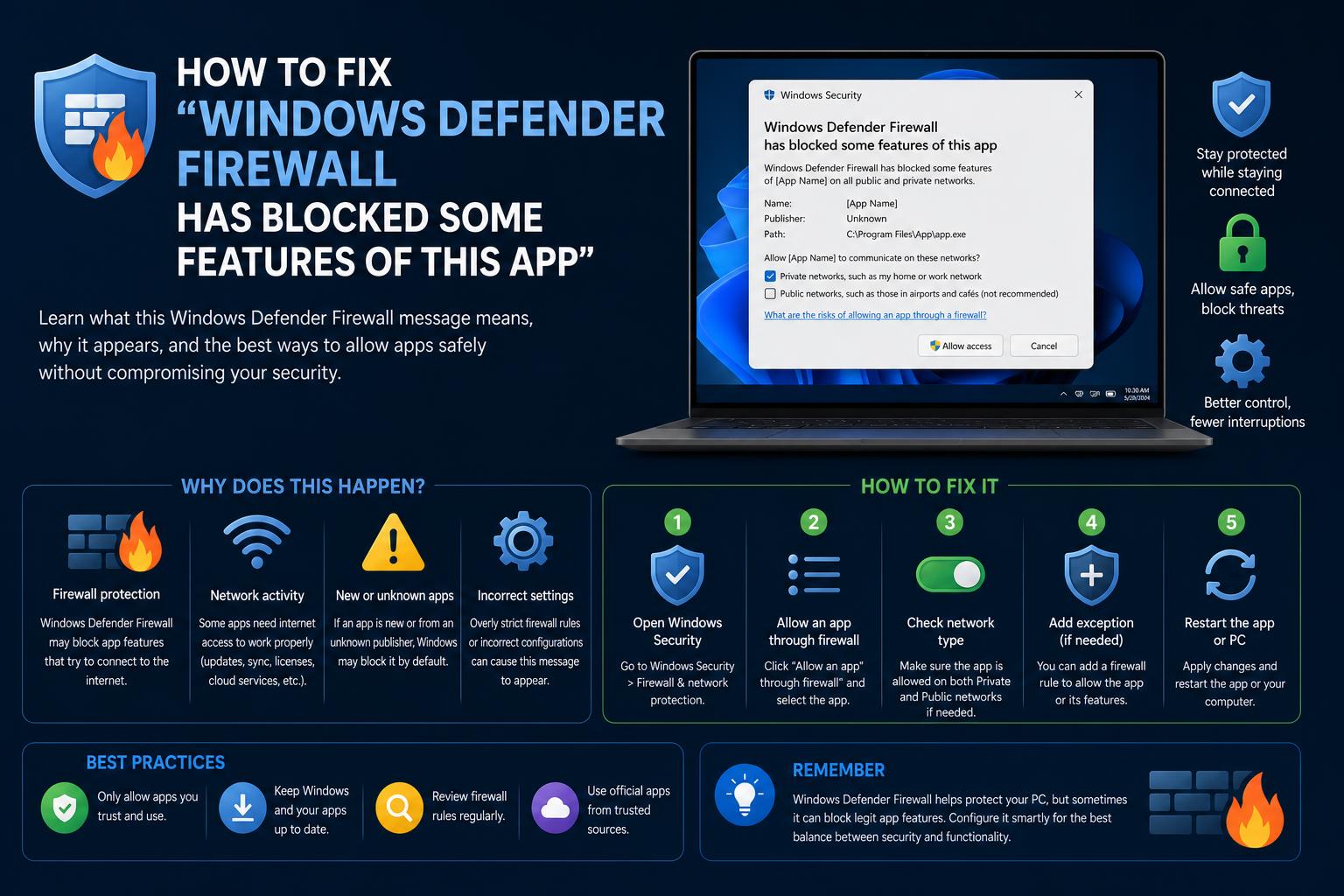
- Windows Defender Firewall blocks apps to protect against unauthorized network access by default, especially when apps attempt to accept incoming connections.
- Users are given control to allow apps based on network type (private vs public), providing a safety compromise between functionality and security.
- Managing allowed apps, restoring firewall defaults, and understanding advanced firewall settings can resolve most issues and maintain security.
Have you ever seen a message telling you that “Windows Defender Firewall has blocked some features of this app” as soon as you launch a new piece of software or a game? You’re not alone! This prompt tends to catch plenty of Windows users off guard, sparking confusion and concern about whether allowing or blocking access is the right move. Understanding what triggers this message and how to handle it can be crucial to both your network’s security and your daily convenience.
The good news is, you’re about to get an in-depth, clear-cut breakdown of this alert—covering what it means, why it appears, and exactly what steps you should take. We’ll also dive into safe ways to manage your firewall, determine when to allow or block access, and troubleshoot the most common issues, all while making sure you keep both your privacy and your essential apps running smoothly.
Why Does Windows Defender Firewall Block Some App Features?
Almost every Windows user will see this pop-up sooner or later: you open an application, and suddenly, a “Windows Defender Firewall has blocked some features of this app” message appears. But why exactly does this happen?
Whenever an application tries to accept incoming connections or function as a server (think multiplayer PC games, media servers, file-sharing tools or remote desktop utilities), Windows Defender Firewall steps in by default to protect your system. The firewall automatically restricts any inbound connections that could potentially expose your device to unauthorized access. When it detects a new application trying to communicate over the network—especially over unfamiliar or insecure networks—this alert acts as your safety net, stopping silent blocks and giving you a choice.
This isn’t some random Windows quirk. The OS is putting control in your hands to decide whether you trust this app enough to let it communicate through your firewall. Most applications don’t ever need this level of access; for example, web browsers and email clients are typically safe, because they mostly initiate outbound connections.
Understanding Private and Public Networks
When choosing whether to unblock or allow features for an app, your type of network matters a lot. During the prompt, you’ll notice it lets you pick between private and public networks.
Private networks are home or trusted networks. Typically, only your family’s devices or those you personally own are on these setups. Public networks—like coffee shops, airports, or hotels—are considered less secure, as you have no control over who else connects.
It’s a fundamental security practice to keep stricter rules for public networks, blocking apps from accepting incoming connections, unless absolutely necessary. Allowing the app only on private networks helps maintain tighter control — your server or game runs at home where you trust connected devices, but stays invisible to strangers on public Wi-Fi.
Should You Allow Access When the Message Appears?
Your decision here affects how your applications work and how safe your system stays. The dialog typically offers options to allow or cancel. Clicking “Allow access” lets the application receive incoming network traffic per your selected network types. If you’re on a public network or unsure about the app, you might want to hold off and click “Cancel” instead. Here’s how to decide:
- Trustworthy, Recognized Apps: If it’s a well-known program (like Microsoft Teams, Steam, or your favorite multiplayer game), and you want it to have full functionality (such as hosting or joining networked sessions), letting it through—at least on private networks—makes sense.
- Unknown Applications: If you don’t recognize the app, or you didn’t purposely launch it, extra caution is wise. There’s always a chance rogue software or malware could trigger this alert. It’s smart to run a full antivirus scan if you’re unsure.
- Strict Security Scenarios: If you’re using a system for banking, sensitive data, or business, and a program requests access you don’t specifically need, declining is often safer. You can always allow it later.
Remember: Allowing access only on private networks provides a safety compromise, giving the app needed permissions without exposing it on open, public Wi-Fi.
What If There’s No Option to Unblock?
Sometimes, you might get this prompt but can’t see a way to unblock the app. This can happen in professionally managed environments or if system restrictions are in place, as might be set by tools like Microsoft InTune or similar management systems. In these cases:
- Ensure your user account has administrator rights (required to change firewall settings).
- If you’re on a work or school device, security policies may prevent users from modifying firewalls—check with your IT admin.
For apps that are already unblocked or blocked for a specific type of network, Windows won’t show the checkbox again until the network context changes.
How to Manage Allowed Apps in Windows Defender Firewall
If your initial decision changes—or something isn’t working as expected—you don’t have to wait for the firewall prompt to appear again. You can manually control which apps can communicate through Windows Defender Firewall:
- Open the Control Panel (search for it in the Start menu).
- Go to System and Security > Windows Defender Firewall > Allow an app or feature through Windows Defender Firewall.
- Click the “Change settings” button to alter permissions.
- Find your application in the list. If it’s not listed, click “Allow another app…” to browse for it manually.
- Use the Private and Public checkboxes to control the app’s network permissions. Unchecking both restricts all inbound network access.
If you experience issues (like a browser or game failing to connect), ensure its permissions are properly set here.
Advanced Windows Firewall Settings
For those seeking greater granularity or needing to troubleshoot complex connectivity problems, Windows Defender Firewall includes advanced features:
- Incoming Connections Filter: There’s an option to “Block all incoming connections, including those in the list of allowed apps.” This extreme mode is intended for high-security scenarios and will override individual permissions—use sparingly, as it will break network-dependent applications.
- Notification Settings: If notifications get annoying, you can tweak them via Control Panel > System and Security > Windows Defender Firewall > Change notification settings. Choose whether you want alert pop-ups for private, public, or both types of networks.
- Opening Ports/Exceptions: Sometimes an app needs access to a specific port instead of broad application permissions. This should be done with caution, as open ports may expose vulnerabilities. Learn more about these risks from Microsoft’s documentation about Firewall and Network Protection.
- Advanced Firewall Console: For network professionals and power users, the “Advanced settings” link opens the classic Windows Defender Firewall interface, letting you define inbound/outbound rules, monitor logs, and tune security as needed.
Warning: Editing or removing firewall rules without knowing the potential impact can leave your system vulnerable or cause apps to malfunction.
Restoring Windows Firewall Defaults
If things start acting up due to firewall misconfigurations or you’re not sure what changes have been made over time, you can quickly restore Windows Defender Firewall rules to their original settings:
- Navigate to Control Panel > System and Security > Windows Defender Firewall.
- Click “Restore defaults” on the left menu.
- Note: If your computer belongs to a managed organization, policy-based configurations may reapply after a reset.
Troubleshooting: What If the Message Keeps Appearing?
Occasionally, the firewall prompt can appear every time you open a particular app (like your browser or an online tool). Here’s how you can address this issue:
- Confirm You’ve Allowed the App: Walk through the “Allow an app through the firewall” procedure above to make sure the application is listed and checked correctly.
- Disable and Re-Enable: For especially persistent prompts, try temporarily removing the app’s exception, then re-adding it. Sometimes, corrupted rules are to blame.
- Run as Administrator: Many changes to firewall permissions require admin privileges. Make sure you’re logged in as an admin when changing firewall rules or launching the app for the first time.
- If the Problem Persists: Firewall or system policies, especially on managed or business systems, might lock settings. Contact your IT support if this is the case.
Deactivating Windows Defender Firewall (Not Recommended)
If you’re troubleshooting or need to check if the firewall itself is causing issues, it can be temporarily disabled. Navigate to Control Panel > System and Security > Windows Defender Firewall > Turn Windows Defender Firewall on or off. Only do this as a last resort and never leave your firewall disabled after testing, as it leaves your device vulnerable to threats.
Risks of Allowing Apps Through the Firewall
While it might be tempting to permit every app for convenience, every exception increases the attack surface on your device. Only allow apps you trust, and restrict them to private networks whenever possible. If a prompt appears for an app you’re suspicious about, it’s always a good practice to:
- Search the web for the app’s name for reputation and legitimacy.
- Perform a full system antivirus scan—for instance, with Windows Security itself or another trusted antivirus solution.
If you’re ever unsure, err on the side of caution; you can always revisit your firewall settings once you’re certain.
Application Example: Microsoft Teams and Other Common Cases
Some popular applications are frequently mentioned in firewall block alerts, including Microsoft Teams, various browsers, PC games, and online collaboration tools. These might request server-like permissions for streaming, sharing screens, multiplayer gaming, or providing network services.
- For Microsoft Teams, if you encounter this message, ensure you allow the app through the firewall to use all features—especially video conferencing or sharing content.
- Browsers like Opera or Chrome can request this if extensions or web features try to listen for inbound traffic (usage varies, double-check legitimacy).
When in doubt, allow on private (home/work) networks only, unless business or technical needs require broader access.
After allowing an app through Windows Defender Firewall, keep in mind that if you’re behind a home router, additional protection is already in place thanks to NAT (Network Address Translation). This means even approved apps might still need manual port forwarding on the router before remote devices can reach them. For most everyday users, router-level security paired with a properly managed firewall strikes a safe balance.
Firewalls, by their nature, are there to make tough decisions for you—but ultimately, knowing how they work empowers you to customize your computer’s security without breaking essential functions. Next time Windows Defender Firewall pops up with that familiar prompt, you’ll have the knowledge needed to handle it confidently—balancing security, functionality, and convenience to keep your Windows machine safe and running as you expect.
How to Repair Windows 11 Using Command Prompt: Advanced Techniques & Best Practices