
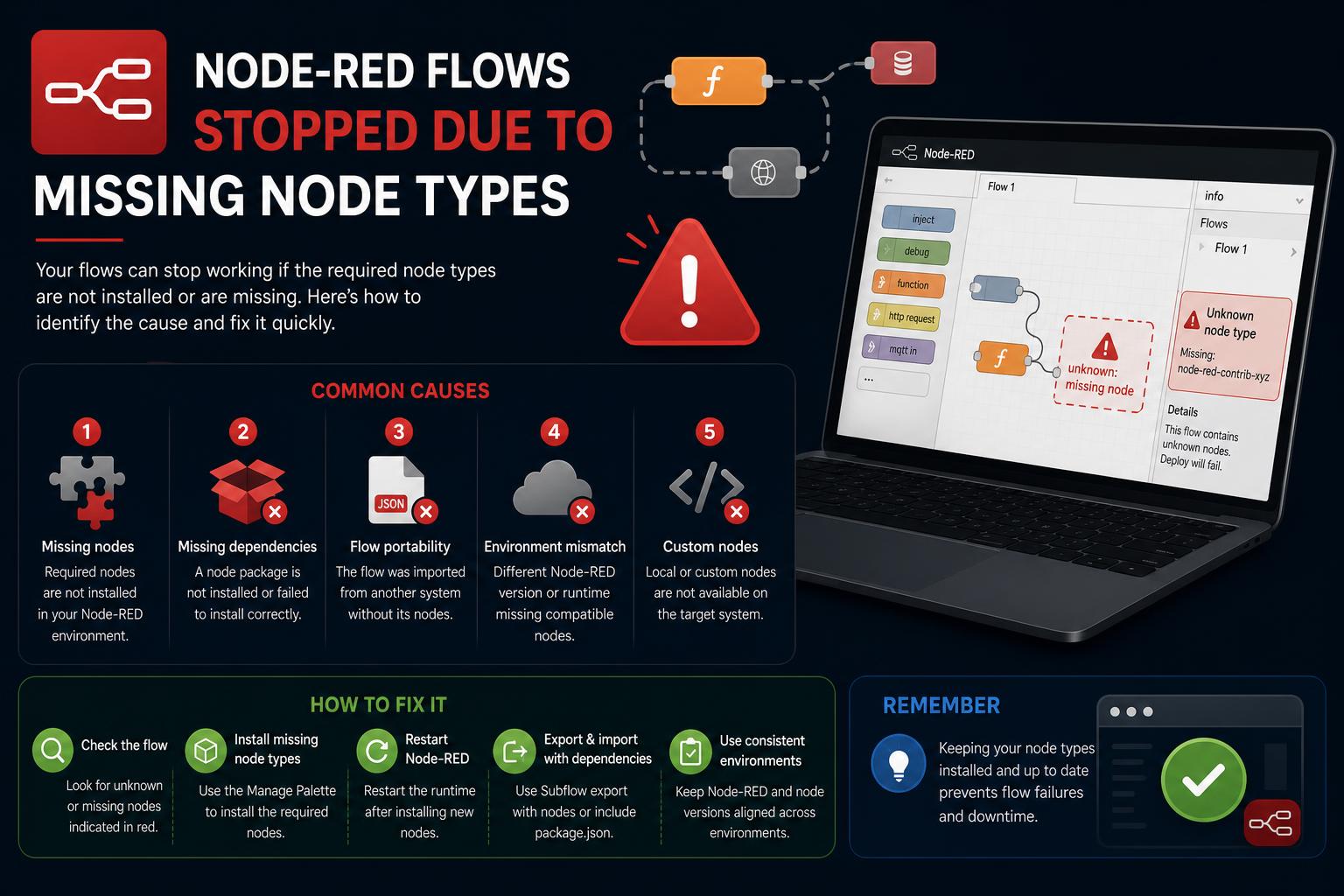
- Missing node types in Node-RED often occur after updates or imports and indicate absent packages or dependencies.
- Identifying and installing the correct node modules via Palette Manager or npm typically resolves these errors, preserving flow structure.
- Major changes—like the dashboard migration in Home Assistant—can abruptly break flows, requiring proactive migration and compatibility checks.
Encountering the dreaded message ‘Flows stopped due to missing node types’ can be frustrating, whether you’re a Node-RED enthusiast automating your smart home or a professional integrating complex workflows. This common error often appears after updating Node-RED or one of its nodes, importing flows from another instance, or simply migrating to a new environment. What makes it so vexing is the abrupt halt in automation, accompanied by cryptic hints pointing to missing dependencies or outdated nodes.
This article dives deep into the root causes of this issue, thoroughly explores why Node-RED may suddenly find itself unable to recognize certain node types, and provides practical, step-by-step advice on resolving and preventing it. Leveraging insights gathered from official documentation, widely referenced forum posts, and recent community discussions, you’ll walk away empowered to fix the problem and maintain bulletproof flows moving forward.
What Does ‘Flows Stopped Due to Missing Node Types’ Mean?
When Node-RED loads your flows, it expects every node type referenced in the definitions to be present and properly installed. If it can’t find a definition for a particular node—maybe because a package wasn’t installed, an update removed a node, or a dependency failed—Node-RED halts those flows and shows you this prominent error. Critically, Node-RED gives you ‘Unknown’ node placeholders within your flows; these serve as clear reminders of which nodes couldn’t be recognized so you can address the gaps.
If you attempt to deploy a flow while any node remains in an ‘Unknown’ state, Node-RED will not start those flows. Not only is this a safeguard for system stability, but it also helps you diagnose what’s missing instead of silently failing. The system preserves each node’s settings and wiring, so once you resolve the missing type, you won’t have to manually rebuild your workflow.
Why Do Nodes Go Missing in Node-RED?
Understanding why nodes are reported as missing is the first step to solving this common pain point. According to the official FlowFuse documentation, as well as crowdsourced discussions in forums and on GitHub, the most frequent causes are:
- Importing flows created in a different Node-RED environment—especially if some custom or community-contributed nodes are not replicated locally.
- Upgrading Node-RED or specific node packages, which may drop support for legacy nodes, rename them, or require migration steps.
- Breaking changes in major modules—illustrated by the removal of the classic ‘node-red-dashboard’ in favor of newer dashboards like FlowFuse Dashboard.
- Missing dependencies or failed installation steps during updates, resulting in incomplete node sets.
- Node packages being unmaintained or deprecated, which can make them unavailable in new Node-RED versions.
In practice, these issues can affect flows that are months or even years old, especially as the Node-RED ecosystem evolves and matures.
Case Study: Recent Breaking Changes Impacting Users
A recent update (version 22.0.0) of the Home Assistant Node-RED add-on exemplified how drastic changes can leave users with stopped flows. In this version, the classic Node-RED dashboard (node-red-dashboard v1) was officially removed due to being abandoned and having compatibility issues with its successor. This sudden removal caused many users to lose access to essential dashboard nodes like ui_base, ui_tab, and ui_group, generating the dreaded ‘missing node type’ message for those still relying on V1 dashboards.
The solutions for affected users were mainly:
- Quick fix: edit or delete the affected nodes in the flows, or disable related configuration nodes in the debug panel’s configuration tab. This stops the error but, of course, disables the dashboards.
- Temporary solution: re-add the node-red-dashboard package via the Palette Manager to maintain continuity, although knowing it no longer receives official support.
- Long-term solution: migrate to FlowFuse Dashboard (sometimes called ‘dashboard 2’). Migration is not always straightforward; users must manage dashboard tabs and configuration to avoid conflicts, and the two dashboards do not always coexist in harmony.
This episode highlights how project maintainers must sometimes make difficult decisions to ensure future compatibility, and end users need to be aware of and know the practical steps to adjust their automations.
How to Identify Which Node Types Are Missing
Whether you are dealing with missing dashboard nodes or any other type, Node-RED makes it fairly easy to detect what is absent:
- Check the editor window: ‘unknown’ nodes will appear visually so you can pinpoint exactly where the problem is.
- By hovering the mouse over them or checking their properties, you can identify which node type is missing.
- Examine the startup logs to see detailed errors about missing dependencies or failed module loading.
- Use the Menu – Manage Palette tool to browse installed nodes, search for specific types, and install missing ones directly.
- Check the System Information dialog in Node-RED or in your host environment for an overview of installed node packages and their versions.
It is always advisable to compare with the original environment of the flow. This will help you install all the necessary dependencies and prevent future failures.
One of the most disruptive modifications in the Node-RED community in recent times has been the transition from the original dashboard to FlowFuse Dashboard. The classic dashboard was long the go-to for creating web interfaces in Node-RED, but following its development stagnation, the Home Assistant and Node-RED teams shifted their efforts to support more modern and maintained alternatives.
- Original dashboard nodes are usually under ‘dashboard’, with configuration nodes named ui_base, ui_tab, and ui_group.
- FlowFuse Dashboard nodes appear under ‘dashboard 2’, with configuration ui-base, ui-tab, and ui-group.
- To access the interfaces: use
http://homeassistant.local:1880/endpoint/ui/for the original dashboard, orhttp://homeassistant.local:1880/endpoint/dashboard/for FlowFuse. - It is possible to run both dashboards in parallel, but migrating eventually is recommended for greater stability.
Migration may involve deleting unused tabs and tweaking nodes for compatibility. FlowFuse provides guides and resources on its GitHub to facilitate this process.
Upgrading and Maintaining Node-RED Environments
Updating regularly is fundamental to maintaining security and accessing new features, but it also carries risks—especially breaking changes or the removal of node types. Here are some recommendations to do it safely:
- Review the release notes before any major update. Pay attention to ‘breaking changes’ sections and check which nodes or packages have been removed or renamed.
- Make backups of your flows and configurations beforehand, especially before updating Node-RED, Home Assistant add-ons, or third-party nodes.
- After the update, verify your flows from the editor to detect unknown nodes immediately.
- If there are missing node types, search for and install the necessary packages in the Palette. Sometimes, you will also need to use
npm install <module>from the command line. - For large migrations, tools like nr-tools (useful when moving flows to platforms like FlowFuse) can automate package installation and migrate credentials and settings, saving hours of manual work.
And remember: if a node continues to report as ‘unknown’ despite being installed, check the secondary dependencies or error logs for more clues. Often, missing sub-dependencies or broken symlinks in npm cause confusing errors.
Dealing with Node Package Failures and Deprecated Nodes
Certain node types become unmaintained, deprecated, or disappear from the npm registry and official lists. This situation presents unique challenges, especially for custom modules designed for specific solutions or old integrations. In forums and on GitHub, it’s common to see cases where community or enterprise modules, used in critical flows, become unavailable, generating ‘missing node type’ errors. Proper management requires specific actions:
- If the node package is still in version control (e.g., on GitHub), you can clone it manually, install it with
npm install /path/to/package, and restart Node-RED. - If the package is abandoned and you cannot access its source, contact the original author or look for a community fork. Some contributors offer legacy versions or migration recommendations.
- For widely used but deprecated packages, in general, it is most advisable to migrate and rebuild the affected flows with actively maintained alternatives, even if it implies redesigning some parts.
To ease the management of third-party dependencies when sharing or exporting flows, modern exports in Node-RED include metadata indicating which packages are necessary, and facilitate installation with a single click in the interface.
Error-Handling Tips: Best Practices from the Community
The Node-RED community has developed several best practices to avoid and resolve problems with unknown nodes:
- Always share your flows including dependency details, especially in collaborations or when importing from different environments.
- Pre-install all non-native packages in the new instance, checking the Palette and making sure no essential components are missing.
- Watch for announcements of changes in projects and packages, particularly when they include improvements or deprecations in key components like dashboards.
- Document your custom or internal nodes well—it is advisable to keep the source code in a reliable repository to facilitate future updates and migrations.
This proactive approach helps minimize disruptions, especially during major updates or imports from other colleagues.
Case Example: Server Node Missing in Home Assistant WebSocket Integration
A real-world example of this issue occurred when updating the node-red-contrib-home-assistant-websocket integration from version v0.21.5 to v0.22.0, where users saw the ‘server’ node turn grey and marked as missing. While updates are usually smooth, in this case, the node stopped working and broke any flow dependent on it.
The troubleshooting procedure involved verifying in the Palette that the package was correctly installed and reviewing the logs for errors or unmet dependencies. Ensuring there were no parallel Node-RED processes and restarting the platform usually resolves it. If not, uninstalling and reinstalling the module or rolling back to a previous version is often effective.
Unknown Node Tips from Official Documentation
According to the official Node-RED documentation: ‘Unknown nodes are only shown after importing a flow if something is missing; they do not appear in newly created flows.’ Their fundamental function is to maintain the original structure before resolving the dependency. When you install the correct package and restart, these nodes automatically return to their active form.
Final troubleshooting recommendations:
- contact the author of the original flow if it is a custom node.
- if the node package is installed but remains unknown, check the logs to detect broken secondary dependencies.
- use
npm listandnpm installin the Node-RED folder to manually manage modules if the manager does not resolve the issues.
The dependency system, improved error messages, and automatic detection make handling failures in Node-RED simpler. By following these steps, you will be able to keep your flows running, minimizing surprises in the face of future changes or migrations.