
- Understanding the different methods to access Google Play Store on PC
- Comparison between Android emulators and Windows Subsystem for Android
- Advantages and alternatives of using Play Store on desktop
Ever wondered if you could enjoy your favorite Android apps or mobile games on your Windows PC or laptop? For many users who love Android but rely on a desktop or laptop for work or play, accessing the Google Play Store directly from a PC opens the door to countless apps beyond what’s available for Windows.
While the Play Store comes preinstalled on Android smartphones and tablets, getting it up and running on a Windows device involves a few extra steps. This article will take you through all the proven methods to install or use the Play Store on your PC or laptop, break down the advantages and alternatives, and answer your most common questions—whether you’re out to improve workflow, enjoy mobile games on a bigger screen, or simply want seamless device syncing.
Why Would You Want Google Play Store on Your PC?
There’s much more to installing the Google Play Store on your computer than just curiosity. For remote workers, students, or gaming enthusiasts, running Play Store apps on a PC enables you to use productivity tools, enjoy superior graphics for mobile games, and perfectly sync your data across devices. Having Android apps easily accessible on your PC can streamline your workflow and enhance entertainment options—especially if you use the same Google account across different devices.
Main Approaches to Accessing Google Play Store on a PC
There isn’t a one-size-fits-all method, and the best approach depends on your OS and what you’re hoping to achieve. The three primary paths include:
- Using official Google Play Games for PC for authorized mobile gaming on Windows.
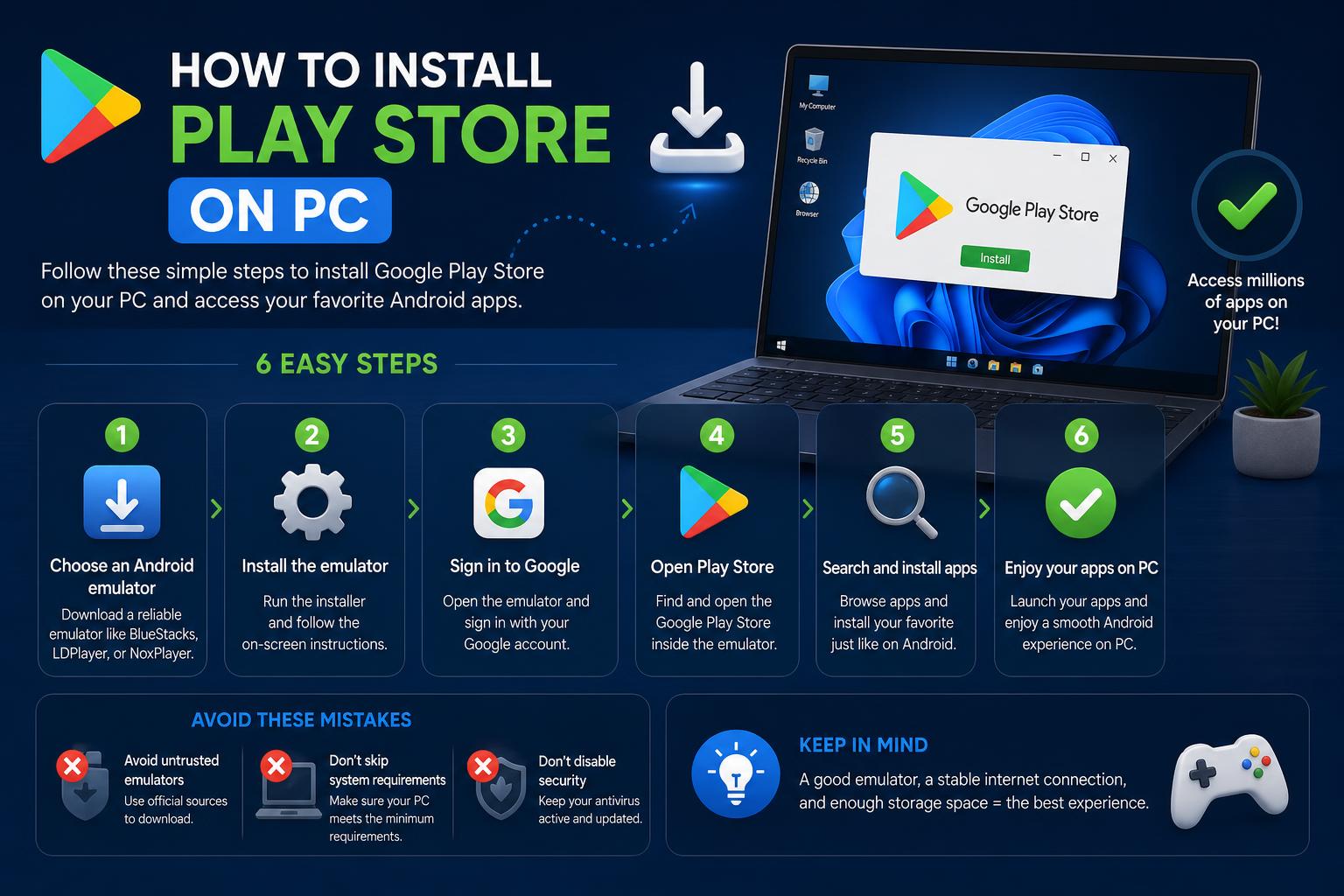
- Installing an Android emulator (like BlueStacks, LDPlayer, or NoxPlayer) to run the full Google Play Store.
- Utilizing Windows Subsystem for Android (WSA) on Windows 11, which can, with some workarounds, support the Play Store.
Official: Google Play Games for PC
In recent years, Google has introduced Google Play Games for PC (visit the official page), letting Windows users play a curated selection of Android games natively on their computers. This feature brings cross-device gameplay, a unified gaming profile, achievement tracking, and bonus rewards, making it possible to jump between your phone and PC without missing a beat. One nifty extra: the Play Games Sidekick with Gemini Live offers quick in-game tips and info without switching windows.
Limitations: The official Play Games for PC doesn’t provide full access to every Play Store app; it’s mainly focused on games from Google’s ecosystem. However, it’s by far the simplest option for gaming and cloud syncing.
Setting Up Google Play Games on Your PC: Step by Step
- Head over to the Google Play Games page on your Windows PC.
- Click the Download button to get the installer file.
- Open the downloaded file and follow the install prompts (the process may take several minutes).
- If your computer meets all requirements, installation continues. If not, you’ll receive a message noting which prerequisites you’re missing (such as hardware limitations or unsupported virtualization).
- Once installed, sign in with your Google account. To sync achievements or continue games between phone and PC, use the same account everywhere.
Note: Only the first user to install Google Play Games on a given PC can access it fully. If you run into trouble, consult Google’s support resources to troubleshoot error codes and installation quirks.
System Requirements and Virtualization Settings
Most modern PCs running Windows 10 or 11 can install Google Play Games, but hardware virtualization must be enabled. During installation, you might be prompted to switch on the Windows Hypervisor Platform or CPU virtualization via BIOS. Without this, performance and compatibility will suffer or the software may not work at all.
- If Windows Hypervisor Platform is disabled, turn it on when prompted and restart your PC for the setting to take effect.
- Be aware: Some third-party emulators may not function when Hypervisor is enabled.
Installing the Full Google Play Store: Using Android Emulators
If you want access to the entire Play Store—not just games—using an Android emulator is your best bet. Emulators create a virtual Android device on your Windows PC, complete with the Play Store and compatibility for nearly every Android app.
The most popular choices include:
- BlueStacks: The gold standard for Android emulation, supporting Play Store integration out of the box. Get BlueStacks here.
- LDPlayer: Noted for gaming performance and Play Store support.
- NoxPlayer: User-friendly and flexible for a range of apps beyond gaming.
How to Install the Play Store via BlueStacks (or similar emulator)
- Download and install your chosen emulator, such as BlueStacks, onto your PC.
- Open the emulator. During initial setup, you’ll be prompted to log into a Google account. This enables the Play Store just like on a phone.
- You can now search for, install, and use any app from the Play Store as if you were on an Android device.
- For some emulators, if the Play Store isn’t available by default, you may need to manually import the com.android.vending.apk (the Play Store APK) or locate it within the emulator’s app library.
Tip: Some guides offer “download packs” or ZIP files with all necessary app files (ensure you trust the source), but BlueStacks typically includes Google services natively.
Alternative Approach: Windows Subsystem for Android (WSA) on Windows 11
Windows 11 introduced WSA to let users install and run Android apps natively. However, Microsoft’s Amazon Appstore is the default, not Google Play. Hackers and advanced users have found ways to sideload the Play Store onto Windows 11 with WSA, but it’s complicated and can void support or introduce security risks. If you want an official, stable solution, stick to emulators or Play Games for PC.
Additional Ways to Get Android Apps on Your PC
- Use Chrome extensions that provide access to certain Android functions—in practice, these are quite limited and don’t offer the full Play Store experience.
- Save APK files to an SD card or USB, then run them via an emulator. Some apps like Titanium Backup, File Expert, and App Monster help transfer and install APKs easily, but updates and Play Store services may not be available through this method.
Advantages of Using Google Play Store on Your PC
The appeal isn’t just bigger visuals. Running Play Store apps on your computer means:
- Smoother performance: PCs often have stronger CPUs and more RAM than mobile devices, reducing lag and enhancing multitasking.
- Easy access to your favorite apps: Quickly install communication tools, productivity apps, games, or entertainment apps typically reserved for mobile.
- Greater compatibility: Most emulators let you run Play Store on all Windows versions—Windows 7, Windows 10, Windows 11, and even older releases, provided hardware requirements are met.
- Seamless integration of apps and services: Integrate work and play by syncing with Google Drive, Facebook, and more.
- Improved gaming experience: Enjoy real-time multiplayer games with friends worldwide, with cloud saves, achievements, and leaderboard features.
Further Features and Content Available
The Play Store isn’t just about apps and games. You gain access to:
- Google Play Audio: Stream 40+ million audio files and podcasts, with free cloud storage for your songs.
- Google Play Books: Access about 5 million e-books, upload up to 1,000 of your own in PDF/EPUB, and harness powerful digital distribution.
- Google Play Movies & TV: Watch popular movies and shows, sometimes for free.
- Google News Stand: Catch up with digital magazines, social and political feeds, and more.
- Nexus Hardware Shop: Browse and buy Google hardware like Chromebooks, Chromecast, and accessories.
Are There Alternatives to the Google Play Store?
If you run into roadblocks, several popular app stores compete with or complement the Play Store. Top alternatives include:
Keep in mind, while these offer access to many apps, not all include official Google services, and some may lack critical features like automatic updates or security vetting.
Common Issues and Troubleshooting Tips
If you face issues when installing Google Play Games for PC or an emulator, try the following:
- Check your hardware meets minimum requirements (RAM, CPU virtualization, GPU).
- Turn on Windows Hypervisor Platform and restart your PC.
- Uninstall and reinstall the Play Games or emulator software.
- Restart your computer after each attempt if installation fails.
- If you still can’t install, use feedback tools in the installer (such as “Send feedback” in Google Play Games).
Refer to official support links for error code explanations or to contact the developers.
Frequently Asked Questions
- Can I use Google Play Store on my PC without an emulator?
No; official support is either via Google Play Games for games or through third-party emulators for full app range. - Is it free to use Google Play Store on PC?
Emulators like BlueStacks offer free access, but some premium features may require payment or have ads. Google Play Games for PC is also free for compatible games. - Are there risks to using emulators?
If you download emulators from legitimate sites, risks are low. Beware of third-party sites offering APK packs with suspected malware. - Why won’t Play Store open after installation?
Check virtualization settings, reinstall the emulator, or consider administrative privileges for installation. - How do I transfer an app from my mobile to my PC?
You can export APKs to SD cards or use cloud sync features, but running them still requires an Android environment on your PC.
Choosing the best approach to install and use Google Play Store on your PC depends on your main needs—whether gaming, full app access, or Windows 11 integration. Having Play Store access on your desktop or laptop expands your possibilities for productivity, entertainment, and more. Follow the steps for your preferred method, ensure system compatibility, and enjoy your favorite Android experiences on a larger screen in minutes.