
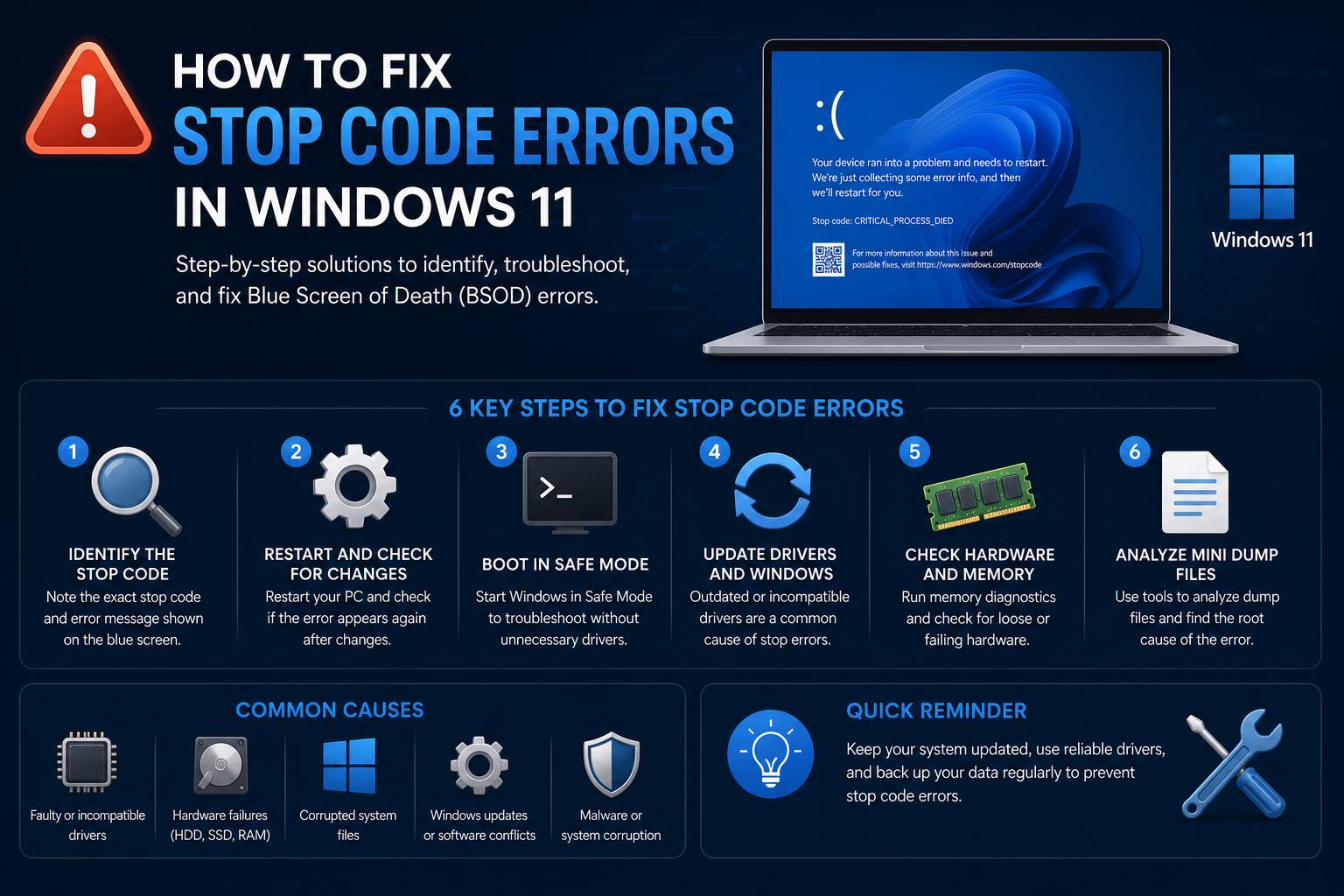
- Most Windows 11 stop code errors originate from driver or hardware problems, not the OS itself.
- Effective troubleshooting combines hardware checks, driver updates, and system repair utilities.
- Understanding error codes can pinpoint root causes, from RAM faults to corrupted system files.
Let’s be honest – nothing is more frustrating than sitting down to use your Windows 11 PC, only to be greeted by a glaring blue or black screen with cryptic codes and a dramatic warning: ‘Your PC ran into a problem and needs to restart.’ If you’ve recently experienced a stop code error or Blue Screen of Death (BSOD) on your Windows 11 computer, you’re definitely not alone. These failures can appear suddenly, sometimes after an update, a driver installation, or seemingly for no reason at all. They can be intimidating for both experienced users and beginners because the cause is not always obvious, and the solutions can range from very simple to highly technical.
This deep-dive guide brings together the most up-to-date knowledge and practical solutions for Windows 11 stop code errors, BSODs, black/green screens, and related system crashes. Drawing from expert knowledge, official troubleshooting flows, community insights, and hands-on experience, we’ll break down what stop code errors actually are, why they happen on Windows 11, what the most common codes mean, and provide a complete walkthrough—step by step—to help you fix and prevent them, regardless of your experience level. You’ll also learn about advanced techniques for root cause analysis, minidumps, and when to get professional help, all explained in approachable terms. Whether you’re struggling to get your machine to boot or you want to make your PC more resilient in the future, you’ll find actionable, easy-to-follow advice here.
Understanding Stop Code Errors and Blue Screens on Windows 11
Seeing a blue or black screen error, also known as a ‘stop code,’ ‘bug check,’ ‘kernel error,’ or ‘Black/Blue/Green Screen of Death (BSOD/GSOD),’ on your Windows 11 PC means that your system encountered a critical error from which it could not safely recover—so it shut down, restarted, or froze completely to protect itself. These errors can be caused by a variety of issues, from hardware failures and outdated drivers to corrupted system files or conflicts with recently installed programs.
Why Do Stop Code Errors Appear?
When Windows detects a condition that could corrupt your data or make the system unsafe, it stops everything immediately. That is when the stop code appears—a hexadecimal number (usually accompanied by an ALL-CAPS description) that acts as a summary of the specific reason Windows crashed. Contrary to popular belief, these errors are not always caused by catastrophic hardware failure. According to Microsoft and analyses from different vendors:
- Most errors (70%) are caused by third-party driver issues.
- Hardware problems account for approximately 10%.
- Microsoft’s own code is involved in 5% of cases.
- The rest are mysteries, usually due to severe memory corruption (15%).
In previous test versions or on certain Insider channels, a green screen (GSOD) may appear. Regardless of the color, the root cause and troubleshooting process are the same.
Recognizing Common Stop Codes in Windows 11
Windows 11 displays a specific code at the bottom of the error screen or BSOD. Each code indicates the general cause of the system crash. Some of the most common codes and their basic meanings are:
- PAGE_FAULT_IN_NONPAGED_AREA (0x00000050): Indicates hardware errors (RAM or disk), faulty drivers, or system file corruption.
- MEMORY_MANAGEMENT (0x0000001A): Problems with RAM or virtual memory (paging file).
- IRQL_NOT_LESS_OR_EQUAL (0x0000000A): Commonly caused by incorrect or incompatible drivers accessing invalid memory.
- SYSTEM_SERVICE_EXCEPTION (0x0000003B): Driver or software conflicts, especially with system services.
- KMODE_EXCEPTION_NOT_HANDLED (0x0000001E): Faulty drivers or misbehaving kernel-mode software.
- INACCESSIBLE_BOOT_DEVICE (0x0000007B): Problems accessing the boot partition—commonly caused by disk errors, drivers, or BIOS settings.
- BAD_POOL_HEADER (0x00000019): Conflicts involving driver resource allocation or hardware.
- SYSTEM_THREAD_EXCEPTION_NOT_HANDLED (0x0000007E): Outdated or incompatible drivers, or corrupted files.
- WHEA_UNCORRECTABLE_ERROR (0x00000124): Hardware error, voltage issue, or temperature problem.
- DPC_WATCHDOG_VIOLATION (0x00000133): Faulty drivers causing system delays.
- NTFS_FILE_SYSTEM (0x00000024): File system corruption or hard drive errors.
- UNMOUNTABLE_BOOT_VOLUME (0x000000ED): Windows cannot read from the boot drive.
- USER_MODE_HEALTH_MONITOR (0x0000009E): Problems in clustered environments or service lockups.
If your computer restarts too quickly to read the error code, you can disable automatic restarts (instructions are provided later), or review the minidump files Windows saves for more details.
What Triggers Stop Code Errors in Windows 11?
Stop code failures can occur after system or driver updates, installing new programs, connecting hardware, or even because of overheating, malware, or disk problems. Hardware components (RAM, SSD, GPU), drivers, software conflicts, BIOS/UEFI settings, and sometimes the power supply or voltage spikes can cause these errors. Some community reports indicate that crashes occur after installing resource-intensive applications (such as video editors), or even seemingly out of nowhere on high-performance, apparently stable machines.
Most cases involve a combination of the following factors:
- Major Windows updates, whether automatic or manual (such as 22H2, 23H2, or 24H2).
- Connecting new hardware or USB devices (such as printers, external storage, or graphics cards).
- Driver or software updates that create conflicts or incompatibilities.
- Damaged system files caused by sudden power loss, improper installations, or malware.
- Faulty or aging hardware, such as RAM, SSD/HDD, or GPU.
- Power supply problems or voltage spikes (including faulty UPS units).
Initial Steps: What to Do When You See a Stop Code or Blue/Black Screen
If a stop code error appears, here are the first actions you should take to troubleshoot or identify what happened.
1. Remove Recently Added Hardware & Disconnect Unnecessary Peripherals
- Shut down your PC completely (hold the power button if necessary).
- Disconnect all external devices (leave only the keyboard and mouse connected).
- Restart the system and check whether the error code appears again.
- If it boots correctly, reconnect each device one at a time, restarting after each one, to identify the culprit.
2. Try Booting Into Safe Mode
Safe Mode loads only essential drivers and software. If the system boots in Safe Mode, this suggests the problem is probably a driver or software conflict rather than a hardware failure.
- To enter Safe Mode, perform two forced shutdowns during the Windows loading animation (by pressing and holding the power button). On the third restart, Windows enters the ‘Recovery Environment.’ From there, select Troubleshoot > Advanced Options > Startup Settings > Restart, then choose option 4 (Safe Mode) or 5 (Safe Mode with Networking).
- If you can access it, run repair steps, uninstall recent updates or drivers, and roll back changes if necessary.
- If you cannot access Safe Mode because of repeated errors, you will need to use advanced methods (explained below).
3. Check Device Manager for Hardware/Driver Issues
- Right-click the Start button and select Device Manager.
- Look for devices with a yellow exclamation mark. Right-click and select Update driver.
- If updating fails, try disabling or removing the device and restarting.
- For network or storage devices, download the latest drivers directly from your PC or motherboard manufacturer’s website.
4. Free Up Hard Disk Space
- Your system needs at least 10–15% free space on the main drive (usually C:).
- A full disk can cause paging file problems, prevent Windows updates, or stop memory dumps from being created for diagnostics.
- Uninstall unnecessary applications or move large files; a quick cleanup can resolve some error codes.
5. Install Windows 11 Updates and Driver/Firmware Updates
- Go to Start > Settings > Update & Security > Windows Update. Click Check for updates and apply all available patches (including optional drivers or firmware).
- Keep your BIOS/UEFI and drivers up to date. Most manufacturers offer automatic tools such as Dell SupportAssist, Lenovo Vantage, ASUS Live Update, etc.
6. Use System Restore or Recovery Options
- If the problem started recently, try System Restore (from Recovery > Troubleshoot > Advanced Options > System Restore), choosing a restore point from before the crashes began.
- If System Restore does not fix the issue and you have a backup of your files, you can try advanced recovery or reset options, although this may remove installed programs.
Dealing with Persistent and Repeating Stop Codes
Sometimes you may encounter different stop codes on each restart, or none of the solutions above may work. There are reports where each restart produces a different code (such as SYSTEM_SERVICE_EXCEPTION, MEMORY_MANAGEMENT, PAGE_FAULT_IN_NONPAGED_AREA), or where Safe Mode cannot be accessed. In these cases, the problem is usually more serious, perhaps due to failing hardware, deeply corrupted files, or drivers/firmware compromised at a low system level.
Advanced Troubleshooting for Windows 11 Stop Codes
If the basic steps did not help, it is time to dig deeper. Many Windows errors do not have a simple answer—fixing them may require diagnostic tools, dump file analysis, or resetting components. Below is a consolidated approach based on several expert sources, including official Microsoft documentation, Dell support resources, technical communities, and professional practices:
Disconnect and Test for Faulty Hardware
- RAM: Test the memory with the Windows Memory Diagnostic tool (search for ‘Windows Memory Diagnostic’ and follow the instructions, or use MemTest86).
- Storage: Run
chkdsk /f /rin an Administrator Command Prompt to check for and repair disk errors. Specify the drive, for examplechkdsk C: /f /r.
Modern SSDs may also require firmware updates or specific diagnostics. Visit the manufacturer’s support site for those tools.
Perform a Hard Reset
- Shut down the computer completely (hold the power button for 10+ seconds).
- Disconnect the power supply and, if it is a laptop with a removable battery, remove it.
- Press the power button for 20 seconds to discharge residual power. Then reconnect everything and turn the computer on.
Reset BIOS / UEFI Settings
- Enter BIOS/UEFI at startup (usually by pressing F2 or Del during boot).
- Use the option to ‘load defaults’ or ‘restore factory settings.’ Save and exit. Incorrect configuration can cause boot errors.
Run Pre-Boot Diagnostics (Especially on Dell, Lenovo, HP PCs)
- Press F12 on Dell or Lenovo computers at startup to access hardware diagnostics.
- Allow the system to run checks and note any error codes to identify physical failures.
Repair Windows Startup Files
If the system does not get past the startup logo or enters a blue-screen loop:
- Trigger automatic repair by interrupting startup several times (force the computer off and on). On the third attempt, Windows enters Recovery. From there, choose Startup Repair.
- The process can fix problems with damaged startup files. If you use BitLocker encryption, you will need the recovery key (find it in your Microsoft account under the devices section).
Repair Windows System Files Using DISM and SFC
- Open Command Prompt as Administrator (Windows + X > Windows PowerShell (Administrator) or Command Prompt (Administrator)).
- Run:
DISM /Online /Cleanup-Image /RestoreHealthand wait for it to finish (requires an internet connection). - Then run:
sfc /scannow - These commands repair corrupted files and the system image.
Update Drivers Outside of Windows (if Possible)
- From another computer, download recent drivers from the manufacturer’s website or hardware support page.
- Try updating them in recovery or reinstall modes if Windows will not boot.
Try System Restore, or as a Last Resort, Reset/Reinstall Windows
- With your data backed up, use the ‘Reset this PC’ option in Recovery to reinstall Windows and either keep or remove files and programs.
- A clean installation can fix deep system problems. Make sure to back up your data before formatting.
Memory Dump Files, Minidumps, and Crash Analysis
Every time a stop code error occurs, Windows typically creates a memory dump file (minidump, kernel dump, or full dump) in C:\Windows\Minidump\ or C:\Windows\MEMORY.DMP. These files are essential for root cause analysis, especially for advanced users and IT professionals.
- To adjust dump settings, search for Advanced system settings and under ‘Startup and Recovery’ select the dump type (recommended: kernel or small).
- To analyze them, download the Windows SDK and use the Debugging Tools for Windows (WinDbg). Set the symbol path to
https://msdl.microsoft.com/download/symbolsand open MEMORY.DMP, then run !analyze -v. - The analysis often identifies the responsible driver or module, guiding specific actions such as disabling an adapter, uninstalling recent drivers, or replacing hardware.
How to Diagnose Stop Code Causes Using Built-In Tools
Complement the troubleshooting process with Windows built-in utilities:
- Event Viewer: Search for ‘Event Viewer’ and review Windows Logs > System for errors that occurred at the time of the crash.
- Reliability Monitor: Provides a timeline of system events; look for incidents marked in red.
- Device Manager: Identifies hardware conflicts (yellow warning icons).
- Driver Verifier: An advanced tool that detects problematic drivers, but use it with caution because it can cause additional crashes.
Specific Fixes for Common Stop Code Errors
INACCESSIBLE_BOOT_DEVICE
- Check the SATA configuration in BIOS (use ‘AHCI’ or ‘RAID’ modes as appropriate).
- Reinstall or update the storage controller drivers.
- If the problem persists, restore BIOS defaults or perform a clean reinstall.
PAGE_FAULT_IN_NONPAGED_AREA
- Run a memory test and review recent driver or hardware changes.
- Run
chkdsk /f /r; if that does not help, replace or uninstall recently added software. - Check for possible Registry corruption or restore from a backup.
DRIVER_IRQL_NOT_LESS_OR_EQUAL
- This error indicates problematic drivers.
- Update all drivers, especially those reporting errors in Device Manager.
- Review virtual machine settings if applicable, and remove faulty peripherals.
SYSTEM_SERVICE_EXCEPTION
- Make sure drivers are up to date and run Windows Update.
- Run
sfc /scannowto check system files.
NTFS_FILE_SYSTEM
- Indicates disk corruption. Run SFC and CHKDSK.
- Update storage drivers and check for physical errors on the disk or SSD.
BAD_POOL_HEADER, WHEA_UNCORRECTABLE_ERROR, DPC_WATCHDOG_VIOLATION, MACHINE_CHECK_EXCEPTION
- Usually related to hardware, faulty drivers, or conflicts with newly installed hardware.
- Check temperatures and the power supply, and update the BIOS or chipset.
Preventing Future Blue Screens and Stop Code Errors
To avoid similar failures in the future, it is advisable to follow these preventive steps:
- Keep drivers updated, especially the BIOS or firmware using the manufacturer’s official tools—such as SupportAssist, Lenovo Vantage, HP Support Assistant, etc.
- Regularly update Windows and applications through Settings > Windows Update.
- Keep at least 10–15% free space on your main drive to avoid swap errors or problems creating dumps.
- Use surge protectors or a UPS to protect your computer from voltage spikes.
- Back up your most important data regularly to the cloud or external drives; prevention makes recovery from failures easier.
If your problems occur frequently, consider performing a clean reinstall of Windows 11, especially if the current installation shows recurring symptoms after updates or hardware replacement.
Frequently Asked Questions about Stop Code Errors on Windows 11
How can I disable automatic restart to read a stop code?
- Go to Control Panel > System and Security > System > Advanced system settings. In the ‘Startup and Recovery’ section, click Settings and uncheck ‘Automatically restart’.
Will a stop code/BSOD physically damage my computer?
- The BSOD itself does not physically damage hardware. However, underlying causes such as high temperatures or electrical faults can damage it if they are not addressed.
Are stop code errors ever caused by Windows Updates?
- Major updates can trigger incompatibilities or conflicts with hardware, causing errors. If you suspect an update, you can roll it back through Recovery or uninstall it.
How do I perform a ‘clean boot’ to rule out software conflicts?
- Run msconfig, select ‘Hide all Microsoft services’, and disable the rest. On the ‘Startup’ tab, open Task Manager and disable the startup items. Restart to check whether the problem persists.
Will reinstallation of Windows definitely stop these errors?
- Only if the errors are caused by software or system corruption. Hardware failures will persist even after reinstalling, so it is advisable to test physical components if the problems continue.
Real-World Blue Screen and Stop Code Scenarios
Let’s look at some real-world examples, taken from forums and user reports, showing how much the cause and solution can vary:
Example 1: Multiple Random Stop Codes
A user with a high-end PC (Intel i9, DDR5, NVMe SSD, RTX 4090, quality power supply) began experiencing various BSODs (SYSTEM_SERVICE_EXCEPTION, MEMORY_MANAGEMENT, IRQL_NOT_LESS_OR_EQUAL). There had been no recent hardware changes, but automatic updates were enabled. Even Safe Mode failed after a brief attempt.
- Recommendation: Run a memory test with Windows Memory Diagnostic or MemTest86. Disconnect expansion cards and non-essential USB peripherals. Run
chkdskandsfc /scannowfrom a bootable USB drive, and update the SSD firmware. If the tests pass, perform a Windows restore or reset.
Example 2: System Won’t Boot and Shows NTFS.SYS BSOD
After analyzing the dump, NTFS.SYS was identified as the cause, indicating disk corruption or hardware malfunction. The solution was to run sfc /scannow and chkdsk C: /f /r, as well as update the storage drivers.
Example 3: PC Gets Blue Screen After Windows Update or Driver Install
A classic scenario: after an update, Windows does not start correctly. Rolling back the update, automatic repair, or System Restore fixes the issue in most cases. In persistent cases, updating drivers in Safe Mode can help resolve software conflicts.
When To Call a Professional
If your troubleshooting attempts have failed and the machine still will not boot, it is advisable to contact a certified technician, especially if you do not have experience diagnosing hardware components such as RAM, SSDs, or motherboards. Most PCs include built-in startup diagnostics, but some failures can only be detected through physical testing or part replacement.
Useful Links & Official Resources
- Official Microsoft page for troubleshooting stop code errors
- Microsoft documentation: Stop code error troubleshooting
- Dell guide to blue screens and error codes
- Windows SDK (debugging tools)
Resolving stop code errors in Windows 11 requires a logical, step-by-step approach. Check the hardware, update drivers, run repair tools, and if necessary, analyze dump files and perform advanced diagnostics. Stay calm, be methodical, and make use of official and community resources. Patience and knowledge will help you recover your PC and improve its future stability.