
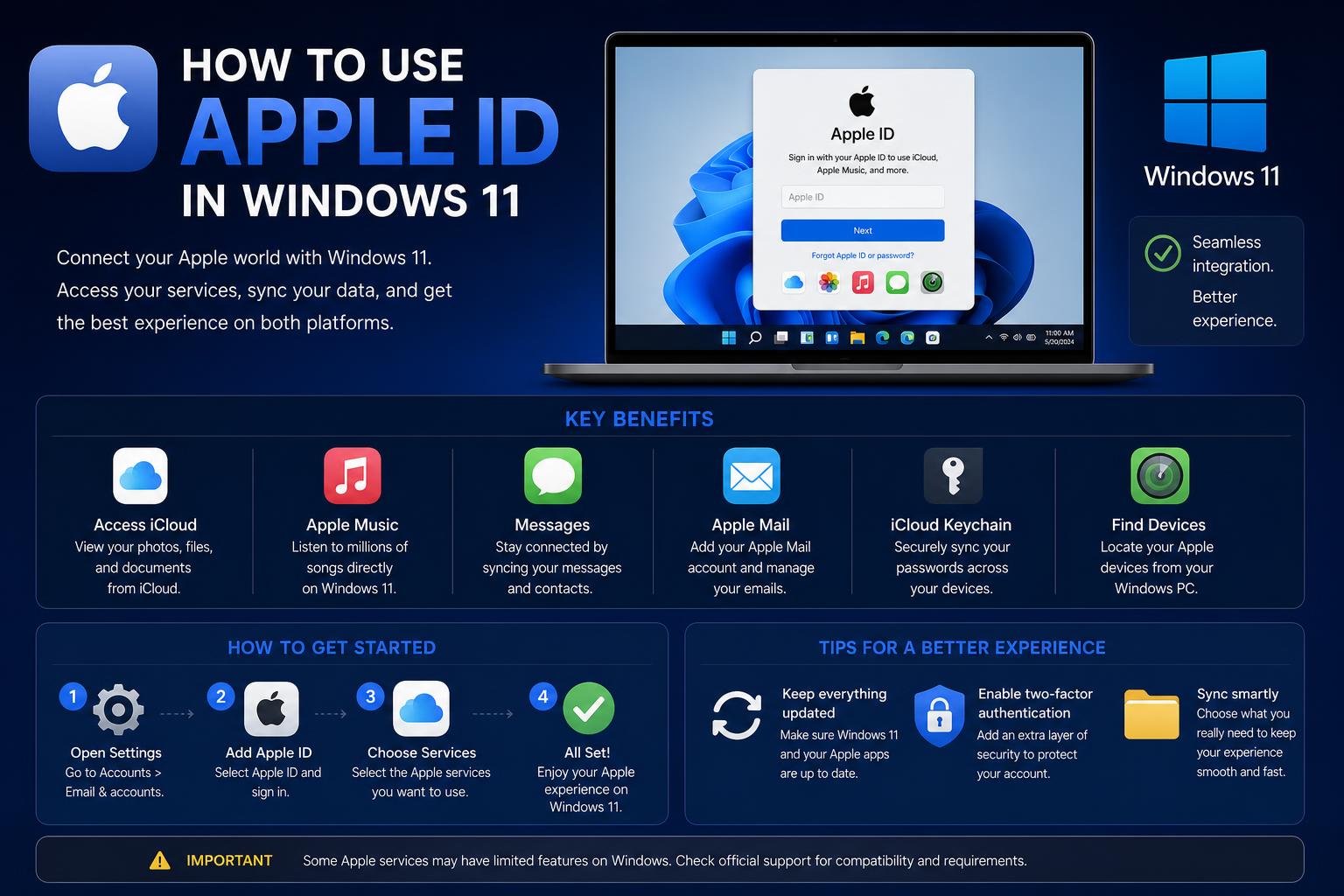
- Integrating your Apple ID with Windows 11 is possible and offers robust cross-platform access to Apple services.
- Multi-factor authentication and verification codes are vital for signing in securely to iCloud for Windows and other Apple apps.
- Solutions to common Apple ID sign-in issues on Windows 11 often involve simple steps like account resets or reinstalling applications.
Managing an Apple ID on Windows 11 may sound complicated at first, especially if you’re used to the Apple ecosystem where everything “just works.” But the truth is that, with Microsoft and Apple making increasing efforts toward compatibility, it’s actually easier than ever to use your Apple account—and all the benefits it comes with—on any modern Windows computer. If you’ve found yourself puzzled by how to get started, what apps to install, or what to do when verification gets tricky, you’ve landed in the right spot. This guide lays out, in detail, every step you need to follow and every issue you might come across, so by the end, you’ll be switching between macOS and Windows like a pro.
So, whether you want to access those all-important iCloud files, stream your Apple Music playlists, or simply want to sync your photos and calendars, this comprehensive walkthrough is designed for you. We’ll cover the official solutions straight from Apple, troubleshooting steps from Microsoft, and tips based on user experiences from credible forums. Along the way, we’ll also highlight little-known tricks and workarounds, making sure no question is left unanswered.
What Is Your Apple ID and Why It Matters on Windows 11
Apple ID is the personal account that gives you access to a huge range of Apple services—think iCloud, Apple Music, Apple TV, App Store, and more. While most people associate Apple IDs with iPhones, iPads, and Macs, the reality is that Apple has rolled out several Windows-compatible applications so you can continue using your Apple services even when working from a Windows 11 device. This means you can back up and sync photos, access contacts and files, and even manage subscriptions without needing an Apple-branded computer. The key is to understand which official apps to use and how to keep your account secure during the transition.
A Comprehensive Guide to IoT Devices: How They Work, Where They’re Used, and Trends
Setting Up iCloud for Windows in Windows 11
The primary way to bring Apple’s ecosystem to Windows 11 is via the iCloud for Windows application, available directly from the Microsoft Store. Make sure your PC runs Windows 11 for full compatibility and if you plan on integrating with Outlook, ensure you have Outlook 2021 or newer installed as well.
- Download iCloud for Windows: Open the Microsoft Store, search for “iCloud,” and click download. Follow the on-screen prompts to install.
- Open the iCloud app: Once installed, open iCloud for Windows from your Start menu.
- Sign in to your Apple ID: Use the same Apple ID that you use on your other Apple devices.
- Verification required: As part of Apple’s multi-factor authentication, you’ll be prompted to verify your identity. Typically, a verification code will be sent to one of your trusted devices (like your iPhone) or as a text message. Enter this code in the iCloud app to complete the sign-in process.
- Set up your preferred iCloud features: Choose which items (Photos, Mail, Contacts, Calendars, Bookmarks, etc.) you want to sync with your Windows PC. You can always adjust these settings later.
- Finish setup: Decide whether to share iCloud analytics with Apple, then click Finish Setup.
For more specifics about syncing advanced app settings or installing browser extensions, refer to Apple’s official guide: Set Up iCloud for Windows.
Using Apple ID Across Multiple Apps on Windows 11
Apple is consistently expanding its support for Windows users beyond just iCloud. Here are a few more essential Apple applications now available for Windows 11:
- Apple Music App: You can now install the Apple Music app on Windows 11. Download it from the Microsoft Store, open the app, and click “Sign In.” Use your Apple ID credentials for access. If you haven’t signed in on this device before, you’ll likely need to go through the usual verification process.
- Apple TV App: For those who love binge-watching Apple originals, the Apple TV app is also up for grabs on the Microsoft Store. Similarly, click “Sign In” and enter your credentials as prompted.
The process of signing in to both these apps is virtually identical to iCloud for Windows. Enter your Apple ID email or phone number, type in your password, and provide the six-digit code sent to your trusted Apple device when prompted. No code? Double-check your iPhone or iPad—it may appear as a pop-up or in your Messages.
Two-Factor Authentication and Security Codes: What to Expect
Security is a top priority at Apple, so expect to jump through a few hoops before you’re fully logged in. After entering your Apple ID and password, Apple’s servers will typically trigger a two-factor authentication process. This manifests as a prompt or notification on one of your trusted devices (an iPhone, iPad, or Mac signed in with your Apple ID), asking to approve a new login and displaying a six-digit code:
- Unlock your Apple device when you get the notification, approve the sign-in, and a six-digit verification code will appear.
- Input that code into the sign-in popup on your Windows 11 device.
- If you’re not receiving codes, ensure your device has internet access and is signed in to the right Apple ID.
This two-step verification ensures that even if someone else knows your credentials, they can’t access your account without your physical device. If you’re still stuck without a code, visit the Apple Support pages or use account recovery options where possible.
Creating a New Apple ID from Windows 11
If you don’t yet have an Apple ID but need one to get started with iCloud, Apple Music, or Apple TV apps on your PC, you’re in luck—you can create one directly from Windows!
- Through Apple Music or Apple TV: Open either app, click “Sign In,” then select “Create New Apple Account.” Follow the on-screen steps to provide:
- Your full name and date of birth
- A valid email address—this becomes your Apple ID username
- Create a strong password
- Your geographical region or country
- Optionally, payment method and billing information (you can skip this until you make a purchase)
- Verification of your email via a code sent by Apple
- Via the web: Alternatively, simply head over to account.apple.com in your browser and click “Create Your Apple Account.” After filling out your details, you’ll need to confirm your email and phone number through verification codes.
Don’t forget: Two-factor authentication is often required during setup for added security. This means entering codes sent to your devices or phone number, so have your mobile handy!
Troubleshooting Common Apple ID Sign-In Problems on Windows 11
It’s not uncommon to face hiccups with signing in or verifying your Apple ID when using Windows 11, especially if multi-factor authentication isn’t cooperating. Here are the top issues users encounter—and how to fix them:
- Verification Codes Not Received
First, make sure your trusted Apple device (iPhone, iPad, or Mac) is turned on, connected to the internet, and logged in with the same Apple ID. The code often appears as a pop-up window or notification. If you’re not receiving it, check if you’re signed into the correct account, then resend the code. - Can’t Complete Verification
If you repeatedly fail verification, first try closing the app and signing in again. Still stuck? Go to Settings > Apps > Installed Apps in Windows settings, find iCloud, tap on “More Options” (the three dots), and select “Advanced Options.” Reset the application and attempt signing in again. In some cases, uninstalling iCloud for Windows and performing a fresh installation resolves persistent issues. - Switching or Changing Your Apple ID
If you want to log in with a different Apple ID, especially after encountering errors, perform an application reset as above, or uninstall and reinstall the affected app for a clean start. This workaround is endorsed by Microsoft’s own community support. - Invalid or Lost Connection
If you get “Invalid connection” messages when trying to log in, this usually points to a network issue. Double-check your internet connection (consider switching from Wi-Fi to wired), and if the problem persists, try again at a later time.
If you get stuck at any step, remember that Apple’s and Microsoft’s own Q&A forums provide additional troubleshooting guides tailored to your specific error messages.
Pro Tips: Making the Most of Apple and Windows Integration
- Sync Only What You Need: When setting up iCloud for Windows, pay attention to the list of available sync items. If your work only requires Photos and Drive, skip other features to save resources.
- Use Edge or Chrome Extensions: iCloud for Windows allows you to sync Safari bookmarks with your preferred Windows browser—handy for keeping bookmarks unified across devices.
- Two-Factor Security Settings: Enhance your account security by regularly reviewing your trusted devices and phone numbers at appleid.apple.com. Remove old devices you no longer use to safeguard against unauthorized access.
- Updating and Compatibility: Use the latest version of iCloud for Windows and keep Windows 11 and all Apple apps updated for maximum stability and compatibility.
How to Change the Battery in an Apple AirTag: Complete Step-by-Step Guide
Apple ID on Other Devices Beyond Windows 11
Did you know? Your Apple ID isn’t restricted to just Apple devices and Windows PCs. You can also use it on Android phones, smart TVs, streaming boxes, and web browsers:
- On Android, download the Apple Music or Apple TV app and sign in using your Apple credentials. You’ll go through similar verification checks as with Windows.
- On smart TVs or streaming devices, open the Apple Music or TV app, head to Settings, and select “Sign In.” You can usually use your phone to scan a QR code for fast login.
- Many Apple services are accessible by logging into their respective websites, using your browser and Apple credentials—perfect for those in shared or public computer situations.
If All Else Fails: Account Recovery and Further Help
If you’re consistently running into roadblocks—whether it’s unreachable verification codes, forgotten passwords, or suspicious account activity—your best bet is to go through the official Apple Account Recovery process. Here, you can reset your password, update security details, and regain access to your account. Be prepared to answer security questions, confirm your phone number, or even supply recovery keys if you set up two-factor authentication.
Unlocking your Apple ID on Windows 11 broadens your ability to enjoy Apple’s ecosystem seamlessly across devices. Use iCloud to keep your documents and photos in sync, Apple Music for seamless playlists, and Apple TV for entertainment. Staying updated with software, enabling two-factor authentication, and consulting official support keep your experience smooth and secure.