
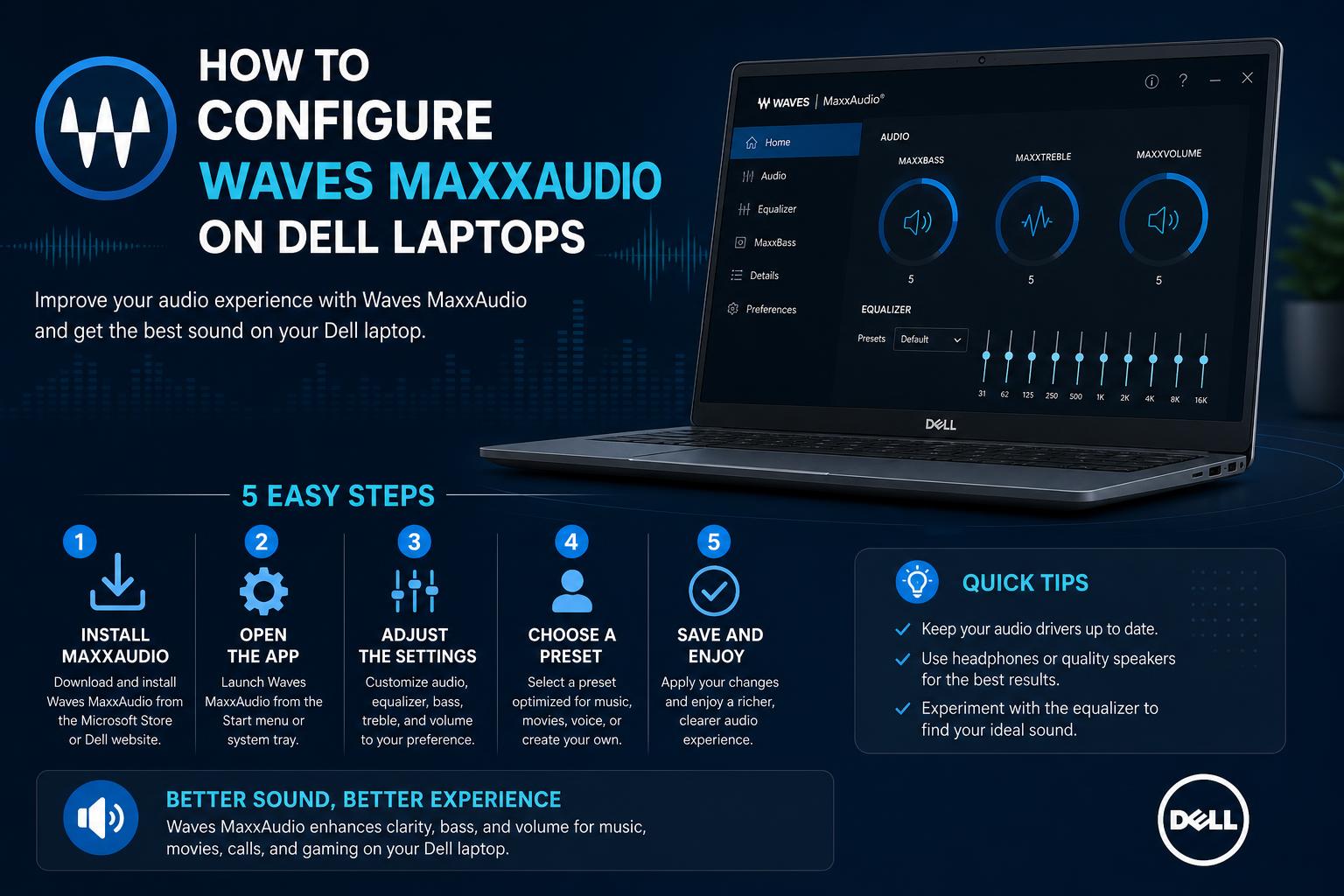
- Waves MaxxAudio is essential for headset microphones and enhanced audio on many Dell laptops.
- User frustrations center on persistent sound issues post-uninstall or after Windows resets.
- Most problems are resolved by reinstalling the correct drivers and the MaxxAudio app from official sources.
Sound quality plays a big role in everyday laptop use, whether you’re taking calls, watching movies, or just listening to music. If you own a Dell laptop, there’s a good chance you’ve come across Waves MaxxAudio—the much-discussed audio enhancement software bundled on many Dell systems. Depending on your personal experiences, your opinion about this tool can range from positive to, well, extremely negative. But love it or hate it, configuring Waves MaxxAudio properly can mean the difference between clear, powerful audio and a frustrating mess of echoes, buzzes, or missing features.
With so many conflicting opinions and scattered advice in forums and support threads, it’s hard to know whether you should stick with MaxxAudio, try to get rid of it entirely, or painstakingly tweak every setting in the hope you’ll restore normal sound quality. This article is here to lift the fog. We’ll walk you through everything you need to know: why Waves MaxxAudio exists, what problems users face, how to properly configure, reinstall, or even remove it if needed, and some crucial tips to ensure your Dell laptop doesn’t sound like it’s broadcasting from the bottom of a well. Whether you’re frustrated by constant pop-ups, missing features after a reset, or just want the best possible audio experience, we’ve got your back.
What Is Waves MaxxAudio—and Why Does Dell Include It?
Waves MaxxAudio is an audio enhancement suite that comes preinstalled on a wide range of Dell laptops, including popular Latitude and XPS models. Its primary goal is to provide advanced sound tuning options like equalizer settings, volume boost, noise reduction, and audio effects for speakers, headphones, and microphones.
Dell pairs this suite with Realtek (or other) audio drivers to unlock advanced hardware features—especially with analog headsets, where microphone support often requires both the right driver from Dell’s support page and the MaxxAudio app (UWP or classic desktop variant).
On paper, these tools are meant to deliver a customizable, immersive listening experience tailored to Dell laptops’ hardware. In reality, user experiences are all over the map.
Common Complaints and Frustrations
It doesn’t take much browsing to see that opinions on Waves MaxxAudio are polarized. Many users head to Reddit and Dell forums to vent about issues ranging from echo-laden audio to disappearing microphone features or endless pop-ups. Some memorable pain points drawn from recent forum discussions and community threads include:
- Persistent Echo Effects: Even when users disable all enhancements, they may still suffer from ‘large hall’ reverb that refuses to go away—even after uninstalling the app and rebooting. The unwanted echo persists, often being linked to background services still running in Windows.
- Buzzing and Distortion: Some users note that after tweaking or disabling MaxxAudio pop-ups, a new problem emerges: a constant buzzing sound in all audio output, especially with headphones or earbuds.
- Uninstall Gone Wrong: Ironically, uninstalling or forcibly removing MaxxAudio doesn’t always restore clean sound but sometimes makes it worse. System reinstalls, registry edits, and more extreme measures have been reported to make audio sound tinny or distant.
- Feature Loss After Reset: A factory reset or upgrade to Windows 11 often results in MaxxAudio Pro or microphone features vanishing. Without the correct driver/app combo, microphone inputs on analog headsets may not work at all.
- Pop-up Fatigue: Others grow frustrated with the constant MaxxAudio pop-ups each time a headphone or mic is plugged in, leading them to disable or uninstall, only to find new and unpleasant audio issues arise as a result.
As one Redditor dramatically put it, trying to get rid of MaxxAudio is “like PC herpes.” Others admit that, despite their frustration, they need the app back to restore normal audio and microphone functionality—if only they could figure out how.
Fixing and Configuring Waves MaxxAudio Properly
Don’t worry—most issues can be fixed with the right steps. If your audio is echoing, lost, or glitchy after a Windows reset or driver update, here’s what the top community guides and support threads suggest:
1. Download and Reinstall the Correct Drivers and Waves MaxxAudio App
- First, always visit Dell’s official driver support page and enter your service tag or select your laptop model manually.
- Look for the latest Realtek or other OEM audio drivers. These often bundle the necessary MaxxAudio support files, but sometimes, especially on newer models, you’ll also need to separately download the Waves MaxxAudio UWP app from the Microsoft Store. Make sure to get the right version—Pro, UWP, or Classic—based on your system firmware.
- Run the installer(s), reboot, and check if both the speaker/headphone enhancements AND analog headset microphone are working. Without both packages, mic input on headset combos may be broken.
2. Tweak or Reset MaxxAudio Settings
- Open Waves MaxxAudio from your Applications menu or from the notification tray. If it doesn’t appear, reinstall the drivers and app as above.
- Check the Playback and Recording tabs.
- Disable any enhancements you don’t want (like reverb, surround, or compressor effects).
- If you get echo or “hall” sound, make sure all surround, reverb, and environment features are OFF. The toggles can be stubborn; sometimes you need to click them multiple times or reboot after changing settings.
- If available, use the “Reset to Defaults” button provided by MaxxAudio. This can fix strange persistent sound artifacts by restoring factory tuning.
3. Addressing Persistent Issues After Uninstall or Reset
- Sometimes, MaxxAudio services remain running in the background, even after you think you’ve nuked them. Check Task Manager > Services for anything labeled Waves or MaxxAudio. Disable or stop the service if uninstall didn’t remove it properly.
- For persistent echo or audio artifacts, do not manually delete system folders or Windows registry keys unless you know exactly what you’re doing. This can make things worse and hamper future troubleshooting.
- If uninstalling MaxxAudio ruined your sound and you want it back, head to Dell’s support page and reinstall drivers/app as in step 1 above. Users regularly report that this solves “missing microphone” and other input issues.
4. Should You Uninstall Waves MaxxAudio Entirely?
Many users wonder if MaxxAudio is even necessary. For some, Windows’ built-in audio management is enough, and the extra bloatware feels intrusive or unnecessary. But if you rely on headset microphone input—especially with analog jacks—MaxxAudio and its paired drivers may be essential for full functionality on Dell machines like the Latitude 7320, 7420, or 9510.
Consider this rule of thumb: If your laptop sounds fine and your microphone works without MaxxAudio, you can get by with just Realtek drivers. But if something breaks when MaxxAudio is absent, you’ll need to reinstall both the app and its driver package.
Safe Browsing and Downloading Advice
Most guides urge caution when downloading drivers or “fix” tools. Stick to official sources (Dell, Microsoft, Realtek). Avoid repair tool ads like Restoro, PC Repair Tool, or Reimage which can be classified as potentially unwanted programs (PUPs) and might cause more harm than good.
Always double-check URLs before downloading anything, and when searching forums or reading community guides, be aware that some suggested downloads are packed with ads or bloatware.
Checking Dell Forums and Microsoft Q&A for Solutions
The Dell Community Forums (like Dell’s official support community) and Microsoft’s Q&A sections are filled with detailed user interactions around these audio issues. Folks frequently ask how to fix MaxxAudio Pro missing after a reset, or why their headset mic stopped working after an update.
If you reach a dead end with the above steps, it’s always worth posting your own detailed question (including your laptop model, Windows version, and a description of what broke) in one of these forums. The community and official Dell reps are known for helpful replies—just expect confirmation that reinstalling drivers and ensuring the MaxxAudio app is running is the most common solution.
Practical Tips for Avoiding Audio Nightmares
- Before upgrading to Windows 11 or running a factory reset, download the latest drivers and MaxxAudio installer onto a USB stick. This can save you headache if your laptop audio goes sideways after resetting.
- Be wary of disabling or uninstalling MaxxAudio unless you’re sure you won’t lose critical mic functions—especially important in business settings where headset calls are routine.
- If you find the pop-ups too annoying but want to keep functionality, search for guides discussing “disabling MaxxAudio notifications” rather than completely uninstalling the app. This can often be adjusted in the MaxxAudio or Realtek Control Panel.
Dealing with Frustrations—User Stories
A quick look at real user experiences adds valuable perspective. Some describe Dell’s audio software ecosystem as downright “gross”, claiming that even expert-level tweaking, repeated reinstalls, and deep system folder cleanings couldn’t restore normal audio. Others, fed up with the constant MaxxAudio pop-ups, disabled or uninstalled the app, only to discover headphone buzzing that was even more distracting.
The common thread? Even for power users, fixing issues with MaxxAudio (or its sudden disappearance after a Windows reset) usually means biting the bullet and reinstalling both driver and app. For less critical users, using the Windows-only audio options is sometimes satisfactory—just realize that some features (especially microphone support on analog headsets) may be lost.
Should You Switch Laptops or Audio Software?
Frustration with the situation has left some users vowing never to buy a Dell laptop again—and urging their IT departments to look elsewhere for business devices. While that reaction is understandable, it’s worth recognizing that MaxxAudio-related issues are mostly software-based and often fixable with a careful driver/app reinstall.
If you’re especially sensitive to audio quality and don’t want to fuss with special software, consider laptops from manufacturers with a simpler, less involved audio stack. On the flip side, if you need the best possible microphone, headset, and custom sound features, sticking with the official drivers and MaxxAudio—despite the occasional headache—remains the safest bet.
Troubleshooting audio on Dell laptops with Waves MaxxAudio often feels like a never-ending maze, but most issues can be solved by identifying and reinstalling the right drivers, carefully managing app settings, and leveraging community wisdom. Take things step by step, stick to official sources, and don’t be afraid to ask the community for help. With the right approach, you can restore, configure, and even enjoy great sound on your Dell device.