
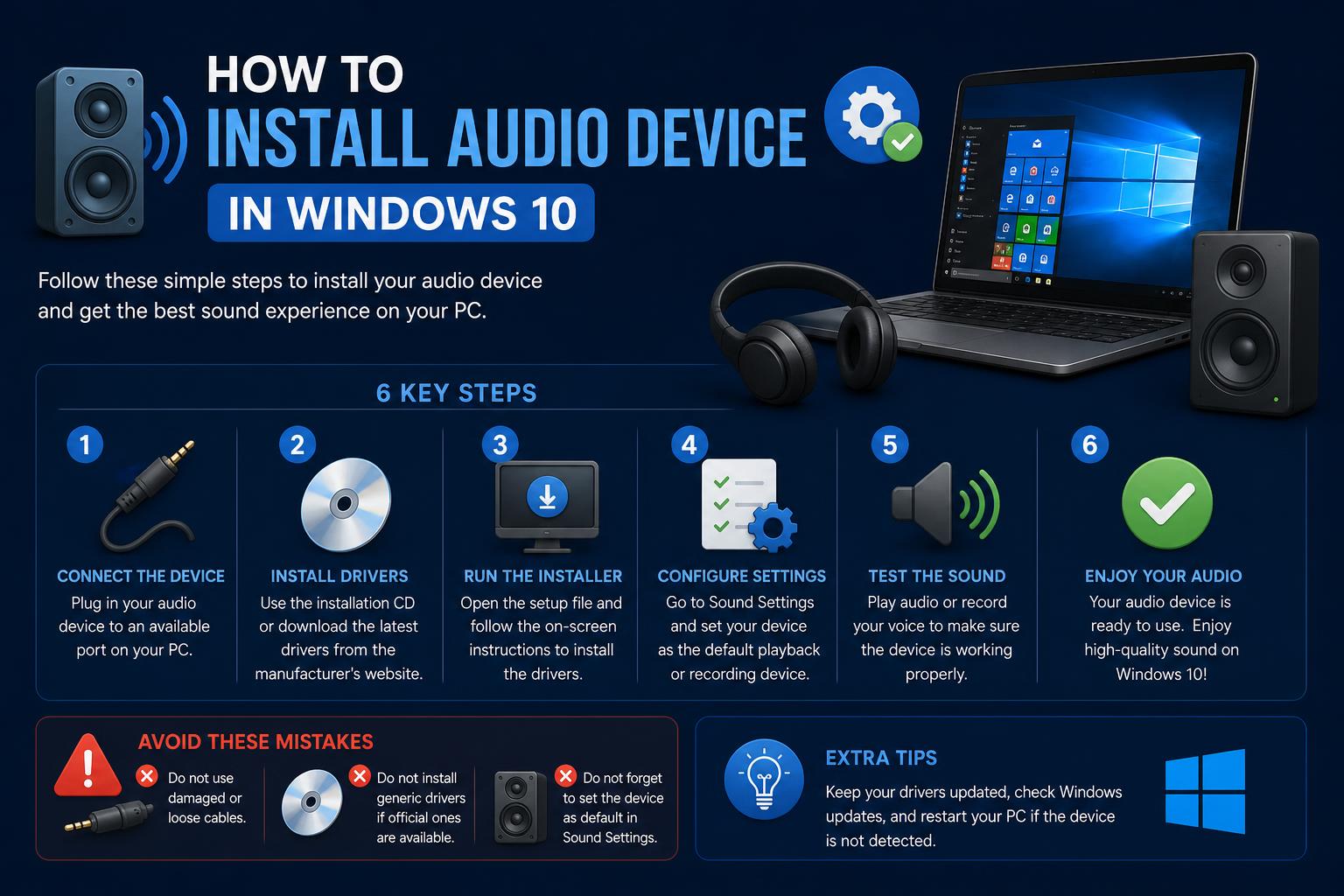
- Understand why audio devices may disappear in Windows 10 and the leading causes behind missing sound.
- Comprehensive guide to updating, rolling back, and reinstalling audio drivers using Device Manager and Windows Update.
- Learn advanced and community-proven troubleshooting methods for stubborn sound problems, including external device tips.
Having issues with audio devices on Windows 10 is surprisingly common and can turn a routine computer session into a frustrating puzzle. Whether you’re greeted with a message like ‘No audio output device installed,’ or you’re simply facing silence instead of expected sounds, resolving these troubles often means digging through a mix of driver tweaks, system updates, and hardware checks.
Don’t worry—regaining your computer’s audio isn’t usually rocket science, even though fixing sound issues can involve a bit of trial and error. This in-depth guide walks you through the practical solutions, from simple first checks to reinstalling drivers and understanding what causes your audio device to vanish from Windows 10.
Why Windows 10 Might Tell You ‘No Audio Output Device is Installed’
Ever seen that cryptic pop-up stating there is no audio output device installed? There are several reasons Windows 10 might believe your audio device has disappeared:
- Corrupted or missing audio drivers can cause your hardware to go undetected.
- Operating system updates sometimes introduce compatibility issues or inadvertently disable necessary services.
- Faulty or loose hardware connections, especially when dealing with external audio devices.
- OS or driver settings that unintentionally disable or remove devices from view.
Essential Preliminary Checks
Before getting technical, double-check a couple of obvious but often overlooked scenarios:
- Is your sound muted or set to the wrong playback device? Open the volume mixer by clicking on the speaker icon in the system tray and ensure the correct device is active and not muted.
- If using external speakers or headphones, confirm every connection is secure. Experiment by switching USB ports or audio jacks.
- With Bluetooth speakers or headsets, open Bluetooth settings and make sure the device is paired and selected for playback. Sometimes simply disconnecting and reconnecting can kickstart the audio.
Step-by-Step: Updating or Reinstalling Audio Drivers
Often, the fastest path to sound recovery is updating your audio drivers. This can be done through Windows Update or by diving into Device Manager. Here’s how:
Method 1: Using Windows Update
- Open the Settings app (Windows key + I) and navigate to ‘Update & Security’ → ‘Windows Update’.
- Select ‘Check for updates.’ If Windows finds any audio or related driver updates, allow it to install them automatically. Often, this will restore sound after a reboot.
Note that Windows Update typically offers stable, official driver versions, but they may not be the absolute latest available.
Method 2: Updating Drivers via Device Manager
- Type Device Manager into the Windows search bar and launch it.
- Expand the section labeled ‘Sound, video and game controllers.’
- Right-click on your audio device (such as ‘Realtek Audio’ or similar) and choose ‘Update driver.’
- Select ‘Search automatically for updated driver software.’ Windows will attempt to find and install the correct driver.
- If nothing turns up, select ‘Browse my computer for driver software’ and point Windows to where you’ve manually downloaded the correct driver from your computer or the manufacturer’s site.
Tip: If you’ve previously downloaded a sound driver (typically ending in .inf), extract it and direct Device Manager to the folder containing this file.
Rolling Back or Reinstalling Drivers
If the problem started after a recent update, sometimes reverting to a previous driver version solves it:
- In Device Manager, right-click your sound device and select ‘Properties.’
- Under the ‘Driver’ tab, click ‘Roll Back Driver’ if available. If not, proceed by uninstalling it.
- Right-click and choose ‘Uninstall device.’ After removal, reboot your PC—Windows will usually detect and reinstall the suitable driver automatically.
For especially stubborn cases, try downloading and installing the original or latest driver directly from your PC or motherboard manufacturer’s website. Links can typically be found on their support or downloads page.
Further Troubleshooting Tools in Windows 10
If you’re still battling silence, Windows 10 bundles helpful troubleshooting tools designed to hunt down and potentially fix issues for you.
Using the Audio Troubleshooter
- Go to ‘Settings’ → ‘Update & Security’ → ‘Troubleshoot.’
- Find and select ‘Playing Audio’ then click ‘Run the troubleshooter.’ Follow any on-screen instructions and allow Windows to apply automated fixes if any.
This tool checks for misconfigurations, missing services, and simple conflicts; it’s worth running even if you think you’ve tried everything else.
Check Output Devices and Audio Services
- Right-click the volume icon in the system tray and select ‘Sound settings.’ Choose the correct device in both Output and Input dropdowns.
- If the desired device doesn’t appear, make sure it’s not disabled. In Device Manager, show hidden devices and check for any grayed-out entries you can enable.
- Check that the ‘Windows Audio’ service is running. Press Windows key + R, type ‘services.msc’, scroll to ‘Windows Audio’, and confirm its status is ‘Running.’ If not, right-click and choose ‘Start.’
Fixing Audio Devices After Windows Updates
Windows 10 updates are infamous for occasionally breaking sound. If your issue coincides with a recent update, consider the following steps:
- Navigate to Settings → Update & Security → View Update History. Click ‘Uninstall updates’ and remove any recent patches that seem linked to your problem.
- If your audio worked prior to a recent version upgrade, you might be able to roll back to the previous version. Go to Settings → Update & Security → Recovery and select ‘Go back to previous version.’ This is time-limited and won’t always be available.
Once you’ve got things working, you can use Microsoft’s ‘Hide Updates’ tool to prevent troublesome updates from reinstalling until a fix is confirmed.
Manually Downloading Drivers from Manufacturer Sites
If both Windows Update and Device Manager fail, head to the support site for your PC, motherboard, or sound card manufacturer. Look up your exact model and download the matching audio driver.
- PC brands like Dell, HP, and Lenovo provide dedicated driver sections sorted by model.
- Sound card or chip manufacturers (like Realtek, Creative Labs, or Intel) host drivers for their hardware.
Follow the on-site installation steps or double-click the downloaded installer. If only the raw driver files are available, use the Device Manager ‘Let me pick from a list’ and ‘Have Disk’ options to select the .inf file manually.
Quick heads-up: Downloading drivers from untrusted third-party sites is risky and can expose your system to malware. Always use official or well-known sources.
When to Try System Restore or Repair Install
If your audio device simply refuses to show up or function, even after all these fixes, a system restore or ‘repair install’ (upgrading Windows with the Media Creation Tool without losing files) might be necessary.
- To run System Restore, search for ‘System Restore’ in the Windows menu and pick a restore point dated before the audio stopped working.
- A repair install via the Windows Media Creation Tool can reset core system files while preserving personal files and most settings. This often resolves deeply rooted Windows issues.
Your patience may be tested here, but these nuclear options are effective for widespread Windows oddities.
Troubleshooting with External or Secondary Audio Devices
If you have a USB headset, Bluetooth speaker, or another external audio device, it’s worth testing with one of these, too. Sometimes, Windows 10 will recognize these devices even when built-in speakers are undetected or malfunctioning.
- Plug in the external device and wait for Windows to detect and activate it—this might trigger an automatic driver installation.
- Switch between available playback devices in the Sound Settings menu and see if audio resumes.
Several users report that connecting and disconnecting such devices—occasionally across multiple reboots—can force Windows to reload its audio stack and recognize built-in devices again.
Making Sense of Forum and Community Experiences
Many forum posts reveal the ‘hit and miss’ nature of audio troubleshooting. Users note that uninstalling updates, rolling back drivers, or swapping hardware (as in moving a hard drive between identical laptops) can sometimes restore sound—only for it to vanish after a reboot or reconnect.
This suggests that Windows configuration issues, particularly around driver persistence and update policy, can affect audio reliability. If your fixes seem to work only temporarily, you may need to pin down exactly which change triggers the issue (for instance, is it a cumulative update, or does the problem return after a major Windows feature update?).
Persistence and careful documentation of changes can help you zero in on long-term solutions.
Advanced Steps and Pro-Tips for Persistent Issues
If standard procedures haven’t restored your audio, consider these deeper diagnostic or repair options:
- Device Manager: Enable ‘Show hidden devices’ from the View menu to see if your audio hardware is flagged as disconnected or disabled.
- Check BIOS/UEFI: Some laptops and desktops allow audio devices to be disabled in firmware; ensure audio is enabled there.
- Update system-level drivers (chipset, BIOS, graphics drivers): Sometimes, the sound driver depends on these components.
- Consider clean booting or disabling third-party startup applications to rule out software conflicts.
In rare cases, using Windows compatibility mode to run the driver installer (right-click the installer, choose ‘Properties,’ and set compatibility for an older version of Windows that supported your audio device) can help if OEM drivers haven’t been updated for Windows 10 but worked on earlier OS versions.
Automated Driver Update Tools: Do They Help?
If manual troubleshooting sounds daunting, consider using reputable driver update software such as Avast Driver Updater. These applications can scan your entire system, identify missing or outdated drivers, and update everything with a single click. However, always vet your driver update utility—avoid bloatware or dubious programs featuring aggressive advertisements or unnecessary bundled tools.
Automated updaters are especially useful when your device manager isn’t locating drivers, or if your PC manufacturer provides no up-to-date files for Windows 10.
Common Questions About Audio on Windows 10
- Should you update sound drivers if everything works? Not necessarily. If all is fine, frequent upgrading isn’t needed, though the latest drivers sometimes add features or fix security issues.
- How do you check which audio driver you’re using? In Device Manager, right-click your sound device, select ‘Properties,’ and view its ‘Driver’ tab for version and provider data.
- Why does Device Manager not show any audio device? This could mean a deeper system or hardware issue—maybe Windows disabled the device after an error, or your driver is completely missing or corrupt.
- Can updating other drivers (like graphics or chipset) fix sound issues? Strangely, yes. Some audio chips are tied to graphics cards or motherboard chipsets. Updating all related drivers can resolve invisible conflicts.
A Note of Caution: Avoiding Problematic Downloads
One last word—while searching third-party forums or download sites like Station Drivers can sometimes help when official routes are exhausted, they also present risks. Only obtain drivers from sources you trust and scan downloads with antivirus software before running them.
Troubleshooting audio devices in Windows 10 involves a mix of careful step-by-step checking, patient restoration, and sometimes a bit of detective work tracing the root cause. Updating drivers, using the built-in troubleshooting tools, reinstalling problematic software, and testing hardware connections will fix sound for the vast majority of users. If problems persist after these thorough steps, it’s possible there’s a deeper issue with your Windows installation or the device’s hardware itself. For most users, one of the strategies above should bring music—and sanity—back to your PC.