
- Cortana in Windows 11 is a standalone app, not enabled by default, and can be effortlessly disabled or uninstalled.
- Users can prevent Cortana from starting by toggling off its startup setting or fully removing it via PowerShell, with no risk to core Windows features.
- Privacy and resource-conscious users benefit from disabling Cortana, while remaining alternative voice features and hotkeys are easy to manage.
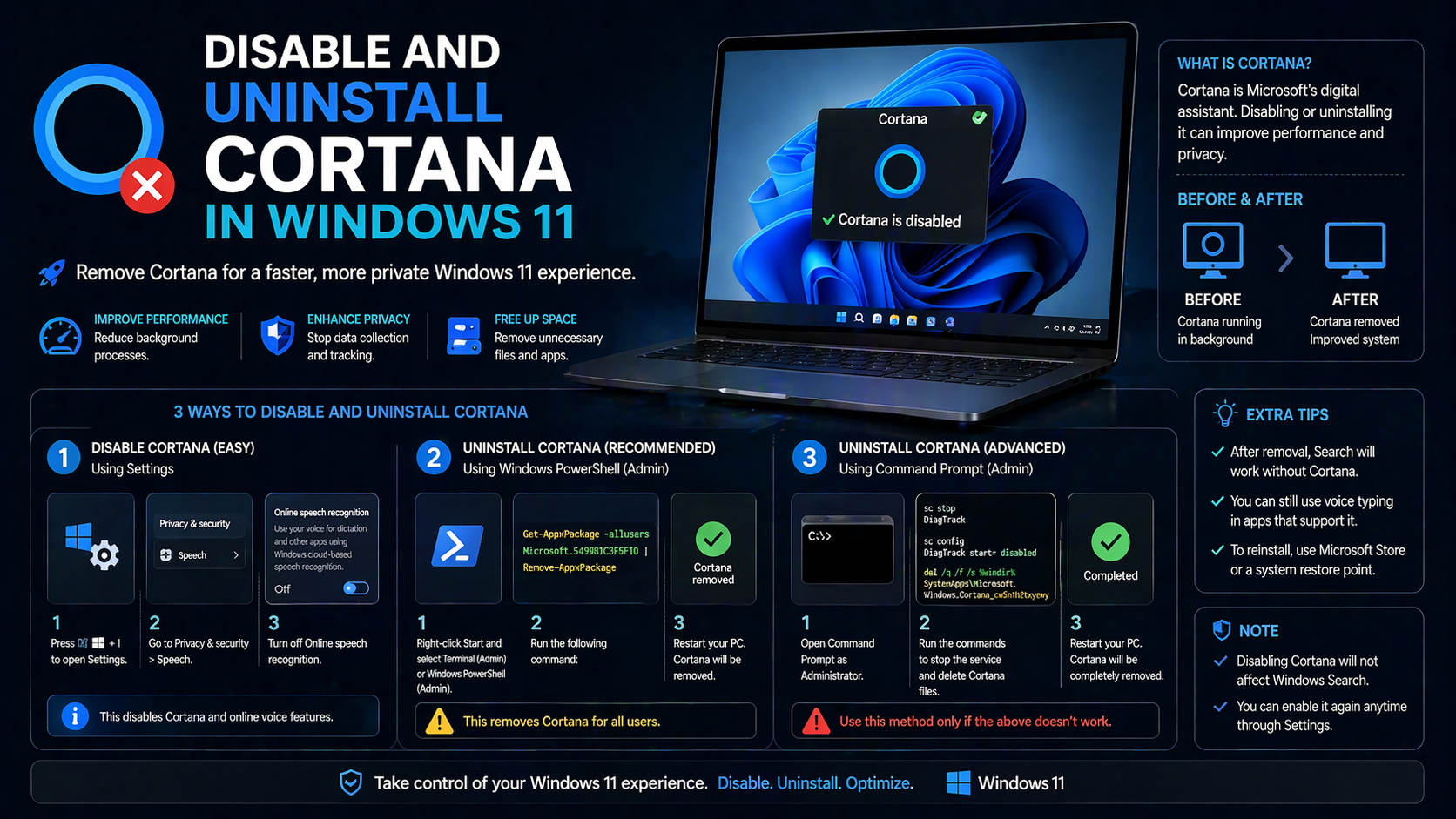
If you have ever used a Windows PC in the past decade, you’re probably familiar with Cortana—Microsoft’s virtual assistant that has evolved from an ambitious Siri rival into something that most Windows 11 users now want to either silence or uninstall altogether. Whether Cortana pops up just as you’re about to make a killer headshot in your favorite game, derails your productivity in the middle of a Zoom meeting, or you just don’t want it collecting any more data, the question that keeps cropping up is: how do you really disable Cortana in Windows 11? The answer isn’t always straightforward, mostly because Microsoft has shifted Cortana’s presence and integration over the years, especially in Windows 11 where it now lingers as a standalone app and is no longer as prominent as it once was. This detailed guide covers everything you’ll ever need to know about shutting Cortana down, whether you want to disable, disconnect, remove or simply make it disappear from your daily workflow.
This article combines expert methods, user-tested troubleshooting steps, and alternative approaches for every skill level. It pulls together the most relevant information from high-ranking guides, forum posts, and official Microsoft documentation so you have all the context you need, without having to chase incomplete answers. If you’re frustrated by that unexpected pop-up or shortcut launching Cortana, want to free up resources, or just value your privacy, you’ll find each workable solution right here—plus in-depth explanations about what each step really does and why it might matter to you.
Understanding Cortana in Windows 11: The Current State
Let’s address the big change: on Windows 11, Cortana is not enabled by default on most installations. In fact, since Windows 10’s later updates and especially with the release of Windows 11, Microsoft has drastically reduced Cortana’s built-in presence. It’s now a separate app, not deeply woven into the search bar or system core as it once was. For many users, Cortana doesn’t show up at all unless specifically enabled by the user (or by accident, or when upgrading from an older Windows version where it was previously turned on). If you still find Cortana launching, it’s likely because it was activated, or perhaps restored after an update.
To put it simply: if you’re running Windows 11, Cortana is basically just another app that can be disabled or removed—which is great news if you want a cleaner, privacy-friendly system or are just tired of it intruding on your workflow.
Why Disable or Uninstall Cortana?
There are plenty of reasons why users look to turn off or remove Cortana, including:
- Preventing accidental launches: Many gamers and power users complain that certain keypresses or shortcuts launch Cortana while in the middle of something important.
- Privacy concerns: Cortana, like other virtual assistants, can collect personal data, manage emails, calendars, and reminders—which some users would prefer to keep private.
- Improving system performance: Some users believe removing background processes (even small ones like Cortana) can free resources, especially on older hardware.
- Reducing clutter: Many simply want their Windows experience to be as focused as possible, with fewer distractions or unneeded features.
Whether you’re in the privacy camp, frustrated by accidental activations, or just don’t want Cortana on your PC, Windows 11 makes it easier than ever to regain control—with the right steps.
How Cortana Can Appear in Windows 11
Although not present by default, there are a few scenarios where Cortana might still bother you in Windows 11:
- Upgrading from a Windows 10 device where Cortana was enabled or previously installed.
- Direct installation from the Microsoft Store (in rare cases, you or another user may have activated it on purpose or by mistake).
- Using accounts or user profiles that synced Cortana preferences across devices.
Knowing exactly how Cortana got onto your device helps determine the best disabling or removal strategy, but all users can benefit from clearly understanding their options.
Methods for Disabling Cortana in Windows 11
Let’s dive into the actual steps you can take to disable or completely remove Cortana from your Windows 11 PC. We’ll guide you from the simplest toggle all the way to thoroughly uninstalling the app—including approaches for every comfort level.
Method 1: Turn Off Cortana at Startup Using Windows Settings
This is the fastest and most straightforward way for most users. All it requires is a trip to your system settings to make sure Cortana doesn’t auto-launch whenever you log in.
- Press Windows + I (that’s the letter ‘I’, not the number ‘1’) on your keyboard to open Windows Settings.
- Click on Apps from the navigation panel on the left.
- Then, select Apps & Features (on some versions it’s just ‘Installed Apps’).
- Scroll down the list until you find Cortana.
- Click the three-dot icon (⋮) beside Cortana and choose Advanced options from the menu.
- Find the Run at log-in toggle and switch it to the OFF position.
This ensures Cortana doesn’t start when you boot your PC—effectively disabling its background presence for most users.
Method 2: Disable Cortana at Startup Using Task Manager
Another method to control which programs initialize on boot is through the classic Task Manager. This approach is often useful if you’re already familiar with disabling other startup programs:
- Right-click the Start button (bottom left corner of your desktop).
- Choose Task Manager from the pop-up menu.
- Switch to the Startup tab.
- Look for Cortana in the list of startup apps.
- Right-click on Cortana and pick Disable.
Using either Task Manager or Settings to turn off Cortana at startup accomplishes the same goal: stopping it from running in the background each time your device boots.
Method 3: Uninstalling the Cortana App Using PowerShell
For users who want to take it to the next level and remove the Cortana app completely from their Windows 11 system, this method is for you.
Warning: Uninstalling system-related apps using PowerShell removes the app for all users. In some cases, you may need admin rights. Always back up your files before making changes at this level.
-
- Press Windows + S to open the start menu and type PowerShell.
- Right-click Windows PowerShell and select Run as administrator.
- In the window that appears, type the following command:
Get-AppxPackage -allusers Microsoft.549981C3F5F10 | Remove-AppxPackage
- Press Enter and wait for the command to run.
This will completely remove Cortana from your system. If for any reason you need to restore it, you can always download it again from the Microsoft Store. For most users, though, this step is final!
Method 4: Additional Removal – Disconnecting Cortana From Online Services
If you have Cortana connected to Microsoft services (for example, through Outlook Mobile on your phone or another Windows device), you might want to revoke those privileges. Here’s how you typically disconnect Cortana in such cases:
- Open the Settings app on your mobile device (if relevant).
- Find the Calendar section, tap Time to Leave.
- Go to Advanced Settings.
- Choose Disconnect Cortana.
While this mostly affects Microsoft’s mobile ecosystem, it’s important for privacy-focused users to sever all connections where Cortana might be syncing data.
What About Registry or Group Policy Edits?
Some older guides (especially for Windows 10) might instruct users to tinker with Windows Registry or edit Group Policy settings related to Cortana.
In Windows 11, these tweaks are largely unnecessary—simply disabling or uninstalling the app covers all practical use cases. Microsoft has transitioned Cortana to an independent app model, so system-level hacks are now mostly obsolete (and riskier than ever). If you did previously follow such advice on a Windows 10 system, upgrades generally make these edits irrelevant, but you can always back up your registry before making further edits for your peace of mind.
Cortana is Still Showing Up: Troubleshooting
What if, after following the above steps, Cortana keeps appearing?
This is rare in Windows 11, but it can happen—especially if:
- Your system didn’t properly acknowledge the app removal (sometimes due to corrupted updates or profile issues).
- You’re on a company-managed device where policies might re-enable Cortana.
- Strange keyboard or hardware shortcuts are launching remnants of Cortana, even if the actual app is gone.
Here’s what you can do:
- Make sure your PC is fully updated. Sometimes, Windows Update will push a new version of Cortana or change app status based on security rollouts.
- Check if a different user profile has Cortana enabled and, if so, repeat the steps above for that profile.
- Search for Cortana in the Microsoft Store. If it’s showing as “Installed,” you can manually uninstall it from there as well.
- If shortcuts like Ctrl + Fn or other hotkeys are still calling a missing Cortana app, and you receive errors about ms-cortana2 or similar, remap or disable the offending shortcut via your keyboard or driver utility (often found in gaming and productivity laptops).
For most, following the standard uninstall or disable steps should work, but these troubleshooting actions will solve stubborn cases.
Is It Safe to Remove Cortana? Will I Break Anything?
One common concern, especially among less technical users, is whether removing Cortana can damage Windows 11 or hinder certain features. The good news: today’s Cortana app is separate from core system functions. Once uninstalled, you lose access to Microsoft’s voice assistant, but your system search, settings, and account syncing will function normally (unless you explicitly use Cortana for reminders, voice dictation, or similar tasks—which few do these days).
You can always reinstall Cortana from the Microsoft Store if you ever change your mind. Microsoft’s shift to an app-based approach has made disabling Cortana far less risky than it used to be.
Does Disabling Cortana Free Up System Resources?
The short answer is: maybe a little, but not as much as you might hope.
Earlier versions of Windows, especially Windows 10, kept Cortana running as a background service, sometimes consuming a noticeable amount of resources. Windows 11 changed that, making it an on-demand app. Removing it can sometimes save a small slice of RAM and CPU, but on modern hardware, this difference is typically negligible. Still, if you aim for the leanest, fastest Windows experience, every little bit counts! More on mastering Windows 11 can help you optimize accordingly.
Privacy, Security, and Data: What Changes When You Remove Cortana?
One of the main motivations for ditching Cortana is privacy. Microsoft, like other tech giants, collects usage, search, and conversation data through its virtual assistant. When you stop Cortana from running, and especially after you uninstall it, you halt these data flows from your device.
If you want to take additional steps, you may wish to review and clear any previously accumulated Cortana data. This is accessible through your Microsoft account privacy dashboard. Visit Microsoft Privacy Dashboard and sign in to see the data Cortana may have stored about you. From there, you can delete conversations, search histories, and voice data to further protect your privacy.
How to completely disable telemetry in Windows 11: A practical, In-Depth guide
How About Disabling Other Virtual Assistant Features in Windows 11?
Disabling Cortana in Windows 11 does not automatically turn off other potential voice features, such as Voice Access or related Windows speech services. These are all distinct from the Cortana app. If privacy is your top concern, review similar settings found within the Accessibility or Privacy & Security areas of Windows Settings to disable microphone access, voice typing, or other speech-powered tools as needed.
What If I Want Cortana Back?
Maybe someday you’ll want Cortana’s features—for quick reminders, hands-free commands, or just to try it out again. In that case, simply:
- Open the .
- Search for Cortana.
- Click Install.
- Once installed, you can enable the Run at log-in toggle via Settings or adjust startup behavior in Task Manager as needed.
Cortana is now just another app—fully in your control to enable or remove as suits your workflow.
Frequently Asked Questions about Disabling Cortana in Windows 11
If Cortana isn’t showing up, do I need to do anything?
You don’t! If you don’t see Cortana in your app list or startup settings, it’s simply not installed or launched. No action required.
Does removing Cortana affect Windows Search?
No. Windows 11 search is independent of Cortana. Removing or disabling Cortana will not impact your ability to search for files, apps, or system settings.
What if Cortana keeps trying to pop up even after uninstalling?
Check for ghost startup entries, stray keyboard shortcuts, or app installations in other user profiles. See our troubleshooting tips above for full details.
Will new Windows Updates reinstall Cortana?
In rare cases, a major system update might reinstall Cortana as part of new features, but you can repeat the removal steps at any time.
I want to remove all voice features—what else should I disable?
Adjust privacy settings in Windows Settings under “Voice Access” and device microphone permissions to suppress all speech features.
Extra: How to Disconnect Cortana on Mobile Devices
Some users also have Cortana embedded in their mobile workflow, particularly through Outlook Mobile or legacy installations of the standalone Cortana app. The process to disconnect is simple:
- Open the Settings menu in the relevant app (such as Outlook for mobile).
- Look for Calendar features or “Time to Leave” reminders.
- Access Advanced Settings.
- Select the option to disconnect or remove Cortana.
If you are still seeing personal data synced through other Microsoft products, double check that you have revoked all related app connections.
Disabling the ‘Hey Cortana’ Wake Word
For those who found Cortana launching unexpectedly due to the voice command (“Hey Cortana”), especially in older Windows versions or upgraded builds, turning off the wake word makes a difference.
In Windows 11, the wake word is not enabled by default and cannot be reactivated unless you re-install and explicitly set up the Cortana app. If you have done so and want to turn off voice activation, open Cortana’s own settings menu and toggle off voice activation or microphone listening.
Why Some Users Still Get Cortana Popups or Error Messages
Common cases where users complain of Cortana interruptions or error messages (such as “can’t find ms-cortana2 app”) are usually due to:
- Previous shortcut keys or hardware buttons assigned to launch Cortana, which now reference an app that’s gone or unavailable.
- Partial removals or broken links caused by incomplete updates, profile migrations, or deleted app data.
- Attempts to activate Cortana when not logged in with a Microsoft account, resulting in repeated prompts.
Solutions include reassigning or disabling hardware hotkeys via your laptop/keyboard control panel, fully uninstalling any partial Cortana instances, or refreshing your Windows user profile if corruption is suspected.
Risks and Limitations of Removing Cortana—What to Expect
For most users, removing Cortana creates zero issues. However, if you rely on any of the following, consider alternatives:
- Voice reminders, voice-to-text commands, or dictation via Cortana.
- Integration with smart home devices through Cortana’s cloud features.
- Cross-device reminders or calendar syncing specifically tied to Cortana (not just Outlook or calendar syncing features built into Windows/Microsoft 365).
Most of these features now have alternatives in Windows 11—such as traditional reminders, built-in dictation, or Microsoft To Do—so you can safely use similar functions without Cortana active.
Can Cortana Be Disabled on Windows 11 Home, Pro, or Enterprise Editions?
Yes, the steps above are valid for all editions of Windows 11. The only difference is in the context of managed business devices, where company policies or IT administrators may re-enable Cortana or restrict your ability to uninstall it. If that’s your situation, check with your IT department, as group policies might take precedence over local control.
How to Verify If Cortana is Completely Gone
- Open your Start menu and type “Cortana”. If nothing appears, it’s gone.
- Go to Settings > Apps > Installed Apps. Cortana shouldn’t be visible.
- Open Task Manager > Startup tab. No Cortana entry should exist.
- Check the Microsoft Store. If you see the install/launch option, it means Cortana is currently not on your system.
Complete these checks to guarantee Cortana is banished from your Windows 11 experience.
Re-Assigning or Disabling Keyboard Shortcuts That Launched Cortana
One final detail worth highlighting is the annoyance faced by people who keep launching a Cortana-related shortcut by mistake (often while gaming or working). Many laptops or keyboards, especially those with extra Fn or media keys, default to opening Cortana with key combos like Ctrl + Fn, Win + C, or others.
To resolve this:
- Check your manufacturer’s keyboard or hotkey utility (e.g., Lenovo Vantage, HP Quick Launch, Dell Command Center) for programmable keys and reassign or disable offending shortcuts.
- If your OEM utility doesn’t allow changes, consider third-party tools like SharpKeys or AutoHotkey to remap problem keys, though this route is better suited for confident users.
- For desktop Windows, Windows 11’s native keyboard shortcuts and mapping can also be managed in Settings > Keyboard depending on your hardware.
Avoiding hotkey misfires will guarantee a smoother, interruption-free workflow (or gaming session!).
[relacionado url=”https://www.ikkaro.net/guide-to-mastering-windows-11/”]
Community Perspectives: User Experiences from Forums
Browsing user forums like Reddit reveals interesting real-world experiences:
- Many report Cortana popping up at inconvenient times, such as during gaming or meetings.
- Others experience frustration with the “Hey Cortana” hotword activating unexpectedly—even with no intent to use voice commands.
- Some users have found uninstalling the app or disabling it in both Settings and Task Manager completely solves their issues.
- A subset faces persistent shortcut problems, often solvable through keyboard remapping utilities or by updating device firmware.
- Guidance is often shared to fully disconnect Cortana for maximum privacy, especially for users with Office365 or Microsoft business accounts.
If you’re troubleshooting rare edge cases, forums remain invaluable for finding peer solutions.
Cortana and Future of Digital Assistant Integration in Windows
While Cortana’s future appears limited in consumer editions of Windows 11 (and Microsoft now emphasizes its integration in Microsoft 365 and enterprise environments), the trend is clear: users want control. The company has responded by making all voice and assistant features opt-in rather than forced—a move broadly welcomed by tech communities.
Going forward, expect even more modular design in Windows, where once-built-in features can now be easily added or removed. This modular approach empowers PC owners to craft their preferred environment—lean and private or feature-rich as desired. You decide which tools, assistants, and apps have a place in your personal digital workspace!
Getting rid of Cortana in Windows 11 is now easier than ever. With straightforward toggles for disabling the app on startup, plus the ability to fully uninstall it with a simple command or two, you can reclaim your desktop—free from unexpected pop-ups and with greater peace of mind about privacy. Whether you want to regain precious system resources, streamline your workflow, or simply take charge of your own digital assistant choices, Windows 11 puts you in the driver’s seat. Follow the steps outlined above for a seamless, interruption-free computing experience. Your PC, your rules—now and always!
The Ultimate DIY Windows 11 Tools Guide: Mastering Customization, Performance, and Privacy