
- Windows 11 telemetry can be reduced through group policy, registry edits, and third-party tools, but not removed entirely on all editions.
- Enterprise and Education editions allow deeper telemetry control than Home or Pro; third-party software offers additional privacy tweaks.
- Altering telemetry affects services and may impact stability or support; always create backups and understand the trade-offs involved.
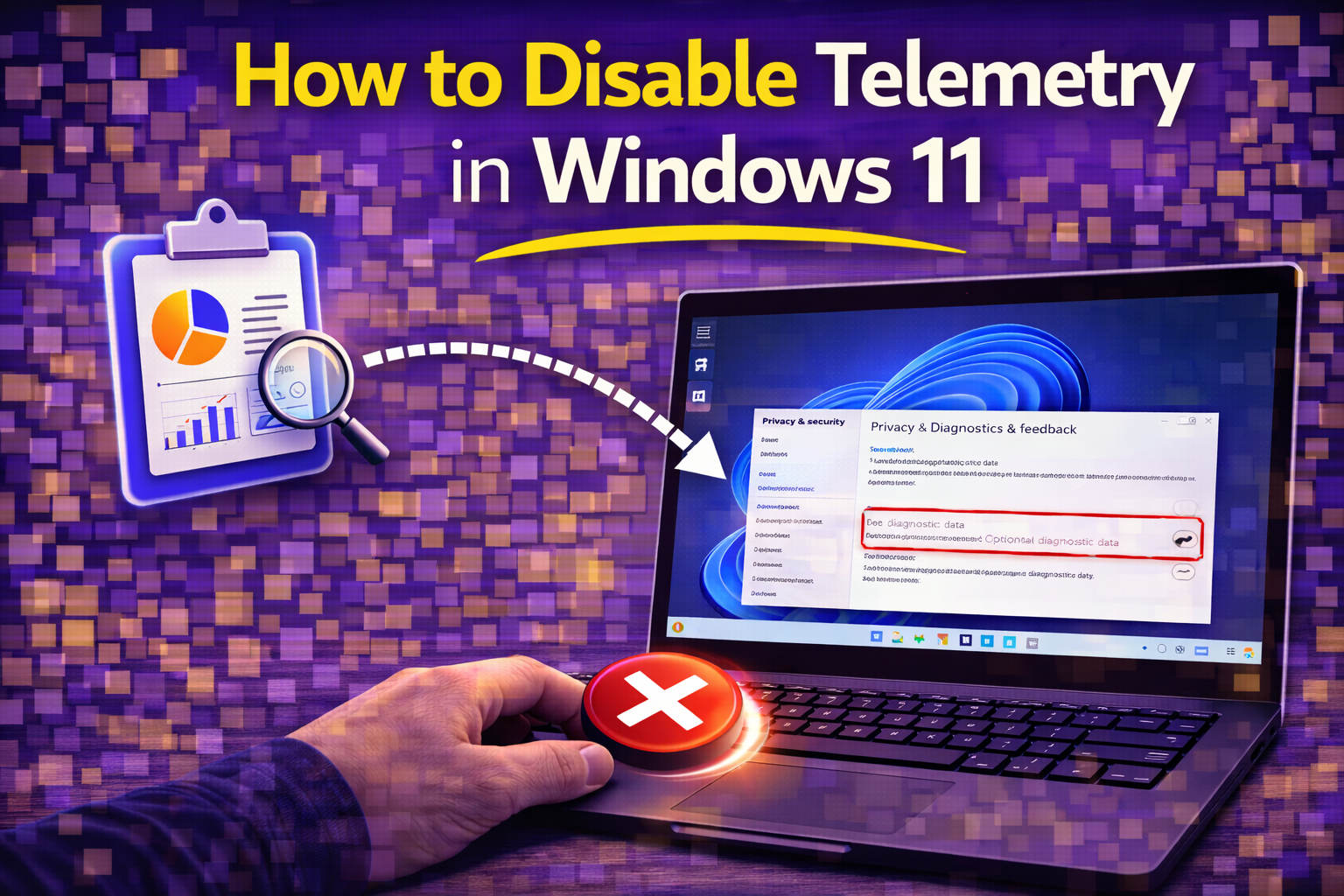
Concerned about your privacy on Windows 11? You’re not alone—many users want to know how to turn off telemetry, those background data reporting features that send diagnostic and usage information back to Microsoft. Maybe you’re feeling watched, or just want to lock down your setup for peace of mind. Let’s break down every realistic option you have for reducing or disabling telemetry in Windows 11, whether you’re casual, technical, or somewhere in between. This guide is jam-packed with advice, so settle in!
Microsoft doesn’t make it easy to cut off all telemetry, especially if you’re running Windows 11 Home or Pro, but that doesn’t mean you’re powerless. We’ll dive into what telemetry really is, which settings and tools matter, how Group Policy and registry tweaks work, the risks to be aware of, and the best third-party solutions to help reclaim your privacy. Whether you’re a first-timer or a seasoned Windows tweaker, there’s plenty here for you—including some key gotchas that could save you a headache down the line.
What Is Windows 11 Telemetry and Why Should You Care?
Telemetry in Windows 11 refers to the automatic collection and transmission of diagnostic data, usage statistics, and sometimes even snippets of content back to Microsoft’s servers. This includes info about hardware, installed apps, system settings, and error reports. Officially, it’s designed to improve system stability, fix bugs, and shape future updates, but many users understandably don’t want this background sharing happening.
For most editions of Windows 11, you can only reduce telemetry, not abolish it completely. Only the Enterprise and Education versions allow a full shutdown via official settings, while Home and Pro are stuck with a minimum data level called “Required.” Still, with some elbow grease—and a willingness to try a few advanced tactics—you can minimize what’s shared.
Disabling Telemetry via Settings—What Really Works?
Windows Settings offer some basic privacy controls, but don’t expect miracles. Here’s how to get started:
- Go to Settings → Privacy & security → Diagnostics & feedback.
- Set Diagnostic Data collection to the lowest available level. On Home and Pro, you’ll only see ‘Required’; on Enterprise and Education, you can set it to ‘Security’ to slash telemetry even further.
- Turn off features like Tailored Experiences, Improve Inking & Typing, and limit optional diagnostic data if those toggles appear.
That’s the easy part, but these switches alone won’t completely silence background reporting. If you want tougher controls, you’ll need to look under the hood.
Using Group Policy Editor: More Control (But Not for All Editions)
The Group Policy Editor (gpedit.msc) provides more granular options, but it’s available only on Pro, Enterprise, and Education. Home users can’t access this tool by default. Here’s what to do if you’re eligible:
- Press Windows + R, type gpedit.msc, and hit Enter.
- Navigate to Computer Configuration → Administrative Templates → Windows Components → Data Collection and Preview Builds.
- Double-click Allow Telemetry and set it to Disabled (or pick ‘0 – Security’ for the lowest possible level if available).
This will dial back most data sharing, especially on Enterprise and Education editions. On Pro, this method can limit—but usually cannot completely kill off—background reporting.
Registry Editor—The Nuclear Option (Advanced/High Risk!)
Feeling bold? Editing the Windows Registry can break telemetry at a deeper level. But be warned: Bad edits could brick your system. Always back up your registry first! Here’s the method endorsed on Microsoft Community Answers:
- Press Windows + R, type regedit, and press Enter.
- Navigate to
HKEY_LOCAL_MACHINE\SYSTEM\ControlSet001\Services\DiagTrack. - Delete the
DiagTrackentry.
This removes the Connected User Experiences and Telemetry service, making it impossible for those processes to start on boot. But—it’s an aggressive move, usually for advanced users, sysadmins, or privacy die-hards. If you go this route, back everything up and know you might lose some features or run into odd behaviors down the road.
Third-Party Tools: Streamlining Your Privacy
If you’d rather not mess with the system internals yourself, third-party apps make telemetry management much easier. Communities across forums like PrivacyGuides frequently recommend specialized tools, each with pros and cons. Here are a couple of crowd favorites:
O&O ShutUp10++
O&O ShutUp10++ is a free utility designed specifically for Windows privacy control. It offers a ton of settings toggles—beyond just telemetry—including:
- Blocking all types of telemetry reporting and background data connections
- Turning off personalized ads, tracking, and recommendations
- Disabling location services, Cortana, and activity history
- Pausing or preventing forced updates
Before diving in, always create a system restore point as recommended by the program; changes aren’t always easily reversed! The app visually highlights which settings are safe, which are risky, and which are not recommended, helping even beginners to make smarter choices.
SophieApp and Other Newcomers
The PrivacyGuides community has discussed tools like SophieApp for advanced privacy—and some users suggest comparing any tool’s output against Microsoft’s official documentation. While SophieApp automates many registry and policy tweaks, it emphasizes sticking to documented methods (which lessens the risk of breaking future updates).
Other annual favorites in privacy circles include O&O ShutUp10++ and Spybot Anti-Beacon. Each offers slightly different options and user interfaces, so try a few or read up on what suits your privacy paranoia level best.
What About Scripts and PowerShell?
More technical users might turn to PowerShell scripts to automate disabling telemetry services, scheduled tasks, or setting registry keys en masse. These are often shared on forums and GitHub. Always vet a script carefully before running it, and make sure you know what each command is doing. Scripts generally replicate the Registry and Group Policy tweaks covered above—in a one-click format.
Considerations, Risks, and What You’re Giving Up
Before flipping every switch and nuking every service, it’s important to understand the trade-offs:
- Turning off telemetry can interfere with Windows features like Windows Update, Windows Defender, and personalized recommendations.
- If you completely remove or break the telemetry service, you could find future updates or some diagnostic features don’t work as expected.
- Especially if you’re managing a business environment or supporting multiple users, test changes on a secondary device first, or in a virtual machine (“).
- Some adjustments might get reset during a significant Windows update; it’s worth double-checking your privacy setup after every major system patch.
Making Registry changes or deleting services is almost always reserved for advanced users—if you’re not comfortable, stick to built-in settings or reputable third-party tools.
What About Just Switching to Linux?
A cheeky but common answer you’ll hear in privacy-focused communities: If you cannot accept any telemetry whatsoever, consider a privacy-respecting Linux distribution instead. Linux gives you full control and no forced telemetry, but comes with a learning curve and compatibility trade-offs (especially for gamers or those relying on Windows-only software). If you need the best of both worlds, running Windows in a sandboxed environment or via compatibility tools (like Bottles, for running Windows apps on Linux) is another route—plenty of power users have done just that with great results.
Community Knowledge: What the Forums Say
Active discussion threads on Reddit and PrivacyGuides reinforce many of these points: on Home edition, there’s a hard telemetry floor; only Enterprise and Education officially unlock full disabling via group policy or registry hacks. Some users recommend monitoring connections with network tools to confirm what’s been blocked, while others advocate just avoiding Windows altogether if telemetry-free computing is essential.
Another practical community tip: create regular system backups and restore points before making deep changes, especially when using scripts or third-party tools for the first time. That way, you can recover from accidental lockouts or new bugs introduced by those tweaks.
Essential Information for Protecting Your Privacy in Windows 11
Disabling telemetry in Windows 11 isn’t a set-it-and-forget-it task—it’s a careful balancing act between security, usability, and your own risk tolerance. Out-of-the-box controls only go so far; to get deeper, you’ll need to use advanced system tools, registry tweaks, or trusted third-party apps. To achieve complete untracking, the only paths are using the Enterprise/Education editions or considering a switch to Linux—as long as you’re willing to tackle the learning curve. Otherwise, perform regular backups and review your settings after every major update to keep your privacy safe.