
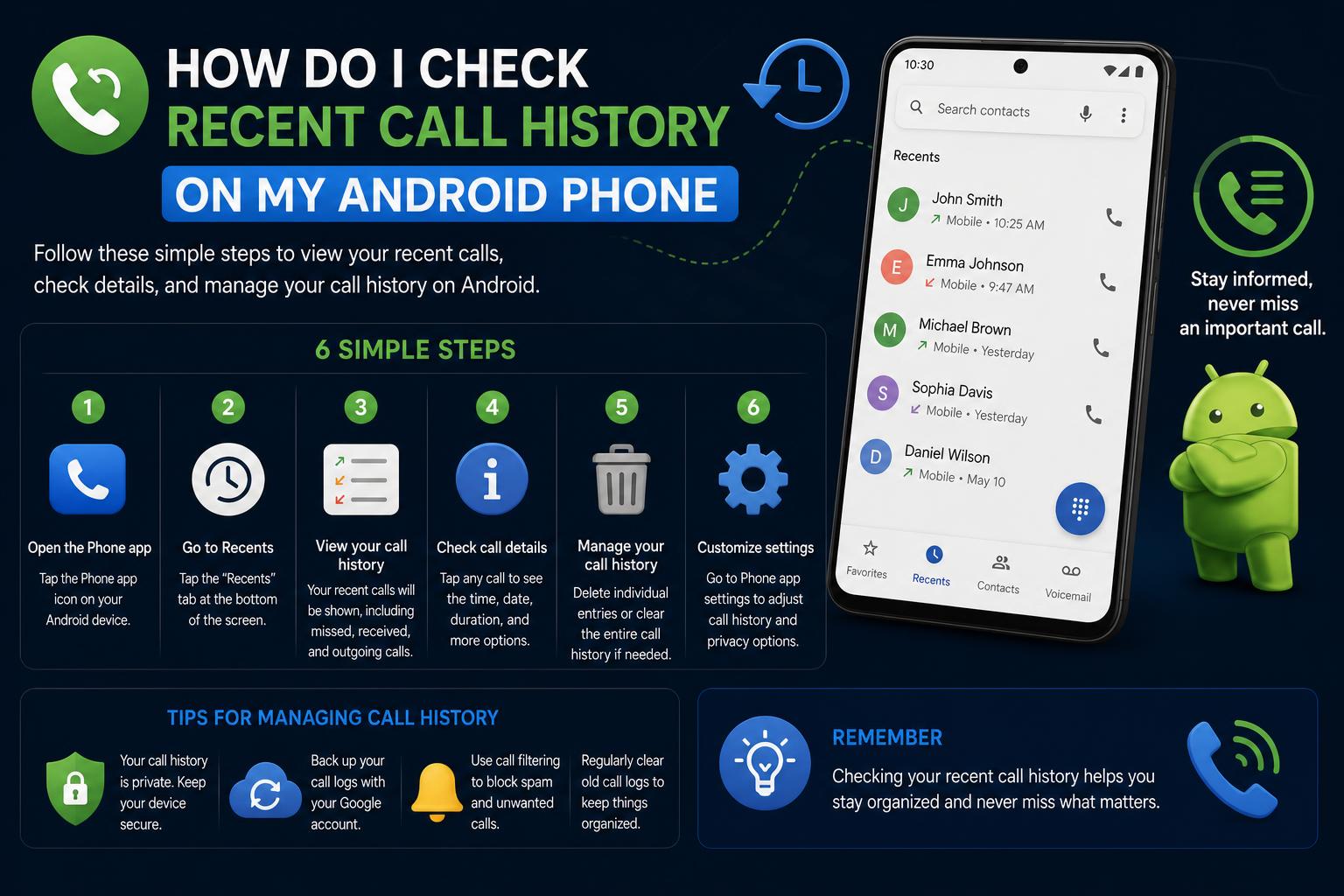
- Get insights into where your Android call logs are stored and how to access them across manufacturers and apps.
- Understand the differences between using built-in Phone apps, third-party solutions, and cloud backups for call history management.
- Learn about privacy considerations, troubleshooting missing records, and maximizing your call log’s productivity potential.
Have you ever tried to check your recent calls on your Android phone, only to get lost in endless menus or oddly missing entries? If so, you’re definitely not alone. Whether you’re double-checking that missed call from yesterday, searching for a specific outgoing number, or trying to restore call logs to a new device, managing Android call history can be confusing thanks to different phone models, app updates, and privacy limitations.
This in-depth guide covers everything you need to know about viewing, managing, and backing up your recent call history on Android devices. We’ll walk through built-in Phone app features, alternative apps for log management, key privacy points, and solutions for the most common frustrations and missing log entries. By the end, you’ll not only know how to check call details, but also how to back up, restore, and search your call log—even across manufacturer quirks or after device changes.
Why Checking Call History Matters on Android
The Android ecosystem gives you plenty of options for reviewing past phone calls, but it’s not always obvious how to access or make the most of your data. Your call log records every missed, received, and placed call—with time, date, and duration—so it’s invaluable for both personal and professional reasons. If you ever need to double-check a business conversation, find a lost contact, or just see who’s been calling most often, your call history is the place to go.
The Basics: How to View Recent Call History using Android’s Phone App
Virtually every Android device comes with a default Phone app that maintains a chronological call log. This built-in tool displays incoming, outgoing, and missed calls, often alongside caller names (if they’re in your contacts), call durations, and time stamps. Here’s how to find your recent calls on most Android devices:
- Open your Phone app. This app is typically pre-installed by your phone’s manufacturer or by Google.
- Navigate to the ‘Recent’ or ‘Home’ tab. The default tab may vary, but most Android Phones display the call log right away—with icons for missed, answered, and dialed calls.
- Tap any entry to see detailed call information: the time, call type (incoming, outgoing, missed), and options to call back, send a text, or add the number to contacts.
It’s important to note that not every phone’s interface is identical. For instance, Google’s own Pixel series, Samsung, OnePlus, and Xiaomi devices may tweak the UI and features. Android 6.0 and later versions offer the most consistent experience, but options and icons can still change with major updates.
Going Deeper: Searching & Filtering Your Call History
Searching your call history isn’t always as seamless as searching your contacts list. Users often find that the built-in Phone apps are inconsistent when it comes to filtering call logs, especially when searching partial numbers or international prefixes. According to several users’ experiences:
- The Google Phone app usually performs better in call log searches than some manufacturer-installed alternatives—but may still miss matches unless you enter a full phone number, including country code.
- OnePlus and other OEM-specific Phone apps might require an exact match or don’t offer robust search functionality at all.
If you’re struggling to locate a specific call:
- First, try entering the full phone number (including any country prefix) in the search field of your Phone app’s Recents tab.
- If the match still isn’t found, consider switching to the Google Phone app (where available), or try out a dedicated call log manager from the Play Store.
Understanding Log Limitations: Where Did My Old Calls Go?
Android usually stores only a fixed number of call log entries, which means that older records get deleted as new calls come in. The exact number retained varies between manufacturers and software versions—anywhere from 100 to 500 entries is typical. This can result in seemingly ‘disappearing’ calls, especially if you make or receive a high volume of calls.
Some users, especially on newer devices like the Pixel 8 Pro, report changes in how call logs are displayed after system updates. It’s common for updates or manufacturer tweaks to alter the interface or even hide records in contact detail pages. Recent commentary suggests:
- History may not appear directly in a contact’s info page. Instead, tapping the main log entry (not the contact’s icon) brings up new details and options, including a call history breakdown for that number alone.
- There’s often confusion between the main call history screen and per-contact call logs, which behave differently depending on the phone and manufacturer’s software.
If you notice that options or records you previously relied on have vanished, it’s worth checking for an app update, revisiting the main call log tab, or exploring whether a new menu or gesture now reveals more details.
Practical Steps: Deleting and Managing Your Call History
Sometimes, you might want to clean up your call history—whether for privacy, organization, or just to declutter. Most Android phone apps make it relatively straightforward to delete individual calls or even the whole call log:
- To delete a single call:
- Open the Phone app and go to your call log.
- Tap the number or contact you want to remove.
- Select ‘Call details’, then choose the trash/bin icon to delete.
- To clear your entire call history: Find the option (usually in the ‘Recents’ screen menu) for deleting all calls or clearing the log. The exact name and location of this option varies per manufacturer.
Remember that deleting calls is permanent. Once removed, you can’t retrieve these records unless you’ve used a backup solution prior to deletion.
Adding Numbers to Contacts from Your Call Log
If you get a call from a new number, Android makes it easy to add it as a saved contact directly from your Recent calls:
- In the call log, find the number.
- Tap ‘Add to contact’ or ‘Create new contact’ (label may vary by app).
- Fill out the details and save. The call now links to a name, making future reference and searching easier.
Backing Up and Restoring Call History: Essential For Switching Phones
If you’re planning to upgrade your phone or want a safety net in case of device loss, it’s crucial to back up your call log data. While some Google account backups include call logs, not all Android devices handle this by default. For more robust options, third-party apps provide tools for exporting, saving, and restoring call history, contacts, and SMS.
Alternative Apps for Backup and Enhanced Call Management
- Call Log History and Backup: This dedicated app offers comprehensive backup/restore solutions for your call logs. You can export logs, share them with your new phone, and restore files with a tap. Its core features include offline data storage, backup/restore for calls, SMS, and contacts, and full data control—you’re the owner of your backup files.
- Phone Call – Organize, View & Take Action: With caller ID, after-call actions, detailed call duration, favorites management, and smart search, this app elevates your call log experience. It also places a strong emphasis on privacy, keeping data on your device, making it lightweight, fast, and easy to use while being fully Google Play policy compliant.
When selecting a backup solution, always review privacy policies. Apps should only access your call logs for management and backup and must comply with Google’s policies—never storing or sharing your information without permission.
Hidden Features and Productivity Tools: Getting More Out of Your Call History
Advanced users with niche needs aren’t left out. Platforms like Android Intelligence curate special guides, app recommendations, and productivity tools for customizing your experience. Features might include:
- Reverse phone number lookup: Within the built-in Phone app (on compatible versions), tap an unknown number, then ‘Lookup’ to launch a search for that number using your device’s default search engine. This helps identify unknown callers or spot potential spam.
- Accessing tips collections, Power-Up newsletters, interactive forums, and up-to-date walkthroughs for Android and Chrome OS productivity. While some of this is membership-based, it provides a community-driven info hub for power users.
- Wallpapers, workflow optimization guides, and deep dives into customizing call management behaviors—ideal for those wanting to go beyond the basics.
Troubleshooting: Why Your Call History Might Be Missing or Incomplete
Not every call you expect to see will appear in your log, and occasional vanishing records can cause panic. There are several reasons why this happens:
- App settings or system updates: Sometimes, an OS or app update changes how call history is recorded, displayed, or associated (such as removing per-contact histories).
- Storage limits: Your log may only show a finite number of the most recent entries, deleting old records automatically once the cap is reached.
- Permission glitches: If you’ve revoked the Phone app’s call log permissions (in Settings > Apps > Phone > Permissions), it may not record or display information at all.
- Third-party call and dialer apps: Using alternative calling solutions may create separate or incomplete logs, so try to stick with one primary calling method.
If your device is acting up:
- Check for recent system or Phone app updates.
- Restart your device or clear the cache/data for the Phone app if glitches persist (Settings > Apps > Phone > Storage).
- Make sure to grant all necessary permissions.
Privacy, Security & Compliance: What Happens with Your Call Data?
With great power comes great responsibility—especially when it comes to privacy. Android and its associated apps generally keep your call data local and private, but whenever you’re backing up or using a third-party app, always review policies:
- Legit call log apps do not transmit your call data off-device unless explicitly sharing a backup file.
- Google Play requires that apps using the READ_CALL_LOG permission declare and adhere strictly to their stated purpose, so avoid side-loaded APKs or unknown sources.
- Your call logs can be a target for targeted advertising or analytics if privacy isn’t prioritized—check permissions during install, and stick to well-reviewed, policy-compliant tools.
Modern call management apps like “Phone Call – Organize, View & Take Action” highlight transparency and local storage, minimizing risks and complying with Google’s latest privacy rules.
Tips for Power Users: Make Your Call Log Work For You
Don’t settle for just scrolling through a basic list of numbers! Android has evolved, and so have the available tools. Try these advanced tricks for making the most out of your call records:
- Mark important contacts as favorites within your Phone or call log app—for easy access and a tidier main call list.
- Use reverse lookup (where available) to research unknown calls before calling back.
- Export your call logs as backup files before resetting, repairing, or upgrading your phone—ensuring continuity and peace of mind.
- If you’re troubleshooting missing logs, don’t forget to check system permissions and try alternate apps if your current solution falls short.
- For those with specific workflow needs, explore productivity resources and tip newsletters from communities like Android Intelligence. These often provide up-to-date, community-tested walkthroughs for real-world problems.
Mastering your Android call history isn’t just about tracking who called or when—it’s about controlling your digital footprint, optimizing your workflow, and keeping essential information at your fingertips. Whether you stick with Google’s basic Phone app or explore the additional features of dedicated call log managers, the right combination of built-in tools and third-party backup solutions gives you complete command over your call history for daily use and in those critical moments when you need it most. As the Android ecosystem keeps evolving, so do your options—so stay curious and take a few extra moments to explore your phone’s ever-deeper productivity potential.