
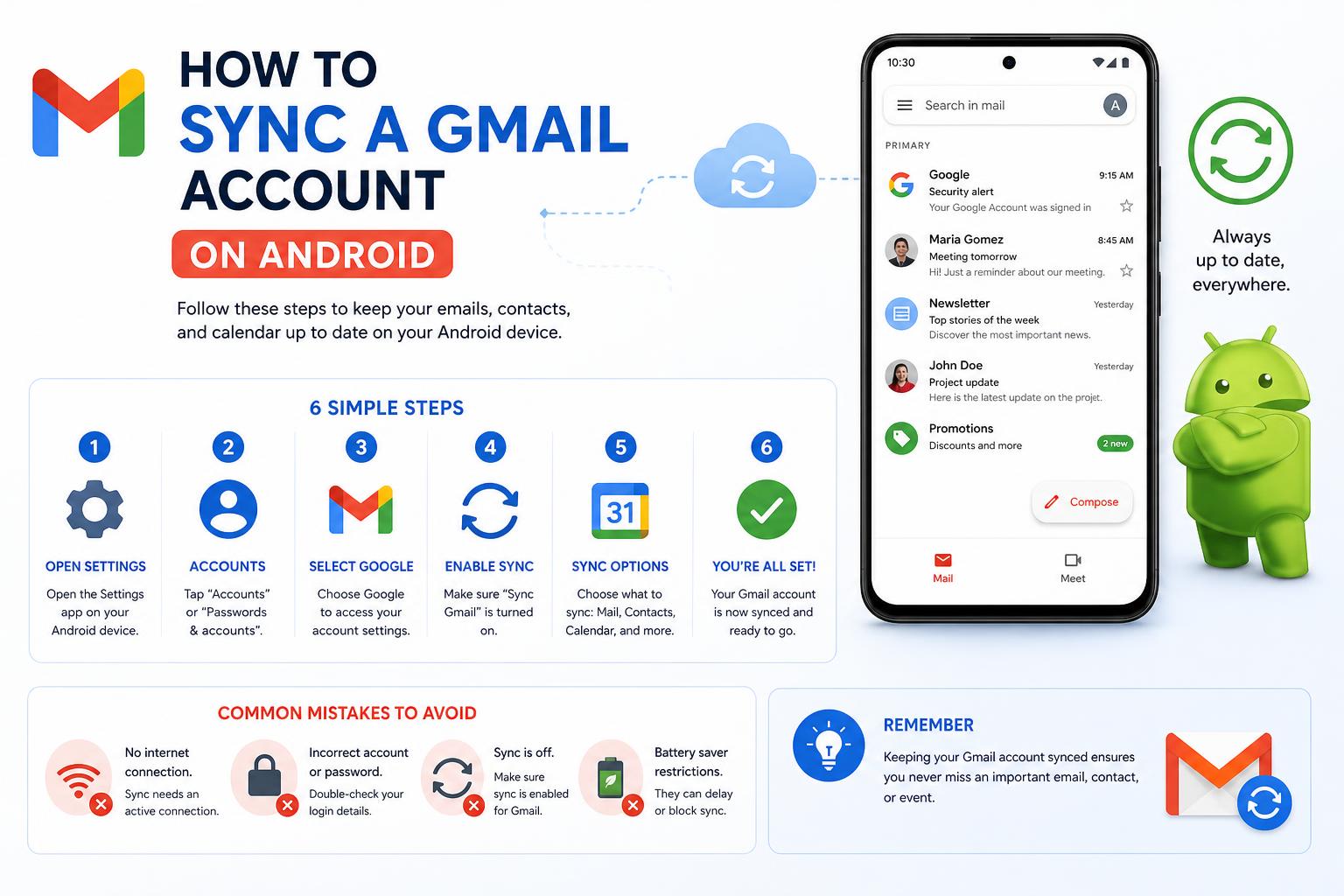
- Gmail synchronization ensures consistent email access and updates across devices, platforms, and accounts, preventing missed messages.
- Common sync issues stem from app settings, device storage, or connectivity, but can be resolved using guided troubleshooting steps.
- Gmail enables multiple accounts, third-party email integration, and cloud syncing with advanced tools for streamlined inbox management.
Synchronizing your Gmail account might sound straightforward, but with the increasing number of devices and email accounts we manage daily, keeping everything perfectly in sync can become bewildering. If you’ve ever missed an important message or found your emails out of date on your phone or laptop, you’re in good company. Having a single, consolidated mailbox that’s up to date everywhere not only boosts productivity but ensures you never skip a beat in communication.
Whether you’re troubleshooting Gmail sync hiccups, linking secondary email accounts, or wanting to tap into Gmail’s advanced features like Gmailify, this guide covers every single aspect. With step-by-step solutions, extra details from leading support resources, and some seasoned know-how sprinkled in, you’ll be syncing like a pro—on Android, desktop, or even across different platforms such as Outlook and cloud storage.
Understanding Gmail Syncing: Devices, Accounts, and Scenarios
Syncing Gmail simply means ensuring that your messages, folders, labels, and email activity are consistently updated across all devices and platforms where you access them. Typical use cases include reading and replying to emails on both your phone and laptop, or having work and personal accounts unified in a single inbox.
Gmail sync is robust and works seamlessly most of the time. However, the complexity increases when:
- You operate multiple devices (Android, iPhone, tablets, PCs).
- You want to access Gmail from third-party email clients (like Outlook, Apple Mail).
- You need to incorporate other email services (Yahoo, Outlook, business emails) into your Gmail interface.
- Your sync fails or malfunctions due to storage, connectivity, or account issues.
To set up Gmail so that everything works perfectly, it’s crucial to address each scenario. Let’s walk through them one by one.
Fixing Gmail Sync Issues on Android
If your Gmail app isn’t updating, messages take ages to appear, or you miss new email notifications on your Android phone or tablet, you’re not alone. These problems are among the most reported by users worldwide, and Google itself recommends systematic troubleshooting to fix them.
Common Symptoms of Sync Errors
- Unable to send or receive messages (error: “Account not synced”).
- Your inbox doesn’t refresh with new messages.
- Can’t open or read emails on your phone.
- No notifications for new emails.
- The Gmail app runs unusually slow or fails to show the latest emails.
Essential Preliminary Checks
Before delving into advanced fixes, ensure these basics:
- Internet Connection: Open a web page using a browser (like Chrome) on your device. If the page doesn’t load, you may have a connection problem rather than a Gmail-specific issue.
- Gmail App Version: Using an outdated app might be the culprit. Update Gmail via Google Play Store to make sure you have all the latest patches and improvements.
- Device Restart: Simple but often effective. Restart your phone or tablet—this clears memory glitches and background issues that can hamper syncing.
Step-By-Step Fixes for Persistent Issues
If basics fail, here’s a deeper troubleshooting process (these steps cover virtually all Android variations):
- Open the Gmail app on your Android device.
- From the top of your inbox, swipe down to trigger a manual refresh (watch for the refresh icon).
- If no new emails appear or syncing is still problematic, check app settings:
- Tap the navigation Menu in Gmail, then Settings.
- Select your Gmail account.
- Scroll to “Data usage” and confirm that “Sync Gmail” is ticked. If unchecked, syncing will not work.
Some Android phones have custom software or different menus. If the options above aren’t visible:
- Open your device’s Settings app (not inside Gmail).
- Navigate to About phone > Google Account > Account sync. You’ll see a list of accounts; tap the one you’re having trouble with.
- Use the “More” button to select Sync now. This forces synchronization immediately.
Note: Syncing may take up to 15 minutes initially, longer for devices that haven’t been used for a while.
Storage-Related Sync Problems
When your device or Google Account runs out of storage, syncing will pause. Here’s what to know:
- Your Gmail storage is shared with Google Drive, Photos, and other services.
- Items in Spam or Trash folders count toward your quota.
- Once capacity is exhausted, you can neither send nor receive emails, and new mail to you bounces back to senders.
To get things back in order, focus first on freeing up storage space:
- Delete emails with large attachments (use Gmail’s search filters to spot them).
- Regularly empty Trash and Spam folders.
- On your device, free up space by uninstalling unused apps or deleting files and downloads you no longer need.
- If possible, move files and images from your phone to your computer or external storage.
Advanced App Troubleshooting (If Sync Still Breaks)
If Gmail’s still not syncing after all basics, a more radical step is to clear the app’s data. This can delete drafts, custom signatures, ringtones, and other app-specific settings, so only use this as a last resort.
- Go to your device’s Settings > Apps > See all apps.
- Select Gmail.
- Open Storage & cache and tap Clear storage.
- Restart your device to apply the changes.
For persistent or device-specific issues, it’s always smart to check your device manufacturer’s support resources or the Google Mail Help Center.
Syncing Gmail with Other Email Accounts: Becoming a “Master Inbox”
In today’s world, many people juggle multiple email accounts: perhaps a Yahoo account from the early days, a work email, or an account from another ISP. Wouldn’t it be fantastic to have all those messages flow through Gmail—so you can read, search, and reply from one central place?
This is not just a fantasy—Gmail makes this achievable through settings in the web version, importing accounts via POP3, and using Gmailify for select major providers.
Gmailify: Gmail’s Secret Weapon for Multiple Accounts
Gmailify, introduced in 2016, allows you to securely link other major email accounts (Outlook, Hotmail, Yahoo) to Gmail. Once linked, your old provider’s emails are synced to Gmail. Even better, you receive Gmail’s powerful spam protection, search functions, and organizational features on those imported emails. Replies can be sent out from your non-Gmail address, all within the Gmail interface.
Setting Up Sync with Additional Email Accounts
- Access your Gmail via a web browser (mail.google.com).
- Click the Settings gear icon at the top right, then select See all settings > Accounts and Import.
- Locate the section “Check mail from other accounts” and click Add a mail account.
- Follow the on-screen prompts:
- Enter your non-Gmail email address.
- Choose between two methods:
- Import emails via POP3: For older email services or accounts that don’t support Gmailify. You’ll need your email server details and password.
- Link through Gmailify: Primarily for Outlook, Yahoo, Hotmail, and a few others. Just grant Gmail permission to access and manage your emails. It’s done in a few clicks!
- Once set up, Gmail will begin pulling in messages from your other account. You may need to click ‘Check mail now’ for the first sync.
Tip: Gmail allows you to reply as your alternate address. Under “Send mail as,” configure the desired sender identity for each email account you’ve linked.
Staying Organized: Color Coding and Labeling Synced Accounts
If you sync multiple email addresses to Gmail, your inbox can become chaotic. To quickly distinguish where a message originated, set up labels and color codes for each account. Here’s how to do it:
- Identify an email that arrived via your newly linked account.
- Open the email, click the three vertical dots (‘More’ menu), and select Filter messages like this.
- In the filter setup dialog, use your linked email address in the To field.
- Create and apply a unique label (for example, “Yahoo Mail” or “Work Email”).
- Apply the filter to all matching conversations to label previously imported emails too.
- To make it unmistakable, select the label’s color by clicking the label’s three-dot icon in the sidebar.
Now every incoming email from that account stands out with its unique color and folder. This is especially helpful for quickly scanning your inbox for urgent or project-related communications.
Synchronizing Gmail with Outlook: Making Two Giants Talk
Many professionals or users who started with Microsoft Outlook still want to access Gmail from within the Outlook interface. The good news: syncing Gmail with Outlook is absolutely possible, but some setup is required—especially if you want changes in one app reflected everywhere.
How to Set Up Gmail in Outlook (Classic and Modern)
- In Gmail (web version), head to Settings > Forwarding and POP/IMAP.
- Enable IMAP (preferable over POP for full sync) and save your changes.
- Open Microsoft Outlook, go to Account Settings and add a new account.
- Use the automatic setup option or, if needed, enter your Gmail address and password.
- If prompted, input Gmail’s standard IMAP server settings:
- Incoming: imap.gmail.com (SSL, port 993)
- Outgoing: smtp.gmail.com (SSL/TLS, port 465/587)
- Allow authentication and follow any security prompts (you may need to generate an app-specific password if 2FA is enabled).
Note: Sometimes, folders visible in the Gmail web interface won’t map perfectly to Outlook folders. If you notice missing folders or sync issues, double-check Outlook’s IMAP folder subscription settings, or consult detailed guides on the Microsoft support portal.
Syncing Gmail with Cloud Storage: Bridging Gmail with Google Drive
If you want to back up your emails to Google Drive, share specific messages, or automate archiving, some tools allow you to create a direct sync between Gmail labels and Google Drive folders.
One notable service is cloudHQ, which provides a wizard for syncing emails (by label) with a specific Google Drive destination folder. Here’s the gist:
- Launch the sync wizard on cloudHQ.
- Select your Gmail account, authorize access, and pick the label(s) to sync.
- Select your Google Drive account and designate the specific Drive folder for storage.
- Review options, initiate sync, and monitor the status via cloudHQ’s dashboard. You’ll get email confirmation when the first sync completes.
This method is great for keeping email-based records, collaborating with teammates on email chains, or ensuring you have offline copies of important conversations.
Managing Storage Limits and Troubleshooting Advanced Sync Failures
Despite all of Google’s automation, sync failures often trace back to storage or permission restraints. Efficiently managing storage across Gmail, Drive, and Photos is crucial for smooth day-to-day operation.
- Regularly audit your inbox for large or unnecessary attachments. Gmail’s search function supports queries like
has:attachment larger:10Mto target big emails for deletion. - Empty Spam and Trash after you’ve reviewed unwanted messages. These folders frequently take up more space than expected.
- Monitor shared account quotas if several Google services use the same account’s storage.
- If on Android, periodically offload files, move media to cloud or PC, and prune unused apps.
If all else fails, more drastic troubleshooting includes clearing the Gmail app’s data (as detailed above), or even removing and re-adding your Google Account on the device. For the latter, always back up critical data to avoid data loss.
What to Do When You Can’t Sign In or Emails Still Don’t Sync
If you can’t log in or emails stubbornly refuse to appear, it’s often an account-related issue:
- Account Security: Ensure your credentials haven’t been changed, your account isn’t locked, and two-step verification (2FA) is working as intended.
- Provider Issues: For non-Gmail addresses synced via Gmailify or POP/IMAP, check if the source mailbox is accessible outside of Gmail (using the provider’s webmail portal).
- Contact Support: For stubborn problems, use the official Google Mail Help Center or the respective support portal of the non-Google email provider.
Expert Tips for Pro-Level Gmail Management
Syncing is just the start. Here are a few power-user strategies to manage your email ecosystem more efficiently:
- Consolidate notifications: If managing multiple accounts on mobile gets overwhelming, you can limit notifications to priority emails or set custom alerts by label.
- Archive instead of delete: Archiving keeps your inbox tidy but retains searchable records across all devices.
- Offline access: Enable Gmail offline mode in the web app for accessing emails without internet.
- Use filters: Create automated filters in Gmail to sort, label, or even forward emails based on sender, keywords, or account.
Related Resources and Official Help
- Fix sync errors with the Gmail app (official Google resource)
- Add another email account to the Gmail app (official guide)
- Blog: How to Sync Other Email Accounts to Your Gmail Inbox
- How to sync Gmail and Google Drive using cloudHQ
- Microsoft Community: How to sync my Gmail account on Outlook
Getting your Gmail inbox—and connected accounts—fully in sync across all platforms, devices, and tools becomes a straightforward, rewarding process with the right approach. Not only can you unify communications from multiple providers, but with the right setup, you supercharge productivity and accuracy, never missing an update from your increasingly complex digital life.