
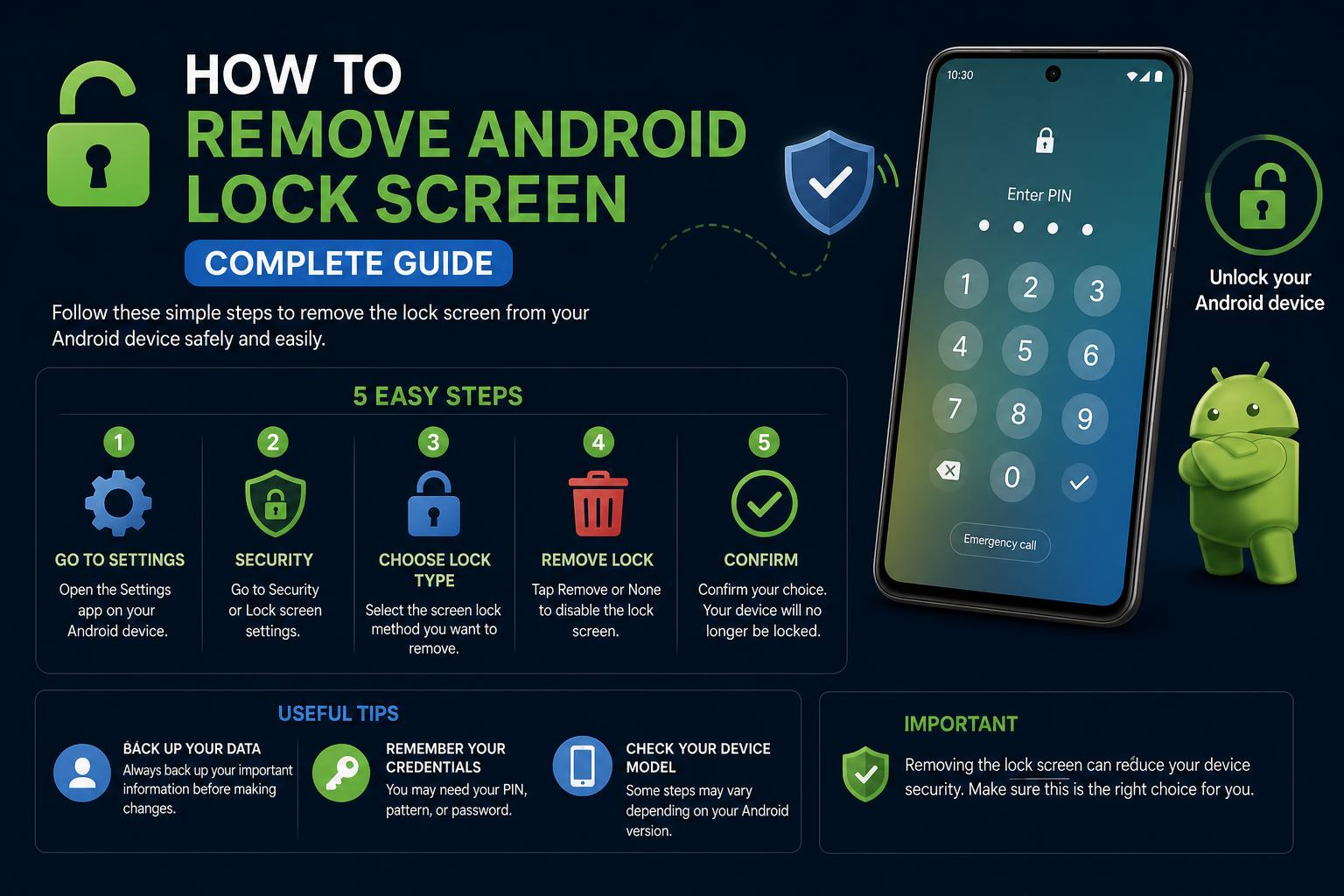
- Multiple methods exist to disable Android lock screens, from device settings to advanced tools like ADB and management platforms.
- Security implications are significant, as removing the lock exposes personal or corporate data to anyone with physical access.
- Device manufacturers and models may have unique menu structures, but the core process is largely consistent across Android versions.
Tired of entering your password or pattern on your Android’s lock screen every time you use your phone? Whether you value speed and convenience or need to manage multiple company devices, knowing how to remove or disable the Android lock screen can be a huge time-saver. While Android’s lock methods are designed to keep your device secure, in certain situations it makes sense to disable them. However, navigating the process isn’t always straightforward, especially with different Android versions, different manufacturers, and security considerations involved.
This guide will show you everything you need to know about managing, disabling, or removing the lock screen on an Android device. It covers the classic method through the device’s own settings, advanced techniques using command-line tools like ADB, managing multiple Android devices, and security- and biometrics-related considerations. We’ll also clarify the risks involved in removing these protections and offer troubleshooting steps if the standard process doesn’t work for you.
Why Remove the Android Lock Screen?
The most common reason for disabling or removing the lock screen on Android is to quickly access the device without having to enter a PIN, pattern, or password. As shared in online discussions, some smart unlock options aren’t enough, since the lock screen still needs to be dismissed. Others may need this for business devices in shared environments, demos, or simply because security isn’t a concern in their particular situation. That said, it’s essential to weigh the convenience against the significant drop in protection that comes with having no lock screen at all.
Lock Screen Options on Android
Android devices offer several lock options to suit different security needs. Here’s a quick rundown of the main alternatives:
- None: The device stays unlocked, letting you go straight to the home screen with no barrier, which doesn’t protect your data.
- Swipe: You just swipe your finger to access it, with no real protection.
- PIN: Secured with four or more digits. A PIN of 6 digits or more is recommended for greater resistance, since longer PINs are less vulnerable to guessing or brute-force attempts.
- Pattern: Unlock by tracing a pattern on a grid of dots. Easy, but these patterns can sometimes be deduced from smudges or visible traces.
- Password: The most secure option, using letters, numbers, and special characters. It offers the most protection, though it’s less convenient.
- Biometric unlock: Some phones allow facial recognition or fingerprints. Keep in mind that disabling the primary lock method will also remove biometric unlock.
The steps to remove the lock screen can vary slightly between manufacturers, such as Samsung, where the options might be under ‘Lock screen’, but the basic principles are the same.
Steps to Remove the Lock Screen from Android Settings
The simplest and most direct way to remove the lock screen on most Android devices is through the Settings menu. Follow these steps:
- Open the Settings app on your Android, usually from the app drawer or by swiping down to access the gear icon.
- Look for Security: Find the ‘Security’, ‘Security & location’ option, or, on Samsung devices, simply ‘Lock screen’.
- Select Screen lock: Find the ‘Screen lock’ or ‘Lock type’ option. You’ll likely be asked to enter your current PIN, password, or pattern.
- Choose None: Within the security options, select ‘None’. A warning will appear letting you know your phone will no longer be protected and that any biometrics (such as fingerprints) will be erased.
- Confirm the change: If you agree, accept the warning and confirm to remove the lock method.
Important: Disabling all lock screen security will leave your phone vulnerable. Only take this step if you’re sure it’s safe for anyone to be able to access your information.
How to Change the Lock Method on Android
Instead of removing it entirely, you might prefer to switch to a different lock method—for example, replacing a password with a PIN, or switching from a pattern to biometrics. Here’s how:
- Go to Settings > Security (or ‘Lock screen’ in some cases).
- Select Screen lock and enter your current PIN, password, or pattern.
- Choose your new method: PIN, pattern, or password, and follow the prompts to set it up.
For a PIN, it’s recommended to use at least 6 digits for greater security. Some devices offer an Auto-confirm unlock feature, which removes the need to press ‘enter’ after typing the code. Keep in mind that using Auto-confirm can reduce security, making guessing attempts easier if someone is watching you.
Disabling the Lock Screen with ADB (Android Debug Bridge)
If you need to remove the lock screen on multiple devices or want a more technical method, you can use ADB (Android Debug Bridge) to send commands directly from a computer. This is popular among IT administrators, developers, and advanced users, but it requires a few preparatory steps.
Prerequisites:
- A computer with ADB installed (Windows, Mac, or Linux).
- USB cables for each device.
- Developer mode enabled on the Android device, with ‘USB debugging’ turned on.
Instructions:
- For devices with no current authentication: Open a terminal or PowerShell and type:
adb shell locksettings set-disabled true
- If there’s a current unlock code: Use this command, replacing “CREDENTIAL” with your code:
adb shell locksettings clear --old CREDENTIAL
- To target a specific device if several are connected: Get the serial number with
adb devicesand run:
adb -s SERIAL_NUMBER shell locksettings set-disabled true
This command will immediately clear the lock on the selected device. You’ll see a confirmation message. If a secure lock is in place, use:
adb -s SERIAL_NUMBER shell locksettings clear --old CREDENTIAL
For a full guide on setting up ADB, check out this Esper tutorial.
Managing Multiple Devices: Administration Solutions
If you need to manage dozens, hundreds, or even thousands of Android devices, clicking through settings on each one isn’t practical. This is where device management software becomes essential. Platforms like Esper offer provisioning templates and compliance policies that let you remotely disable the lock screen across many devices. It’s ideal for businesses running fleets of tablets or phones for kiosks, teams, or public use.
Key features of these solutions:
- Create and apply security policies across all managed devices.
- Automate removing or customizing the lock screen at scale.
- Monitor device compliance and activity in real time.
These platforms make administration easier and ensure consistency, especially in corporate or educational environments.
Things to Consider Before Disabling the Lock Screen
Disabling the lock screen brings important changes you should know about:
- Your device will no longer be protected against unauthorized access. Anyone who has your phone will be able to access your information.
- Any configured biometric features, such as fingerprint or facial recognition, will be removed and disabled. These features rely on having a secure PIN, password, or pattern set.
- Disabling the lock won’t stop the screen from turning off or going into sleep mode. To keep the screen always on, you’ll need to adjust its timeout setting.
- Some features, backups, or payment methods may require an active lock screen for security reasons.
Android recommends keeping at least a minimal security method if you have sensitive data, banking apps, or work information on the device.
Auto-Confirm Unlock: Speeding Up Access (But Be Careful!)
Some Android phones offer an Auto-confirm unlock option for PINs with more than six digits. With this feature, the phone unlocks automatically once the correct PIN is entered, with no need to press ‘enter’. It’s very convenient, but it slightly reduces security, since mistakes are processed instantly. To turn it on, go to Security and enable Auto-confirm within the PIN options. Keep in mind it only appears with PINs longer than six digits, and you can turn it on or off at any time.
How to Remove the Lock Screen on Samsung Devices
While most Android devices have similar settings, some manufacturers tweak the interface. For Samsung models, particularly popular ones like the Galaxy A56, the process is very similar, but the options are found under ‘Lock screen’. On Android 10 or later, the steps are:
- Open Settings and select Lock screen.
- Go to Screen lock type.
- Enter your current PIN, password, or pattern.
- Select None, confirm, and accept the warnings.
If your device has facial recognition or fingerprints set up, removing the lock will erase all that biometric data. Samsung sometimes shows additional steps or warnings; read them carefully to avoid mistakes.
What to Do If You Forgot Your Unlock Credentials
Forgot your PIN, pattern, or password? Removing a forgotten lock screen is much more complicated. The standard process requires knowing your current code. Some solutions include:
- Find My Device (Google): If your phone is linked to your Google account and you have Find My Device enabled, you can remotely erase or lock the phone, although there’s no longer an option to reset just the lock screen.
- Factory reset: As a last resort, using Recovery Mode you can wipe all data and return the device to its factory state. This removes the lock screen, but you’ll lose all your information if you don’t have a backup.
- Contact the manufacturer: Some brands or stores may offer tools or processes to help you, but they’ll verify that you’re the owner for security reasons.
Considerations Before Disabling the Android Lock Screen
Before switching to an unprotected device, keep in mind:
- Data protection: Devices with no lock are very vulnerable to unauthorized access. Consider whether your risk is high, whether you carry the device with you constantly, or whether it stores sensitive information.
- Loss or theft: Losing a phone with no lock means everything becomes accessible: photos, contacts, emails, and apps.
- Work or school policies: If your phone is registered with a work or school account, removing the lock may not be allowed or may limit app functionality.
- Backups: Backup and restore processes are more secure and encrypted when a lock is in use. Check your solutions before making changes.
What If You Just Want to Change the Screen Timeout?
Removing the lock doesn’t stop the screen from turning off or going into sleep mode after a certain time. The screen timeout is a separate setting, and if you want the screen to stay on all the time, set that option to ‘never’ or the maximum. However, keeping it always on will drain the battery faster and can cause screen burn-in on OLED displays.
Extra Tip: Community Perspectives and Common Scenarios
On forums like Reddit, many users share similar frustrations about dismissing the lock screen, even when using Smart Lock. While Smart Lock lets you keep the phone unlocked in trusted locations or with known devices, some still find manually removing the lock to be a hassle. For business use, device management solutions like Esper are valuable for simplifying access across many devices at once.
Other resources, like tutorials on social platforms and tech hubs, highlight the convenience of removing the lock screen, such as TechSimplifyHub’s quick videos. While they’re useful for quick overviews, our in-depth approach provides thorough instructions and crucial context for every Android user.
Android security and device management are constantly evolving, making it easier to customize access controls. Whether you’re after speed, large-scale management, or maximum security, there’s always a method that fits your needs.
Disabling or removing the Android lock screen is simple once you know the right approach: set it up through the settings, use ADB for mass unlocks, or opt for a management solution. Always weigh the security impact, back up your data, and tailor the settings to your level of risk and convenience.