
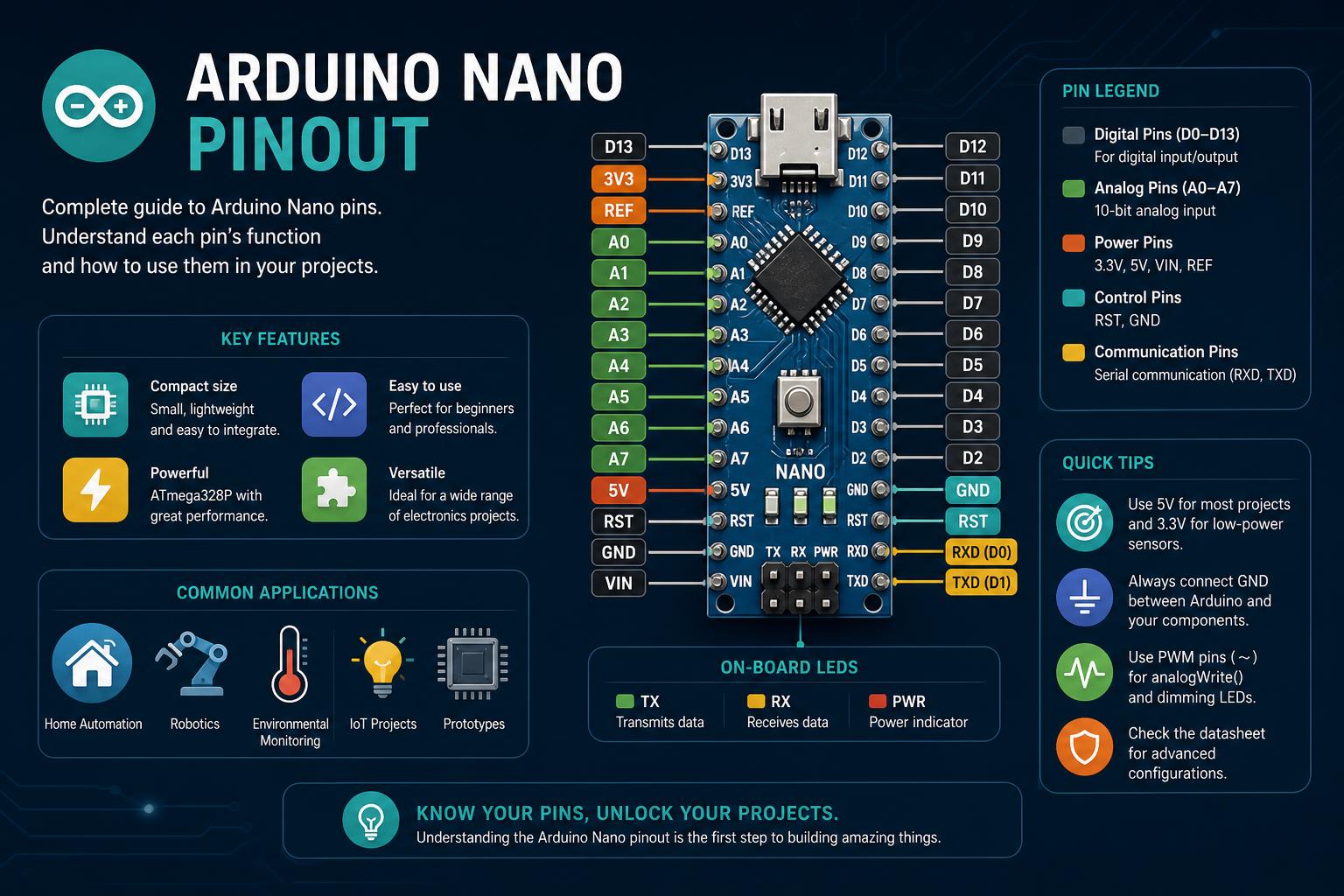
- The Arduino Nano offers 30 versatile pins split across power, digital, analog, and communication roles, providing compatibility and flexibility for advanced and beginner projects alike.
- Each pin class—digital I/O, analog input, PWM, interrupt, and serial protocols (UART, I2C, SPI)—enables precise control and expansion, including two unique analog-only pins (A6, A7).
- Proper powering, beginner-to-expert troubleshooting, and best practices optimize pin reliability and protect components, ensuring robust prototyping and real-world deployment.
The Arduino Nano is a compact powerhouse: a microcontroller board adored for its tiny footprint and remarkable feature set, making it a mainstay for everyone from absolute beginners to embedded systems pros. Yet, even seasoned makers occasionally get tangled in its web of pins, alternate functions, and electrical quirks, especially since the Nano packs impressive functionality into a breadboard-friendly package. If you’ve ever wondered what each pin is actually for, how analog pins differ, or how to avoid the classic pitfalls of connecting the wrong wire, this guide is for you.
Here, we’re breaking down every aspect of the Arduino Nano pinout—the complete layout of its pins—with practical insights, up-to-date recommendations, and nuanced distinctions to help you avoid common mistakes. From powering up safely to mastering protocols such as I2C, SPI, and UART, as well as harnessing the extras (interrupts, analog inputs, PWM, timers), you’ll find exhaustive detail peppered with friendly advice and essential best practices. Consider this the clarity you wish came bundled in the box.
Getting to Know the Arduino Nano: Origins and Core Features
The classic Arduino Nano is built around the ATmega328P chip—the same microcontroller as the renowned Arduino UNO. Its small size (45mm x 18mm), breadboard-mountable double-row headers, and absence of a barrel-power jack make it ideal when space is limited and minimal wiring is essential, such as in wearable tech, compact robotics, or desktop prototyping.
Key strengths of the Nano include:
- Compatible microcontroller architecture: It mirrors nearly all the UNO’s functionality in a much smaller form factor.
- Flexible power options: You can power it via mini-USB, regulated 5V, or the versatile VIN pin.
- Breadboard-friendliness: Just plug in and go—no adapters, no awkward pin spacing.
- Extra analog input: Not only do you get all typical digital I/O and serial communications, but eight (not six) analog inputs—two of them analog-only, A6 and A7, for specialized purposes.
It’s the Swiss army knife for electronics tinkerers who crave both space savings and raw microcontroller capability.
Technical Specifications: What’s Under the Hood?
| Component | Description |
|---|---|
| Microcontroller | ATmega328P (8-bit AVR), 16MHz |
| Flash Memory | 32 KB (0.5 KB or 2 KB used by bootloader) |
| SRAM | 2 KB |
| EEPROM | 1 KB |
| Digital I/O | 14 pins (D0–D13), 6 capable of PWM |
| Analog Inputs | 8 pins (A0–A7), A0–A5 dual-function as digital pins |
| Operating Voltage | 5 V |
| Max Current per I/O Pin | 40 mA (20 mA recommended) |
| USB Connector | Mini-USB B (original), micro or USB-C (clones) |
| 3.3 V Pin Current | ~50 mA (from FT232RL chip or CH340 clone) |
Keep in mind that some details vary by Nano manufacturer, especially on cloned boards. It’s important to check the labels and the chip on your hardware before making assumptions about capabilities or USB compatibility.
Pinout Architecture: The Grand Overview
The Arduino Nano has 30 pins in total, arranged in two rows for easy use on breadboards. The layout breaks down into five main categories: power, digital I/O, analog inputs, communication, and special functions.
- 8 Analog Inputs (A0–A7): ideal for reading sensors like potentiometers, light sensors, wind speed, etc.; A6 and A7 are analog-only.
- 14 Digital I/O (D0–D13): configurable as input or output, including six pins with PWM capability for controlling LEDs or motors.
- Power pins: VIN, 5V, 3.3V, two GND, and RESET—all critical for different power approaches.
- Communication pins: UART (TX/RX), I2C (A4/A5), SPI (D10–D13)—connecting various sensors and modules.
- ICSP connector: For advanced programming and direct access to the microcontroller’s memory.
Understanding how these pins interact and overlap is key to avoiding mistakes and unlocking your project’s full potential.
Powering Your Arduino Nano: Safe, Reliable Options
There are three main ways to power it, but they’re not all equal—following proper power-handling guidelines is crucial to avoid damage.
1. USB Power: Connecting via mini-USB supplies 5V through the USB circuitry, with a maximum of about 500 mA. This source is regulated and convenient, though it may have current limitations for motors or heating elements.
2. VIN Pin: If you’re not using USB, power the board with an external source (7 to 12 V recommended) through the VIN pin, which passes through the internal regulator. Too high a voltage will cause overheating; too low can cause instability. It’s best to keep it within the 7 to 12 V range. A 9V battery works, but larger projects need sources with better heat dissipation.
3. 5V Pin: You can bypass regulation by feeding regulated 5V directly into this pin. Be very careful: a mistake or overvoltage can damage the circuit. Never connect USB and an external 5V source at the same time without advanced knowledge, since the Nano will try to auto-select, risking feedback issues.
Additional details: The Nano has a 3.3V output (~50 mA), generally powered by the USB-Serial chip for low-power sensors or modules. Always connect the ground of all your modules for proper operation. RESET can be held low to reset the microcontroller, similar to pressing the reset button.
- General rule: Limiting current on 3.3V and 5V to around 50 mA and keeping total consumption below 200 mA helps ensure stability.
Digital Pins (D0–D13): Input, Output, and Multipurpose
Digital pins are the core for sensing, buttons, actuators, and more. D0 through D13 are on the main headers.
Each pin can be set as input or output using the pinMode() function. As an output, use digitalWrite() with HIGH or LOW. As an input, digitalRead() checks for the presence of voltage. A floating pin can give unpredictable results, so it’s recommended to use pull-up or pull-down resistors or the internal INPUT_PULLUP mode for greater reliability.
- Maximum load: Each digital pin can source or sink up to 40 mA, though 20 mA is preferable to preserve circuit integrity.
- Special cases: Pin D13 has a built-in LED, handy for simple tests. However, this LED draws a bit of current, so D13 may be less accurate in some applications.
Many sensor modules (like DHT11, DS18B20, or motion detectors) use digital pins. To drive motors or heavy loads, always use transistors or relays to protect the microcontroller.
PWM Pins: Analog Output for Smooth Transitions
PWM (Pulse Width Modulation) simulates an analog signal by rapidly switching an output on and off. The Nano has six PWM pins marked with the (~) symbol: D3, D5, D6, D9, D10, and D11. They’re easy to spot on official diagrams.
They let you control: light intensity, motor speed, or servo motor control. Use analogWrite(pin, value) with values from 0 to 255 to vary the duty cycle.
| PWM Pin | Timer | Default Frequency |
|---|---|---|
| D3 | Timer2 | ~490 Hz |
| D5 | Timer0 | ~980 Hz |
| D6 | Timer0 | ~980 Hz |
| D9 | Timer1 | ~490 Hz |
| D10 | Timer1 | ~490 Hz |
| D11 | Timer2 | ~490 Hz |
Tip: Some PWM pins share timers with other functions—using tone() on D3 or D11 can temporarily disable modulation. Keep this in mind for complex projects.
What is Piso WiFi? The Ultimate Guide to Affordable Internet Access and Business in the Philippines
Interrupt Pins: Respond Instantly to Events
Need your project to react instantly to a button, pulse, or sensor? Interrupts are the key. The Nano supports two external interrupts on D2 (INT0) and D3 (INT1), plus pin change interrupts that detect signal changes on most digital pins and some analog ones.
| Type | Available Pins | How to Use | Notes |
|---|---|---|---|
| External (INT0/INT1) | D2/D3 | With attachInterrupt() |
Easy to implement; each has its own vector |
| Pin Change | D0–D13, A0–A5 | Allows detecting changes as a group; inspect the signals in the handler | Not supported on A6/A7 |
- Best practice: Keep interrupt service routines (ISRs) short and fast. Avoid delay() and Serial for better stability.
Analog Pins (A0–A7): Reading the World
The Nano stands out by offering eight analog inputs, A0 through A7, one more than the UNO. All use a 10-bit ADC, ideal for temperature, light, wind, or motion sensors. Use analogRead(pin) to get values between 0 and 1023, corresponding to a default range of 0 to 5V.
Important notes:
- A6 and A7 are analog-only: They can’t be used as digital pins. They lack internal pull-up resistors and don’t work with
pinMode()as digital pins. It’s a common mistake to assume they behave the same as A0–A5. - AREF Pin: If you need greater precision in your readings, you can supply an external reference to AREF and call
analogReference(EXTERNAL). Never apply an external voltage to AREF without this instruction, to avoid damage. - Dual use as digital pins: A0–A5 can also be used as digital pins, by calling
pinMode()with their label or number. Useful when you run out of conventional digital pins.
[relacionado url=”https://www.ikkaro.net/what-is-payoneer/”]
Communication Protocols: Nano as Your Project’s Hub
UART (Serial) Communication
The TX (D1) and RX (D0) pins connect to the main microcontroller and the USB-Serial chip, letting you upload programs and use the Serial Monitor. During programming, avoid connecting other things to these pins so they don’t interfere or cause the upload to fail.
For multiple serial connections, the SoftwareSerial library lets you create additional channels on other digital pins, though with lower speed and reliability, usually around 9600 bps.
I2C (TWI) Communication
I2C makes it easy to connect many modules using just two shared wires: SDA on A4 and SCL on A5. They can also serve as analog or digital inputs, but not while they’re in use for I2C communication. They’re very useful for OLED displays, RTC modules, and various sensors.
When I2C communication is active, A4 and A5 are reserved for that function, so they can’t be used for other readings or outputs. The Wire library makes it easy to scan buses and troubleshoot issues.
SPI Communication
SPI is very fast and well suited for handling large volumes of data, such as SD cards, TFT displays, or RF modules. On the Nano, its pins are:
- MOSI (D11): Data output
- MISO (D12): Data input
- SCK (D13): Clock
- SS (D10): Slave select (must be configured as an output)
For multiple SPI devices, reserve a different pin for each SS line, and avoid setting D10 as an input with a low level, since this can accidentally put the device into slave mode.
The ICSP header also exposes the lines for low-level programming and bootloader burning.
Understanding Timers and Advanced Signal Handling
Timers are fundamental for PWM, timing, and many libraries. The Nano uses three: Timer0 and Timer2 (8-bit), and Timer1 (16-bit), efficient for various tasks. Each can generate interrupts and supports millis(), micros(), and delay().
- D4 and D5 work as external clock inputs (T0, T1) for advanced projects
- D8 (ICP1) is a capture input, useful for precisely measuring pulses
Manipulating the timer registers directly lets you fine-tune PWM frequencies or specific events. Refer to the ATmega328P datasheet for technical details.
ICSP Header: Direct Microcontroller Access
Every Nano has a small 6-pin ICSP header, which lets you burn bootloaders, program with external hardware, or repair the flash memory.
| Pin | Function |
|---|---|
| MOSI | Master to slave data |
| MISO | Slave to master data |
| SCK | Clock |
| RESET | Active low |
| 5V | Power supply |
| GND | Ground |
Troubleshooting and Optimizing Nano Connections
Dealing with erratic signals, random resets, or upload failures? The cause is usually a wiring or software error.
Common Mistakes:
- Pin confusion: Make sure you’re not using A6/A7 as digital pins.
- Loose connections: Breadboards and jumper wires often cause short circuits or intermittent contacts.
- Incorrect voltages: Don’t supply more than 5V to digital or analog pins. For 3.3V modules, use a logic level converter.
- Serial communication issues: Disconnect D0/D1 while programming. Install the CH340 chip drivers if you’re using clones.
Tips for improvement:
- Regularly inspect connections and solder joints
- Check that pins aren’t handling excessive loads using a multimeter, and use transistors if needed
- Handle the Nano carefully to avoid bending or damaging pins
Programming the Arduino Nano: IDE Tips and Loader Nuances
The Arduino IDE makes it easy to write, upload, and debug programs (sketches). It’s compatible with Windows, Mac, and Linux. Some Nano boards (especially older clones) may use different bootloaders; selecting the correct one under Tools > Processor avoids issues.
- Download and install the official IDE from the Arduino website
- Connect via mini-USB
- Select “Nano” as the board
- Choose the appropriate processor/bootloader
- Pick the correct COM port
- Write or load your code and upload it to the Nano
For beginners, the official getting-started guide is an excellent starting point.
Simulation and Testing: The Path to Flawless Prototyping
Want to validate your project in software before connecting real hardware? Simulation tools let you visualize code and circuits virtually:
- Proteus: Professional emulation for embedded systems, including Arduino.
- Tinkercad Circuits: Free, browser-based, easy to get started with—lets you drag components and simulate code in real time.
- Fritzing: Known for visual breadboard diagrams, with simulation and PCB options.
- SimulIDE: Lightweight and open source, great for quickly testing Arduino logic and basic circuits.
Testing in software before hardware saves time and prevents damage; an essential skill for effective development.
How the Nano Stacks Up: Nano vs UNO, and Choosing the Right Board
Torn between Nano and UNO? Although both use the same ATmega328P microcontroller, their physical and functional differences are as follows:
| Feature | Arduino UNO | Arduino Nano |
|---|---|---|
| Microcontroller | ATmega328P | ATmega328P |
| Size | 68.6 mm × 53.4 mm | 45 mm × 18 mm |
| Digital inputs | 14 | 14 |
| PWM pins | 6 | 6 |
| Analog inputs | 6 (A0–A5) | 8 (A0–A7, A6/A7 analog-only) |
| USB type | Type B | Mini-B, Micro-USB, or USB-C (on clones) |
| Power jack | Yes | No (VIN only) |
| Breadboard-friendly | No | Yes |
| 3.3V output | Internal regulator | FT232RL chip (~50 mA) |
| ICSP | Yes | Yes |
If you need breadboard space, extra analog pins, or a compact size, the Nano is the preferred choice. For projects using shields or requiring a larger footprint, the UNO may be more convenient.
Best Practices and Pro Tips for Arduino Nano Project Success
- Don’t connect more than 5V directly to the I/O pins; use level converters if working with 3.3V sensors.
- Make sure your USB cables have full data pins, not just charging ones.
- Using clones? Install the CH340/CH341 drivers if needed (official link).
- Limit total current draw: aim for about 20 mA per pin and under 200 mA overall.
- During programming, keep D0 and D1 free for serial communication.
- If a sketch doesn’t work or hangs, check your connections, the bootloader version in the IDE, and possible hardware faults.
Once you understand it in depth, the Arduino Nano opens up a whole world of possibilities in electronics. Understanding each pin, accounting for analog quirks, PWM, communication, and safe power handling, makes the difference between frustration and successful projects. The combination of accessible power, compatibility, and ease of learning makes the Nano the perfect entry point for any enthusiast—just remember that those two extra analog inputs let you not only sense more, but also tackle creative challenges that often get overlooked on larger boards.