
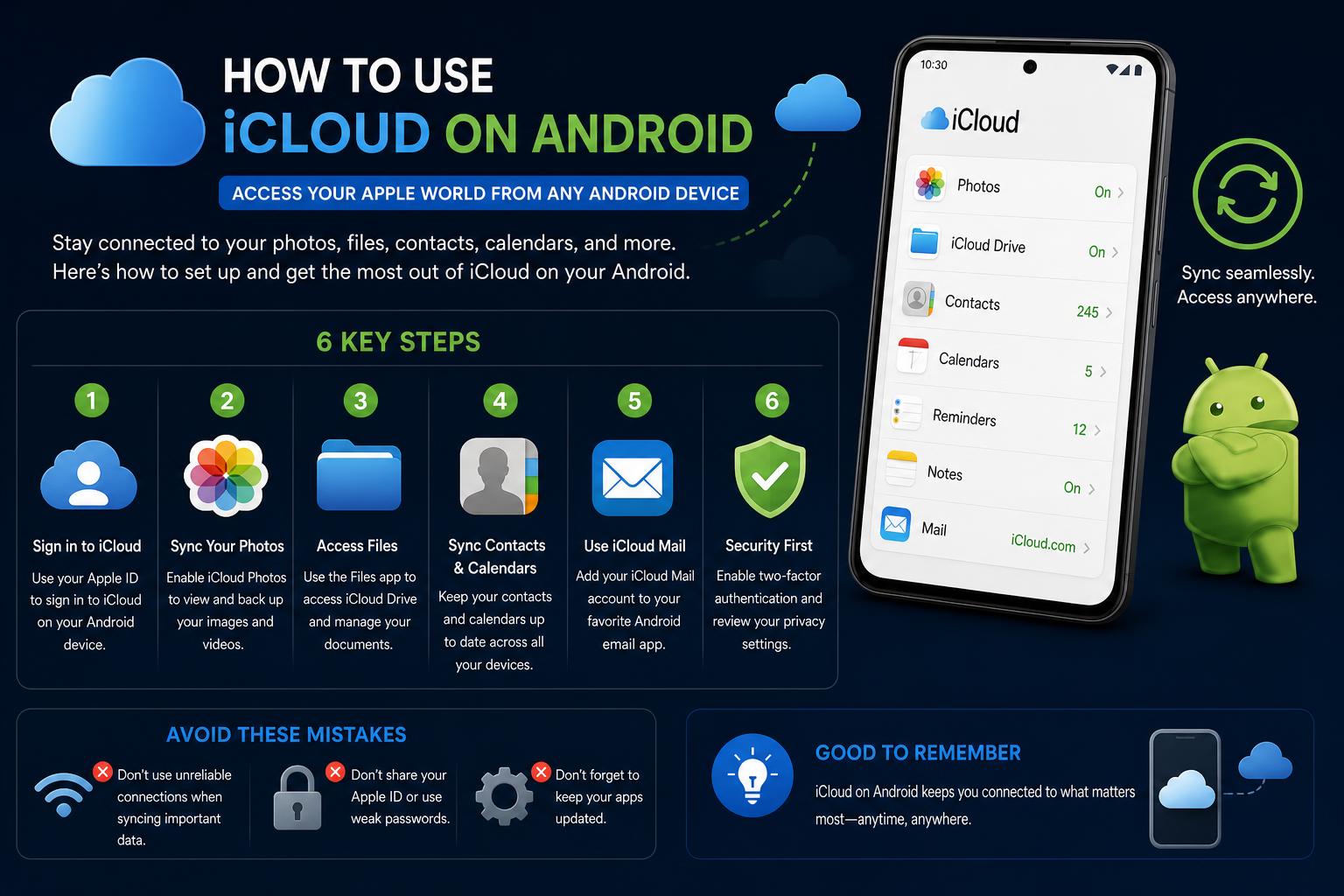
- Official iCloud web access allows Android users to manage photos, notes, files, and more securely.
- Email, contacts, and calendar syncing from iCloud to Android are possible through Gmail and Google services.
- Third-party apps and browser shortcuts can enhance usability but require caution regarding security and privacy.
Moving from an iPhone to an Android device doesn’t mean you have to give up your iCloud data and services. Millions of users are caught between Apple’s walled ecosystem and the flexible world of Android, wondering if it’s possible to keep using key features like iCloud Mail, Photos, Contacts, and Notes on their new handset. The good news: with a bit of patience, the right tools, and a careful approach, you can continue to access and manage much of your iCloud information on Android—often for free, and without compromising your security.
This guide will help you bridge the Apple–Android gap. We’ll explore official web solutions, explain how to connect important accounts like email, show you how to migrate files and contacts, and highlight both the strengths and the limitations of different methods. Whether you’re fully switching to Android or simply using both operating systems, you’ll find everything you need here for a smooth transition.
Understanding the Limits and Possibilities
Apple’s approach to cloud services is famously tailored for its own devices, leaving Android users with restricted options. There is no native iCloud app on Google Play, and most integration requires using browser-based solutions or third-party apps. However, modern browsers and updated web apps have minimized many headaches—so while not as seamless as on iOS, daily iCloud usage on Android is more than possible.
Core Method: Accessing iCloud Through the Browser
The official way to use iCloud on Android is through iCloud.com in your preferred mobile browser. This method is universal, secure, and maintains control in your hands rather than passing credentials to unknown apps. Here’s how to get started:
- Open Chrome or another updated browser on your Android phone.
- Visit iCloud.com.
- Tap Sign In and enter your Apple ID.
- Choose to continue with your password and input it.
- For security, you’ll often be required to enter a six-digit verification code sent to a trusted device or phone number.
- On your personal device, select Trust to skip repeated logins.
Once inside, you gain access to iCloud Mail, Photos, Drive, Notes, Reminders, Contacts, Calendar, and more. Most features are usable in mobile view, but for advanced controls (like exporting contacts), you may need to enable the browser’s “Desktop site” mode via its settings menu. This trick unlocks controls sometimes hidden from the simplified mobile layout.
Improving Daily Access: iCloud on Your Home Screen
To make iCloud.com feel more like an app and save time, add it as a shortcut on your Android home screen:
- With iCloud.com open and logged in, tap your browser’s menu (three dots in Chrome).
- Select Add to Home screen. You’ll be asked to name the shortcut—“iCloud” works great.
- The icon appears alongside your apps for one-tap entry, although this shortcut is just a browser wrapper and doesn’t sync in the background or send notifications.
Making Email Work: Using iCloud Mail with Gmail on Android
Accessing emails via the browser is clunky, especially if you get frequent messages. Android’s Gmail app can handle iCloud email natively—but you’ll need to generate an “app-specific password” from Apple for security. This keeps your main password safe and lets you revoke access later if needed.
How to Generate an App-Specific Password
- Navigate to the Apple Account site and sign in.
- Go to Sign-In and Security > App-Specific Passwords.
- Click Generate an app-specific password, label it (e.g., “Gmail for Android”) and copy the code shown.
Adding iCloud Mail to Gmail
- In the Gmail app, tap your user icon and pick Add another account.
- Select Other (not Google or Exchange).
- Input your full iCloud email address (such as [email protected]).
- Choose Personal (IMAP) when prompted.
- Paste the app-specific password you created, not your main Apple password.
- Finish setup including naming and sync preferences.
If access fails, repeat the password generation, ensuring each is unique for every app you use. This approach delivers your iCloud mail into Gmail for a seamless daily experience on Android.
Accessing Photos, Notes, Reminders, and Files
iCloud Photos and files stored in Drive are accessible via the browser, with some caveats. For occasional downloads or uploads:
- Open Photos or Drive at iCloud.com.
- Select images or documents, look for the download or share options, and move them to your device.
- Downloaded items typically go to the Android
Downloadfolder. - If certain buttons are missing, switch to Desktop mode in your browser as above.
Note: Huge file batches or entire photo libraries can struggle through mobile browsers. For mass transfers, use a desktop or synchronize your iCloud Photos library with Google Photos via an iOS device first. Google Photos then ensures access to your library everywhere.
Managing Notes and Reminders is possible through their respective web apps—view, edit, and manage your data there, but keep in mind that these don’t link directly into Android’s native apps, nor do they offer background notifications.
Migrating Contacts from iCloud to Android
To fully integrate your iCloud contacts with Android’s Contacts app, export and import them as a vCard:
- Open Contacts at iCloud.com and switch to Desktop site if necessary.
- Select the contacts you want to migrate.
- Click the options menu and choose Export vCard to obtain a
.vcffile. - Send this file to your Android device (via email, upload, cloud storage, etc.).
- On your Android phone, go to the Contacts app’s settings menu.
- Choose the import option (Import from .vcf file), select the downloaded vCard file, and pick your Google account as destination. This keeps your contacts synced to any future Android login.
Alternatively, use Google Contacts in a web browser to upload the vCard, then confirm syncing is enabled on your phone for your Google account.
Transferring Calendars from iCloud to Android
Moving calendar events requires a bit more effort: You’ll have to make your iCloud calendar “public” temporarily, download its data, import it into Google Calendar, and then turn off sharing. Here’s how:
- Open Calendar at iCloud.com, pick your calendar, and access its sharing controls.
- Enable Public Calendar and copy the provided link.
- Edit the link’s prefix from
webcal://tohttp://and open it in your browser to download the iCal file. - Visit Google Calendar on a desktop, go to Other calendars > Import, and choose the file you downloaded.
- Once imported, disable “Public Calendar” in iCloud to keep your events private.
Remember: This is a snapshot, not ongoing sync. Repeat as needed for future changes.
Tips for iCloud Notes and Reminders on Android
Your iCloud Notes and Reminders are only accessible and editable through the iCloud web app. If you want real-time sync in Android’s native environment, you’d need to switch to a cross-platform service like Google Keep or Microsoft OneNote. Otherwise, rely on browser access with a home screen shortcut for quick reach. If you enable Notes sync between your iPhone and Gmail, those entries show up in Gmail (under “Notes”), but not in Google Keep, which makes it a limited solution.
Dealing with Security Features
Security remains paramount with Apple. Any new browser sign-in triggers two-factor authentication. Follow prompts to receive a one-time code on a trusted device or phone number. No alternative shortcuts exist—if locked out, begin Apple account recovery. You should only enable ‘Trust’ for browsers on personal, secure devices.
Troubleshooting Common Issues
- Missing Apps or Controls: Switch your browser to “Desktop site” for full functionality.
- Problems Getting Code: Request the code by text or approve from another Apple device. Lacking both, start account recovery promptly.
- Failed Downloads for Files/Photos: Try smaller batches, use stable Wi-Fi, and confirm downloads in the
Downloadfolder. - Email Setup Fails: Regenerate and carefully use fresh app-specific passwords. Double-check your email address format and password entry.
Is It Safe to Use Third-Party Apps?
While some third-party apps like iSync and SyncGene promise more native-feeling iCloud integration with Android, proceed with caution. Apple does not officially support them, and you should never enter your main Apple ID password into unofficial apps. Instead, use app-specific passwords for services like Mail when possible, and always check privacy policies and security practices before granting access to sensitive data. While these apps can offer features like syncing contacts, calendars, and reminders, or provide a launcher for Apple web services, remember the risks around privacy and reliability. Android’s Google Play Store also offers official Apple apps like Apple Music and Apple TV, which function as true cross-platform experiences, but these do not sync general iCloud data.
Daily Usability: Shortcuts, Bulk Actions, and Limitations
For regular, heavy use of apps like Photos or Drive, browser access is best for occasional viewing, not for live syncing. Batch downloads and uploads can fail in mobile browsers. If you’re moving all your photos, it’s best to sync from iOS to Google Photos, then access them from your Android device. For reminders and notes, browser shortcuts provide fast but non-integrated access—true background updates and push notifications remain an Apple-exclusive perk.
If you rely on constant access to your data and notifications, consider cloud services that provide native Android apps or permanent export/import solutions. iCloud’s system is best suited for occasional cross-platform access rather than as a daily, deeply integrated Android resource.
Insider Tips for a Smoother Experience
- Add iCloud.com as a browser bookmark and to your home screen for one-tap access.
- Use Gmail’s powerful mail features—labels, search, integrations—to make managing your iCloud email easier on Android.
- Conduct bulk operations (like exporting contacts or downloading many photos) on a desktop for better reliability and fewer errors.
- If you switch platforms, gradually shift data and habits to Google’s cloud ecosystem for a more seamless Android experience.
It’s easy to assume iCloud is off-limits once you leave Apple hardware, but the reality is far more flexible. By combining browser access, secure mail integration, and thoughtful import/export techniques, Android users can manage and even migrate nearly every important iCloud component. While real-time syncing and push notifications aren’t available for everything, ongoing improvements to web apps and Android’s own tools make life across both platforms surprisingly hassle-free for users who follow these steps.