
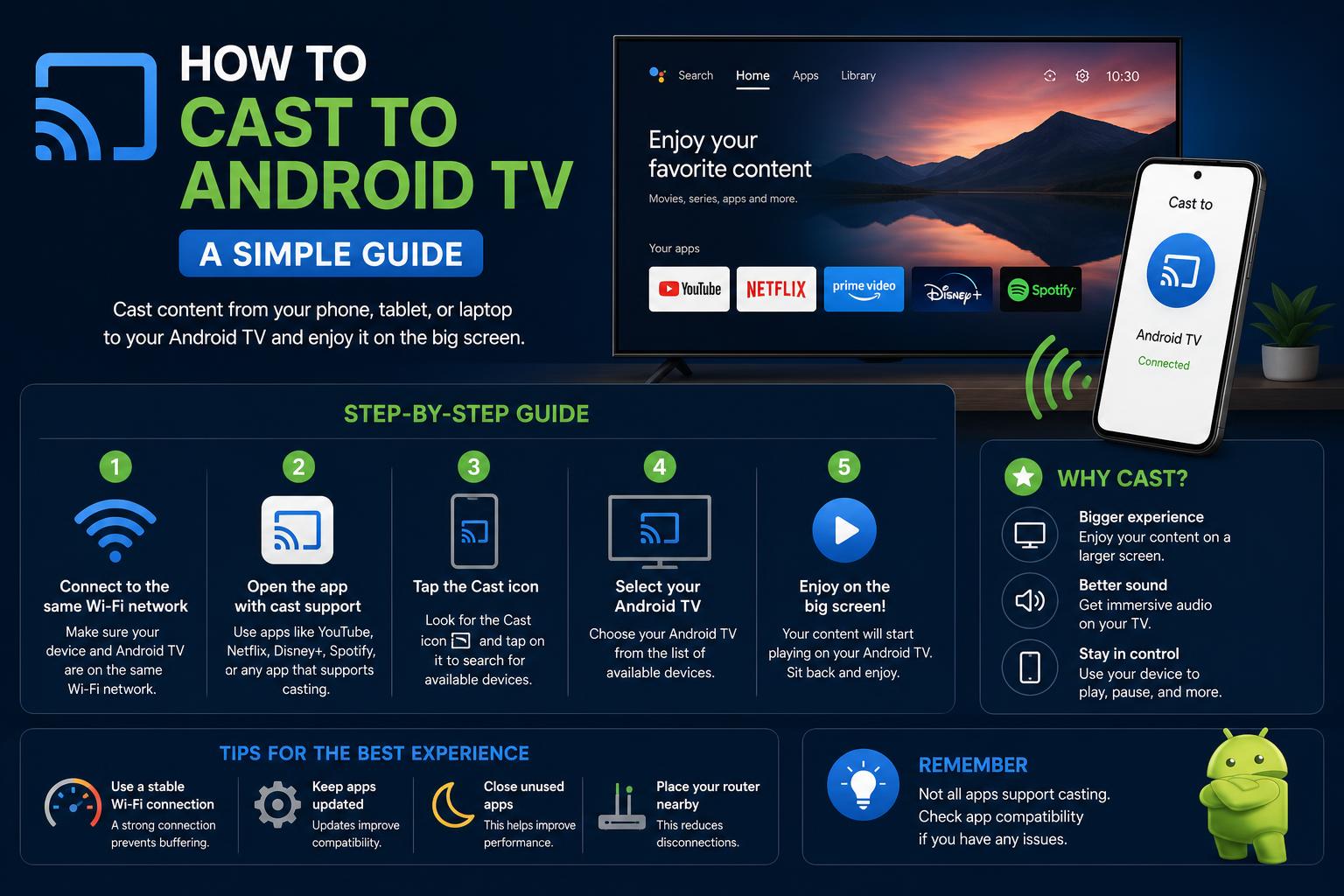
- Android TV supports various casting and screen mirroring methods for seamless streaming from multiple devices.
- The most reliable approach uses the native Cast button in compatible apps, but there are effective alternatives for every scenario.
- Troubleshooting and choosing the right workflow saves time and enhances your experience on the big screen.
Ever wondered just how easy it could be to send your favorite videos, apps, or even entire device screens straight from your smartphone or laptop to your Android TV? With the right approach, casting to Android TV is incredibly smooth, opening up a world of entertainment on the big screen. Whether you’re binge-watching a series, sharing an impressive presentation, or just want to play mobile games on your TV, there are multiple ways to achieve it, each with its own advantages.
In this guide, we’ll explore all the methods to cast, connect, and control your Android TV using smartphones, tablets, and computers. It includes practical tips, troubleshooting tricks, and clear explanations aimed at making the process easy, even for those who aren’t tech-savvy. Get ready to make the most of your Android TV—because streaming should be simple, not a mystery.
Main Ways to Cast Content to Android TV
Android TV is versatile when it comes to receiving content from other devices. Casting isn’t limited to a single method—in fact, you have several options, each tailored for different devices and needs. Here is a breakdown of the possibilities:
- Using in-app casting features (the cast button found in many streaming apps)
- Mirroring the entire device screen (ideal for presentations, games, or apps without casting support)
- Casting from browsers (mainly from Google Chrome on laptops or desktops)
- Direct playback on the TV (running the app directly on your Android TV if available)
- Wired connection using HDMI adapters (for maximum stability or when wireless issues arise)
Native Google Cast support is what sets Android TV apart from many other platforms. Whether you use Android, iOS, Windows, or Mac, there is usually a reliable way to cast or mirror.
Why Choose Android TV for Casting?
One of the biggest advantages of Android TV is its deep integration with Google’s casting technology. That means, in most cases, you don’t need additional hardware like a Chromecast device. The TV itself becomes a casting receiver, allowing you to send content from compatible apps, share your entire screen, or even a web tab—all wirelessly. This generally involves less hassle and fewer headaches compared to other smart TV platforms.
Furthermore, built-in support ensures minimal lag and greater compatibility with different devices. So, if you have content you want to show—whether it’s Netflix, YouTube, browser tabs, slides, or even spreadsheets—you are covered with multiple options.
The Cast Button: The Easiest Route from Phone to TV
Most Android users—at least those who use YouTube or Netflix—are familiar with the iconic cast button. Tapping this icon within a compatible app allows you to select your Android TV, and in seconds, your video appears on the big screen with just a few taps. Here is a step-by-step on how to do it:
- Make sure both devices (your phone and Android TV) are on the same Wi-Fi network. This is crucial, or your TV won’t appear as an available receiver.
- Open a casting-compatible app, such as YouTube, Netflix, or Disney+.
- Tap the cast icon, usually in the top right corner of the app’s interface.
- Select your Android TV from the list that appears. You may have to allow the connection on the TV.
- Choose your content, hit play, and watch it on the TV (while your phone works as a remote control).
This method is undoubtedly the simplest, most reliable, and least prone to errors. Plus, you can control playback—pause, rewind, fast forward—from your phone. Your mobile device becomes a smart remote, making multitasking easier.
Mirroring the Entire Screen
There are times when you want the TV to replicate exactly what is on your phone or tablet—maybe you are demonstrating an app, showing photos, or just using an app that doesn’t support casting. That’s where screen mirroring comes into play.
Steps for Mirroring from Android
- Swipe down on your phone to access Quick Settings. Look for options like ‘Cast’, ‘Screen Cast’, or ‘Smart View’ (on Samsung phones).
- Tap the corresponding option. Your device will scan for available screens.
- Select your Android TV.
- Confirm any prompts on your TV, and your phone’s screen will appear on the TV almost instantly.
This replicates everything—apps, games, presentations, or even the home screen—on the TV. It is the best solution when apps do not directly support casting.
Other Casting Methods for iPhone and iPad
Although Android TV is primarily designed for Android devices, iOS users are not left out either. With the right network setup and in some cases the help of third-party apps, you can cast or mirror from iPhones or iPads—though the method will depend on compatibility between senders and receivers.
Steps for Casting or Mirroring from iPhone/iPad
- Connect both devices to the same Wi-Fi network.
- Check if your Android TV supports the protocol used by iOS (like AirPlay on supported TVs or via compatible apps).
- Initiate casting or mirroring from your iPhone/iPad, following the app’s instructions or using the device controls.
- Select the Android TV, confirm any requests, and the content will appear on screen.
This method is useful for sharing photos, videos, or even the entire iOS screen—ideal for family gatherings or quick presentations.
Integrating Your Windows Laptop
Windows laptops offer some of the most flexible casting options, especially thanks to Google Chrome. With the built-in casting feature, you can send a web page, a video, or even your entire desktop screen directly to your Android TV with just a few clicks.
How to Cast from Chrome on Windows
- Open Google Chrome on your Windows machine.
- Navigate to the tab or video you want on the big screen.
- Click the three-dot menu in the upper right corner, and select ‘Cast’.
- Choose your Android TV from the device list.
- Select whether you want to cast just the tab, the entire screen, or a specific file.
It is a simple method, especially for browser-based content or websites that lack native casting support.
Full Mirroring from Windows
For needs beyond tabs—like presenting a slide, showing a spreadsheet, or sharing the entire desktop—you can use the standard casting and projection features in Windows or revert to Chrome (which also allows desktop mirroring). This is especially useful in professional or educational environments.
Casting on MacBook: The Best Options
MacBook users are not excluded from casting to Android TV. While there isn’t a one-click solution like on Android, using the Chrome browser remains the easiest and most stable option for macOS users.
- Connect both devices to the same Wi-Fi network.
- Open Chrome, click the three dots in the top right corner, select ‘Cast’, and choose your TV.
- You can cast a tab (ideal for YouTube, Netflix web), the entire screen, or media files.
- If casting with Chrome is unstable, connecting the MacBook to the TV via an HDMI cable and adapter is a great option.
HDMI is always a reliable choice: simply connect your MacBook to the TV with an HDMI adapter, and macOS will recognize it as an additional display.
The Google TV App as a Remote and Casting Hub
Google offers the handy Google TV app, which works as a remote control and casting tool for compatible TVs. With this app you can:
- Turn the TV on and off from your phone
- Navigate menus and settings
- Control media playback (play, pause, fast forward, adjust volume)
- Use Google Assistant for voice commands
- Search or log in using the phone’s keyboard
To link the Google TV app with your Android TV:
- Open the app on your Android phone.
- Tap the TV icon or ‘Nearby TVs’, then select your device from the detected list.
- Enter the code shown on the TV screen to confirm the connection.
You can even add the remote control shortcut to your Quick Settings for fast access from any screen, very useful if you lose the physical remote.
Wired Connections: When Wireless Doesn’t Work
Sometimes, wireless connectivity isn’t possible—maybe the Wi-Fi signal is unstable, or your device doesn’t play well with Wi-Fi streaming. In these cases, the classic HDMI method solves everything:
- Get a USB-C (or compatible output) to HDMI adapter for your device.
- Plug the adapter into your device and link it to the TV with an HDMI cable.
- Change your TV’s input to the corresponding HDMI.
Your screen will mirror on the TV immediately. It’s the most stable method—no interference or detection difficulties, just straightforward mirroring.
Troubleshooting: Why Can’t I Cast to My Android TV
Despite how easy Android TV is, casting sometimes encounters hurdles. Most of the time, it comes down to network issues or incorrect settings. Here is how to fix it:
Your TV Doesn’t Appear as a Receiver
- Verify that both devices (your phone and the TV) are on the same Wi-Fi network. Sometimes, they are connected to different networks (e.g., main network vs. guest network).
- Restart both devices. A reboot can resolve underlying connectivity issues.
- Make sure the Cast feature is enabled on your TV, and update the firmware or receiver components if prompted.
- Still not working? Some TVs require you to manually launch the casting app or check the input source.
The Connection Works But Playback is Slow or Stuttering
This is usually due to network issues—heavy traffic, interference, old hardware—that cause lag. If streaming lags:
- Try moving your router closer or switching to the 5 GHz band.
- Minimize other network activities (downloads, streaming on other devices).
- Try casting from different devices to isolate the problem.
- If wireless is problematic, connect via HDMI for smooth playback.
Mirroring Works But Video Quality is Poor
Some tasks—especially HD videos or gaming—demand a lot from your Wi-Fi and devices. If image quality is poor:
- Use the cast button in the app for the most stable transmission (especially for YouTube, Netflix, etc.).
- Mirror only when there is no other option, as performance can degrade, especially on wireless networks.
Which Method to Choose Based on Your Situation
| Scenario | Best Method | Reason |
|---|---|---|
| Streaming videos from compatible mobile apps | In-app cast button | Smooth playback, high quality, less lag |
| Sharing the entire phone or laptop screen | Screen mirroring | Shows everything regardless of whether the app supports casting |
| Sending web content or specific browser tabs | Cast from Chrome | Quick and easy work within the browser |
| Wireless isn’t working or you seek maximum stability | Wired HDMI connection | Avoids network issues, with near-zero lag |
| You already have the app installed on the TV | Direct playback on TV | The simplest option, no other devices needed |
Tips for Improving Your Casting and Troubleshooting
- Keep all devices updated—phones, TV, apps, and casting receivers—to avoid bugs and compatibility issues.
- For better quality, always prefer casting from apps (especially for streaming videos).
- If you have recurring issues, consider upgrading your router or adding a mesh Wi-Fi system for better coverage.
- If your Android TV disappears from the device list, try toggling the Cast feature or updating the system software on the TV.
What to Do When Casting Fails: Common Causes and Solutions
Sometimes, casting hurdles are unavoidable. Most of the time, it’s due to network issues or incorrect settings. Here is how to fix it:
Your TV Doesn’t Appear as a Receiver
- Verify that both devices are on the same Wi-Fi network.
- Restart the devices. A reboot usually resolves connectivity issues.
- Ensure the Google Cast feature is activated on your TV, and update firmware or components if necessary.
- Still nothing? Some TVs require you to manually launch the casting application or check the input source.
The Connection Works But Playback is Slow or Stuttering
There are likely network issues—heavy Wi-Fi traffic, interference, old hardware—causing lag. If playback is slow:
- Move your router closer or switch to the 5 GHz band.
- Reduce other network activities (downloads, streaming on other devices).
- Test from different devices to identify the source of the problem.
- If necessary, use HDMI for smooth playback.
Mirroring Works But Video Quality is Poor
When performing HD tasks or gaming, quality can deteriorate if the network is weak. If visual quality is poor:
- Use the app’s cast button for more stable playback.
- Mirror only if there is no alternative, as performance can worsen over the network.