
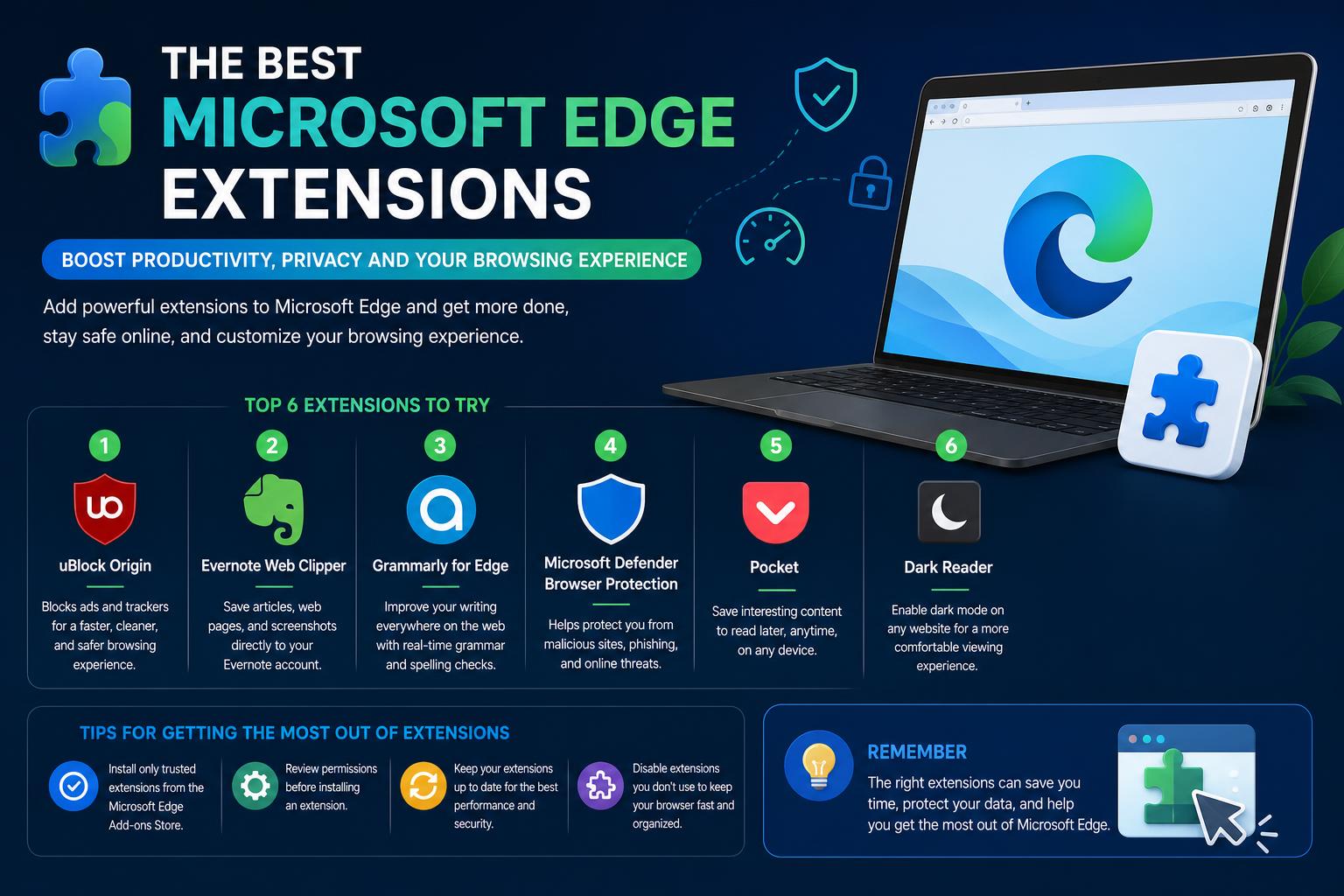
- Edge supports a vast ecosystem of productivity, security, and AI-powered extensions.
- Official Edge and Chrome Web Store add-ons offer seamless integration with Windows and Microsoft services.
- Strategically combining essential extensions boosts efficiency while keeping your browser fast.
For anyone looking to supercharge their browsing experience, Microsoft Edge has truly transformed in recent years. Thanks to its compatibility with a staggering range of extensions—both from its own add-ons store and the Chrome Web Store—Edge is no longer simply a secondary option to Chrome or Firefox. In fact, it’s becoming the go-to browser for productivity, privacy, and digital organization fans. But with this growth, the challenge now is to pick the absolute best extensions for different needs, especially as the ecosystem grows and recommendations become outdated fast.
If you’re tired of endlessly browsing scattered articles, piecing together recommendations from forum threads, or sifting through Reddit for advice, you’ve landed in the right place. We’ve compiled and reworked the most detailed, up-to-date, and practical guide to the best Microsoft Edge extensions. Whether you want to block distractions, secure your passwords, manage projects, or just streamline daily tasks, this article has you covered, integrating user favorites, expert picks, and official Microsoft recommendations—all explained in a way that’s easy to act on.
The Power of Edge Extensions Today
Edge’s evolution from a minimalist browser into a feature-rich productivity tool owes much to its open extension platform. Users now enjoy a previously unmatched flexibility: not only can you browse the official Edge Add-ons Store, but you also get instant access to the massive Chrome Web Store catalog. The result? A browser that integrates with your work, learning, and personal interests—often better than Chrome for Windows users due to deep Microsoft integration.
The best part: you no longer need to worry about missing out if you’re switching from Chrome to Edge. Most extensions migrate smoothly, and Edge now consistently gets exclusive add-ons capitalizing on features like vertical tabs, Collections, and sidebar tools.
How to Install and Manage Extensions on Edge
Getting started with Edge extensions is quick and beginner-friendly:
- Install directly from the Edge Add-ons Store.
- Click “Get” on your chosen extension, then confirm permissions.
- To install Chrome extensions:
- Go to the Chrome Web Store, and enable “Allow extensions from other stores” when prompted.
- Type edge://extensions in the address bar anytime to manage, enable, disable, or remove your installed extensions.
Best practice: Pin only the extensions you use daily to the toolbar, and periodically remove tools you no longer need to keep things fast and clutter-free.
Top Categories for Must-Have Edge Extensions
With hundreds of options available, extensions can feel overwhelming. Let’s break it down by the most in-demand categories, highlighting the most effective and trusted add-ons for each scenario. Whether you’re reading, writing, organizing work, or protecting your privacy, there’s a specialized Edge extension that makes life easier.
1. Ad Blocking and Content Filtering
- uBlock Origin (official project): Unquestionably the gold standard for ad-blocking—fast, lightweight, and open source. It blocks ads, trackers, and even malware sites, supporting advanced filter lists for power users. “Set and forget” for a cleaner, safer web experience.
- AdBlock / AdBlock Plus: Still popular for simple ad blocking; just avoid running both at once as they offer similar, sometimes duplicative features.
2. Password Management and Digital Security
- Bitwarden (official project): A free and open-source favorite. Offers unlimited passwords and device sync even on their free plan, with top-tier encryption for peace of mind. Highly recommended by both reviewers and users who value transparency and security.
- 1Password (official project): Sets the standard for professional password management, especially for multi-device or team use. Provides seamless autofill, encrypted data storage, password sharing vaults, and even passkey support for passwordless logins. Subscription required after free trial.
- LastPass (official project): Continues to be popular, thanks to its built-in password generator, secure vault, and autofill, even though some users report occasional technical hiccups. Comes with a free plan and premium options for families/teams.
- NordVPN (official project): For those seeking privacy beyond passwords. The Edge extension focuses on online privacy, threat protection, and dark web monitoring. Note that a subscription is necessary after the free trial.
3. Productivity Powerhouses
- Voicy (official project): An innovative speech-to-text extension that works across all Edge text fields—think emails, posts, and even forms. Supports over 50 languages, automatic grammar correction, and advanced dictation commands. A huge time-saver for content creators and professionals with lots of writing or those seeking accessible hands-free editing.
- Text Blaze (official project): Automates repetitive typing with custom text snippets and keyboard shortcuts. This tool is invaluable if you’re writing standard emails, filling out forms, or maintaining consistent responses across teams. Free with pro features available.
- Todoist (official project): An extremely powerful task and project management extension. Add tasks from anywhere on the web, set deadlines, and organize projects with labels, reminders, and productivity tracking. Integrates directly with Edge and other productivity tools like Google Calendar or Gmail.
- Everhour (official project): If you’re managing projects or teams, this time tracking extension offers seamless integrations with Asana, Trello, Jira, and more. Features include timesheets, budgeting, detailed reporting and team management—excellent for freelancers and businesses managing multiple projects.
- Taskade (official project): A unified workspace for managing tasks, notes, and team collaboration—offering insights, countdown timers, and real-time data sync.
- Momentum (official project): Replaces your new tab page with beautiful daily photos, focus prompts, and a built-in to-do list—a subtle, daily productivity reminder.
- StayFocusd (official project): Prevents endless distractions by blocking time-wasting sites or setting time limits, adding serious discipline to your workflow.
- Cold Turkey (official project): Similar to StayFocusd, but offers deep blocking controls, custom schedules, Pomodoro timers, and even full internet lockout if willpower alone won’t cut it.
4. Reading, Research, and Web Clipping
- Pocket (official project): The leading tool for saving articles to read later. Includes offline support, a distraction-free reading view, tagging, highlights, and discovery feeds. Great for students, researchers, and knowledge workers who need to capture information on the go.
- OneNote Web Clipper (official project): Enables clipping all or part of a web page directly into OneNote, with full access from any device, even offline. Ideal for collaborative projects, research, and academic or personal note-taking.
- Evernote Web Clipper (official project): Similar in function to OneNote’s clipper but integrates with Evernote’s robust note and notebook system. Includes annotation, highlight, and multi-format saving features.
- Notion Web Clipper (official project): Instantly saves any webpage to your Notion workspace, preserving layout and allowing for one-click aggregation of research or inspiration.
- Web Highlights (official project): Lets you highlight any webpage or PDF, organize notes by tag or folder, generate AI-powered summaries, and export your research. Invaluable when collecting insights from across the web or cramming for exams.
- SingleFile (official project): Save entire web pages as a single HTML file, making it perfect for archiving or offline access.
5. AI Assistants and Smart Browsing Tools
- Perplexity (official project): An AI-powered search extension that analyzes page content and instantly provides answers—complete with sources, which makes it an excellent research companion.
- Monica (official project): This all-purpose AI assistant can summarize content, write emails, translate, and more, integrating with popular tools like Google Docs and Gmail. Very useful for multitasking and writing help.
- MaxAI.me: Leverages ChatGPT, Claude, Bard, and Bing AI to supercharge writing, summarizing, and idea generation—no copy-paste required.
- Professionally AI Email Writer: Drafts clear, professional emails in just a few prompts, reducing the time spent on correspondence.
- Liner AI: Helps you extract and organize research insights from articles, YouTube content, and PDFs—ideal for academic work or deep dives into niche topics.
- Jarvis AI: Chat GPT, Bing, Claude, Bard, BOT: Merges multiple AI models into one extension for seamless brainstorming, writing, and problem-solving without switching contexts.
- Sider: Adds a ChatGPT sidebar to your browser, allowing real-time explanations, translations, and summaries of any selected text on a page.
6. Accessibility, Format Enhancement, and Visual Comfort
- Dark Reader (official project): Enables a true dark mode for all websites, reducing eye strain and making night browsing easier. Includes brightness, contrast, and sepia controls, and supports per-site customization.
- Reader Mode: Strips pages down to their core content for distraction-free reading, with customizable layouts and font controls. A must for anyone burned out on pop-ups and ads.
- Feed Preview: Instantly identifies RSS feeds on any page, making it easy to preview and subscribe for readers who prefer an organized information diet.
7. Tab and Bookmark Management
- Workona (official project): Organizes open tabs, windows, and workspaces, letting you switch between projects or contexts without the chaos of dozens of open pages.
- OneTab (official project): Quickly collapses all your open tabs into a single list for easy saving, sharing, or restoring—essential if you’re prone to tab overload.
- Linkbook (official project): Bookmarks organizer for fast saving, tagging, and retrieval; stands out for users drowning in links.
- Tab Lister: Generates exportable lists of your open tabs—practical for session sharing or archiving research sessions.
8. PDF, Documents, and Web Utilities
- Adobe Acrobat (official project): The must-have for those working frequently with PDF files—edit, sign, convert, combine, or split PDFs without leaving your browser. Free trial with premium features behind a paywall.
- Office Online: Links directly with Microsoft’s suite of Office Web Apps, letting you open and create Word, Excel, PowerPoint, and OneNote files directly in Edge—perfect if you work a lot with documents in Microsoft’s cloud.
- Obsidian Web Clipper (official project): Save complete articles, highlights, or web content straight into your Obsidian vault, a game-changer for researchers developing their own knowledge bases.
- Post Scraper: Extracts data from web pages, ideal for analysts or researchers needing structured export of web content.
- Zillow Exporter: For real estate researchers, exports Zillow listings into spreadsheets for in-depth analysis.
9. Developer Tools and SEO Extensions
- Page Analyzer: Identifies website performance issues, errors, and optimization opportunities—helpful for developers wanting to troubleshoot directly in Edge.
- Reddit Thread Finder: Smart search for Reddit discussions, saving hours otherwise spent browsing manually.
- ChatGPT for Search Engines: Integrates ChatGPT summaries/results into search engines for instantaneous insights and prompt templates, valuable for content creators and SEO specialists.
10. Miscellaneous Favorites from User Communities
- Enhancer for YouTube (official project): Customizes YouTube playback with volume, quality, and theme controls—essential for frequent watchers.
- RSSHub Radar: Tracks and previews RSS feeds for any site—vital for power users and news junkies missing classic browser features.
- Pin It Button: Instantly saves any image to Pinterest boards directly from Edge.
- Mouse Gestures: Personalizes mouse movements to trigger navigation, making web control faster for veteran users.
- Vimium (official project): Enables full browser navigation via keyboard, inspired by Vim. Learning curve aside, it’s a productivity boon.
Expert Tips: Making the Most of Your Extensions
Having dozens of tools is pointless if they slow your browser or go unused. Here’s how to keep your Edge experience smooth, safe, and tailored to your workflow:
- Regularly audit your extensions list. Visit edge://extensions, prune out tools you barely use, and keep only the essentials. This not only keeps things faster but also improves browser security.
- Limit overlap. Never run two ad blockers at the same time, and don’t keep multiple password managers unless you absolutely need to.
- Review permissions. Always check what data an extension can access and remove those that ask for unnecessary privileges. Microsoft’s store reviews many add-ons for extra security, but caution will always pay off.
- Combine smartly: Use AI tools alongside task managers (e.g., Voicy + Todoist) for recording tasks on the fly. Or, synchronize your password manager with project management tools for a seamless workflow—no more digging for logins.
- Take advantage of Edge’s exclusive features. Use Collections to organize research or use vertical tabs to keep side projects separate. Some extensions are built to work best with these features, so check compatibility for pro-level productivity.
- Monitor browser performance. If Edge starts to feel sluggish, try disabling add-ons one by one, especially those that inject scripts into every page.
- Sync with your Microsoft account. When signed in, your preferred extensions sync across devices for a consistent setup—great for those on both work and home computers.
Recommendations for Special User Groups
Remote Workers and Productivity Enthusiasts
Extensions such as Voicy, Perplexity, 1Password, Todoist, and uBlock Origin form the backbone of a high-productivity browser setup. They quicken writing, block distractions, and secure accounts without bogging down your machine.
Researchers, Students, and Academics
OneNote Web Clipper, Evernote Web Clipper, Pocket, Web Highlights, and Obsidian Web Clipper are vital for capturing, annotating, and reviewing large volumes of information. Combined with Dark Reader and Reader Mode, late-night session comfort is a breeze.
Writers and Language Learners
Text Blaze, Grammarly, Monica, and MaxAI.me provide writing assistance, grammar checks, and translation support. This combination turns Edge into a real powerhouse for creatives, educators, and language students alike.
Privacy Advocates
uBlock Origin, NordVPN, and Bitwarden are must-haves. Enhance privacy, lock down tracking, and protect sensitive data wherever you browse.
Developers and Tech Enthusiasts
Page Analyzer, Reddit Enhancement Suite, and Linkbook can turbocharge debugging, research, and link curation workflows. Combine with Vimium or Mouse Gestures for speedier navigation.
Common FAQs: Making Extensions Work for You
Can you use Chrome extensions in Microsoft Edge?
Absolutely. Edge’s Chromium base means nearly any Chrome extension will work just as well—sometimes better due to Microsoft-focused integrations. Enable the Chrome Web Store option in Edge settings, and explore the vast array available.
How do you uninstall or disable Edge extensions?
Right-click the extension icon in the toolbar and choose “Remove” or visit edge://extensions to uncheck or delete any tool you no longer need. Extensions can also be temporarily disabled instead of removed, allowing a flexible workflow.
Are extensions safe to use?
Stick to highly rated add-ons from known developers, review permissions, and read user reviews before installing. Microsoft’s store does additional review, but awareness and caution are essential for your digital security.
Can extensions slow down Edge?
Too many extensions, especially those modifying every page, can impact performance. Keep your list lean, monitor usage, and prioritize lightweight extensions.
How do you organize and optimize extension use?
Pin essentials to the toolbar, group similar tools, and stash infrequent-use add-ons in the extensions menu. Use Edge Collections to keep related research and project materials bundled.
Additional Resources: Where to Discover More
- Explore the Microsoft Edge Add-ons Store for Edge-specific choices.
- The Chrome Web Store remains the largest single source for all Chromium browsers.
- User and expert reviews on Reddit, tech forums, and product hunt trendlists often spot the next big productivity hits before mainstream sites cover them.
- Try extensions recommended in specialist guides for Brave, Opera, or Vivaldi; Edge’s compatibility means you can adopt power-user workflows from other browsers as well.
Troubleshooting: Dealing With Common Extension Issues
- Conflict or extension errors? Disable one add-on at a time to identify the culprit, ensure Edge is up to date, and look for updates in the store.
- Accidental installs or unwanted syncs? Go to Edge’s profile sync settings and turn off unwanted extension synchronization with Chrome or other browsers.
- Permissions issues? Review and restrict what each extension can access in Settings > Extensions, as well as each extension’s details page.
- Enterprise/Group Policy management? IT administrators can block or authorize extensions via Group Policy—especially helpful for business environments wanting strict control.
The landscape of Microsoft Edge extensions is richer and more flexible than ever. With careful curation, you can build the ideal browsing toolkit to tackle work, study, or play—no matter your personal or professional goals. The right combination of security, productivity, and comfort add-ons, paired with regular audits to keep things snappy, ensures Edge remains your most powerful digital ally.