
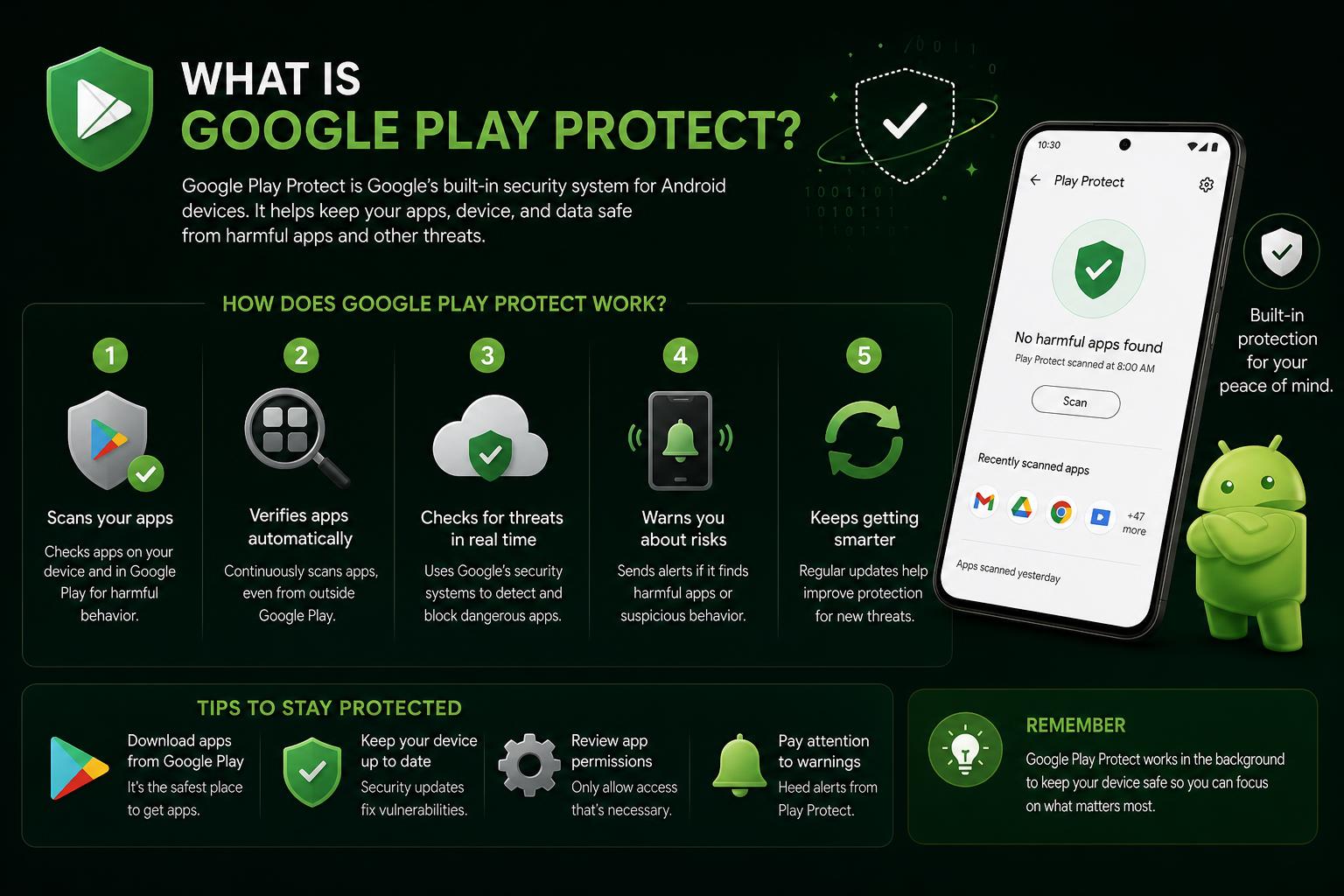
- Google Play Protect offers free, continuous protection by scanning apps before and after installation
- It integrates natively with Android to remove harmful apps and manage privacy settings automatically
- Automatic permission resets and real-time alerts bolster privacy and device safety with minimal performance impact
- While not infallible, ongoing improvements now make Play Protect a top-tier, cost-free security choice for Android users
Android users often hear about Google Play Protect — sometimes in passing, sometimes when downloading an app, or maybe when poking around device settings. However, while this feature frequently flies under the radar, it’s one of the most crucial security mechanisms shaping the safety of millions of smartphones and tablets worldwide. With the ecosystem of Android apps expanding exponentially, understanding Google Play Protect’s role isn’t just a good idea—it’s absolutely essential for anyone who values their privacy and digital safety.
Let’s take an all-encompassing look at what Play Protect really does, how it works, where it excels (and sometimes falls short), and how you, whether a casual user or a tech pro, can make the most of it. This article is your ultimate, up-to-date guide based on information from authoritative sources, reviews, and Google’s own documentation. If you want to keep your Android device—and your personal info—safe from threats without fussing over endless settings, you’re in the right place.
What Exactly is Google Play Protect?
Google Play Protect is an integrated suite of security features built directly into the Android operating system. Essentially, it functions as a guardian that continuously checks your device and apps for potentially harmful behavior. From the moment your Android device is switched on, Play Protect springs into action, shielding your data and your system in a pretty effortless way.
At its core, Google Play Protect automatically scans apps before you download them from the Play Store. But its job doesn’t stop there. It also continuously analyzes apps already installed—whether they came from the Play Store or elsewhere. This constant vigilance helps keep malicious software at bay, including malware, spyware, and other types of unwanted software that might try to steal your data or compromise your privacy.
Key Features and Capabilities
- Pre-download App Scanning: Every time you grab an app from Google Play, Play Protect quietly performs a background check to see if it’s safe before it makes its way to your device.
- Continuous Device Scans: Even after installation, Play Protect stays on the lookout, routinely checking for suspicious apps, whether they’re from the Play Store or sideloaded from elsewhere.
- Alerts and Actions on Threats: If something fishy pops up — an app behaving suspiciously or violating Google’s guidelines — you’ll get an instant warning. Play Protect might even disable or remove the offending app to prevent further trouble.
- Unwanted Software Policy Enforcement: Apps that attempt to mask important information or mislead users face swift action from Play Protect, including privacy alerts and overnight removal if needed.
- Automatic Permission Reset: If you haven’t used an app for a while, Play Protect may reset its permissions, tightening your privacy without you having to lift a finger.
- Sensitivity to Financial Fraud: Play Protect goes the extra mile to block or prevent installation for apps it flags as high-risk, especially those requiring access to sensitive device permissions.
How Google Play Protect Actually Works
Unlike third-party antivirus apps that need manual tuning, Play Protect is always working in the background. Every app install triggers a multilayered scan:
- First, during installation, Play Protect compares the app to a vast, dynamic database of threats. This database is constantly updated, both locally and via the cloud, so you benefit from Google’s global threat intelligence operation.
- Then, regular scans occur even when you’re not adding new apps. This periodic audit checks for new threats, as well as any suspicious behavior from apps that might have been safe at install but became risky after an update or a change in policy.
If Play Protect detects a potential risk, it instantly notifies you. Depending on the severity, Play Protect may:
- Send you a clear notification with the option to uninstall the app from your device.
- Automatically disable or remove an app recognized as dangerous, sometimes without further input required.
It’s important to realize that Play Protect isn’t just about apps—it also protects you against malicious web URLs, suspicious device network activity, and various security issues originating outside the Play Store.
Is Google Play Protect Actually Effective?
If you’ve ever wondered, “Does Play Protect even do anything?” you’re not alone. It’s a common question on forums like Reddit and among Android enthusiasts. The honest answer? Play Protect has dramatically improved in the last few years.
Early on, Play Protect struggled to keep pace with fast-evolving malware. AV-Test, an independent testing lab, once reported that it detected and blocked only a small fraction of new threats. But jump ahead to recent benchmarks, and the picture looks very different: AV-Test data from late 2023 shows Play Protect recognizing and stopping roughly 99% of both brand new and widespread threats. While the best commercial antivirus solutions sometimes edge out even higher scores (with a perfect 100%), Play Protect is now considered “safe enough” for most everyday users.
Another big leap? Play Protect’s rate of false positives has plummeted. In early testing, it occasionally flagged harmless apps, but now, the false alarms are rare. That means you’re less likely to find legitimate tools or games blocked for no good reason.
A Closer Look: Malware Protection and More
Let’s dig into the nitty-gritty of how Play Protect protects your device from harmful software:
- Cloud-Based and On-Device Scanning: Play Protect leverages both local scans and a sophisticated, frequently updated cloud backend to spot suspicious apps. This dual approach lets Google compare anything you install (or already have) against threat intelligence collected from millions of devices worldwide.
- Regular, Automated App Scans: Even when your device is idle, Play Protect quietly examines every installed app for new threats. There’s no need to schedule scans—just tap the Scan button if you want to double-check. These scans only focus on apps, not other files you might store on your device.
- Real-Time Protection: In select regions, Play Protect offers real-time analysis, immediately flagging newly emerging malicious patterns before they can cause harm. Google is rolling out this feature globally.
One key thing to know: Play Protect focuses solely on installed apps and related activity—it won’t scan every document, archive, or download on your device. If you want broader, file-level scanning, you might still consider a third-party antivirus tool for peace of mind (or if you frequently trade files outside of app stores).
What Happens When Play Protect Finds Something?
If Play Protect detects an app that matches known malware signatures or behaves maliciously, it acts fast:
- Notification: You receive an alert on your device, usually prompting you to uninstall or disable the problematic app.
- App Disabling or Removal: For the most high-risk scenarios, Play Protect may automatically block or delete the app so it can’t continue harming your device or stealing data.
In most cases, users have full control and are clearly guided through the removal steps. This transparency is important—it helps build trust and teach users how to recognize risky apps in the future.
Device and Privacy Certifications: Why They Matter
Besides app scanning, Play Protect is tied to various certifications that guarantee your device’s compliance with Google’s security standards. Certified devices have undergone checks to ensure they meet minimum requirements for updates, safety patches, app compatibility, and privacy protections.
If you ever see messages about your device “not being certified,” it means you might miss features or app support related to Play Protect. To verify your certification status:
- Open the Google Play Store app on your device.
- Tap your profile icon in the top right corner, go to Settings, and tap About.
- Check for the Play Protect certification indicator.
Ways to Customize Google Play Protect
You might be thinking, “Cool feature, but can I turn it off?” By default, Google Play Protect is enabled on nearly every Android device. For most people, it’s best to leave it that way—disabling it removes a critical defense against modern threats. Still, you do have some options:
How to Enable or Disable Google Play Protect
- Open the Google Play Store app.
- Tap your profile icon (top right corner).
- Select Play Protect settings.
- Toggle ‘Scan apps with Play Protect’ on or off as needed.
If you’re enrolled in Google’s Advanced Protection Program, you’ll need to unenroll before deactivating Play Protect. Visit your Google account’s security settings via a web browser, find the Advanced Protection option, and unenroll before toggling Play Protect off on your device.
Improving Harmful App Detection
For users who download apps from outside Google Play (known as “sideloading”), Play Protect can enhance your safety with a special setting:
- Go to Play Protect settings as above.
- Switch on ‘Improve harmful app detection.’
This upgrade tells Google to automatically analyze unknown APKs you install by sending anonymized information for deeper analysis.
Play Protect and App Permissions: Eyes on Your Privacy
Starting with Android 6.0 (Marshmallow), Play Protect has another clever trick—it can reset app permissions for programs you haven’t touched in over three months. This is a powerful feature for privacy, since it keeps dormant apps from silently accessing your photos, contacts, location, or camera after you’ve forgotten about them.
To check or adjust which apps get their permissions reset automatically:
- Open the Play Store, then tap your profile icon and go to Play Protect settings.
- Find the ‘Permissions for unused apps’ section.
From here, you can stop specific apps from losing permissions or enable the setting for apps that need less access when dormant. Apps can still regain permissions when you actively use them again.
Privacy Alerts and Unwanted Software Policy
Sometimes, an app might get dropped from the Play Store for violating privacy policies or misusing sensitive data. If you have one of these risky apps installed, Play Protect will let you know and provide an option to uninstall it. This keeps you in the loop even if you downloaded an app before it was identified as problematic.
Google Play Protect’s Role Alongside Other Security Features
While Play Protect is foundational to Android security, the protection doesn’t stop there. Android includes other baked-in features like Safe Browsing in Chrome, Find My Device, customizable guest modes, and a built-in password manager. In practice, all these work together, offering well-rounded protection against a range of threats.
Want even more? Subscribe to Google One and, depending on your plan, you get extras like dark web monitoring and (previously) VPN features for extra digital safety and peace of mind.
Performance Impact: Does Play Protect Slow Down Your Phone?
You may wonder if all this constant scanning has a negative effect on device performance. Testing shows Play Protect has one of the lightest system footprints of any Android security tool. Even during scans, there’s only a minimal drop in benchmark scores—so small that most users won’t notice any sluggishness or battery drain. Most scans take mere seconds and focus exclusively on installed app packages, sparing storage and CPU power compared to some heavy-duty antivirus suites.
User Experience and Interface
Beneath its calm surface, Play Protect works mostly in the background. Interaction is minimal for most users, with visual cues like a green checkmark for a safe device or a red symbol if something goes wrong. Key actions and notifications—such as the need to update, the discovery of a dangerous app, or reminders to review permissions—are handled in a friendly, uncluttered dashboard. If there’s one drawback, it’s that Google Play Protect features are spread across several settings menus—there’s no single, unified interface for all your security and privacy controls yet.
Most users will only need to access the Play Protect panel occasionally, usually to check scan status, start a manual scan, or tweak permission settings. Guided walkthroughs and Google’s improved support infrastructure make it fairly easy to find solutions if questions pop up.
Developer Concerns: What If My App Gets Flagged?
If you’re an Android developer, Play Protect might flag your app as potentially harmful. You can appeal this decision directly via Google’s developer channels if you believe it’s a false alarm. Developers are also required to send new app versions to Google for review, ensuring the safety net remains strong for the community.
Known Limitations and Potential Drawbacks
No security solution is perfect. While Play Protect is highly effective for most users, it focuses exclusively on app-level threats—so it won’t detect malware hiding in pictures, documents, or downloads outside of APKs. There’s also no option to schedule deep scans or customize which parts of your device get checked beyond apps and permissions.
Another area to note is international coverage—some real-time analysis features are still rolling out worldwide and might not be active on every device just yet. Plus, while Play Protect’s malware detection rate is closing in on perfection, security powerhouses like Avast, Kaspersky, and others still edge ahead in some independent tests.
Why It’s Still a Must for Android Users
Despite a few limitations, the convenience, cost (free!), and deep integration into the Android ecosystem make Google Play Protect a no-brainer for almost everyone. It defends your phone or tablet against rogue apps, offers privacy-enhancing permission management, and fits seamlessly into your daily routine—no fiddling or manual setup required.
And if you enjoy sideloading apps, or if your device is managed in a family or workplace environment, Play Protect is indispensable as a first line of defense. For power users or those who want extra control, pairing Play Protect with a reputable commercial antivirus solution is easy and rarely causes conflicts.
The Future: Ongoing Improvements and New Features
In recent updates, Google has added real-time threat detection, improved the precision of its scanning engines, and introduced better privacy tools for users. As Play Protect evolves, expect to see further integration with device-level security, more streamlined interfaces, and even more granular controls over app permissions and notification handling. The trend is upward — with each Android update, security becomes tighter and even more transparent.
Everything you need to know about Android 16: new features, security, and list of compatible devices
Regardless of how tech-savvy you are, Google Play Protect is the quiet, diligent bodyguard every Android device deserves. It shields you from malicious apps, manages risky permissions, and keeps security simple—no subscription, no hassle. As threat landscapes shift and apps get more sophisticated, Play Protect is right there, behind the scenes, working for you. Take a peek at your settings today—chances are, Play Protect is already guarding your digital world.