
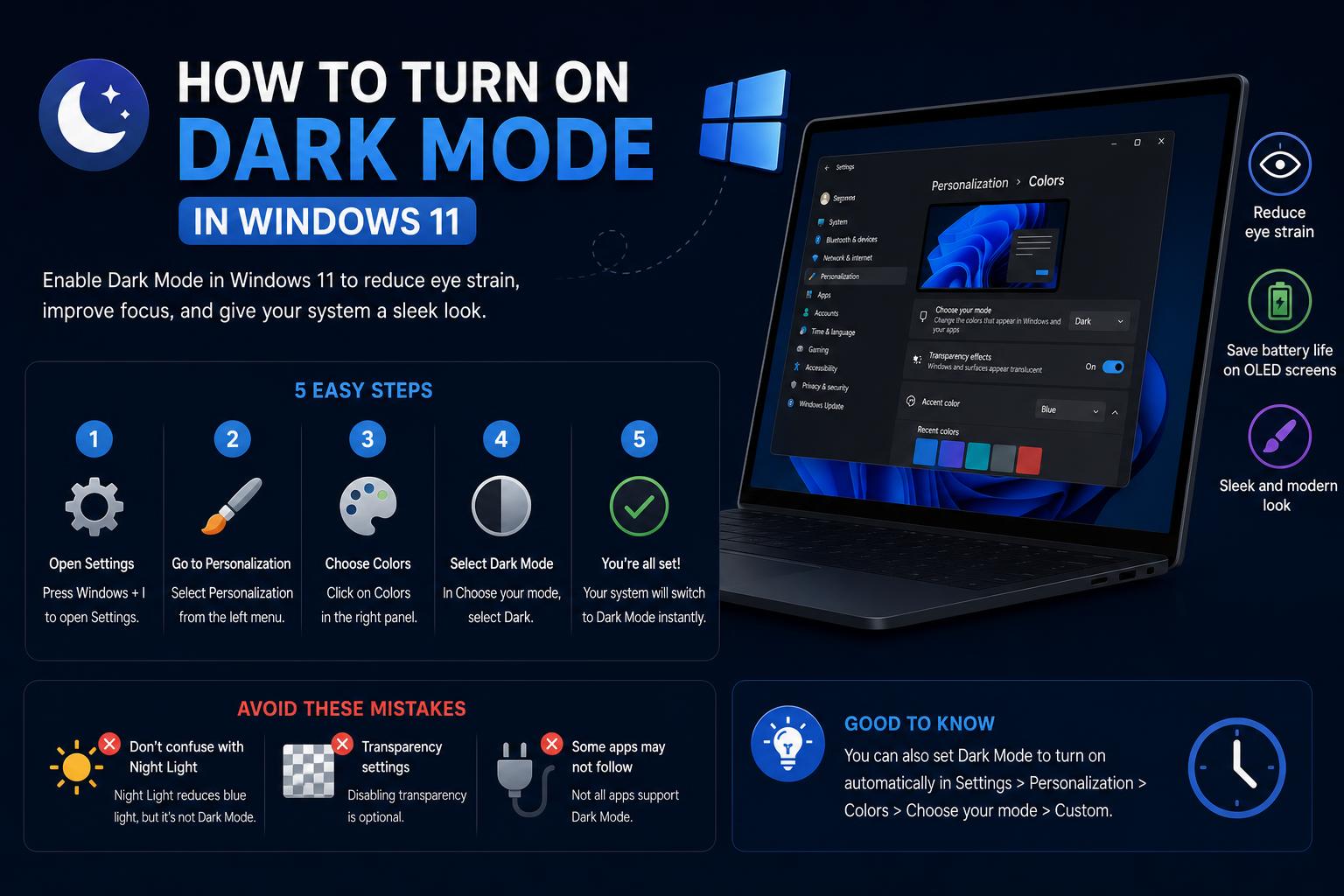
- Dark mode enhances comfort, reduces eye strain, and personalizes your workspace in Windows 11.
- Windows 11 offers flexible color settings—Light, Dark, and Custom—plus accent color and transparency options.
- Contrast themes and color filters provide robust accessibility for various vision needs.
Switching between dark and light modes in Windows 11 isn’t just about style—it can have real impacts on your comfort, battery, and workflow. If you’ve ever felt your eyes strain from a bright white interface after hours at the screen, or you just want a sleeker look for your desktop and apps, dark mode in Windows 11 brings a straightforward but powerful way to personalize your experience. Plus, Microsoft has added several nuanced settings that let you fine-tune colors, contrast, and even transparency to match your vibe and enhance usability for every situation.
Navigating all the settings and modes can feel intimidating at first, especially with the new personalization options offered in Windows 11. Maybe you’ve tried themes or contrast modes in search of the perfect look, or perhaps you’re simply wondering whether dark mode is a gimmick or a game changer. This guide walks you through everything you need to know about dark mode in Windows 11: from enabling it, customizing colors, scheduling changes, troubleshooting common issues, to understanding when and why to use each mode. By the end, you’ll have a desktop experience tailored for both comfort and style.
Why Use Dark Mode in Windows 11?
Dark mode is more than just a color preference. It provides several benefits that can make a big difference, particularly if you spend lots of time using your computer. Here’s why so many users are embracing this feature:
- Visual Comfort and Eye Strain Reduction: Many people, especially night owls or those working in dim environments, find bright screens harsh on the eyes. Dark mode utilizes deeper tones and less intense whites, which can reduce eye fatigue and help you work (or play) longer without discomfort.
- Improved Focus and Readability: With less glaring backgrounds, text can become more readable, and important visual elements stand out. The majority of users switching to dark mode report improved focus, especially when reading or writing code, handling documents, or browsing at night.
- Battery Life on Portable Devices: If you’re using a laptop or tablet with an OLED or AMOLED screen, enabling dark mode can help preserve battery life because darker pixels draw less power on those displays.
- Aesthetics and Personalization: Let’s admit it—dark mode simply looks cool. Many users prefer the modern, sleek style it gives to their desktops and apps, making their workspace feel fresh and unique.
- Low-Light Environments: A bright white interface in a dark room can be distracting or disruptive to others nearby. Choosing dark mode can help your screen blend in more naturally, whether you’re working late, traveling, or sharing a space.
The Main Color Modes in Windows 11
Windows 11 gives you three major options for how colors appear across your operating system. Understanding these will help you choose what fits your routine:
- Light Mode: The default, classic look for Windows with brighter backgrounds, perfect for work in well-lit settings.
- Dark Mode: Offers predominantly dark backgrounds, ideal for low-light conditions and for reducing visual fatigue.
- Custom Mode: Lets you combine both approaches—for example, you can keep Windows elements (like your Start Menu, Taskbar, and Action Center) in dark mode, while apps remain in light mode, or vice versa. This is great for users who want a balance tailored to their workflow.
Step-by-Step: How to Enable Dark Mode in Windows 11
You don’t have to be a tech genius to customize your look—Windows 11 makes it pretty painless. Here’s how you get it done:
- Open the Start Menu: Click the Windows icon on your taskbar, or tap the Windows key on your keyboard.
- Jump into Settings: Either right-click the Start icon and choose Settings from the context menu, or type “Settings” into the Start menu search bar and select it.
- Select Personalization: In the left sidebar of the Settings app, you’ll find Personalization—click on it.
- Navigate to Colors: Under the Personalization panel, click on Colors. This is where the magic happens.
- Choose Your Mode: Find the “Choose your mode” dropdown. You’ll see these options:
- Light (default)
- Dark (switches the whole system and supported apps into dark mode)
- Custom (lets you set Windows interface and apps to different modes—more on this in a bit)
- Pick ‘Dark’ for the full dark mode experience, or go for ‘Custom’ to mix and match.
What if You Choose Custom?
The Custom mode is perfect if your ideal setup doesn’t fit neatly into “all dark” or “all light.” When you pick Custom, two new dropdowns appear:
- Choose your default Windows mode: Controls whether the core Windows UI (Start menu, taskbar, etc.) uses dark or light colors.
- Choose your default app mode: Decides whether most apps (like File Explorer, Settings, and compatible third-party apps) appear in dark or light color schemes.
This is fantastic for users who want, say, a dark taskbar but still like brighter backgrounds in their productivity apps, or vice versa.
Customize Your Color Accent
Windows 11 is all about making your computer feel personal. Beyond just toggling between light and dark, you can tweak your accent color to add a splash of personality and make essential interface elements pop.
- Still in the Colors settings menu, scroll down to find the “Accent color” section.
- Pick Automatic for a background-matching accent, or Manual if you want to fine-tune the color from a palette.
- You can select from recent colors, Windows colors, or open a detailed color picker for a completely custom look.
- There are also toggles to show the accent color on Start, taskbar, title bars, and window borders. Note: applying accent color to Start and taskbar is only available with Dark or Custom mode selected.
Pro tip: Accent colors will instantly update the look and feel of your Start, action center, and windows, tying together light or dark themes for a polished appearance.
Enable Transparency Effects for Extra Flair
For users who like a sense of depth on their desktop, Windows 11 includes a transparency effect option. When on, select backgrounds and surfaces appear slightly blurred, letting you glimpse what’s behind them while keeping the main content in focus. This touch of finesse can make your system feel more dynamic and modern.
To toggle transparency effects:
- Stay within Settings > Personalization > Colors.
- Scroll to the “Transparency effects” toggle and switch it on or off according to your preference.
Scheduling and Automation: Custom Times for Dark Mode
Some users want dark mode only at night or in the early morning, while others like to switch on a fixed schedule. Unfortunately, Windows 11 doesn’t yet include a dedicated “dark mode scheduler” built-in, but there are a couple of workarounds to achieve similar results.
- Night Light Scheduler: While this doesn’t switch your mode, it can make your screens easier on the eyes by shifting the display’s color temperature after sunset. You can access this in Settings > System > Display > Night light.
- Use Location for Sunset/Sunrise Automation: When you switch on location services under Settings > Privacy & Security > Location, the Night light feature can be automated to sync with your local sunset and sunrise.
- Third-party dark mode schedulers: For users who want true automation, several small third-party tools exist (always download safely and check reviews!) that let you set exact times for switching between modes automatically.
Contrast Themes & Accessibility Options
Not everyone’s ideal desktop just comes down to light versus dark. If you have specific vision needs or want ultra-distinct elements on your screen, Windows 11 offers robust contrast themes and color filters.
- Contrast Themes: Designed to make text and UI elements stand out with high-contrast color pairs, improving readability for those with impaired vision.
- Color Filters: Help distinguish between similar colors for those with color blindness or other vision challenges. You can access these by going to Settings > Accessibility > Color filters.
Visit Microsoft’s Personalize Your Colors in Windows page for more information on these powerful accessibility features.
Troubleshooting: What to Do if Dark Mode Isn’t Working Right
Sometimes, enabling dark mode doesn’t go as planned. Maybe your taskbar looks off, apps look inconsistent, or you stumble across old settings. Here’s how to troubleshoot your look in Windows 11:
- Check Theme and Contrast Settings: If you’re only seeing part of your desktop change, a special theme or contrast setting may be interfering. Go to Settings > Accessibility > Contrast themes and set it to None if a high-contrast theme is active.
- Change Back to a Default Windows Theme: Go to Settings > Personalization > Themes and pick one of the standard Windows themes. Sometimes custom themes break dark mode compatibility.
- Restart Your Device: When in doubt, a clean reboot will often fix interface glitches or apply all changes cleanly.
Dark Mode Limitations and Third-Party Software
Not every app or Windows element supports dark mode fully—even in 2024. Microsoft apps like Edge, Mail, Calendar, and File Explorer work in dark mode, but some third-party programs may ignore the system setting unless they include their own dark mode toggle. If you notice inconsistencies, check each app’s specific preferences.
Looking for more control? Community tools and tweaks exist, but always use caution when modifying system appearance with third-party software not vetted by Microsoft.
Frequently Asked Questions
- Does switching to dark mode break anything? No—Windows 11 handles toggling modes smoothly, but some legacy or poorly designed apps could render minor display quirks. These are rare.
- Will I save battery on my laptop using dark mode? If your device has an OLED/AMOLED screen, yes—dark mode can reduce screen power draw. On LCD screens, the difference is negligible.
- Can I quickly switch between modes? While there’s no direct keyboard shortcut, you can pin the Settings app or use a third-party shortcut tool.
Con una sencilla configuración, cualquiera puede adaptar los ajustes de color en Windows 11 para maximizar el confort, coincidir con su estilo y reducir distracciones visuales. Ya sea que busques alivio visual, mayor duración de batería o simplemente un aspecto más audaz, el modo oscuro (y sus muchas opciones relacionadas) ofrece un amplio control que es tanto práctico como divertido de explorar. Para obtener más consejos de personalización y guías detalladas, visita el Centro de aprendizaje de Windows o explora opciones avanzadas en los menús de accesibilidad de tu sistema—tu modo perfecto está a solo unos clics.