
- Chrome stores passwords both locally and in your Google Account, allowing seamless syncing.
- The integrated password manager enables easy viewing, editing, exporting, and secure sharing.
- Security features like password checkups and biometrics help protect your credentials across devices.
Managing online passwords has become a necessity in today’s digital world. With dozens of logins to remember, most users let Google Chrome save their credentials for quick, hassle-free access. But what if you need to see a saved password, make edits, or even export your entire list? Maybe you’re looking to sync credentials across devices or investigate how Chrome handles passwords compared to other solutions. This detailed guide aims to cover everything you ever wanted to know about finding, viewing, and managing saved passwords in Google Chrome, with bonus tips for both desktop and mobile users, and smart security recommendations all the way through.
Whether you’re new to Chrome, trying to recover a forgotten login, or just want to understand how Chrome keeps your credentials secure, you’ll find straightforward instructions and pro-tips here. If you’ve ever wondered how to check your saved passwords, understand auto-fill, sync with Android/iOS, or use features like biometric login or password sharing, you’re in the right place. Let’s get started!
How Chrome Stores and Manages Your Passwords
Google Chrome handles password storage through its built-in Google Password Manager. This integrated tool offers robust support for syncing your credentials, whether you want them saved only on your device or across your entire Google Account. Here’s what this means for you:
- Passwords can be saved either locally (if you’re not signed in to Chrome) or in your Google Account (for syncing across devices). Decide what fits your privacy preferences.
- Importing and exporting passwords for backup or migration is quick and accessible via Chrome’s settings.
- You can manage all your saved credentials either directly in Chrome or by heading to passwords.google.com on any browser.
Saving New Passwords: Automatic and Manual Options
Whenever you sign in or sign up on a new website, Chrome can prompt you to save your password. Accepting this prompt ensures smoother logins in the future. But you’re never locked in—you can preview, adjust, or even edit which username/password gets saved.
- To review or adjust the login being saved, use the preview option, correct the username, or choose between multiple credentials if the site has more than one field.
- Want to add a login manually? Open Chrome, head to the Password Manager, and hit ‘Add’ to store site, username, and password details from scratch.
If you want Chrome to handle password creation, take advantage of the suggested ‘strong password’ option during sign-up flows. If the suggestion doesn’t appear, right-click on the password field to generate one. Chrome will save the generated password to your Google Account, ensuring you don’t lose access—even if you forget it.
Tuning Chrome to Match Your Password Preferences
By default, Chrome offers to save your credentials—but you’re in control. In the Password Manager settings:
- Toggle ‘Offer to save passwords’ to choose whether Chrome should prompt every time you log into something new.
- Need to manage sites or apps you’ve chosen to exclude from saving? Check the ‘Declined sites and apps’ list to add/remove restrictions.
Signing In Automatically with Saved Passwords
Streamlining logins is one of Chrome’s biggest strengths. After saving credentials for a site, Chrome will auto-fill them on subsequent visits. Here’s how it works:
- If there’s only one right login for a site, Chrome fills it for you instantly.
- If you’ve saved several logins for the same place, just click the username field and pick the credential you want.
Viewing, Editing, and Managing Your Saved Passwords
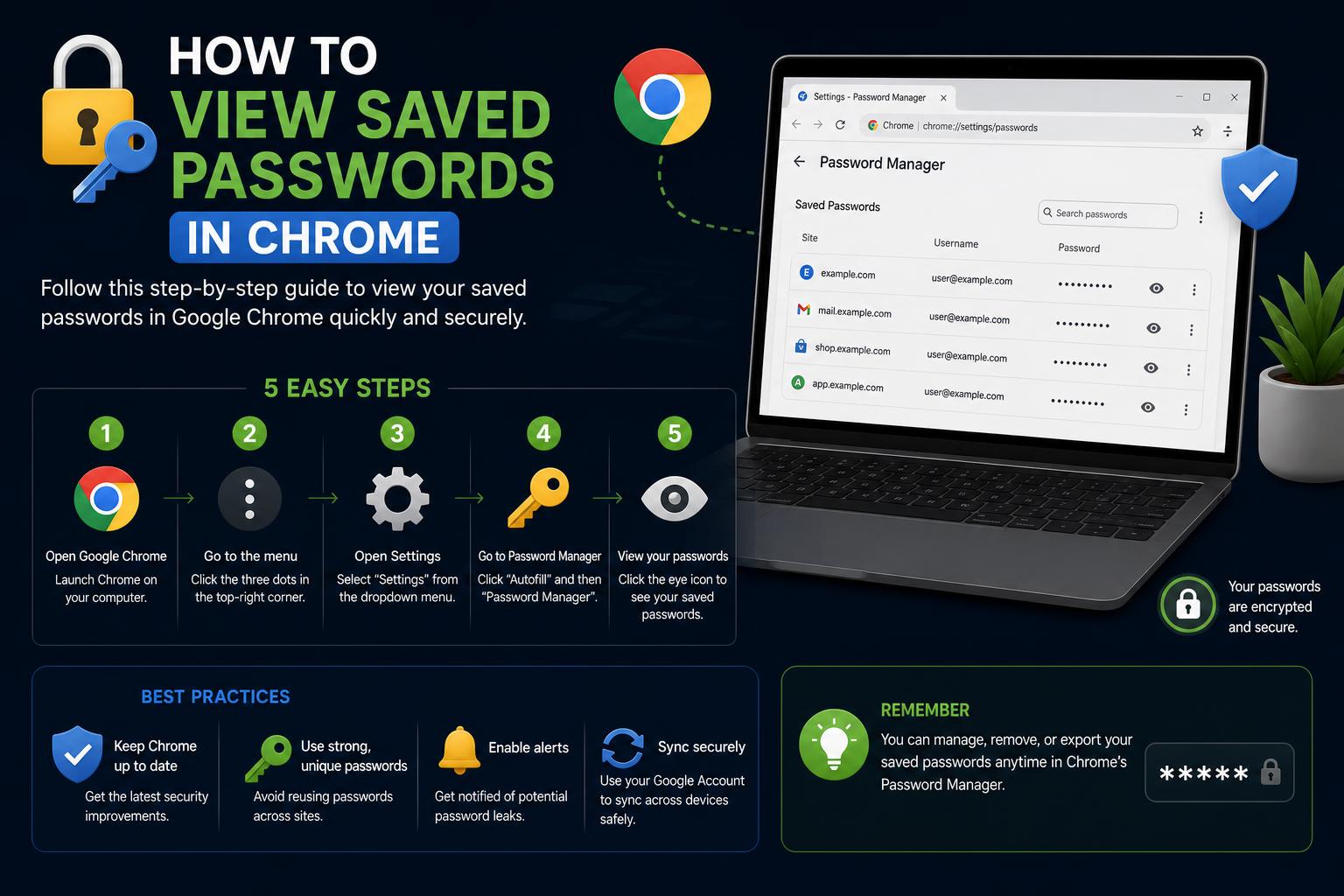
To access your saved passwords in Chrome (on desktop):
- Click the three dots (top right), then select Settings.
- Under Autofill and passwords, click Google Password Manager.
- Here, you can scroll through all your saved credentials or search for a site using the search bar.
- Select any entry to view details: You will be prompted to verify your identity—usually using your device password or biometrics if enabled.
- Click the eye icon to reveal the actual password, or click the copy icon to copy it to your clipboard.
Want to edit or delete a password? Both options are readily available when you click on a saved entry. For each credential, you can:
- Edit the username or stored password, then click ‘Save’.
- Delete the credential entirely.
If you want to create a full backup or switch to another password manager, Chrome lets you export your passwords as a file (usually in .csv format). Just go to the side menu in Password Manager, select Settings, then ‘Export passwords’, and follow the prompts to download the file securely.
Adding Notes and Using Password Sharing
A useful recent feature is the option to add notes to specific passwords, helping you remember useful context or details related to the account. When you add a note, it receives the same protection as your password, ensuring it remains private and secure.
Chrome also allows certain users to share saved passwords securely with family members. Select a password, choose ‘Share’, and then select the recipient’s Google Account. The credential will be copied with autofill functionality—remember that password sharing should always be done with caution.
Protecting Your Passwords: Security Tools in Chrome
Security is a primary concern in any password management system, and Chrome includes built-in protection measures:
- Run password checks to detect compromised or weak passwords. From Password Manager, click ‘Checkup’ and Chrome will scan for credentials exposed in data breaches or considered too simple.
- Biometric authentication (such as Windows Hello fingerprint scanning or Mac screen lock) can be enabled to add an extra verification step every time you autofill or view passwords—boosting privacy on shared devices.
- Automatic authentication streamlines access, but you can turn it off for an extra layer of security, especially on shared computers.
To enable biometric verification, go to the Password Manager settings and toggle the corresponding option for your operating system.
Deleting or Exporting All Saved Passwords
If you ever need to start fresh, you can delete all your saved credentials in a few steps. From Password Manager, select Settings and look for the option to ‘Clear all data from Google Password Manager’. After confirming, your credentials and passkeys will be erased from your Google Account.
As mentioned earlier, exporting all passwords allows you to transfer your data or keep a personal backup. Be sure to store the exported file in a safe location and delete it when you no longer need it to minimize security risks.
Accessing Saved Passwords Beyond Desktop Chrome
On the Web (Any Browser)
You can view and manage your saved passwords from any browser at passwords.google.com. Simply log in with your Google credentials to access the same editing and deletion options—though password sharing is not available on the web manager.
On Android Devices
If you use Android, passwords saved in Chrome are accessible system-wide. Go to your device settings and:
- Tap Google > Password Manager.
- Authenticate if prompted, and you can browse, edit, or copy any password directly on your phone.
Password Manager integrates with applications to autofill and manage credentials effortlessly across Chrome and installed apps.
On iPhone & iPad
Chrome’s Password Manager also works on iOS—especially if you set Chrome as your default autofill option. Setup is straightforward:
- Open Settings on iOS and tap Passwords.
- Go to Password Options (or Autofill Passwords) and select Chrome.
- Enable Autofill, and make sure you are signed in to Chrome with sync enabled.
Once configured, open any app, tap the login field, and select the stored password from the keyboard. If prompted, simply use Face ID, Touch ID, or your passcode to authenticate.
Managing Exceptions and Special Use Cases
Some sites or applications may not work properly with built-in password managers, or you may prefer to keep certain data out of the cloud. In these situations, Chrome allows for:
- Excluded sites list: You can always review your list of declined sites to save (or stop saving) passwords in the future.
- Device-only storage: If you choose not to sync, your passwords will remain exclusively on your computer.
For those seeking maximum offline isolation, hardware password managers like Atlancube PasswordPocket are alternative options—providing complete offline storage for ultimate privacy. They require physical connection and authentication, ensuring credentials never leave the device.
Smart Security Measures & Recommendations
Using Chrome’s Password Manager is safe for most users, but you can enhance your security further by following a few tips:
- Use unique passwords everywhere. Even with a robust manager, reusing passwords increases the risk across multiple accounts.
- Perform frequent password checks to catch compromised or weak credentials. Chrome automates this, but reviewing after major security breach news is recommended.
- Enable two-factor authentication (2FA) on your Google Account and critical sites for enhanced protection.
- If you share a device (a home computer or shared phone), use biometric authentication or disable automatic sign-in to prevent accidental access.
- Always delete exported password files after transferring/importing—they are not encrypted outside the manager.
Chrome vs. Other Options: iPhone, Hardware Devices, and Third-Party Managers
While Chrome’s Password Manager covers nearly all everyday needs, specific use cases or privacy preferences might lead you to explore alternatives. Here is a quick summary:
- Apple Keychain (iPhone/iPad) saves passwords to iCloud with Face ID/Touch ID protection. Accessible in Settings > Passwords, though it is mostly exclusive to Apple devices.
- Offline hardware devices like Atlancube PasswordPocket (view details) store credentials without cloud synchronization—ideal for maximum privacy, though less convenient across multiple devices.
- Third-party password manager apps offer advanced features (such as family plans, secure notes, dark web monitoring), but come with subscription costs and additional setup.
Effective Password Management with Chrome
Google Chrome makes viewing, managing, and protecting your saved passwords very simple—whether at home or on the go, on Android, iOS, or desktop. With comprehensive features for auto-saving, password generation, biometric security, sharing, exporting, and security checks, there is no longer any excuse for losing logins or reusing weak credentials. Take control of your online security, know where your information is, and leverage Chrome Password Manager to stay protected—your future self will thank you!
How to Play Tomodachi Life on PC: The Ultimate Safety & Setup Guide