
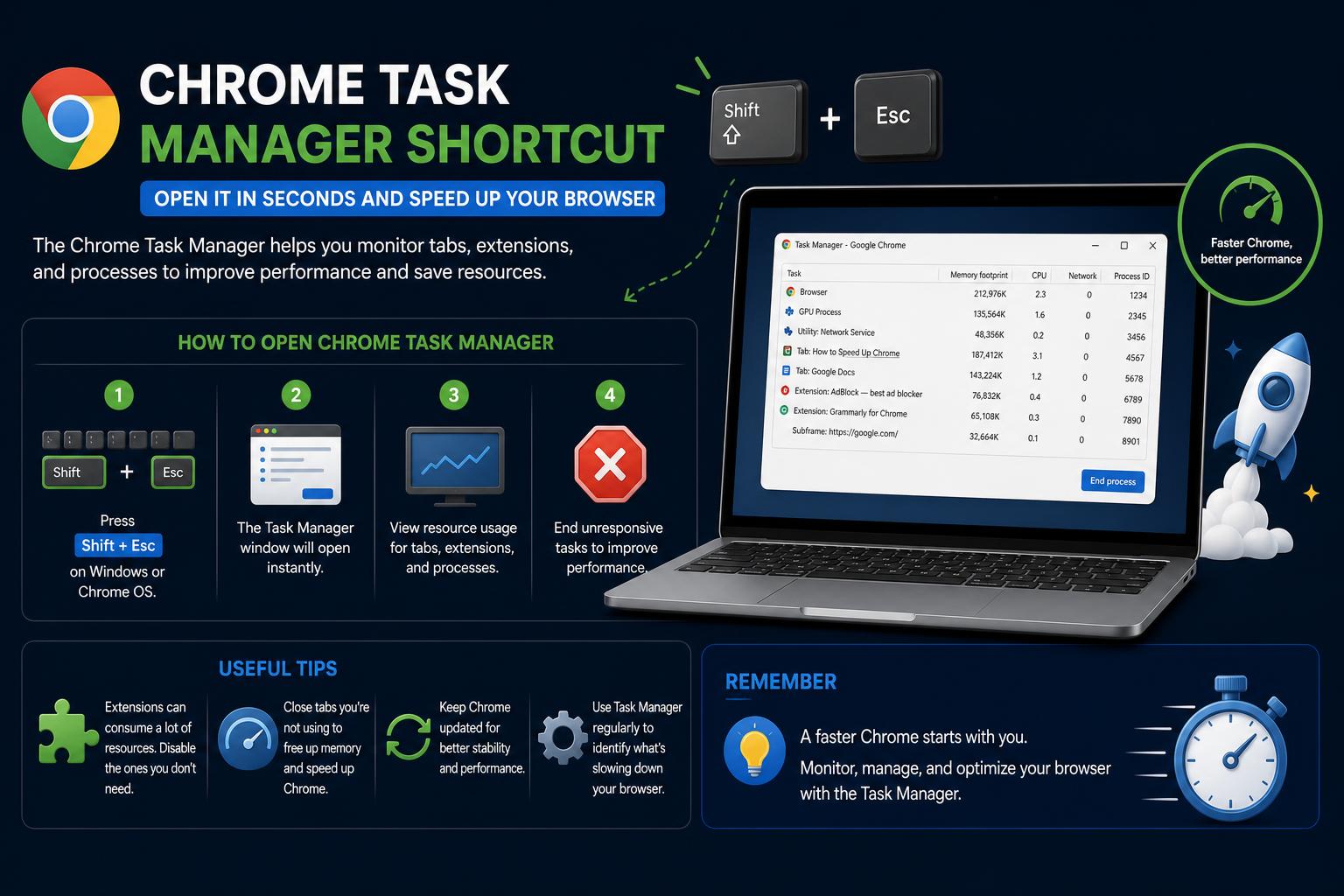
- Chrome Task Manager enables precise control over browser processes, independent of the OS Task Manager.
- Key shortcut Shift + Esc opens the Chrome Task Manager instantly on Windows and Linux.
- Extensive Chrome keyboard shortcuts empower efficient tab, menu, and address bar navigation for both Windows and Mac users.
- Task Manager helps quickly isolate and end resource-draining tabs or extensions.
Have you ever felt your Chrome browser slowing down or wondered what was eating up your RAM while frantically juggling dozens of tabs? Welcome to the world of power users—where mastering shortcuts and hidden features like the Chrome Task Manager can be the difference between frustration and seamless multitasking. Most people don’t even realize that Chrome has its very own Task Manager, distinct from the operating system’s version, and it’s packed with details to help you troubleshoot, optimize, and control your browsing experience every day.
Ready to take your Chrome skills to the next level? This guide breaks down every aspect of the Chrome Task Manager shortcut, unveils related keyboard shortcuts for Chrome on Windows, Linux, and Mac, and offers actionable tips to help you unleash the full potential of your browser with just a few key presses. This isn’t just about remembering one shortcut; it’s about understanding a toolbox designed for power, speed, and insight.
What is the Chrome Task Manager?
The Chrome Task Manager is a built-in utility within Google Chrome that enables users to monitor and control every process running in their browser. Unlike the system-level Task Manager found in Windows or Activity Monitor in macOS, the Chrome Task Manager focuses exclusively on browser-specific activities: every tab, extension, plugin, and web app is tracked separately.
With Chrome’s Task Manager, you can:
- See which tabs or extensions are consuming the most CPU or memory.
- End troublesome processes without closing the whole browser.
- Identify resource leaks or problematic sites.
- Debug web apps and extensions more efficiently.
This is especially powerful for users who keep many tabs open or rely on several Chrome extensions. Instead of guessing what’s causing slowdowns or freezes, you can pinpoint and solve issues instantly.
Quickest Way to Open Chrome Task Manager: The Shortcut
Let’s cut to the chase! The fastest way to open the Chrome Task Manager on Windows and Linux is the keyboard shortcut Shift + Esc. This instantly pops up the Task Manager window right on top of your active tab. No menus, no digging—just one quick command.
Here’s how you do it—
- Windows and Linux: Shift + Esc
- macOS: Unlike Windows, there is no direct shortcut like Shift + Esc on Mac. However, you can open the Chrome Task Manager from the browser menu: Click ‘Window’ in the top menu bar, then select ‘Task Manager’.
Pro Tip: For those that open the Task Manager frequently, adding a custom keyboard shortcut on Mac through System Preferences can replicate the Windows experience. Simply go to System Preferences > Keyboard > Shortcuts, add Chrome, and bind your preferred keys to ‘Task Manager.’
What You’ll See in the Chrome Task Manager
The Chrome Task Manager displays every active Chrome process:
- Each open tab
- Each running extension
- GPU and background processes
For each process, it shows a range of statistics, including:
- Memory Footprint
- CPU utilization
- Network activity
- Process ID
- Image Cache, JavaScript Memory, GDI handles and more
If a process misbehaves—maybe a tab froze or an extension is using an excessive amount of RAM—simply select it and click ‘End Process’. This action is immediate and only terminates or reloads the problematic element, not the entire browser session.
Why Use Chrome Task Manager?
Why should you use this tool instead of your operating system’s Task Manager? The Chrome Task Manager gives you much more granular control. Instead of seeing a single ‘Google Chrome’ process in the system panel, here you can see each tab and extension separately, along with its respective name. This is especially useful if an extension or tab is causing crashes or slowdowns.
Common scenarios where the Chrome Task Manager shines:
- Browser slowdowns: Identify resource-hungry tabs and close them without affecting your work.
- Embedded videos or games: Detect memory leaks in demanding web apps or video content.
- Debugging malfunctioning tabs: Restart only the problematic tab without losing the rest of your work.
- Extension management: See which background scripts or add-ons are consuming resources even when they are not in use.
All Chrome Keyboard Shortcuts (Windows/Linux and Mac)
To get the most out of Chrome—not just its Task Manager—discover the many shortcuts that make everyday navigation and management easier. Knowing them lets you move, organize, and manage tabs and other features without using the mouse.
Windows & Linux: Essential Chrome Shortcuts
- Open a new window: Ctrl + n
- Open an incognito window: Ctrl + Shift + n
- Open a new tab: Ctrl + t
- Reopen a closed tab: Ctrl + Shift + t
- Go to the next tab: Ctrl + Tab or Ctrl + PgDn
- Go to the previous tab: Ctrl + Shift + Tab or Ctrl + PgUp
- Jump to a specific tab: Ctrl + 1 through Ctrl + 8
- Go to the last tab: Ctrl + 9
- Open the home page in the current tab: Alt + Home
- Go back or forward in browsing history: Alt + Left/Right Arrow
- Close the current tab: Ctrl + w or Ctrl + F4
- Close the current window: Ctrl + Shift + w or Alt + F4
- Minimize/Maximize: Alt + Space, then n or x
- Exit Chrome: Alt + f, then x
- Move tabs: Ctrl + Shift + PgUp/PgDn
- Full-screen mode: F11
- Exit full-screen mode: F11 or Esc
- Select multiple tabs: F6 twice, then Shift + Ctrl + h
Advanced Tab Management: Group Maps
The tab grouping feature is ideal for people who work with many windows. It lets you group, color-code, collapse, and move groups of related tabs.
Tab Group Shortcuts – Windows
- Press F6 until the tabs are highlighted.
- Use Tab and Shift + Tab to navigate through them.
- To open the group menu, use the ‘Menu’ key (depending on the device/editor).
- Use the Arrow Keys to navigate and Enter to select.
Tab Group Shortcuts – Chromebook
- Press Ctrl + Tab to select tabs.
- Navigate with Ctrl + Previous/Next.
- To open the group menu, try Launcher + Shift + Volume Up.
Tips for Managing Tab Groups
- Collapse or expand a group by focusing it and pressing Space or Enter.
- To move a tab or group, use Ctrl + Left/Right Arrow while it is focused.
Access Other Chrome Features Instantly
But there’s much more than this! Chrome’s shortcut ecosystem goes far beyond the Task Manager. Here are a few tricks to navigate faster, including shortcuts for opening advanced tools such as Chrome DevTools.
- Show the Chrome menu: Alt + f or Alt + e
- Show/hide the bookmarks bar: Ctrl + Shift + b
- Open Bookmark Manager: Ctrl + Shift + o
- Open the history page in a new tab: Ctrl + h
- Open the downloads page: Ctrl + j
- Developer Tools: Ctrl + Shift + j or F12
- Delete URL predictions: Select with Down Arrow + Shift + Delete
- Feedback form: Alt + Shift + i
- Show the find bar: Ctrl + f or F3
- Clear browsing data: Ctrl + Shift + Delete
- Switch user in incognito mode: Ctrl + Shift + m
- Caret browsing: F7
- Search with the default search engine: Type in the address bar and press Enter
- Switch search engines: Type the search engine name, press Tab, then enter your search + Enter
- Add www and .com to a domain: Type the site name, then Ctrl + Enter (Windows) or Ctrl + Return (Mac)
- Open a URL in a new tab: Alt + Enter after typing the URL
- Highlight the address bar: Ctrl + l, Alt + d or F6
- Jump to the previous/next word: Ctrl + Left/Right Arrow
- Delete history suggestions: Down Arrow to select, then Shift + Delete
- Delete the previous word: Ctrl + Backspace
- Select the first/last result in the drop-down: Page Up or Page Down
Shortcuts for Web Page Actions
These actions include printing, saving, zooming, or quickly navigating around a page, making it essential to master how to use shortcuts in Chrome.
- Print the current page: Ctrl + p
- Save the current page: Ctrl + s
- Reload the page: F5 or Ctrl + r
- Reload while ignoring cache: Shift + F5 or Ctrl + Shift + r
- Stop loading: Esc
- Navigate between clickable elements: Tab and Shift + Tab
- Open a file: Ctrl + o, then select the file
- View HTML source code: Ctrl + u
- Bookmark the current tab: Ctrl + d
- Bookmark all tabs: Ctrl + Shift + d
- Zoom in: Ctrl + +
- Zoom out: Ctrl + –
- Default zoom: Ctrl + 0
- Scroll down the page: Space or PgDn
- Scroll up the page: Shift + Space or PgUp
- Go to the top of the page: Home
- Go to the bottom of the page: End
- Horizontal scrolling: Shift + mouse wheel
- Move to the beginning or end of a word in fields: Ctrl + Left/Right Arrow
- Delete the previous word in text fields: Ctrl + Backspace
Mouse Shortcuts: For Those Who Prefer Using the Keyboard Less
Not everything requires key combinations. Many mouse actions are more convenient. Chrome supports a variety of mouse shortcuts for managing tabs and links, including features you can also explore in extensions to manage your browser more effectively.
- Open a link in the current tab: Drag the link to an open tab
- Open a link in a background tab: Ctrl + click the link
- Open a link and switch to it: Ctrl + Shift + click the link
- Open a link in a new window: Shift + click the link
- Move a tab to a new window: Drag the tab out of the tab bar
- Return the tab to the original window: Press Esc while dragging
- Add a bookmark by dragging: Drag the web address to the bookmarks bar
- Download the link target: Alt + click the link
- Switch between normal and maximized windows: Double-click an empty area of the bar
- Zoom with the mouse: Ctrl + mouse wheel up/down
Mac-Specific Chrome Shortcuts
Chrome on Mac also has shortcuts designed to take advantage of the Apple experience, frequently using the Command (⌘) and Option keys for greater efficiency.
Window and Tab Management (Mac)
- New window: ⌘ + n
- Incognito window: ⌘ + Shift + n
- New tab: ⌘ + t
- Reopen a closed tab: ⌘ + Shift + t
- Navigate between tabs: ⌘ + Option + Right/Left
- Go to a specific tab: ⌘ + 1 through ⌘ + 9
- Go back or forward in browsing history: ⌘ +
- Close a tab or window: ⌘ + w or ⌘ + Shift + w
- Minimize: ⌘ + m
- Hide Chrome: ⌘ + h
- Quit Chrome: ⌘ + q
Bookmarks and History (Mac)
- Show/hide the bookmarks bar: ⌘ + Shift + b
- Bookmark Manager: ⌘ + Option + b
- History page (new tab): ⌘ + y
- Downloads: ⌘ + Shift + j
Advanced Features and Search (Mac)
- Find on page: ⌘ + f
- Next/previous search result: ⌘ + g / ⌘ + Shift + g
- Developer Tools: ⌘ + Option + i
- Clear browsing data: ⌘ + Shift + Delete
- Switch user or incognito mode: ⌘ + Shift + m
- Feedback form: ⌘ + Option + Shift + i
- Caret browsing: F7
Address Bar and Field Shortcuts (Mac)
- Go to the address bar: ⌘ + l
- Add WWW/.com: Ctrl + Return
- Open URL in a new tab: ⌘ + Return
- Move by words in the bar: Option + Left/Right Arrow
- Delete the previous word in the field: Option + Delete
Practical Tips for Chrome Power Users
To get the most out of the Task Manager and all these shortcuts, consider:
- Keeping the Task Manager easily accessible to quickly spot resource-heavy processes or problematic scripts.
- Mastering tab grouping and movement shortcuts to optimize your workflow for research, writing, or data analysis.
- Regularly checking CPU and memory usage per tab if you notice slowdowns, as extensions are often the culprits.
- Using search and address bar shortcuts to move quickly between tasks, saving clicks and time.
- Combining them with operating-system-level tricks (such as window snapping or Mission Control on macOS) for maximum efficiency.
Additional Resources: Accessibility and Help
Chrome offers specific accessibility tools (such as F6 navigation and keyboard combinations for menus), making it easier to use for people with disabilities or anyone who prefers working without a mouse. For more information, visit the Chrome Help Center or Google’s accessibility support section: Disability Support team.
Developers and IT professionals can also benefit from hidden Chrome features—such as debugging, process analysis, and more—by exploring the Task Manager and DevTools in greater depth.
With so many shortcuts designed to boost productivity, Chrome goes from being a simple browser to a high-performance platform. Mastering these commands will make your daily work easier, speed up your browsing, and make tab management much simpler, creating a more efficient and straightforward experience.
Chrome DevTools MCP: Bringing AI-Powered Automation and Debugging to Your Browser