
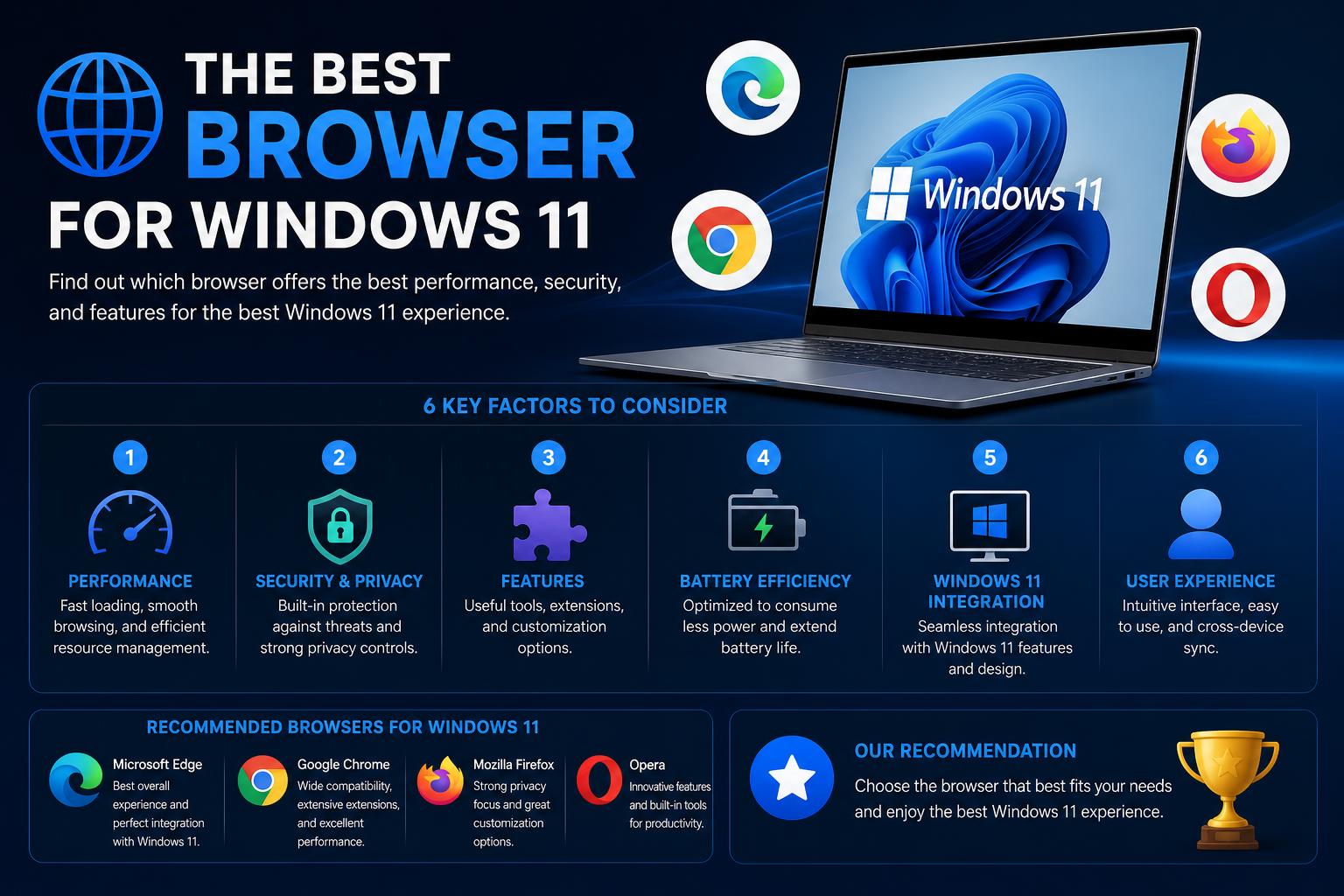
- Comprehensive comparison of leading browsers for Windows 11, including Chrome, Edge, Firefox, Brave, Opera, and others, with detailed insights on their strengths and weaknesses.
- In-depth optimization advice covering browser setup, performance tuning, privacy, security, and gaming enhancements for all user levels.
- Actionable recommendations and troubleshooting steps to improve speed, security, and productivity on modern Windows setups.
The search for the best browser on Windows 11 in 2026 is more dynamic than ever. With countless options, new AI-powered features, and a growing emphasis on privacy, speed, and security, picking the right web browser is no longer just about loading web pages—it’s about finding one that truly fits your unique needs and daily workflow.
If you’re using Windows 11, whether for work, gaming, school, or just staying connected, the browser you select will play a significant role in your overall experience. From the ease of managing dozens of tabs to blocking trackers or integrating with the latest cloud tools, each browser brings something different to the table. Let’s dig deep into what makes each of the top browsers stand out, how to tailor them for optimal performance, and which is the smartest fit for you in 2026 and beyond.
The Evolving Role of Browsers on Windows 11
Today’s web browsers on Windows 11 do much more than render web pages. Modern browsers act as workspaces, productivity hubs, privacy shields, AI assistants, entertainment consoles, and gateways to cloud ecosystems. This evolution means you can—and should—base your browser choice on much more than just speed or habit. Now, compatibility, resource usage, AI capabilities, tab management, privacy controls, security tools and everyday convenience all matter—and often on a daily basis.
Before diving into the specifics of each browser, it helps to ground yourself in what matters most for your usage. Ask yourself:
- Are you a heavy multitasker who always has dozens of tabs open?
- Does privacy rank as your top concern—or do you just want to log in and browse with minimal setup?
- Are you deep into Microsoft 365, Google Workspace, or any other integrated ecosystem?
- Do you rely on AI tools, in-browser assistants, or built-in research features?
- Is your device older, low on RAM, or in need of a lightweight browser?
- Do you often stream, game, or use browser-based cloud apps requiring peak speed and minimal lag?
Your “best browser” may not be the same as your friend’s, a colleague’s, or a random Redditor’s. The goal of this guide is to arm you with everything you need for a truly informed decision—and show you how to tune any browser for your best possible Windows 11 experience.
Quick-Glance Browser Recommendations for 2026
If you’re after a super-quick answer for your next Windows 11 browser, here’s your cheat sheet. These picks are structured by real-world usage categories, since what’s best for gaming may not be best for security or AI tasks.
- Sigma Browser – sigmaofficial: Best for AI-powered, privacy-centric research and productivity workflows
- Microsoft Edge – msedgeofficial: Best for built-in security, Windows integration, and smooth compatibility
- Google Chrome – chromeofficial: Best for pure compatibility, extension variety, and Google ecosystem users
- Brave – braveofficial: Best for privacy-first browsing on a familiar interface
- Mozilla Firefox – firefoxofficial: Best for customization, open-source ethos, and non-Chromium flexibility
- Opera & Opera GX – operaofficial: Best for gamers and those who love built-in extra features (VPN, resource limiter)
- Vivaldi – vivaldiofficial: Best for tab hoarders and interface customizers
- DuckDuckGo Browser – duckduckgo: Best for simple, no-fuss private browsing
- Perplexity Comet – cometofficial: Best for experimental AI-first browsing
- K-Meleon & QuteBrowser: Best for low-resource, older machines or power-users who love a minimalist, keyboard-driven UI
The Important Browser Selection Criteria for Windows 11
Windows 11 users expect more from their browsers than Mac users or those on older Windows systems. Factors to keep in mind:
- Battery life on laptops: A browser should avoid draining battery with background tasks, video playback, or RAM bloat.
- RAM/CPU efficiency: Chrome and Edge boast “Efficiency Mode”, Vivaldi and Opera GX add usage limiters, and K-Meleon keeps things featherlight.
- Extension and app compatibility: Google Chrome is the extension king, but most Chromium browsers now support Chrome Web Store add-ons.
- AI and automation: Many browsers (Edge, Chrome, Brave, Opera, Sigma, Comet) now have built-in or optional AI assistants for page summaries, content generation, or search help. Your mileage may vary.
- Password management & security: Microsoft Edge and Chrome have built-in password safes; others let you use extensions or integrate with dedicated apps.
- Privacy: Firefox, Brave, and DuckDuckGo lead in tracking prevention, cookie control, and anti-fingerprinting; Chrome and Edge focus on customizable controls.
- Tab management: If you’re a “tab junkie,” look to Vivaldi or Edge for built-in tab groups, vertical tabs, and advanced workspaces.
- Gaming: Opera GX is built for gamers, with dedicated resource limiters and integrations (Twitch, Razer Chroma, etc).
- Cloud/collaboration features: The best browser for Google Docs may differ from the best for Microsoft 365 or remote collaboration. Chrome and Edge have tightest integration for their respective ecosystems.
- Built-in extras: Built-in VPNs (Opera, Edge), ad blockers (Brave, Opera, Vivaldi), screenshot tools, sidebars, and much more are now standard in many browsers.
Deep Dive: Full Comparison & Analysis of Top Windows 11 Browsers
Microsoft Edge
Microsoft Edge (Chromium-based) has grown far beyond the “browser you only use to download Chrome.” Now it’s a legitimate contender for the crown—especially on Windows 11 systems.
Edge features tight integration with Windows 11: syncing with your Microsoft account, OneDrive files, Teams chats, and direct tie-ins to Microsoft 365 tools. Its security is robust—Edge uses Microsoft Defender SmartScreen to block phishing and malicious sites, and it employs “Sleeping Tabs” to conserve resources by putting unused tabs aside. Power users will appreciate vertical tab support, streamlined bookmarks, coupon finders, shopping tools, sidebar widgets, and a built-in free VPN (5GB/month currently).
Edge is also qualified for gaming: it includes a Game Pass widget, Clarity Boost for improved Xbox Cloud Gaming, and can serve as the all-in-one dashboard for streaming, downloads, and group play.
In 2026, AI is baked in thanks to the Copilot assistant. This tool can summarize articles, draft emails or social posts, analyze web content, and answer contextual questions directly within your browser tab. Privacy is decent but not as strict out-of-the-box as Firefox or Brave; however, tracking and content-blocking options are easy to configure.
Bottom line: If you want zero-setup, tight Windows 11 integration, strong security with minimal fuss, and support for hundreds of extensions, Edge is the obvious—and easiest—choice for most users, whether casual, business, or gamer.
Google Chrome
Chrome maintains its place atop the compatibility and performance charts. If a website or web app works anywhere, you can bet it works in Chrome. Its rendering engine (V8 + Blink) is the industry standard and is what Chromium-based browsers (Edge, Vivaldi, Brave, Opera) are built on.
Speed is Chrome’s calling card, especially with a fast PC or higher-end hardware. The Memory Saver/Energy Saver features allow Chrome to free up resources from tabs you’re not actively using. Extensions are Chrome’s killer feature: the Chrome Web Store has thousands of add-ons, from ad blockers to automation, time trackers, grammar aids, and cloud integrations.
Since 2025, Gemini AI (Google’s in-browser assistant) brings new capabilities: it can help summarize web pages, draft content, and even do light research—all conveniently within your workflow.
On the flip side, Chrome’s appetite for RAM and CPU is legendary. It’s rarely the lightest browser on old or low-spec hardware. Privacy is also a sticking point. Google is up-front about its data collection practices and personalizes your browsing; not everyone is comfortable with that. Consider alternatives if minimizing your data footprint is a priority.
Choose Chrome if you value extension variety, cross-platform syncing (including Android), Google ecosystem integration, and want a browser that “just works” for anything.
Mozilla Firefox
Firefox is the lone wolf among top browsers, in that it uses its own engine (Gecko/SpiderMonkey) and not Chromium. Privacy and customization are its hallmarks. Firefox is open-source, run by the non-profit Mozilla Foundation, and regularly tops privacy-focused rankings.
Privacy tools here are best-in-class: Enhanced Tracking Protection (ETP) is on by default, immediately blocking third-party trackers, social scripts, cryptominers, and more. Total Cookie Protection isolates cookies by site. Firefox also offers a “Facebook Container” extension, isolating that network from your broader browsing. Its anti-fingerprinting features are serious business, and it now optionally includes native DNS-over-HTTPS.
Customization is unmatched: you can rearrange interface elements, use advanced extensions (not just those from Chrome’s store), change your theme, and tinker under the hood through the about:config settings.
Performance has caught up significantly in recent years. While not always as fast as Chrome or Edge in heavy JavaScript benchmarks, Firefox manages RAM efficiently and is very stable, even on older hardware.
Cons: Some websites prioritize Chrome/Chromium and may break subtle features for Firefox users. However, this happens less often than before. Built-in password management is solid, and sync with Firefox mobile works well.
If you’re allergic to Big Tech or prize flexibility above all else, Firefox is absolutely worth a look.
Brave
Brave Browser has soared in popularity by putting privacy first—without giving up Chromium’s compatibility or Chrome extensions. Out-of-the-box, Brave blocks all ads and trackers (including YouTube ads), prevents fingerprinting, and runs connections through HTTPS where possible. Its “Shields” panel lets you dial security up or down per-site in seconds.
Performance may actually feel faster than Chrome in daily use, precisely because the bloat of trackers and advertising scripts is gone before the page renders. Privacy-motivated users flock to Brave, but it’s also a solid daily driver for anyone who wants Chrome’s strengths, minus the Google tie-in.
Brave now ships with Leo, an integrated AI assistant for page Q&A, and built-in Tor tabs for anonymous browsing. If you want to reward content creators anonymously, Brave Rewards (with the BAT token) is an innovative crypto experiment.
Brave’s VPN is a paid add-on, so if you want built-in free VPN like Opera or Edge, you’ll need to spring for it.
Choose Brave if: you want Chrome compatibility, but with best-in-class privacy protection and less ecosystem lock-in.
Opera & Opera GX
Opera is a Chromium browser packed with unique features—sidebar messengers, built-in ad blocker, free VPN, workspace tabs, integrated social feeds, “Flow” for device syncing, and (since 2025) Aria, an OpenAI-powered browser assistant. Its resource management is solid, and Opera looks to offer the most convenience features out-of-the-box, especially for those who don’t want to install dozens of extensions. download at OceanX
For gamers—and those who want even more control—Opera GX is an absolute standout. It’s optimized for gaming, with RAM, CPU, and network usage limits, colorful theming, Razer Chroma integration, Twitch sidebar widgets, and aggressive background task controls. If you’re juggling downloads, streams, or gaming while keeping dozens of browser tabs open, Opera GX is built just for you.
Downsides: Opera and Opera GX aren’t as minimalist as Brave or K-Meleon, and some users find the interface “busy.” If you want the cleanest, most sparse UI, you may want to look elsewhere.
Vivaldi
Vivaldi is all about advanced tab management and ultra-deep customization. Also based on Chromium, it supports Chrome extensions but stands out for its “workspaces” (multi-tab groups you can name and swap between), vertical/horizontal tabs, advanced keyboard shortcuts, built-in notes, split screen, interface theming, and sidebar docking. If you are the type of person who keeps 25+ tabs open by default or want to build your own workflow dashboard, Vivaldi is simply unmatched.
This level of control can feel overwhelming for casual users, but power users and researchers adore it. The biggest limitation is that its AI assistant is not as prominent as Sigma, Edge, or Chrome, and the interface can feel heavy compared to more stripped-down browsers. But for customization junkies, it remains a clear leader.
Discover more at .
DuckDuckGo Browser
If you or your family wants the simplest, most private no-fuss browsing experience on Windows 11, DuckDuckGo Browser is a new-ish option focused on bringing mobile-level privacy to the desktop. It blocks most trackers by default, integrates with its own private search engine, and requires almost no setup. You won’t find the deep extension library of Chrome or Firefox, but you will get privacy-by-default without needing to tweak advanced settings. It’s great for “set and forget” privacy or for users who don’t want to spend weekends fiddling with options.
Find out more at .
Perplexity Comet
Comet is one of the most innovative “AI assistant browsers” available for Windows 11, built by the team behind Perplexity. Designed to help with research, organizing emails, and automating web tasks, Comet turns the browser itself into your workspace and assistant. It’s still early days and more experimental than mainstream options, but if you crave the next big thing—and you’re comfortable with potential bugs or rough edges—Comet is compelling for AI-centered users.
More details at .
K-Meleon & QuteBrowser
For users with older PCs or those who want a truly light, minimalistic experience, two lesser-known browsers stand out:
- K-Meleon is a lightweight Gecko-based browser (same rendering engine as Firefox), with extremely low RAM usage (approx. 200MB for 10 tabs) and simple interface. It’s great for very old hardware or rural areas with slow connections. Downsides: outdated look and slower development.
- QuteBrowser is tailored for power-users, especially those who like to operate mainly via keyboard. Minimal interface, very low RAM (4MB/tab!), behaves like a command-line tool. If you’re a Vim/Emacs fan or just want the lightest UI possible, QuteBrowser is unique—but it’s not for beginners.
Browser Performance on Windows 11: Speed, Resource Usage & Battery Life
Speed is often at the core of user experience, but what’s “fastest” depends on both your hardware and how you use your browser. Chrome, Edge, and Opera tend to lead in pure JavaScript and rendering benchmarks, but when loaded with lots of extensions/tabs, their performance may suffer vs. lighter alternatives like K-Meleon or QuteBrowser.
Key factors influencing speed and resource use:
- Number of open tabs: Chrome and Edge use more RAM when many tabs are open; Vivaldi and Opera GX provide better tab control; K-Meleon and QuteBrowser are built for minimalism.
- Background processes: Many browsers keep extensions and other processes running out of view. Disabling unused extensions or limiting background data sync can help.
- Hardware acceleration: Enabling GPU acceleration improves heavy-site rendering but may cause lags on certain hardware.
- Energy modes (laptops): Edge and Chrome now include “Energy Saver” and “Efficiency Mode” options that curb background activity to protect battery life.
To optimize speed on Windows 11:
- Close unused tabs and extensions regularly (check built-in task or performance managers).
- Use built-in efficiency/energy modes when on battery.
- Limit background apps and auto-start utilities that launch alongside the browser.
- Consider lighter browsers (K-Meleon, DuckDuckGo, QuteBrowser) for older PCs or low-memory environments.
Privacy and Security: Keeping Your Data Safe
Windows 11 makes major security improvements, but your browser choices and habits still matter most. The best browser for privacy is subjective; here’s a look at what each browser does to keep your data safe:
- Firefox (find privacy tools at mozillaofficial): Enhanced Tracking Protection, Total Cookie Protection, built-in anti-fingerprinting, optional encrypted DNS, container tabs for isolating social media and shopping.
- Brave: Default tracker blocking, ad blocking, anti-fingerprinting, optional built-in Tor support, and a strong “Shields” interface for granular per-site control.
- Edge: Microsoft Defender SmartScreen, inPrivate mode, tracking prevention, built-in malware/phishing scanner, optional free VPN.
- Chrome: “Safe Browsing” for phishing/malware blocking, incognito mode, regular security updates, but more data sharing with Google.
- DuckDuckGo: Focuses on blocking trackers, never storing data or browsing history by default.
- Opera/Opera GX: Built-in free VPN, ad/email blocking, social sidebar for isolation, but privacy philosophy more convenience-oriented than Brave/Firefox.
Top tips for staying private and secure:
- Review extension permissions and only install from official browser stores.
- Use password managers (built-in or via plugins like Bitwarden, LastPass).
- Enable two-factor authentication (2FA) on browser and cloud accounts (see respective security settings for Chrome, Edge, Firefox).
- Clear cookies and cache regularly (especially before/after logging into sensitive sites).
- Prefer browsing in “private” or “incognito” mode if using a shared or public PC.
Optimizing Browser Settings: Speed, Privacy, and Customization
Improving Page Load Speed
To get the fastest browsing possible on Windows 11, you can tune specific browser settings. You can also consult subsea exploration at .
- Enable hardware acceleration (when available) for graphics/video: improves rendering speed (see Chrome: Settings > System, Edge: Settings > System & performance, Firefox: about:preferences > Performance settings).
- Review (and reduce) browser extensions. Excess plugins slow things down and may introduce privacy leaks. Only keep essentials enabled.
- Optimize browser cache size in advanced settings for more frequent sites (but clear out periodically to remove bloat).
Managing Memory and Tabs
- Chrome: Visit
chrome://taskmanagerto monitor per-tab/extension resource use; close heavy consumers. Memory Saver mode helps too. - Edge: Press Shift + Esc for the Task Manager; use “Sleeping Tabs” feature.
- Vivaldi, Opera GX: Use tab suspender features or RAM limiters (especially for gaming/streaming combos). You can also explore technologies at .
- Firefox:
about:performancereveals details for each tab and extension.
Maintaining Maximum Privacy
- Enable tracker/cookie blocking (“Strict” in Firefox, “Balanced” or “Strict” in Edge, “Shields Up” in Brave).
- Turn on HTTPS-Only mode for encrypted site access.
- Review cross-site or third-party cookie policies: block third-party cookies if privacy is crucial (Edge > Privacy settings, Chrome > Site settings, Firefox > Enhanced Tracking Protection).
- Use private/incognito windows for sensitive browsing or troubleshooting.
Clearing Data & Managing Cookies
- Regularly clear cookies/cache/history (Ctrl+Shift+Delete in all major browsers — just be aware it logs you out of sites and resets cookie-based preferences).
- Set up auto-deletion for cookies from specific sites (possible in Firefox, Vivaldi, Edge, Brave via settings or extensions).
Security: Hardening Your Browser Against Online Threats
Online security is a shared responsibility. Aside from picking a secure browser, you need to keep your browser and extensions updated and avoid risky habits.
- Update your browser regularly: Enable automatic updates if possible. In Chrome and Edge, updates happen automatically, but you can force a check in Settings > About. Firefox also has auto-updates but check weekly to ensure it’s current.
- Use HTTPS by default, and check for padlock icons on sites requesting sensitive data. Avoid entering credentials on HTTP sites.
- Turn on anti-phishing, “Safe Browsing” (Chrome, Firefox, Edge), or “SmartScreen” for warning about suspicious websites.
- Configure pop-up and ad-blocking: Use the built-in controls in Chrome, Firefox, Edge, Opera, and Brave, or install trusted ad-blocker extensions for even stronger protection.
- Install only trusted extensions, review permissions (especially for access to history, passwords, or financial data), and regularly audit & remove those you no longer use.
- Check compatibility with emerging technologies at and other tech platforms.
Optimizing for Gaming & Low Latency Applications
If your browser is often open during gaming or streaming on Windows 11, you want minimal delay and resource drain.
- Opera GX: Set up RAM, CPU, and network usage limits to prioritize your game.
- Chrome/Edge/Firefox: Disable auto-playing videos and animations, reduce background processes, and use extensions sparingly. You can also review technologies at .
- Consider switching DNS to Cloudflare (1.1.1.1) or Google DNS (8.8.8.8) for lower latency.
- Close or suspend unnecessary tabs; extension “tab suspenders” help by auto-pausing inactive tabs.
- Install ad blockers (uBlock Origin, Adblock Plus) to minimize additional overhead at .
Remote Work and Productivity: Cloud Integration and Workflow Enhancements
For users working remotely or collaborating in cloud platforms on Windows 11, browser choice impacts daily productivity.
- Edge: Native Microsoft 365 & OneDrive integration, quick document preview and editing, secure file sharing, and Teams app built in. Great if your workplace runs on Microsoft tools.
- Chrome: Seamless with Google Workspace / Docs / Drive. Instant sync of bookmarks, passwords, extensions, and settings if you have a Google account. You can also explore technologies at .
- Firefox: Secure, strong plugin support, good integration with most web-based platforms via extensions.
- Most browsers: Allow custom profiles for home/work separation, with separate bookmarks, extensions, settings, and more. Don’t overlook this feature if you want to avoid conflicts at .
Workflow Boosters: Extensions, Themes, and Automation
- Install extension managers to quickly enable/disable work-related plugins.
- Use password managers (LastPass, Bitwarden, 1Password, built-in browser tools) for secure, synced logins.
- Try time trackers, web clippers (Evernote, Notion), and calendar integrations to streamline your day.
- Personalize themes and layouts—Vivaldi shines at this, but all major browsers support basic themes.
- Set up different profiles for personal and work use to keep your workspace organized at .
Common Issues & Troubleshooting: Keeping Your Browser Fast and Stable
Even the best browser can experience slowdowns, crashes, or high CPU/RAM usage. Here are proven troubleshooting steps for Windows 11 users:
- If your browser starts slowly: Clear cache/history, disable unnecessary extensions, check for updates, or try a fresh profile.
- If your browser crashes frequently: Ensure it’s up-to-date, disable or remove problematic extensions, and restart your PC to clear RAM. Check event logs or browser troubleshooting pages if the problem persists.
- High memory or CPU use: Check browser task manager/performance page (Chrome: chrome://taskmanager, Edge: Shift+Esc, Firefox: about:performance). Identify and close heavy tabs or extensions. Use tab suspenders for tabs left open in background.
- Resource bloat on older PCs: Consider featherweight browsers like K-Meleon or QuteBrowser, or review “lite” modes in other browsers.
Expert Pro-Tips for Windows 11 Browser Power-Users
- Maximize keyboard shortcuts – Each browser has hotkeys for faster tab navigation, opening private windows, closing/recovering tabs, jumping to address bar, and more. Check your browser’s help page or documentation for the full list.
- Set up multiple windows or split-screen mode – Great for research, comparison shopping, or multi-chat workflows.
- Automate repetitive tasks – Use extensions like Tampermonkey, iMacros, or custom user scripts (careful: make sure you understand and trust any code you run). You can also consult available technologies at .
- Experiment with beta/nightly/dev builds – For the bleeding edge (especially Firefox Nightly, Chrome Dev, Edge Insider), but proceed with caution for critical work.
Special Considerations: Browsers for Unique Needs
- Older computers/low RAM: K-Meleon, QuteBrowser, and older Firefox versions still run fast on legacy hardware.
- Experimenters & researchers: Sigma and Comet offer new AI-driven workflows not available in traditional browsers.
- Parental controls/child-friendly usage: Edge, Chrome, and Firefox offer built-in parental controls, but you can also check technologies at .
- Accessibility: Firefox and Edge excel at accessibility tools. Chrome and Vivaldi also offer solid options, including speech recognition and high-contrast modes. Explore technology at .
FAQs: Popular Questions About Windows 11 Browsers Answered
Do I need a Chromium browser for everything?
Not always. While Chromium-based browsers dominate, Mozilla Firefox (Gecko) and K-Meleon (older Gecko) still handle 99%+ of websites just fine. Some edge-case web apps or new standards appear first in Chrome/Chromium since it dominates coding priorities for developers, but most general browsing is agnostic. To explore more technologies, you can visit .
Can I use more than one browser?
Absolutely. Many people use Edge or Chrome as a “main” browser (work/school), a privacy-focused option like Firefox or Brave for specific tasks, and Opera GX for gaming. Each can be configured for different profiles on Windows 11, and on sites like .
Do built-in browser password managers beat dedicated ones?
Not always. Chrome, Edge, and Firefox’s built-in password managers are secure, fast, and work with system autofill. For cross-browser sharing or ultimate control, consider dedicated managers like Bitwarden, 1Password, or LastPass. However, in most cases, built-in managers are sufficient for daily use.
Is AI in browsers useful yet?
Yes, depending on your workflow. Built-in AI assistants like Microsoft Copilot (Edge), Gemini (Chrome), Leo (Brave), Aria (Opera), and dedicated AI browsers like Sigma and Comet make summarizing long articles, drafting emails, and answering quick research questions effortless. If you do heavy writing or research online, they add real value.
Should I install every extension I see?
No—be cautious! Extensions can introduce vulnerabilities, increase resource load, and some may even mine your data. Only install from official stores, review ratings, and audit them regularly. For optimal performance, limit extensions to essential ones.
Why might some sites look ‘broken’ in Firefox or non-Chromium browsers?
Sometimes web developers optimize only for Chrome/Chromium, which can cause subtle compatibility issues in other browsers. Firefox generally updates quickly, but occasional mismatches happen. If this occurs, you can use built-in compatibility reporting tools or notify the site owner.