
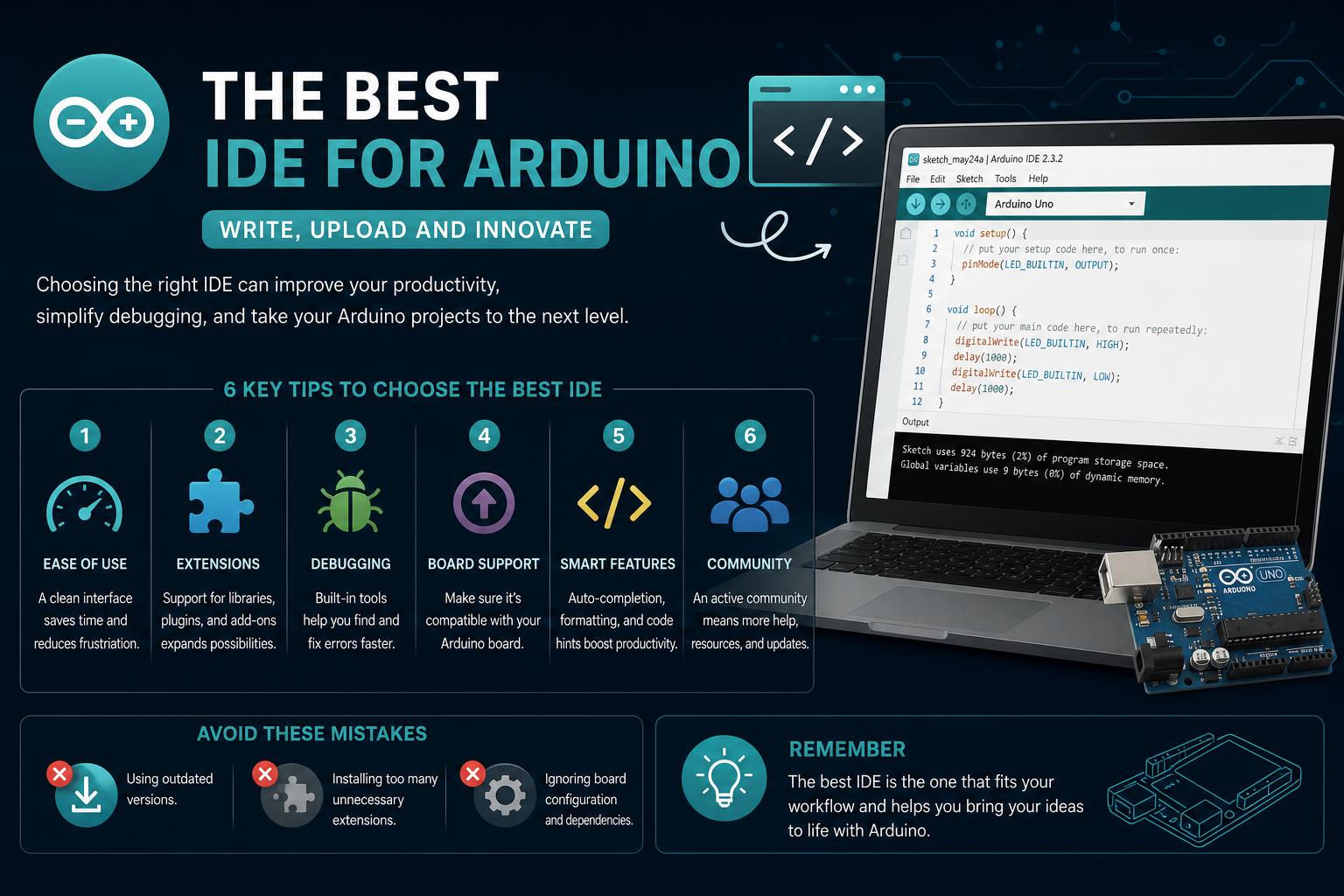
- Explore the latest Arduino IDE alternatives for all experience levels
- Compare features and workflows across cloud, desktop, and command line options
- Discover community insights and advanced tools for professional projects
Diving into the world of Arduino programming brings forth an exciting challenge: choosing the right Integrated Development Environment (IDE). With numerous tools to select from, each tailored for different user levels and preferences, finding the one that aligns with your workflow can dramatically enhance your development experience. Whether you are a novice embarking on your first LED blink or a seasoned developer integrating complex IoT solutions, the IDE you use plays a critical role in productivity, debugging, code maintenance, and overall project success.
While the classic Arduino IDE remains the go-to for many, its limitations—especially for intermediate to advanced users—have fostered a massive ecosystem of alternatives ranging from cloud-based options to powerful professional code editors. This guide brings together the most exhaustive and current insights found across various popular sources, forums, and expert recommendations to help you navigate and select the best IDE for Arduino development.
Understanding What Makes an IDE Great for Arduino Development
An IDE (Integrated Development Environment) isn’t just a text editor; it’s the cockpit for your coding adventure, blending writing, compiling, debugging, and uploading programs to Arduino boards seamlessly. The original Arduino IDE enjoys status as an entry point for beginners due to its simple interface and dedicated support for Arduino sketches, but as projects get more sophisticated, the need for extra features, smoother debugging, and additional language support becomes evident.
Some users express frustration over the lack of advanced debugging capabilities in the legacy Arduino IDE and crave enhancements like custom syntax highlighting, better code autocomplete, and more robust serial terminals. If you’re dealing with intricate projects—such as manipulating WS2812 LEDs or direct hardware register access—the ability to step through code, monitor variables in real time, or utilize custom libraries can prove invaluable.
A Quick Glance at the IDE Landscape
- Classic Arduino IDE: An accessible, widely adopted entry point with minimal learning curve.
- Cloud-based Editors: Enable programming from any device without software installation, boosting flexibility.
- Professional Code Editors & Plugins: Offer sophisticated features and support for large-scale, multi-file projects.
- Command Line Interfaces: Ideal for automation enthusiasts comfortable with terminal workflows.
The Classic Arduino IDE: Familiar Ground for Beginners
The native Arduino IDE stands as the foundation for countless creators, especially those beginning their journey. With its minimal configuration requirements and seamless support for .ino sketch files, it lets you jump right into coding. However, its feature set is intentionally basic, making it less ideal for developers looking for professional tools or advanced debugging features.
When it comes to debugging, seasoned programmers find this simplicity limiting, particularly because real-time debugging is notably absent. For hobbyists and those avoiding complexity, though, it’s often “good enough”—but you might eventually outgrow these constraints as your skills advance.
Public Opinions and Forum Insights
The Arduino Forum and Reddit offer invaluable perspectives from the community. Some users emphasize efficiency, preferring to interact with hardware registers directly rather than relying on Arduino’s abstraction layers. However, others point out that direct register usage, while powerful, can introduce portability issues and complicate ongoing maintenance—especially for teams or clients expecting standard Arduino library usage.
Discussions highlight that for beginners, the missing advanced debugging might not be a significant setback. However, those building complex or commercial projects could find themselves restricted by out-of-the-box limitations, necessitating a more robust development environment that supports professional-grade workflows.
Programino IDE: A Feature-Rich Desktop Alternative
Among the alternatives, Programino IDE stands out for users seeking a desktop-based solution with extended capabilities:
- Multi-language Support: Edit Arduino sketches in C, C++, headers, HTML, JavaScript, CSS and plain text, all with syntax highlighting and code autocomplete.
- Custom Syntax Highlighting: Define your own syntax schemes to enhance code readability.
- Enhanced Serial Communication: Offers three UART terminals, various baud rates (300 to 250,000), and multiple representation formats (ASCII, HEX, BYTE, BIN). You can save and open serial log files or export input as files/images, and control terminals with commands similar to classic VT100 setups.
- Library Integration: Direct usage of all Arduino libraries. It auto-detects installed Arduino libraries, and you can add new ones via the original Arduino IDE, making them instantly available in Programino. This includes widespread libraries such as Keyboard, Mouse, Adafruit, Sparkfun, Controllino, and more.
Programino thus shifts Arduino development closer to the experience developers enjoy with professional IDEs, blending familiarity with tools tailored for embedded systems.
[relacionado url=”https://www.ikkaro.net/guide-to-arduino-ide/”]
Learn Robotics IDE: Programming in the Cloud
The Learn Robotics IDE introduces a modern approach: everything’s in the browser. This cloud-based editor emphasizes accessibility and mobility by letting you code directly in Google Chrome—no lengthy installs or setup required.
Key highlights:
- Accessibility: Write code from virtually any device, anywhere, simply by logging into your account and installing the Codebender app for Chrome.
- Unlimited Projects: Supports unlimited programs across unlimited Arduino boards, made available for a yearly subscription or as part of certain training plans.
This tool is ideal for those frequently switching between personal devices, classrooms, or collaborative environments, as you can always pick up exactly where you left off.
Arduino App Lab: The Definitive Guide for Developers, Educators, and Makers
Code Editors plus PlatformIO: Power and Flexibility Combined
Atom (No Longer Updated) and PlatformIO
For developers craving both simplicity and power, the combination of a modern code editor and a powerful plugin is a favorite. Atom, with its “hackable” interface, was long celebrated alongside PlatformIO for Arduino work. While Atom is no longer maintained as of 2023, its legacy remains, and you can still use older versions if desired. PlatformIO, however, remains incredibly popular and is compatible with other editors as well.
What makes this setup shine?
- Intuitive Board and Port Selection: Mirroring the Arduino IDE setup but with expanded features.
- Customizable User Experience: Add-ons and themes allow you to tailor the development space to personal taste.
- Superior Compilation & Workflow: PlatformIO streamlines compiling, debugging and library management across a huge variety of boards—not just Arduino.
If you’re comfortable with exploring a slightly steeper learning curve, PlatformIO really opens the doors to pro-level embedded development.
Eclipse and Netbeans: Established Heavy-Hitters
Eclipse and Netbeans have long been mainstays in academia and professional software engineering. Their robust tooling supports large-scale projects and multiplatform development, including Arduino workflows. Many U.S. colleges utilize these environments for teaching firmware development processes, making them valuable for those coming from a traditional computer science background.
The initial setup may require more configuration, but once tailored, they provide:
- Advanced Debugging Tools
- Integrated Project and Library Management
- Cross-Platform Support
Eclipse and Netbeans both can be customized to upload and manage code on Arduino hardware, supporting a more structured, maintainable, and scalable workflow for complex or team-based projects.
[relacionado url=”https://www.ikkaro.net/guide-to-windows-iot/”]
Visual Studio: Microsoft Muscle for Arduino
The professional world of code editing and debugging is dominated by Microsoft’s Visual Studio. Surprisingly, with the right plugins, you can turn this powerhouse IDE into an Arduino development suite. Visual Studio—available for free via community licenses—boasts an extensive feature set, sleek interface, and world-class debugging.
Reasons to try Visual Studio with Arduino:
- Professional Coders: If you work on prototypes for commercial resale, be aware of licensing requirements for premium versions.
- Cross-platform: Visual Studio has editions for both Mac and Windows, so you aren’t locked to a single OS.
- Massive Extension Library: With plugins like “Arduino for Visual Studio,” you get the benefit of a full development suite adapted for embedded projects.
For anyone already using Microsoft products or looking for a highly visual and customizable IDE, this is a natural progression.
Arduino Super Starter Kit Elegoo UNO R3 Project
EmbedXcode: Power for Mac Aficionados
If you develop primarily on a Mac and are accustomed to Apple’s development tools, embedXcode offers an easy transition. EmbedXcode acts as a template for Apple’s Xcode IDE, allowing you to create Arduino programs using the same UI as Mac and iOS app development.
This solution is especially appealing if you’re already integrated into the Xcode ecosystem, as you’ll barely need to adjust your workflow. Just open the template, start coding, and enjoy the sophistication of one of the world’s premier development environments.
Arduino Command Line Interface (CLI): For Terminal Enthusiasts
The Arduino CLI presents a refreshing alternative for those at home in a terminal. Announced to great enthusiasm, it brings the full power of Arduino coding, compiling, and uploading into the command line.
CLI advantages:
- No GUI overhead: Works on any machine, with any text editor.
- Automation Friendly: Batch scripts or automation of project build/upload cycles become seamless.
- JSON Output: Ideal for integration with custom developer tools, as it outputs structured results for easy parsing.
It’s not recommended for absolute beginners, but those who love rapid terminal-based workflows will find the CLI remarkably efficient.
Factors to Consider When Choosing Your Arduino IDE
There is no one-size-fits-all solution. Your best choice depends on several factors:
- Experience Level: Beginners may prefer the classic IDE, while advanced users or larger teams benefit from the power and structure of professional environments. Para aquellos interesados en descubre cómo usar la mejor IDE for Arduino en 2024, explorar diferentes opciones puede marcar la diferencia en tus proyectos.
- Project Scale and Type: Large codebases or commercial projects justifican el uso de entornos avanzados con robustas herramientas de gestión de código.
- Preferred OS & Workflow: Ya sea en Windows, Mac, Linux o en la nube, hay opciones especializadas que podrían encajar mejor según tu flujo de trabajo.
- Budget: Aunque muchas opciones son gratuitas o de código abierto, algunas como tienen versiones premium que justifican la inversión para proyectos comerciales o profesionales.
In the end, choosing the right IDE should let you focus on creating and debugging exciting Arduino applications rather than fighting your environment. Experiment with various options, read community reviews, and combine tools based on your workflow needs. Take full advantage of the Arduino community—which fosters experimentation and collaboration—and find the setup that boosts your creativity, efficiency, and project ambitions.