
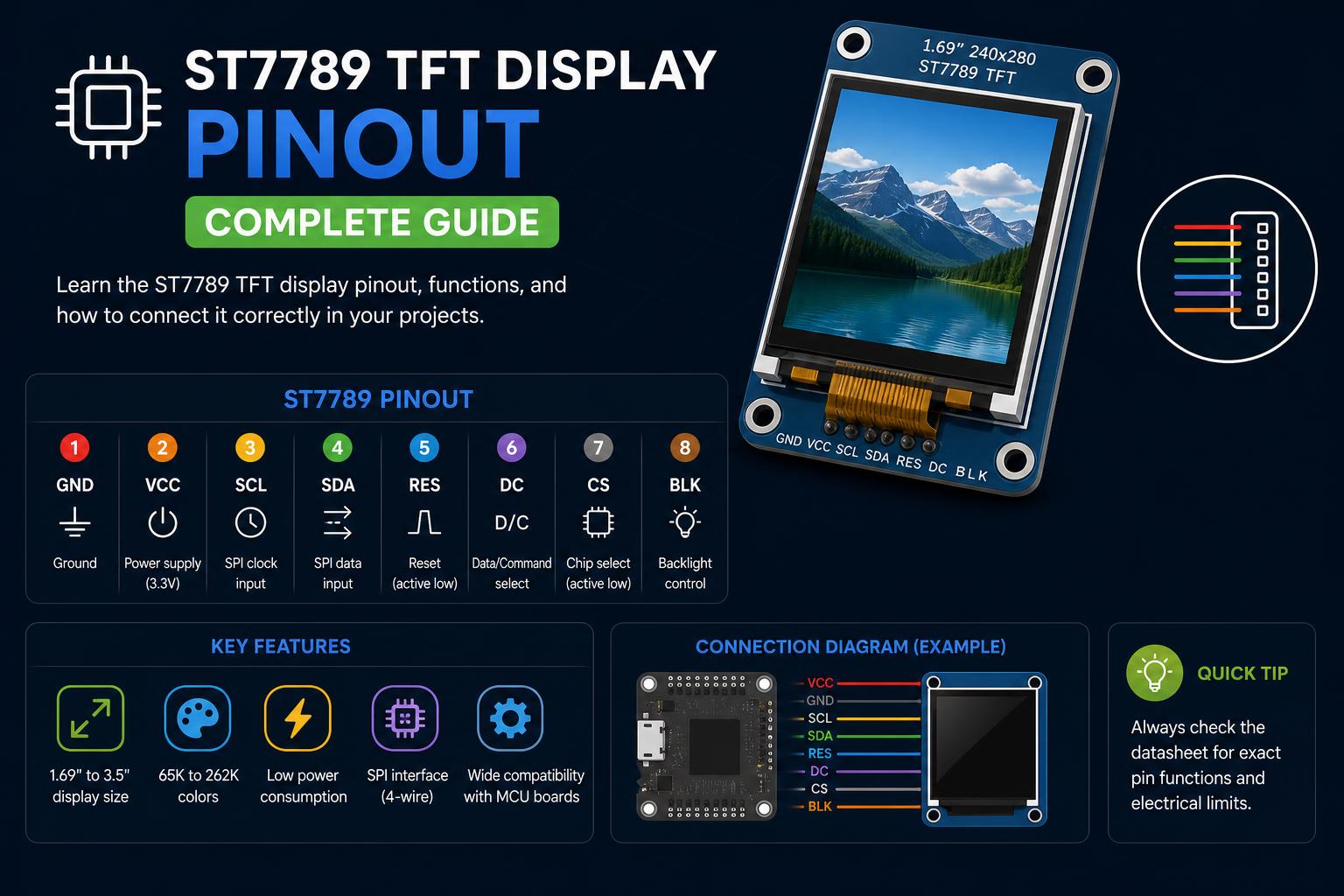
- ST7789 displays use SPI and require 3.3V logic; voltage translation is crucial for 5V controllers.
- The module pinout may differ: some lack a CS pin, affecting multi-device SPI usage.
- Accurate wiring, correct library usage, and module-specific spectral knowledge are essential for successful integration.
The ST7789 color TFT display has quickly become a must-have choice for electronics enthusiasts and professional developers looking to add vibrant graphical interfaces to their projects. Whether you’re crafting a handheld game console, building a smart watch, or simply want crisp display feedback for your IoT sensor, understanding the pinout of the ST7789 is key to a successful implementation. However, finding up-to-date, clear, and comprehensive information on connecting this display can be surprisingly tricky given the variations in modules and microcontrollers.
This article is your complete reference guide to the ST7789 TFT display pinout, its wiring, essential technical details, and practical integration strategies for microcontrollers such as Arduino and ESP32. We’ll consolidate reliable knowledge from top community resources, product datasheets, and expert usage scenarios to provide you an approachable guide that goes well beyond the standard pin descriptions found online. We’ll also address nuances between modules—with or without the chip select (CS) pin—and discuss common gotchas and best practices for powering and controlling your display.
The Essentials: What is the ST7789 TFT Display?
The ST7789 is a versatile, full-color graphical TFT LCD controller/driver chip designed by Sitronix Technology Corporation. Most modules equipped with this driver offer resolutions like 240 x 240 or 320 x 170, with compact screen sizes ranging from 1.3” to 2.8”. You’ll find them in devices requiring clear, bright visuals yet needing to conserve space and power, such as wearable devices and portable data terminals.
Main characteristics of ST7789 displays:
- IPS (In-Plane Switching) panels for wide viewing angles and vivid colors
- 16-bit (65k colors) and 18-bit (262k colors) color support
- SPI communication (most common, fastest for microcontrollers)
- Low power design, usually operates at 3.3V logic and supply
- Standard drawing operations supported: pixels, lines, rectangles, circles, images, and more
Many modules feature built-in level shifters and voltage regulation, allowing sometimes use with both 3.3V and 5V logic—though it’s essential to verify the specifications of your particular module.
Breaking Down the ST7789 Pinout
Let’s get under the hood of the pinout and understand what each pin does. While there are variants, the typical ST7789 TFT SPI module generally includes:
-
- GND – Display ground (connect to MCU GND)
- VCC – Power supply (usually 3.3V, sometimes 5V tolerant if indicated)
- SCL – Serial Clock (SPI clock; connect to SCK or SCL on microcontroller)
- SDA – Serial Data (SPI MOSI line; Master Out Slave In)
- RES – Reset signal (connect to any digital output, resets display)
DC
- – Data/Command control (differentiates pixel data vs commands)
- BLK – Backlight control (can be tied to VCC or PWM for brightness)
- CS – Chip Select (optional; enables/disables communication. Not on all modules!)
Pinout Variations: With and Without CS Pin
Some ST7789 display modules omit the CS (Chip Select) pin entirely. The CS line typically signals to the display when the microcontroller wants to communicate. On modules without this pin, the chip is always enabled since the line is internally connected to ground. This configuration suits systems with a single SPI device but can cause conflicts if multiple peripherals share the same SPI bus. Careful bus management or choosing a module with a CS pin is advisable for multi-device setups.
If your project involves multiple SPI components, opt for a display with a dedicated CS pin, or plan to implement bus arbitration in software. Guides like those on Simple-Circuit and MazeW’s GitHub Gist offer practical wiring solutions for both configurations.
Connecting the ST7789 TFT Display: Step-by-Step Pin Mapping
If you’re using an Arduino Uno / Nano (ATmega328P), here is a typical connection map for a 7-pin (no CS) display:
- GND – Connect to Arduino GND
- VCC – Connect to Arduino 3.3V (avoid connecting to 5V unless your module supports it)
- SCL – Connect to D13 (hardware SPI SCK), possibly via voltage divider if needed
- SDA – Connect to D11 (SPI MOSI), possibly via voltage divider
- RES – Connect to D8 or D7 (configure as needed), with voltage divider if needed
- DC – Connect to D9, with voltage divider if required
- BLK – Connect to 3.3V or PWM pin for brightness control
If your module includes a CS pin:
- CS – Connect to D10 via voltage divider or disabled (define accordingly in code)
Wiring is similar for other microcontrollers like ESP32 or Raspberry Pi—just adapt the connections to available SPI-capable pins.
Voltage Levels, Logic Translation and Electrical Safety
ST7789 displays operate at 3.3V for power and logic signals. Many Arduino boards operate at 5V and sending 5V signals directly to display pins can damage the controller.
If your module has onboard level shifters (check datasheet or product info), use those. Without them, implement voltage dividers or logic level shifters on SPI lines—recommended resistors are usually 3.3kΩ and 2.2kΩ in series per line. Always verify your specific module’s electrical requirements before connecting.
For example, Smart-Prototyping’s 1.3” module needs a logic level translator if used with 5V microcontrollers to prevent damage.
Pin Descriptions and Practical Usage
- GND: Power ground; connect between display and control board
- VCC: Power supply (usually 3.3V)
- SCL (or SCK): SPI clock; on Arduino UNO/Nano, digital pin 13
- SDA (MOSI): SPI data; on Arduino UNO/Nano, digital pin 11
- RES/RESET: Resets display; can be tied to a control pin for software reset
- DC: Data/Command control; determines pixel data vs commands
- BLK: Backlight control; connect to PWM or constant voltage
- CS: Chip select; enables SPI communication when present
Additional Features and Design Tips
Premium modules, such as Adafruit’s ST7789 displays, often include features like:
- MicroSD card slot for loading images directly
- Built-in voltage regulators for efficient operation
- Level shifters for compatibility with 5V systems
- Flat cable connectors (‘EYE SPI’) for compact hardware assemblies
- Design considerations: For durability and longevity, secure the front glass to prevent separation over time—especially important in wearable projects.
Always refer to the official documentation or supplier specifications for critical handling, power, and backlight management. Proper assembly and handling ensure a long-lasting, high-quality display performance.
SOFTWARE: Libraries, Initialization, and Code Integration
Popular projects rely on recognized open-source libraries. The Adafruit ST7789 library, combined with Adafruit_GFX, offers a robust framework for graphics control.
Installation steps include:
- Open Arduino IDE
- Go to Sketch → Include Library → Manage Libraries…
- Search for “ST7789” and install the Adafruit version
- Install the “Adafruit GFX” library similarly
Configure your code by specifying your pin connections. For instance, on a Nano without a CS pin:
Adafruit_ST7789 tft = Adafruit_ST7789(TFT_CS, TFT_DC, TFT_RST);
Where TFT_CS can be set to -1 if no CS is used. If the display remains black, try different SPI modes (SPI_MODE0, SPI_MODE3) and re-verify wiring.
Consult Adafruit tutorials and repositories for example code and troubleshooting. Supported library versions tend to be GFX 1.11.9 and ST7789 1.10.4.
Case Study: A Real-World Arduino Nano Project
Connecting an ST7789 (1.3” 240×240 IPS) directly to Arduino Nano is ideal for beginner projects. The common wiring is:
- GND -> GND
- VCC -> 3.3V
- SCL -> D13
- SDA -> D11
- RES -> D7 (or other digital pin)
- DC -> D9
- Backlight tied high or controlled via PWM
With this setup and the correct libraries, your display should activate on upload, providing a solid starting point for customization and development.
Troubleshooting and Community Tips
- Pin Label Variations: SCL can be labeled SCK, SDA as DIN, MOSI; DC as D/C. Always check your module’s datasheet or silk-screen markings.
- Orientation: The display orientation can be adjusted in code to match your layout (0°, 90°, 180°, 270°).
- Multiple SPI Devices: If lacking a CS pin and needing multiple displays, consider alternative wiring or additional hardware management.
- Black screen issues: Typically caused by SPI mode mismatches or incorrect wiring—verify connections and settings carefully.
- Physical assembly: Secure the front glass and backlight to avoid separation, especially in wearables or prolonged use projects.
- Voltage caution: Do not connect Arduino 5V data lines directly without level shifting to avoid damage.
- Using microSD: Embedding images stored on an SD card is an effective way to expand display capabilities without using additional RAM.
Common Technical Specifications
ST7789 displays vary in size, resolution, and features. Typical specifications include:
- Display sizes: 1.3”, 1.9”, 2.8”
- Resolutions: 240×240, 320×170, 240×320 pixels
- Technology: IPS LCD
- Color depth: 16 or 18 bits (65K or 262K colors)
- Interface: 4-wire SPI (additional lines possible for advanced modules)
- Operating voltage: 3.3V
- Logic voltage: 3.3V (safe for 5V only if specified)
Always verify your specific model’s pinout and voltage requirements before purchasing or connecting.
Community Resources & References
- In-depth Arduino-ST7789 guide on Simple-Circuit
- Adafruit’s official product page
- Official GitHub library repository
- Electrical specs from Smart-Prototyping
- MazeW’s wiring guide
With proper pin mapping and understanding of capabilities, integrating the ST7789 TFT into your project is straightforward. Attention to supply voltage, wiring details, and software initialization is crucial for achieving high-quality, flicker-free graphics. Exploring projects like animated dashboards, smartwatches, or dynamic sensors becomes more accessible with a solid foundation. Community support and open-source libraries make troubleshooting easier and expand your creative possibilities—immerse yourself, connect your display, and start building impressive visual interfaces.