
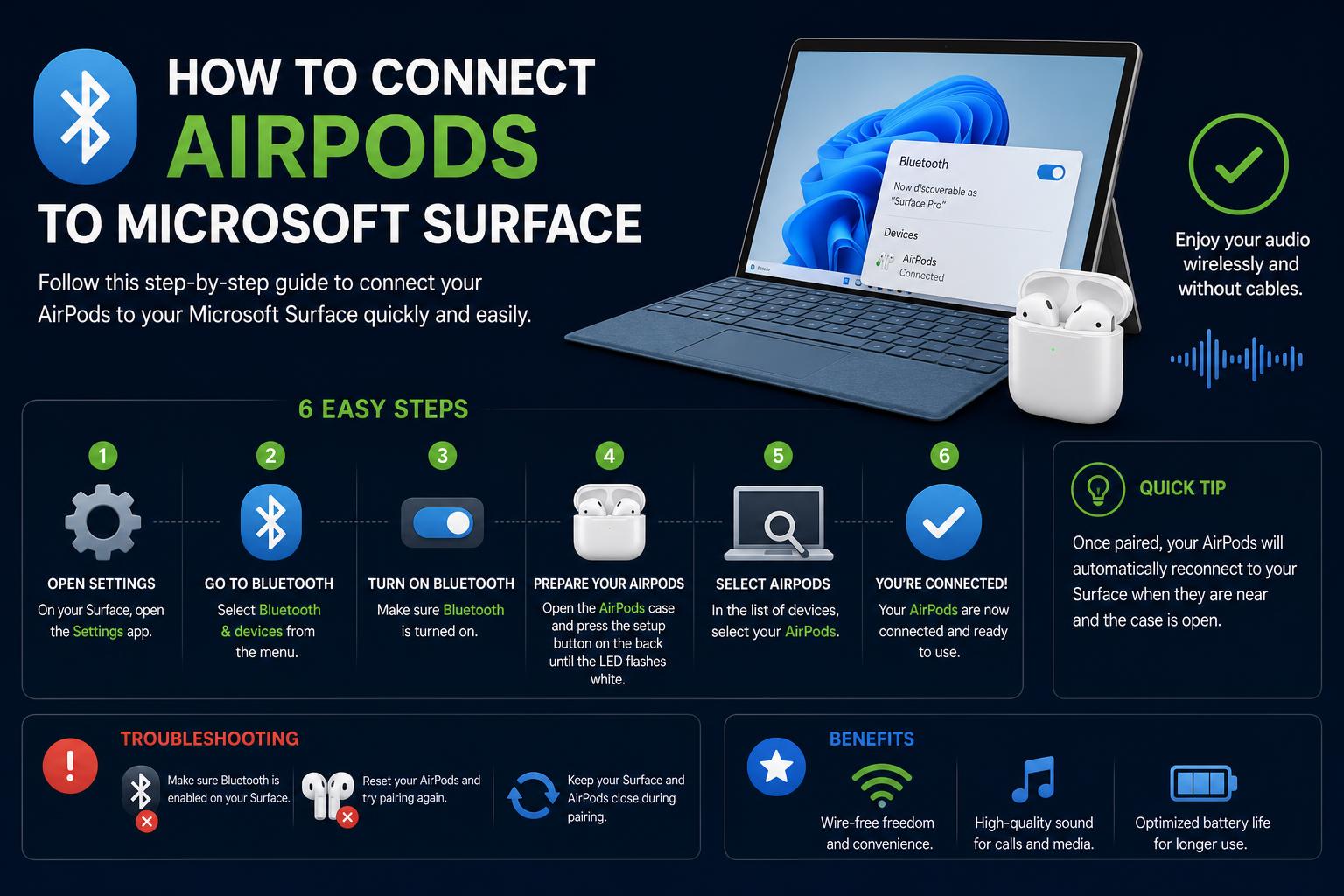
- Ensuring Bluetooth is enabled and AirPods are fully charged is key
- Paired AirPods may require sound settings adjustments on your Surface
- Troubleshooting covers unique Surface and Windows power management quirks
Connecting your AirPods to a Microsoft Surface device shouldn’t feel like rocket science, but a quick search reveals countless users struggling to get their Apple earbuds recognized by Windows machines. Whether you’re prepping for a Teams call or just want crisp audio for your playlist, making seamless use of AirPods on Surface laptops and tablets has become a hot topic. As the demand for cross-platform compatibility grows, having clear, comprehensive instructions is more valuable than ever.
If your AirPods are refusing to pair, you’re not alone. Many Surface owners encounter stumbling blocks, from their earbuds failing to appear in Bluetooth lists to relentless connect-disconnect cycles or even silent headphones after a “successful” connection. The good news? With a little know-how — and this guide — you’ll be enjoying wireless sound in no time. Below, you’ll find every angle covered: step-by-step pairing, troubleshooting persistent issues, and even tips from Microsoft and Apple community gurus. Let’s get started!
What to Prepare Before Connecting AirPods to a Microsoft Surface
Preparation makes all the difference. Before you dive into Bluetooth settings, ensure your Surface device and AirPods meet a few basics:
- Fully charge your AirPods and Surface device. Low battery levels can interfere with Bluetooth connectivity and might be the silent culprit behind frustrating pairing failures.
- Check the Bluetooth capability. All modern Surface devices include Bluetooth, but make sure it’s enabled through your device’s control panel.
- Inspect your AirPods case light. When you open the AirPods case, the status light shows battery and pairing readiness — a steady white light signals you’re ready for the next step.
Step-by-Step: How to Pair AirPods with a Microsoft Surface
Ready for action? Follow these easy steps, whether you have classic AirPods, AirPods Pro, or the AirPods Max:
Step 1: Enable Bluetooth on Your Surface
- Click the Start menu.
- Go to Settings > Bluetooth & devices.
- Turn Bluetooth to ON (the toggle will light up or show “On”).
Step 2: Put AirPods in Pairing Mode
- Place AirPods inside their case and open the lid.
- For AirPods/AirPods Pro: Hold the small button on the back of the case until the LED flashes white.
- For AirPods Max: Hold down the Noise Control button until the indicator light starts blinking white.
Step 3: Connect via Windows Bluetooth Settings
- On your Surface, click Add device under Bluetooth & devices.
- Select Bluetooth from the pop-up menu.
- When your AirPods appear in the device list, click them to finish pairing.
What About AirPods Max?
The process is almost identical: Enable Bluetooth on your Surface → Hold your AirPods Max close by → Press and hold the Noise Control button until the LED flashes white → Select them from the Bluetooth device list.
Common Issues and Solutions When Connecting AirPods to Surface
Sometimes your Surface refuses to play nice with your AirPods. Let’s break down the most common obstacles — and how to tackle them:
1. AirPods Don’t Show Up in the Bluetooth List
- Reset the AirPods: Place them in the case and close the lid, then wait 15 seconds. Reopen and press the setup button until the light flashes white. Try pairing again.
- Nearby Interference: Move away from dense Wi-Fi zones or disconnect other Bluetooth devices temporarily to reduce signal clutter.
2. AirPods Connect, But There’s No Audio
- Right-click the sound/speaker icon on the bottom right of your Windows taskbar.
- Select Sound settings or Playback devices.
- Under Output, look for Choose where to play sound. Tap your AirPods from the listed options.
3. AirPods Flicker Between “Connected” and “Paired” or Disconnect Repeatedly
This oddball issue is infuriatingly common. Forums recommend a technique involving Windows’ Device Manager:
- Search “Device Manager” in the Windows search bar and open it.
- Expand the section Human Interface Devices.
- Find Bluetooth Low Energy GATT compliant HID device and right-click → Properties.
- In the Power Management tab, uncheck “Allow the computer to turn off this device to save power”.
- Restart your Surface afterward.
This trick tends to resolve erratic connections caused by aggressive power-saving features interfering with Bluetooth headphones.
4. Bluetooth Driver Issues
If you still can’t connect, your Bluetooth driver may be the problem. Here’s how to refresh it:
- Press Windows key + X and choose Device Manager.
- Find the Bluetooth section. Right-click on your wireless Bluetooth device (for many Surfaces, it will be Intel(R) Wireless Bluetooth(R)) and select Uninstall (leave the deletion box unchecked).
- Restart your computer. Windows will reinstall the default Bluetooth drivers.
- Try connecting your AirPods again as described above.
Tips for Smooth Pairing and Better Bluetooth Performance
- Keep Windows and Bluetooth drivers up to date. Check for regular updates in Settings > Windows Update. Outdated drivers often cause connectivity quirks.
- Only pair your AirPods to one device at a time. Having them saved across multiple devices can cause conflicts, especially if your iPhone or another Apple device is nearby.
- Turn off other Bluetooth devices while pairing if possible. This helps your Surface focus exclusively on linking with your AirPods.
- Use AirPods as your default playback device. Once connected, go to Sound settings and make AirPods the chosen audio output to guarantee consistent sound.
Troubleshooting: Advanced Steps and Community Recommendations
Still not working? The Microsoft Community and Apple support forums highlight a few more advanced fixes — here’s what else you should try:
Remove and Re-Pair AirPods from Bluetooth Devices List
- Go to Settings > Bluetooth & devices on your Surface.
- Locate your AirPods under the list of paired devices. Select the three-dots icon and choose Remove device.
- Follow the pairing process again from scratch, as detailed above.
Resetting AirPods Properly
- Keep the AirPods in their case. Press and hold the button on the case until the indicator blinks amber, then flashes white (usually about 15 seconds).
- Try connecting to your Surface again, ensuring the AirPods don’t attempt to auto-link with other devices nearby.
Consult Official Support Pages
- Apple’s Support Page for Pairing AirPods with Non-Apple Devices contains additional manufacturer advice.
- Microsoft Community Answers feature user-submitted troubleshooting, but the above steps cover nearly all known issues for Surface and AirPods connections.
Frequently Asked Questions: AirPods and Surface Compatibility
Will All AirPods Work with Surface Devices?
Yes — original AirPods, AirPods Pro, and AirPods Max will all pair and function as wireless headphones with any Microsoft Surface via Bluetooth. Features like instant device switching and Siri are exclusive to Apple platforms, but you’ll get superb audio and microphone functionality on Windows for calls, music, and streaming.
Why Can’t My Surface Find AirPods?
The device might be paired to another device nearby or not in pairing mode. Always start with a fresh Bluetooth scan after resetting your AirPods. Charging both devices can also resolve invisible AirPods issues.
Do AirPods Lose Functionality on Surface?
You get solid stereo playback and can use the built-in microphone, but advanced settings (like spatial audio or custom gestures) aren’t supported in Windows natively. For pure music and mic use, the experience is great.
Bonus Troubleshooting: Community-Sourced Solutions
Some Surface users have shared unique tips discovered through trial and error:
- If connection failures persist, remove all non-essential Bluetooth accessories from your Surface (like keyboards, mice, or fitness trackers) during first-time pairing.
- After major Windows updates, always reboot and re-add your AirPods — system-level driver changes can disrupt stable Bluetooth pairings.
- Try moving to a different room or location, as dense Wi-Fi signals sometimes interrupt Bluetooth discovery and connect attempts.
With the right approach, pairing your AirPods with a Surface can be straightforward and reliable if you follow these steps and troubleshooting tips… By charging your devices, updating drivers, and applying community advice, you’ll enjoy high-quality wireless audio without hassle. Keep this guide handy for future reference and make the most of your Surface and AirPods experience.