
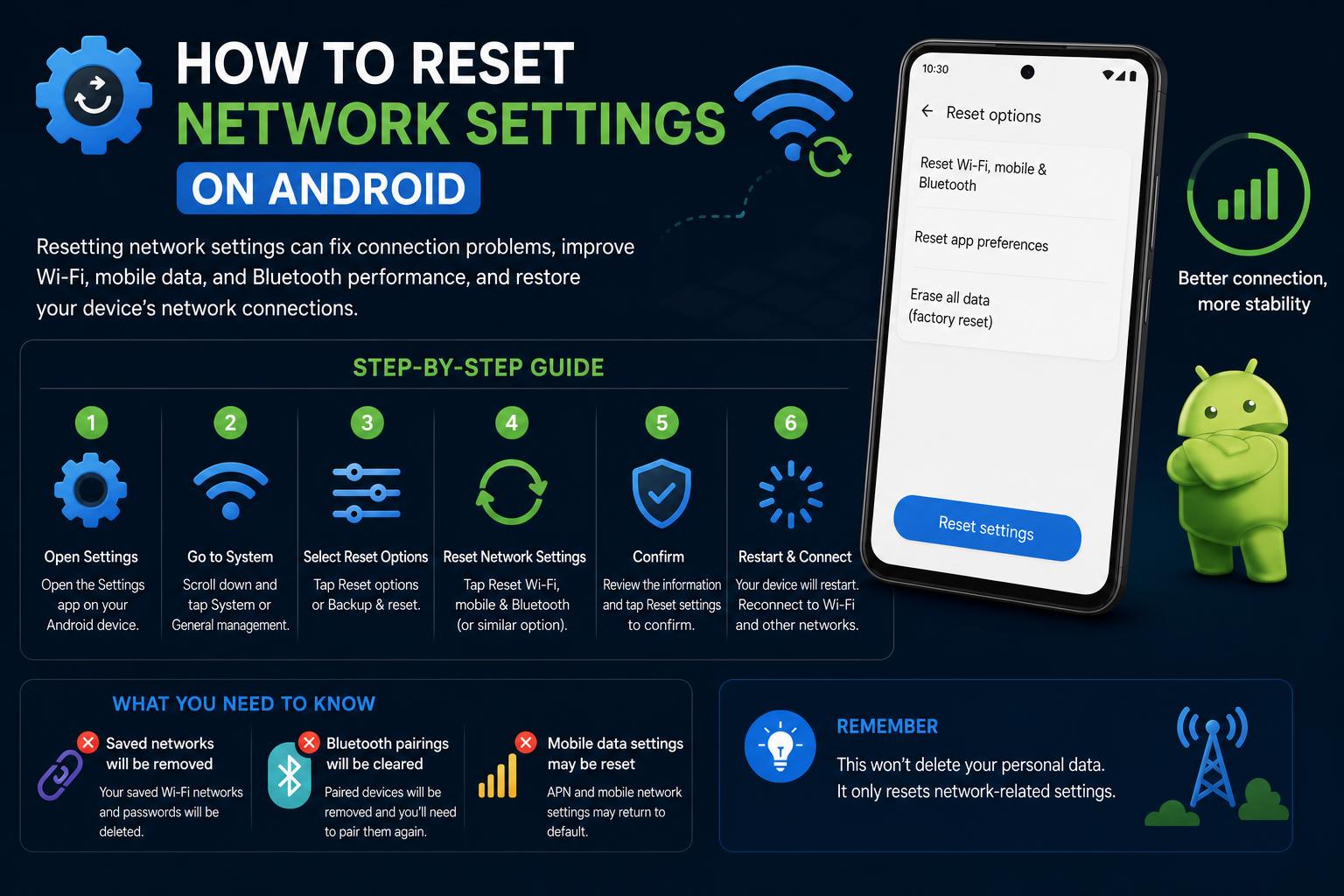
- Resetting network settings can resolve Wi-Fi, mobile data, and Bluetooth issues on Android devices.
- The process is slightly different depending on the Android version and phone manufacturer, but generally involves accessing Settings and choosing reset options.
- After resetting, all saved Wi-Fi networks and Bluetooth connections are deleted, requiring reconfiguration.
We’ve all been there—struggling to get your Android phone back online when Wi-Fi or mobile data just won’t work. Maybe your Bluetooth won’t connect, or you keep seeing odd connection errors. These everyday headaches can disrupt everything, from checking your messages to keeping up with work. One of the simplest yet most effective solutions is resetting your device’s network settings—think of it as giving your phone’s connections a fresh start, wiping any built-up glitches or errors. But how exactly do you do it, and what should you expect?
This comprehensive guide dives deep into resetting network settings on Android devices, pulling together the latest advice from leading tech support resources and official documentation. Whether you use a Samsung Galaxy, a Google Pixel, or something entirely different, you’ll find up-to-date, step-by-step instructions. Plus, we’ll explain what changes to expect after the reset, when it’s best to use this feature, and which troubleshooting steps to try first before taking the plunge. By the end, you’ll be ready to fix network issues—or simply keep your phone running smoothly—with confidence.
Why Reset Network Settings on Android?
Resetting your network settings can resolve persistent connectivity issues that nothing else fixes. Whether it’s problems with Wi-Fi, Bluetooth, mobile data, or even VPN and hotspot settings, sometimes these network configurations get scrambled due to software updates, app glitches, or just day-to-day use. Restoring all network-related settings to their default state wipes out old data, problematic connections, and incorrect customizations—resolving persistent issues in minutes.
Common reasons to use the network reset option include:
- Wi-Fi won’t connect or keeps disconnecting
- Bluetooth devices won’t pair or disconnect unexpectedly
- Mobile data issues (for example, no internet access without Wi-Fi)
- Error messages like “Mobile network unavailable”
- Problems after switching SIMs, traveling, or an OS update
This reset can be a big help when the usual fixes aren’t working on your Android.
What Happens When You Reset Network Settings?
It’s important to understand exactly what gets reset when you perform this action: All saved Wi-Fi networks (including passwords), paired Bluetooth devices, and custom mobile data or APN settings will be erased. Any VPN settings you previously configured will also be wiped. After the reset, you’ll need to reconnect to Wi-Fi networks, re-pair Bluetooth devices, and re-enter special credentials. However, your contacts, photos, and other files aren’t affected, nor are your regular app or personal settings.
This process doesn’t delete your personal data or apps—it just returns all network-related features to their factory default state. If you use a work device or one with specific network configurations, take note of your settings before proceeding.
How to Reset Network Settings: General Method for Android
On most modern Android phones, the process for resetting the network follows a standard procedure. Here’s a general outline, though small variations may occur depending on your Android version and device brand:
- Open the Settings app. You’ll usually find it on the home screen, in the app drawer, or by swiping down the notification bar and tapping the gear icon.
- Scroll down and tap ‘System’ or ‘System & updates’. Some phones, especially Samsung Galaxy devices, place this in a slightly different menu.
- Tap ‘Reset options’ or simply ‘Reset’.
- Select ‘Reset Wi-Fi, mobile & Bluetooth’ (on some devices it may say ‘Reset network settings’).
- Confirm the action. You may be asked to enter your PIN, pattern, or password. Tap ‘Reset settings’ to begin.
- Your device will restart. When it powers back on, the network settings will be back to their default state.
Remember: after this, you’ll need to re-enter your Wi-Fi passwords, re-pair your Bluetooth devices, and check your mobile data or APN settings if you use a non-standard carrier.
Special Instructions: How to Reset Network Settings on Samsung Phones
Samsung phones, like the Galaxy S22, A56, or the Galaxy Note series, add a few extra steps to the general process. Here’s how to do it:
- Open Settings.
- Tap ‘General management’.
- Choose ‘Reset’, then select ‘Reset network settings’.
- Tap ‘Reset settings’ and confirm the action (you may need to enter your device PIN or password).
- Tap ‘Reset’ again to finish.
After the reset, all previous Wi-Fi, mobile data, and Bluetooth connections will need to be set up again. Have your Wi-Fi passwords handy, or your Bluetooth devices ready to pair.
Alternative Methods for Different Android Versions
Depending on your Android version, the process may vary slightly. Here are a few versions and their typical reset procedures:
Android 8.0 and Above
- Go to Settings > Network & Internet.
- Tap the menu button (the three vertical dots) and select ‘Reset network settings’.
- Tap ‘RESET SETTINGS’ to confirm.
Android 7.x (7.0, 7.1, 7.1.1)
- From the home screen, open the ‘Apps’ icon.
- Go to Settings > More.
- Select ‘Reset network settings’ and tap ‘Reset settings’.
Android 6.0 (Marshmallow)
- From the home screen, open the ‘Apps’ icon.
- Go to Settings > Backup & reset > Reset network settings.
- Tap ‘Reset settings’.
If you’re not sure which Android version you have, you can check it under Settings > About phone.
Before Resetting: Other Troubleshooting Solutions
Sometimes a full network settings reset is more than you actually need. Try these simpler fixes first; they could save you time and spare you from having to re-enter passwords and settings.
Restart Your Phone and Router
- Fully power off your Android device and turn it back on. Do the same with your Wi-Fi router or modem. Wait about 30 seconds before turning them back on. This often fixes temporary glitches.
Toggle Airplane Mode On and Off
- Turn airplane mode on and off from the quick settings. This can reset connections and fix minor connectivity drops.
Check Your Wi-Fi Router
- Make sure it’s powered on, connected to the modem, and that your phone is within range. Move closer if needed and check whether you can connect.
Manually Select Network Carriers
- Go to Settings > Connections > Mobile networks > Network operators. Manually select your carrier, which can help when automatic detection fails.
If these basic fixes don’t resolve your connection issues, proceeding with a network reset is the next recommended step.
What to Expect After Resetting Network Settings
Once you’ve performed the reset, all saved networks, pairings, and special configurations will disappear. Your phone will try to connect to available networks using default options.
- Wi-Fi: You’ll need to reconnect to all your preferred Wi-Fi networks. This means re-entering passwords and, in some cases, setting up advanced options like static IP, proxies, or certificates.
- Bluetooth: All paired devices will disappear. You’ll need to re-pair your headphones, car kits, or other accessories.
- Mobile Data / APN Settings: In most cases, these will revert to your carrier’s automatic values. If you use a smaller carrier or manually configured your APN, it would be wise to note it down before resetting (check Settings > Network & Internet > Mobile network > Access Point Names).
- VPN and Private DNS: Any VPN settings or custom DNS entries will be erased, so write down your configuration if you need it for security, privacy, or parental controls.
Advanced Network and Wi-Fi Settings
Advanced network settings on Android allow for customization beyond simply resetting connections. For those managing data usage, network privacy, or hardware troubleshooting, here are some additional tips and options:
Metered Wi-Fi
If you’re on a limited or costly network, you can mark a Wi-Fi connection as metered. This helps your device optimize background usage, minimize automatic downloads, and better control monthly usage.
- Connect to Wi-Fi.
- Open Settings > Network & Internet > Wi-Fi.
- Tap your connected network, then select ‘Network usage’ and ‘Treat as metered’.
Finding Your Phone’s MAC Address
Some networks require you to whitelist your device by its MAC address. To find it:
- Go to Settings > About phone. Look for ‘Wi-Fi MAC address’.
- If your phone runs Android 10 or above, you may see a random MAC option. With Wi-Fi turned on, check under Settings > Network & Internet > Wi-Fi > Advanced, or in your current network. Note both addresses if you need them for parental controls or work networks.
Private DNS
- The default is ‘Automatic’, which secures DNS queries. For greater privacy or a custom DNS, go to Settings > Network & Internet > Private DNS and enter your provider’s hostname.
Other Wi-Fi and Network Preferences
- Turn on automatic Wi-Fi connection: Your device will automatically connect to trusted nearby networks.
- Open network notifications: Get alerts when a good-quality public network is available.
- Wi-Fi Direct: Connect your device directly to another for quick file sharing or router-free gaming.
- Certificates: Install digital certificates for work or school networks under Advanced options.
What to Do After the Reset to Reconnect
The first thing to do after a network reset is reconnect to your Wi-Fi and re-pair your Bluetooth accessories. Here are a few reminders:
- Re-enter the passwords for your preferred Wi-Fi networks. Check whether your router has separate bands (2.4GHz or 5GHz).
- Pair your Bluetooth devices, including headphones, car systems, and smartwatches.
- If your carrier requires custom data settings, re-enter your APN or data profile.
- Reinstall VPN settings and make sure your private DNS is set up if your network or work policy requires it.
When You Should Avoid a Network Settings Reset
A network reset is quite safe, but it’s not always the first option. Try it only after restarting your phone, checking your router and carrier settings, and toggling airplane mode on/off. If your device is managed by an organization or has advanced settings you configured manually, save those settings first. Also, if you’re dealing with issues like hardware damage or a faulty SIM card, a reset won’t fix those problems—they require specialized help.
Where to Get More Help
Still having issues? You can check device-specific guides on the manufacturer’s official help centers, such as Google’s Android Help Center or Samsung Support. For carrier-specific settings (like APNs or unlock codes), visit your mobile carrier’s support site.
If you see error messages like “Not registered on network,” try manually searching for your network, check your SIM card, and look up mobile network troubleshooting guides. Some resources, like Asurion’s tech tips, offer practical advice for Samsung models and other Android devices.
Resetting your network settings on Android can be like clearing up a congested highway—afterward, everything flows better. Whether you’re looking to fix persistent issues, strange errors, or just want to start fresh, following the steps here will get your device reconnected quickly and easily. Make sure you have your passwords on hand, and if you have specific configurations, write them down beforehand. With fresh network settings, your Android will be ready to connect wherever you go.
SSH: what it is, how it works, and everything you need to know