
- Microsoft PowerToys is a free, open-source toolkit with powerful utilities to customize and enhance Windows.
- It has a rich history, evolving from Windows 95 add-ons to today's modular suite for Windows 10 and 11.
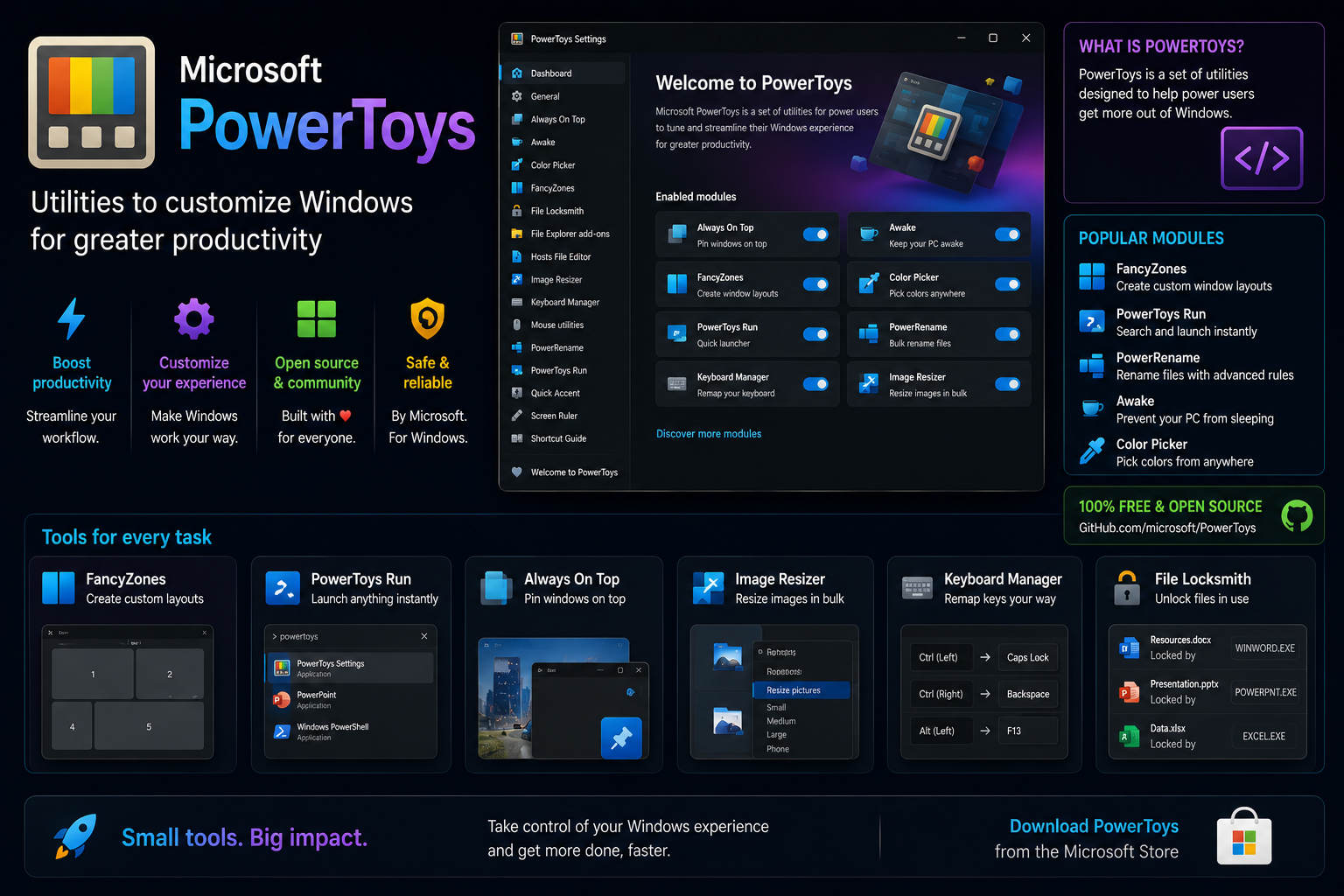
- Utilities like FancyZones, PowerToys Run, Image Resizer, and Keyboard Manager turbocharge productivity.
If you’ve ever found yourself wishing for extra features in Windows, or wanting to fine-tune and supercharge your workflow, Microsoft PowerToys might be exactly what you need. This toolkit has been quietly revolutionizing how power users and even everyday users interact with Windows, bringing a whole new level of customization, convenience, and productivity. However, many people still do not know exactly what PowerToys are, their history, or everything they can do for you. You are about to catch up — and perhaps even wonder how you ever managed without them.
In this article, we will take an in-depth look at the world of Microsoft PowerToys: not just an application, but a dynamic, open-source collection of utilities that expand and improve Windows in ways the operating system itself sometimes cannot. We will explore its fascinating history from the days of Windows 95 to today’s open-source revival, break down the many tools it offers — from window management to specialized file tools — show you how to install it and keep it updated, and explain why this project is also a vibrant and growing community effort.
The Ultimate DIY Windows 11 Tools Guide: Mastering Customization, Performance, and Privacy
What Is Microsoft PowerToys?
Microsoft PowerToys is a free, open-source suite of utilities designed to unlock additional features, customization, and efficiency for users of Windows 10 and Windows 11.
Originally created for advanced users — those who want to push their operating system beyond its standard limits — PowerToys offers tools that simplify workflows, automate repetitive tasks, and enable a level of desktop customization that is simply not available in a standard Windows installation. Think of it as a Swiss Army knife for your system: one installer, many utilities, and the flexibility to enable only what you need. The modern version of PowerToys builds on this legacy, offering polished, constantly evolving tools that help you work smarter, not harder.
A Brief History: From Windows 95 to Modern Windows
The history of PowerToys dates back to 1995. Back then, Microsoft released the first PowerToys as an add-on package for Windows 95, aimed at technically knowledgeable users who wanted more control and customization than the operating system offered by default.
The original Windows 95 PowerToys included 15 mini applications, many of which exposed hidden features or provided new ones, such as Quick Res for quickly changing screen resolution, Tweak UI for modifying less obvious settings, and CabView for viewing cabinet files as regular folders. This set was developed by the Windows Shell Development Team and was enthusiastically received, helping establish a tradition of offering similar add-ons for later versions of Windows.
Windows XP PowerToys expanded and modified the toolset, responding to changes in user needs and in the underlying technology. This stage included specific tools such as an Alt-Tab replacement with live previews, an image resizer, Power Calculator for complex calculations, and Tweak UI for deeper interface customization.
These tools were often maintained separately and were sometimes replaced as Windows evolved — for example, some features of Command Prompt Here and the Internet Explorer search bar eventually became integrated into the operating system or became obsolete with newer versions of Windows. For a while, there were no new official versions of PowerToys — notably, Windows Vista and Windows 7 did not receive official updates.
Everything changed in 2019 when Microsoft relaunched PowerToys as an open-source project hosted on GitHub, aimed at Windows 10 and later versions. This move not only brought back popular utilities such as FancyZones, but also encouraged community improvement and the active development of new features under the MIT license. With this change, anyone can propose, contribute to, or refine utilities, making PowerToys a more modern, powerful, and flexible tool than ever.
The Ultimate Guide to Mastering Windows 11: Hidden Features, Essential Tips, and Advanced Tricks
How PowerToys Works Today
Modern PowerToys is a single downloadable application, but inside it houses a collection of more than 30 unique utilities, each focused on solving a specific productivity, customization, or usability challenge.
Unlike the original sets, the current version of PowerToys supports both Windows 10 and Windows 11 on x86-64 and ARM64 architectures. Everything remains open source, so the latest versions benefit from rapid development by both the community and Microsoft, frequent updates, and solid documentation.
You only need to download and install PowerToys once, then enable only the utilities you want — everything is modular, giving you full control over your user experience.
The Essential Utilities in PowerToys
PowerToys is all about offering features that Windows users wish they had natively. Below are some of the current highlights, although keep in mind that the suite continues to grow:
- FancyZones: Create complex window layouts on your desktop. Snap windows into place, configure grids or zones, and optimize your multitasking workflow far beyond what Windows offers by default, especially useful on ultrawide monitors or complex setups.
- PowerToys Run: A quick search bar that lets you find files, launch apps, search your system, or run commands without taking your hands off the keyboard. It is like Spotlight on macOS, but with Windows speed.
- Keyboard Manager: Remap keys and shortcuts globally, giving your hardware new “superpowers” or customizing behavior to suit your habits or accessibility needs. Do you have a keyboard that cannot be programmed? Now it can be, with just a few clicks.
- Image Resizer: Resize multiple images directly from File Explorer. Just right-click and select the desired size — ideal for photographers, designers, or anyone who regularly works with images.
- Color Picker: Pick any color from anywhere on the screen. Instantly get HEX, RGB, HSL, or other code formats, making it essential for developers, designers, and anyone working with visuals.
- PowerRename: An advanced file renamer with support for batch processing, search and replace, and even regular expressions, all from the File Explorer context menu.
- Always On Top: With a quick shortcut, pin a window so it stays above all others, very useful for reference notes, videos, or chats while you work.
- Awake: Prevent your PC from going to sleep or turning off the screen on demand, even temporarily, without having to modify the system’s power settings.
- Shortcut Guide: Press the Windows key to display an overlay with all available shortcuts in the current context — perfect for learning productivity tricks or remembering less-used features.
- Mouse Utilities: Includes Find My Mouse, which highlights the cursor; Mouse Highlighter, which indicates clicks; and Mouse Pointer Crosshairs, which draws crosshairs for precision, all designed to improve visibility and control.
- Paste as Plain Text: Remove formatting from copied text with a shortcut, ensuring that pasted content has a consistent appearance regardless of its source.
- File Locksmith: See which processes have files open and in use, helping diagnose frustrating “file in use” errors.
- Screen Ruler: Measure pixels precisely on the screen, ideal for designers and web developers.
- Registry Preview: Preview, compare, or edit .reg files before applying changes to the Windows Registry, helping prevent mistakes.
- Text Extractor: Copy text from anywhere on the screen as if by magic — say goodbye to retyping visual elements or manually copying from images or non-selectable dialogs.
- ZoomIt: Annotate, zoom, and even record during presentations or demonstrations, bringing professional tools to your virtual meetings and live training sessions.
- Hosts File Editor: Edit hosts files in an accessible and safe way, without searching for text editors or fighting with permissions.
- Quick Accent: A fast method for using accented characters, perfect for multilingual users or those learning new languages.
- PowerToys Awake: Intentionally keep your computer awake during long tasks or downloads, regardless of normal power plans.
- Video Conference Mute: A global shortcut to quickly enable or disable the camera and microphone — crucial in today’s remote-work world.
Each utility can be enabled or customized individually from a unified PowerToys settings panel, so you are never overwhelmed with features you do not want.
PowerToys Through the Years: A Utility Evolution
PowerToys has evolved to keep up with new versions of Windows and changing user needs. It is interesting to see how certain utilities have changed, disappeared, or been replaced as technology has advanced:
- Legacy PowerToys: The original Windows 95 and XP tools offered gems such as Tweak UI, for unlocking hidden features; Quick Res, for quick resolution changes; and Power Calculator, for advanced calculations and conversions. Many of these tools influenced later Windows features or inspired third-party solutions.
- Discontinued features: As Windows became more capable on its own, some PowerToys were phased out. Background Switcher, for automatically changing wallpapers, was removed in favor of native features. Similarly, command line shortcuts and Alt-Tab improvements are now integrated features, but PowerToys continues to provide additional enhancements for those who want more control.
- Special editions: Over the years, there were PowerToys for specialized systems, such as the Tablet PC edition of XP, Windows Media Center, and add-ons for OneNote and Visual Studio, demonstrating Microsoft’s commitment to extending its platforms in a modular way.
- The open-source era: Since its revival in 2019, PowerToys has grown in value. The number and depth of utilities continue to expand, with regular updates, new features, and an active community that ensures its relevance on the modern desktop.
How to Download and Install PowerToys
Installing PowerToys is simple and flexible, with several methods to suit your preferred workflow. Here is how to get started:
- Official GitHub releases: The main source is the GitHub releases page. Download the latest .exe file compatible with your system architecture, either x64 or ARM64.
- Microsoft Store: Search for “PowerToys” and install it with just a few clicks from the Windows store.
- WinGet: For those who prefer the command line, run
winget install Microsoft.PowerToysin a terminal or PowerShell. - Other package managers: Chocolatey and Scoop, third-party package managers, also offer official scripts for installing PowerToys.
The minimum requirements are straightforward: Windows 10 version 2004, build 19041, or later, including Windows 11; a 64-bit processor, either x64 or ARM64; and the Edge WebView2 Runtime, which the installer usually downloads automatically.
After installation, PowerToys launches with a useful overview, allowing you to browse the available tools, enable the ones you need, and adjust settings to your liking. PowerToys runs in the system tray, always just one click or hotkey away.
Keeping PowerToys Up-to-Date
PowerToys automatically checks for updates while it is running, so you never fall behind on new utilities and fixes. If you prefer to do it manually, you can always check for the latest version in Windows Settings. Updates are applied easily and keep your active settings after each improvement.
If you need to uninstall it or troubleshoot problems, Microsoft offers detailed guides and cleanup scripts, especially when upgrading from older versions or dealing with rare installation errors. Full instructions are available in the official installation guide.
Who Should Use PowerToys?
PowerToys is aimed at “power users” — those who love shortcuts, automation, and getting the most out of their systems. But honestly, the tool saves time for almost anyone.
Whether you are a developer, a creative professional, a multitasker, or someone who simply wants more control, such as remapping a broken key or resizing images easily, there is something in PowerToys for you. Even beginners find the unified interface and the option to activate only what they need useful — it is not invasive, but it is always there when required.
In addition, because it is open source, PowerToys offers transparency and continuous active improvement. Your feedback is not only heard, but can also influence the development of the project — including bug fixes, new utilities, or improvements suggested by users like you.
Contributing to PowerToys
One of the most exciting aspects of the modern version of PowerToys is its open development model. Microsoft actively encourages users and developers to contribute, whether by adding new features, detecting bugs, improving the design, or expanding the documentation.
If you want to participate, start with the Contributor Guide on GitHub. The guide explains best practices, code style, and how to set up your development environment. New contributors receive guidance, mentoring, and support from a community willing to collaborate on new features or polish existing ones.
This collaborative approach has driven rapid innovation. Many current PowerToys features exist thanks to suggestions and contributions from the community. Even those who do not code can help by reporting bugs, proposing ideas, writing documentation, or collaborating on design.
The project maintains a strict code of conduct and requires contributors to accept a Contributor License Agreement, CLA, ensuring trust and transparency in the process.
Troubleshooting, Privacy, and Community
Having problems? You are not alone. The Issues section on GitHub allows you to search for known bugs, submit reports, or request features. You can also consult the documentation to learn more about each utility and find troubleshooting tips.
Diagnostic and troubleshooting tools are available for everything from installation errors to removing older versions. Specialized cleanup scripts are available for those who like to experiment or automate maintenance tasks.
Worried about privacy? PowerToys collects only basic diagnostic data, or telemetry, in line with Microsoft’s Data and Privacy documentation. Participating in app improvement is always voluntary, and your data remains private.
Why Some PowerToys Aren’t In Windows By Default
A frequent question is: why are these features not built directly into Windows?
Microsoft’s design philosophy has traditionally prioritized stability and broad compatibility. Some PowerToys utilities target advanced needs or expose features that require a certain level of technical knowledge. Keeping PowerToys as a separate and optional suite allows Microsoft to develop and update these features quickly without putting system stability at risk, while better serving advanced users who want greater customization. It is a win-win situation for both everyday users and enthusiasts.
Key Use Cases and Real-World Benefits
How do real users benefit from PowerToys? Here are a few scenarios:
- An office worker uses PowerRename to rename hundreds of files in batches, reducing hours of manual work to seconds.
- A designer quickly obtains HEX color codes from images with Color Picker, making their work easier.
- A programmer switches between different window layouts on a large external monitor with FancyZones to maximize productivity.
- A frequent video call participant uses Video Conference Mute to instantly mute the camera and microphone, protecting their privacy.
- Support professionals use File Locksmith to quickly troubleshoot “file in use” errors on client machines.
Ultimately, PowerToys allows you to customize Windows to your needs, whether with everyday features or advanced automation. From greater accessibility to better multitasking and creative workflows, its impact can be seen across a wide range of users.
PowerToys and the Open Source Ecosystem
PowerToys occupies an important place in the family of free and open-source software produced by Microsoft in recent years. Alongside PowerToys, you will find projects such as Windows Package Manager, Terminal, Calculator, and others, as well as frameworks and diagnostic tools, such as ProcDump or ProcMon.
In fact, PowerToys is highly recommended alongside tools such as Windows Terminal or WinGet, for those who want to further improve their Windows experience. With these tools, you can automate installations, customize shells and terminals, and extend every aspect of your system workflow.
Frequently Asked Questions About PowerToys
- Is PowerToys safe to install? Yes, PowerToys is open source, maintained by Microsoft and a trusted community of contributors, with an emphasis on code quality and system security. Download it only from official sources such as GitHub or the Microsoft Store.
- Does it affect my PC’s speed? PowerToys is fairly lightweight and modular. You only enable the features you want, minimizing background resource usage.
- Can it be used on Windows 8, 7, or Vista? Unfortunately, modern PowerToys only supports Windows 10, version 2004 or later, and Windows 11. Older versions such as Windows XP and Vista had PowerToys, but they are discontinued and are not compatible with current systems.
- Is it only for “techies” and programmers? Not at all. PowerToys includes many accessible and easy-to-use tools. Even beginners can take advantage of features such as window snapping, pasting without formatting, and quickly resizing images. The unified interface makes configuration simple.
Microsoft PowerToys represents the union of passionate users and open technological innovation. It has grown from a modest set of add-ons into an indispensable tool that helps millions of people customize, optimize, and truly enjoy Windows. Whether you are looking for hidden features, productivity boosts, or simply a way to make Windows more your own, PowerToys delivers and continues to improve thanks to its active community and transparent development process. Go ahead and explore, experiment, and discover how much more Windows can offer you.