
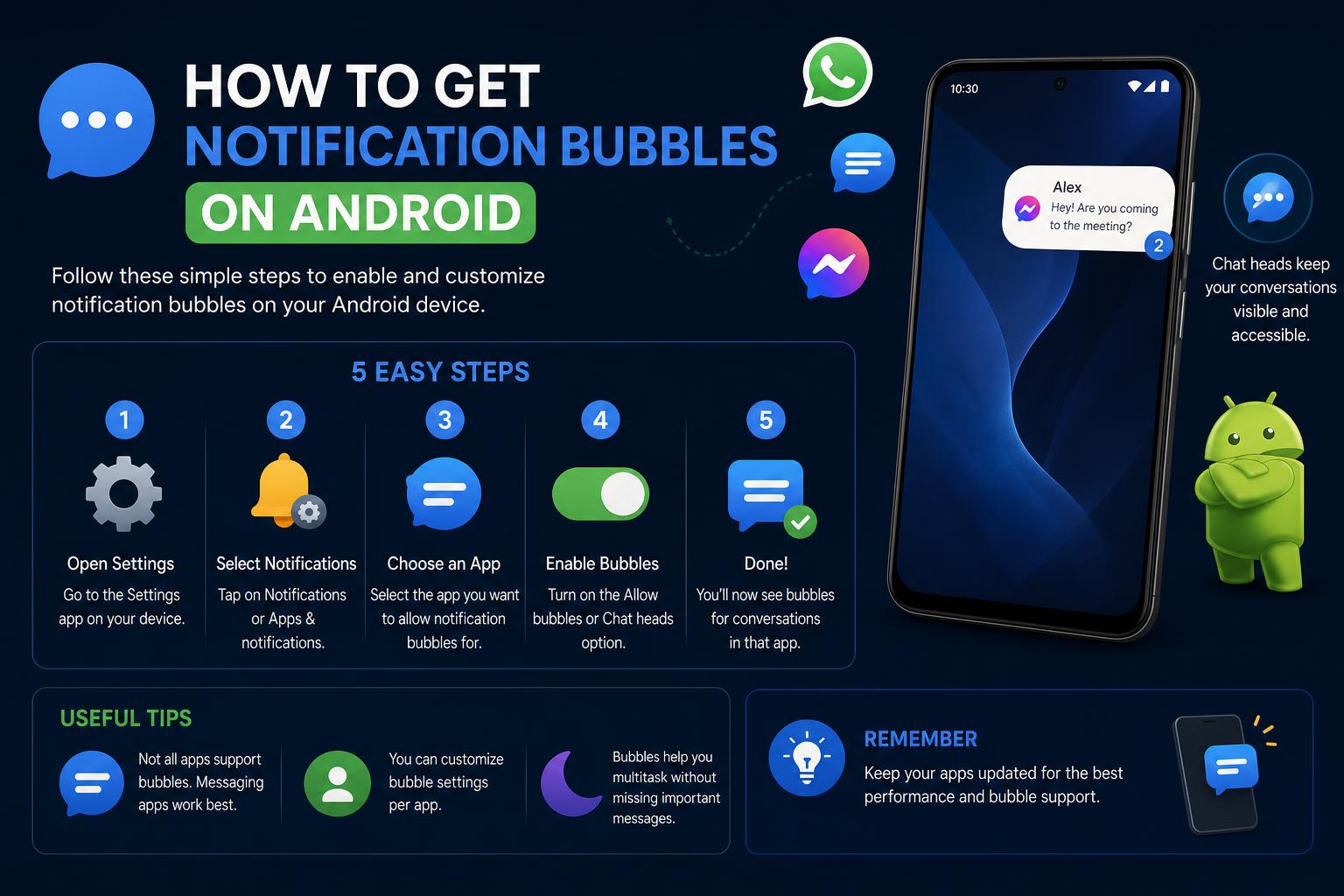
- Notification bubbles make multitasking on Android easier by allowing quick access to conversations and alerts without leaving your current app.
- Android offers multiple ways to enable, customize, or disable notification bubbles through global system settings, per-app preferences, and per-conversation controls.
- Bubbles are mostly supported for messaging apps, but third-party apps and live wallpapers allow for broader notification bubble experiences.
Have you ever wanted to reply to a message on your Android phone without leaving the app you’re currently using? Enter notification bubbles—a handy feature that makes it simple to juggle conversations while gaming, browsing, or working on something else. If you’ve seen chat heads in Facebook Messenger, you already have an idea of the convenience bubbles can offer by popping active chats as little floating icons on your screen.
In recent Android versions, notification bubbles are built right into the operating system for messaging and communication apps. While some users love how easy they make multitasking, others find bubbles distracting or confusing when too many notifications are active. If you’re trying to figure out how to enable, manage, or even customize these notification bubbles on your Android device—or want to troubleshoot problems—this comprehensive, easy-to-read guide pulls together the most thorough, up-to-date advice and tips from experts, official sources, and the Android community.
What Are Notification Bubbles in Android?
Notification bubbles provide an efficient way to keep up with ongoing conversations and messages. They’re designed to float over other apps, minimizing interruptions and letting you quickly expand a chat, read messages, and send replies—without having to open the messaging app fully. When minimized, these bubbles collapse into small icons that linger along the edge of your screen. You can easily drag, move, or remove them as you like.
When your device is locked, or the always-on display is active, these bubbles return to behaving like regular notifications, so you never miss important messages but avoid clutter.
Which Apps and Devices Support Notification Bubbles?
Originally, floating chat bubbles were famous thanks to Facebook Messenger, but Google integrated the feature natively into Android, starting with Android 10 and refining it in Android 11. Most modern Android phones—especially those running Android 11 or above—can use notification bubbles for conversations in apps such as:
- Google Messages
- Signal
- Telegram
- Facebook Messenger
- Other compatible third-party messaging apps
Bubbles don’t work for every type of notification or app. They’re primarily supported by messaging platforms because they focus on real-time conversations. However, some apps or device-specific software (like Samsung’s implementation) might offer additional custom pop-ups or floating notifications.
How to Enable Notification Bubbles on Android
Enabling notification bubbles is straightforward but depends on your Android version and the app you’re using. Here are the most common methods:
Method 1: System-Wide Bubble Settings (Android 11 and above)
- Open your phone’s Settings.
- Navigate to Apps & notifications (or just Notifications).
- Tap on Bubbles (on some devices: Advanced > Bubbles).
- Toggle on Allow apps to show bubbles.
This option enables bubble support for all compatible apps across your device.
Method 2: Enable Bubbles for Specific Apps or Conversations
- Swipe down from the top of your phone to open the notification shade.
- Find the notification for a conversation (usually grouped under “Conversations”).
- Touch and hold the chat notification you want to modify.
- Tap Bubble conversation (it may appear as a bubble icon).
- To turn it off, open the bubble, tap Manage, and select Don’t bubble conversation.
This method is perfect if you want notification bubbles only for specific conversations and not all messages. Many users prefer this targeted approach to reduce clutter.
Method 3: App-Level Bubble Settings (Google Messages, Signal, etc.)
- Open the messaging app (e.g., Google Messages or Signal).
- Go to the app’s Settings (usually via your profile or three-dot menu).
- Find the Notifications or Bubbles option.
- Adjust settings for which conversations or notification types you want to bubble.
Some apps allow you to control which threads show as bubbles and may require permissions to display over other apps.
Fine-Tuning and Customizing Bubbles
Once you’ve turned bubbles on, you can manage them per app, per conversation, or via system preferences. Android and app options include:
- Allowing all conversations from an app to bubble.
- Allowing only selected contacts to use bubbles.
- Blocking bubbles altogether—notifications revert to standard banner alerts.
Temporarily Hiding or Dismissing Bubbles
If a bubble is temporarily in your way, drag it to the bottom of the screen or choose “Dismiss bubble.” The bubble will reappear the next time you get a message in that chat.
Customizing Bubble Appearance
While Android’s native bubbles have a consistent look, there are apps and utilities (like Notification Bubbles Free) that let you customize bubble style, colors, icons, or even tie favorite contacts to specific bubble shapes for easier access. Some launchers or live wallpapers support floating notifications as part of your home screen appearance.
Notification Bubbles: Advanced Settings and Troubleshooting
Troubleshooting: Can’t Find or Use Bubbles
If notification bubbles won’t show up:
- Make sure your phone is running at least Android 10 (bubbles are fully supported on Android 11+).
- Double-check that Bubbles are enabled in system settings and app notification settings.
- For Signal, for example, you might need to set specific conversations as “conversations” in Android, and sometimes customize notification channels within the app to allow bubbling, especially if you’re moving apps between devices or restoring backups.
- Some users on Reddit report conflicting or confusing on/off controls for bubbles (both globally and within apps like Google Messages), so it may require a few tweaks in advanced notification settings.
- Apps must support bubbles natively. If an app does not include the BubbleMetadata or necessary support, the OS will not display bubbles for its notifications.
If you continue to have issues, try restarting your phone or check for system updates that may improve bubble support.
How Developers Implement Bubbles (Technical Overview)
If you’re an Android developer or curious about how bubbles are built, Google’s official documentation explains:
- To show a notification as a bubble, developers must attach
BubbleMetadatato the notification using the API. - The bubble displays an activity specified by the app, which must be resizable and embeddable so it fits correctly into the floating window.
- Multiple conversations (e.g., multiple chats in a messenger) launch separate activity instances as bubbles.
- Android 10 requires setting certain flags explicitly, while Android 11 automates more of the process for developers, making bubbles easier to implement.
This means, on supported devices, any developer can integrate bubble functionality using standard Android APIs—potentially making notification bubbles available for new types of apps in the future.
How Are Bubbles Different from Other Floating Notifications?
Bubbles are a specific Android feature focused on ongoing conversations and messaging, while some device brands (like Samsung or Xiaomi) offer additional pop-up or “floating notification” options for all types of alerts. These floating notifications may look similar but might not provide the full interactive chat experience or system integration of official bubbles.
Apps and Tools for Enhanced Notification Bubbles
If you want more customization or want bubbles for notifications beyond just chat apps, third-party apps from Google Play can help:
- Notification Bubbles Free: Adds colorful, playful bubbles to your home screen for various notification types, not just messages. The full version lets you assign custom bubble colors, special icons for key contacts, and even add reminder bubbles.
- Other live wallpaper and launcher apps: Some allow floating or overlay notification bubbles on Android devices as part of home screen customization.
Note: Installing such apps may require enabling notification access or overlay permissions in device security settings.
Best Practices for Using Notification Bubbles
- Only enable bubbles for important, ongoing chats. Since bubbles float over your screen, too many can clutter your workspace.
- If you disable bubbles for a conversation, notifications revert to standard alerts—no messages are lost, just the bubble interface disappears.
- In supported apps, use advanced controls to assign bubbles only to key contacts or chats where real-time response is important.
- Bubbles automatically show unread badges when new messages arrive. Opening the bubble marks messages as read.
- If using special apps (like Notification Bubbles Free), remember to activate notification access and customize styles from their settings for the best effect.
FAQs and Common Issues
Why don’t all notifications appear as bubbles?
Android limits bubble use to conversations—usually group or individual chats—so notifications for other events (reminders, news, emails) won’t appear as bubbles by default. For those, third-party apps may be required.
Can I disable bubbles completely?
Absolutely. Use Settings > Notifications > Bubbles to turn off globally, or manage bubble controls for each app or conversation as preferred.
Why does the bubble icon not show for some conversations?
This could be a limitation of the app, a lack of relevant notification permissions, or restrictions set at the conversation or channel level in the app (as seen with Signal’s notification channel requirements).
How do I remove notification bubbles?
To stop a specific conversation from showing as a bubble, tap the bubble, hit Manage, then select Don’t bubble conversation. To turn off completely, visit your system’s Notifications or Bubble settings and disable the feature.
Why do floating notifications and bubbles seem to overlap?
Some devices (especially Samsung, Xiaomi, Oppo) include their own version of floating notifications in addition to Android’s bubbles, sometimes causing confusion. Try disabling one or the other in Settings > Notifications > Advanced to use only your preferred style.
Android’s notification bubble functionality keeps evolving, with both Google and third-party developers adding new possibilities and flexibility every year. Whether you’re a power user looking to optimize communication or someone who prefers a cleaner notification experience, these tips will help you get the most out of bubbles on your device and avoid common pitfalls.