
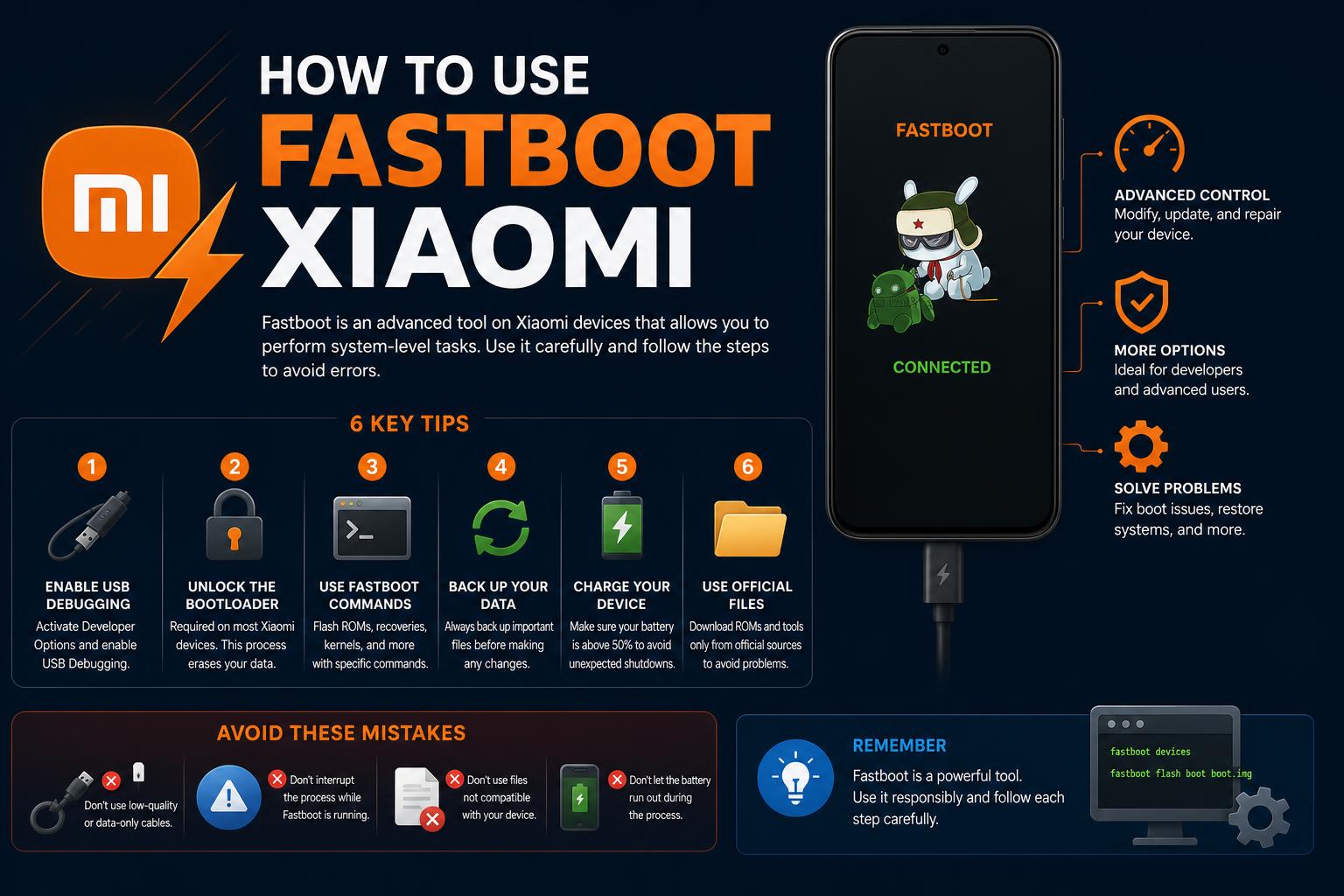
- Fastboot Mode is integral for Xiaomi troubleshooting and advanced customization
- Common stuck issues can often be solved without technical tools
- Step-by-step solutions combine official advice with user-proven methods
If you’ve used a Xiaomi phone or happen to own any of their popular Redmi, Mi, or POCO devices, chances are you’ve encountered the infamous Fastboot Mode at least once. Whether it appeared unexpectedly or because you were tinkering with your phone, this technical state can spark a mix of confusion and concern—especially if your device seems stuck on the quirky Fastboot screen for hours. But don’t worry: with the right know-how, getting back to normal is usually easier than it looks.
In this comprehensive guide, you’ll discover exactly what Fastboot Mode is on Xiaomi devices, how it works, and — most importantly — how to safely exit it if your phone is stuck. With practical advice pulled from real user experiences, official Xiaomi support resources, and proven community troubleshooting, this article equips you to handle Fastboot like a pro, even if tech jargon isn’t your thing.
What Is Fastboot Mode on Xiaomi Phones?
First things first: Fastboot Mode is a special diagnostic and low-level interface available on virtually every Xiaomi, Redmi, and POCO device. It’s designed for engineers, developers, and advanced users who want to perform tasks like flashing firmware, unlocking the bootloader, or install custom ROMs and recoveries. In Fastboot, your phone communicates directly with a computer via a USB connection using Android’s Fastboot protocol — part of the Android SDK platform tools.
But here’s the catch: most regular users don’t need Fastboot Mode very often. In fact, accidentally entering Fastboot is surprisingly common, especially on devices where the button combinations for entering recovery or restarting the phone are similar.
How Does a Xiaomi Phone End Up in Fastboot Mode?
If your Xiaomi phone suddenly shows the Fastboot logo — usually a bunny fixing an Android robot — you probably pressed a specific button combination by mistake. On most models, holding down the Power and Volume Down buttons as the device starts up will boot directly into Fastboot Mode.
Some other common scenarios include:
- Software glitches after a failed update or unexpected shutdown
- Accidental button presses during normal use or when powering on the device
- Custom ROM or bootloader unlock attempts where the process halts unexpectedly
Is Being Stuck in Fastboot Mode Dangerous?
While seeing your phone locked in Fastboot Mode can be unsettling, it usually isn’t dangerous. In this state, the phone isn’t actually running its regular operating system, so your data is typically safe unless specific flashing or erase commands are issued from a connected PC. However, if you can’t exit Fastboot Mode the usual way, it can prevent you from accessing your apps, files, and calls—essentially rendering your phone temporarily unusable.
Common Experiences: Real Users Stuck in Fastboot
A glance at forum posts and community support, like those found on Reddit and Xiaomi’s own FAQ, make it clear: getting stuck in Fastboot happens to everyone, from beginners to tech enthusiasts.
Users often report issues such as:
- Unable to reboot out of Fastboot screen
- Volume or power buttons not responding as expected
- Mi Unlock tool may not help when you can’t boot into Android or enable Developer Options
- Uncertainty whether hardware buttons are malfunctioning or just accidentally held too long
Example from a Reddit user: “My Redmi Note 8 just went to Fastboot mode. I can’t fix it. Tried rebooting, holding the reboot and volume buttons, and nothing works. Mi Unlock tool can’t help because I can’t access Developer Options.”
This kind of problem is exceptionally common and rarely means your device is permanently damaged.
Official Xiaomi Troubleshooting Steps
The Xiaomi support team recommends a tiered series of solutions to get you out of Fastboot Mode. Here’s a summary, adapted into a step-by-step process you can follow right now:
- Leave the phone alone for several minutes. Sometimes the device will attempt to exit Fastboot and reboot by itself, especially if it booted into the mode due to a software hiccup.
- Force restart your phone: Hold the Power button for at least 10 seconds (sometimes up to 20 seconds). The screen should turn black and the device should reboot as normal.
- Inspect your hardware buttons: Make sure none of the volume or power buttons are stuck, broken, or being pressed accidentally — especially if you use a tight case.
- If nothing works, visit an official Xiaomi service center. Persistent issues might require a technician, particularly if a hardware button is defective or there’s deeper system corruption.
Alternative Methods and User-Community Solutions
If the standard fixes don’t resolve the problem, there are additional steps you can try, learned from real-world troubleshooting and technical forums:
- Connect to PC and use ADB/Fastboot tools:
- With the phone in Fastboot Mode, connect it to your computer via USB.
- Install and open Minimal ADB and Fastboot or the official platform tools.
- In your command prompt, type fastboot reboot and press Enter. This sends a reboot command directly to your device.
- Check for battery drain: If your device appears unresponsive and won’t exit Fastboot even with a long press, let the battery drain completely, then charge and try turning it back on.
- Remove protective cases or accessories that might be pressing hardware buttons by mistake.
Why the Mi Unlock Tool May Not Help Everyone
Some users try Mi Unlock — Xiaomi’s official bootloader unlock utility — when stuck, hoping the tool can force the device out of Fastboot. However, this won’t work if:
- You haven’t previously activated Developer Options and OEM Unlocking in device settings, which are inaccessible from Fastboot.
- Your phone isn’t detected by Mi Unlock because the necessary drivers are not installed or the PC isn’t recognizing your phone in Fastboot Mode.
- Network connection is unstable, or official Xiaomi servers are unreachable at the moment.
For the average user stuck on the Fastboot logo, the Mi Unlock Tool can’t solve the problem unless the phone was already prepared for unlocking before entering Fastboot Mode. So, it’s best used for its intended purpose: flashing ROMs, rooting, and related advanced tasks.
How to Prevent Accidental Fastboot Mode in the Future
Most cases of accidental Fastboot mode entry are linked to unintentionally pressing both the Power and Volume Down buttons simultaneously. To reduce the risk next time:
- Take care when removing or attaching phone covers which might push on buttons
- Be mindful when turning on the phone, and avoid pressing multiple buttons at once, especially with gloves or in a hurry
- If your buttons are loose or malfunctioning, consider having them checked at a Xiaomi service center
What If All Else Fails? When to Seek Professional Help
If your Xiaomi or Redmi phone remains in Fastboot Mode even after all troubleshooting — including long-press restarts, checking for stuck buttons, and using PC-based commands — there might be deeper hardware failure or system corruption. This is rare, but it does happen, and official Xiaomi repair service is your best bet for safe, professional assistance.
Don’t attempt advanced flashing or debugging if you’re not familiar with the tools; it can sometimes make things worse or void your warranty.
Extra Tips: Useful Tools and Resources
For those interested in exploring Fastboot mode for customization or development, here are a few reputable resources:
- Minimal ADB and Fastboot: Lightweight toolkit to manage Fastboot commands easily on Windows.
- Android Platform Tools: The official download from Google, essential for developers and advanced users.
- Mi Unlock: If you intend to officially unlock your Xiaomi bootloader.
- MIUI Forums and the r/Xiaomi Reddit community: Friendly spaces for troubleshooting and advice from fellow users.
The intimidating Fastboot Mode screen is among the most discussed quirks of Xiaomi devices. Yet with a little patience and the right approach, most problems can be solved quickly, rarely requiring professional repair. By understanding how your buttons actually work, knowing when to wait, and occasionally connecting to your PC for a helping hand, you’ll never be at the mercy of Fastboot again. Xiaomi’s combination of straightforward hardware and robust community support makes these devices user-friendly, even when things go a bit sideways. Remember, tech hiccups like this are just part of owning a modern smartphone — and now you’re more than equipped to handle it!