
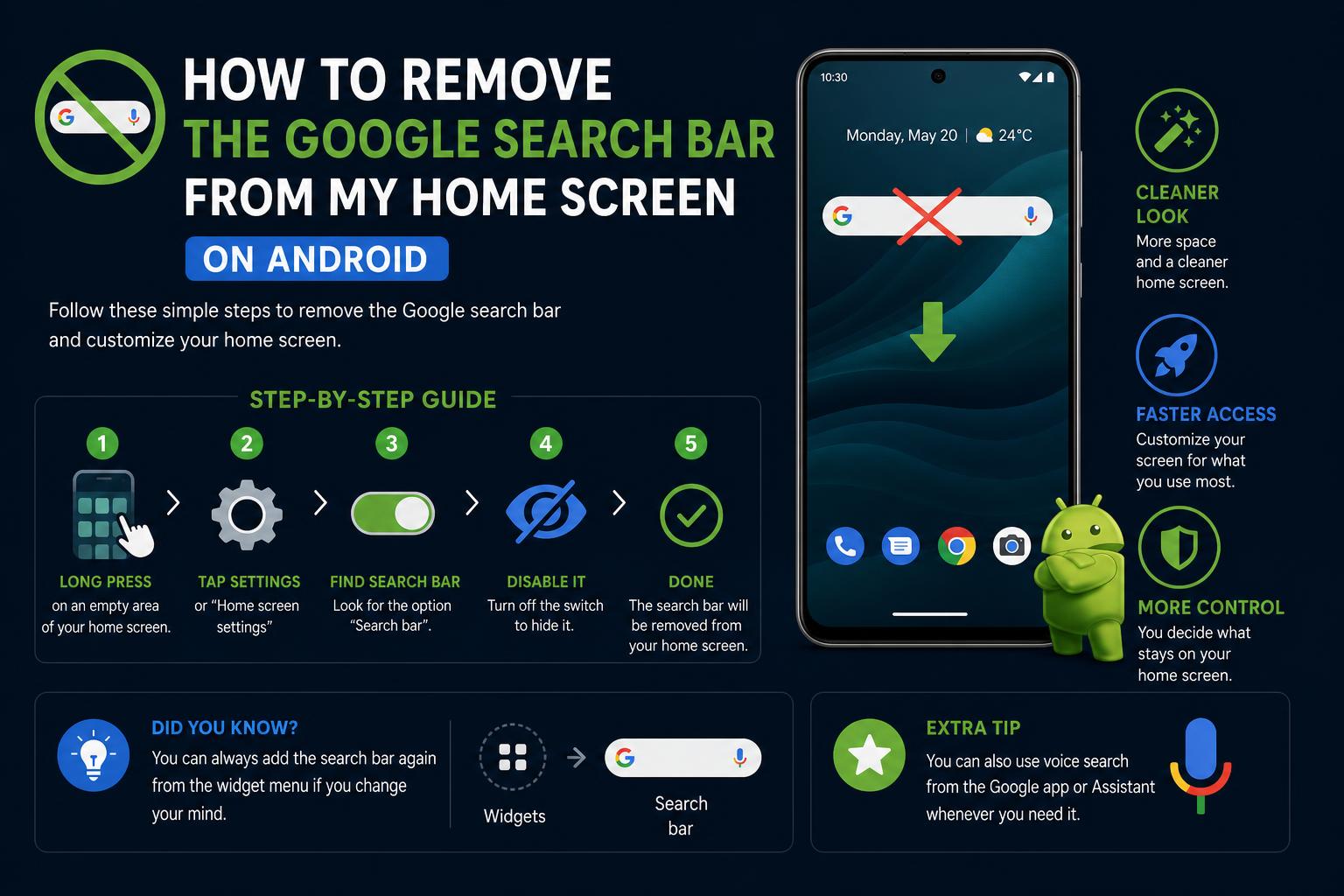
- Stock Android and Pixel phones often lock the Google Search Bar widget in place, limiting removal options through the default launcher.
- Home screen customization settings on brands like Samsung and Xiaomi frequently let you hide or remove the search bar easily.
- Third-party launchers such as Nova Launcher and Microsoft Launcher provide the most flexible solution to remove and rearrange widgets on any Android device.
Is the Google Search Bar on your Android home screen getting in the way, cluttering your interface, or just not something you ever use? You’re definitely not alone! Many Android users, from beginners to tech enthusiasts, find themselves asking how to remove or hide the persistent Google Search widget and take true control over the look and feel of their devices. Whether it’s because you prefer a more minimalist home screen, you use alternative search engines, or you just like things a certain way, understanding exactly how to deal with the search bar can make a big difference.
Android home screens are highly customizable, but some elements like the Google Search Bar can feel stubbornly permanent—depending on your device and launcher. In this ultimate guide, we’ll break down every method available, dig into why some phones make it easy while others lock you out, and show you creative alternatives. We’ll dive into solutions for Pixels, Samsungs, Xiaomis, and more, including tips for all Android users and power moves for advanced customizers.
Understanding the Google Search Bar Placement
The Google Search Bar is a default widget that appears on most Android home screens. Its persistent presence is part usability (for quick searches) and part branding. However, for many users it’s a design annoyance. This widget can be more or less removable depending on various factors:
- Your brand of Android device (Pixel, Samsung, Xiaomi, OnePlus, etc.)
- The launcher (interface) your phone uses—stock launchers are often more restrictive than third-party ones
- Software version (some older models made it easier to tweak widgets, while recent versions may restrict this)
- Whether you’re willing to use third-party launchers, root your device, or just work within system limitations
Quick Methods for Removing the Google Search Bar
On many Android phones, the simplest way to try and remove the Google Search Bar is by long-pressing the widget itself. If you see options like ‘Remove’, ‘Delete’, or a small trash can icon, you’re in luck—it’s removable with just a tap. Here’s how to check:
- Touch and hold the Google Search Bar on your home screen.
- If a menu appears, drag the widget to ‘Remove’ or ‘Delete’.
- If nothing happens or the widget stays put, your phone’s software likely locks it in place.
This direct removal works on many non-Pixel devices and is often as easy as it sounds. Unfortunately, for phones with stricter launchers (like Google Pixel), you might find that the search bar refuses to budge—no matter how hard you try.
Using Home Screen or Launcher Settings
Some Android phones, especially recent Samsung, OnePlus, or Xiaomi models, offer built-in settings to customize what appears on your home screen. Here’s where to look:
- Long-press a blank area of your home screen until you see settings or customization options.
- Tap on settings. Look for options labeled ‘Home screen’, ‘Widgets’, ‘Search bar’, or ‘Customize’.
- If you spot ‘Show Google Search Bar’ or similar, disable it to remove the widget instantly.
It’s worth highlighting that the presence of these options varies widely depending on your device. Some brands (like Xiaomi or certain Samsung models) empower users to toggle the search bar with a couple of taps. Others, like stock Android and Google Pixel, may have the search bar as a fixed feature, impossible to disable within the default settings.
Device-Specific Scenarios
Google Pixel Phones: The Challenge
If you’re using a Google Pixel, you’re facing one of the most locked-down search bar experiences. The Google Search Bar and at-a-glance widgets are deeply integrated into the Pixel Launcher, and cannot be removed through any stock setting or typical long-press removal. Several user conversations (including on Reddit) show that this is a long-standing frustration for the Pixel community:
- No ‘remove’ or ‘hide’ option exists for the search bar in current official Pixel Launcher versions.
- Some recent APK teardowns suggest Google could allow hiding the search bar in future updates, but this has not yet reached public versions as of early 2024.
- If you’re using a Google Pixel and desperately want to remove the search bar, your options are either switching to a third-party launcher or deeper technical mods (rooting or custom ROMs).
Samsung, Xiaomi, and Other Android Brands
Devices from other popular Android manufacturers often offer varying degrees of customization. On a Samsung Galaxy or a Xiaomi device, it’s quite possible you’ll find toggles to turn off the search bar within home screen settings. Even for phones that lock the search bar by default, the level of restriction may be less severe than on pure stock Android models.
If none of the built-in methods works, don’t worry: you still have more moves to try.
Third-Party Launchers: Your Key to Full Control
When the built-in settings don’t give you what you want, third-party launchers are your best friends. A launcher is essentially the app responsible for displaying your home screen and app drawer—replacing it can unlock enormous customization power. Here’s what you gain:
- Almost all third-party launchers let you remove or rearrange the Google Search Bar and any other widgets at will.
- You’ll get bonus options like icon packs, gestures, and advanced widget placement.
- If you ever want the stock experience back, switching is reversible with just a couple of taps.
Popular launchers like Nova Launcher and Microsoft Launcher are excellent choices, offering granular control over every home screen element. These apps are free (with optional paid upgrades), highly rated, and trusted by millions around the world.
How to Switch to a New Launcher
- Download the launcher of your choice from Google Play.
- Open the launcher and follow the setup process (it usually imports your app layout for a smooth transition).
- Once active, long-press the search bar and remove it, or use the launcher’s settings to hide it permanently.
- You can always revert to your default launcher by heading into Settings > Apps > Default apps > Home app and selecting your original launcher.
This approach is safe, reversible, and doesn’t compromise your system security or require advanced technical know-how.
Rooting and Custom ROMs: Advanced Customization
If even third-party launchers don’t give you the deep personalization you crave, you can go further by rooting your Android device or installing a custom ROM. This opens up every possible tweak—but comes with risks and a steep learning curve. Only experienced users should consider this path, and always after backing up your data:
- Rooting tools like Magisk offer extensive customization, including modifying or deleting system widgets like the search bar. However, rooting can void warranties, affect security, and potentially brick your device.
- Custom ROMs such as LineageOS offer full freedom and come without forced Google widgets. You’ll need to choose a ROM compatible with your device and follow the community-supported flashing process.
These advanced solutions are generally overkill unless you’re truly passionate about Android modding. For most users, a third-party launcher is a much friendlier route.
Why Can’t You Remove the Google Search Bar on Some Devices?
Manufacturers and Google themselves have strategic reasons for locking in the search bar. It’s not only about usability—it’s about search data, assistant access, and brand consistency. This is especially true on Pixel devices, as confirmed by countless users in support forums and discussion threads. The frustration is real, especially since previous Android versions (like on the Samsung Galaxy S3) let users freely remove this widget, but newer models often lack this flexibility. There’s currently no official statement from Google about relaxing this restriction, though community enthusiasm for such a feature remains strong.
Recent and Upcoming Changes for Pixel Users
Savvy Android users keep a close eye on APK teardowns and leaked features, and recent analysis by Android Authority suggests that Google is experimenting with making the search bar removable on Pixel phones in the future. Although this is promising, these features are not yet on any released software as of early 2024. The code exists, but Google may or may not enable it in future updates. Stay tuned to trusted tech news sources for the latest developments if you’re a Pixel user hoping for change.
Tips for a Cleaner, More Personalized Android Home Screen
Besides hiding the Google Search Bar, here are extra steps you can take to give your Android home screen a fresh start:
- Experiment with widget arrangements—think weather, calendar, or productivity shortcuts that add value.
- Group apps into folders or hide less-used apps in the launcher’s drawer for a streamlined look.
- Try out new wallpapers, icon packs, or even animated backgrounds for a unique feel.
- Explore gesture controls for faster access to search, settings, or your favorite apps.
Your Android device is yours—make it look and function the way you want!
Removing the search bar allows you to create a cleaner, more personalized home screen. While this can be trickier on some Pixel models, options involving third-party launchers offer effective, reversible solutions. Choosing between basic methods, advanced tools, or rooting depends on the level of customization you desire and your technical comfort level. Always keep in mind the implications of major modifications and back up your data before taking riskier steps. Tailoring your device to your style has never been more accessible; it is simply a matter of exploring and deciding which path works best for you.