
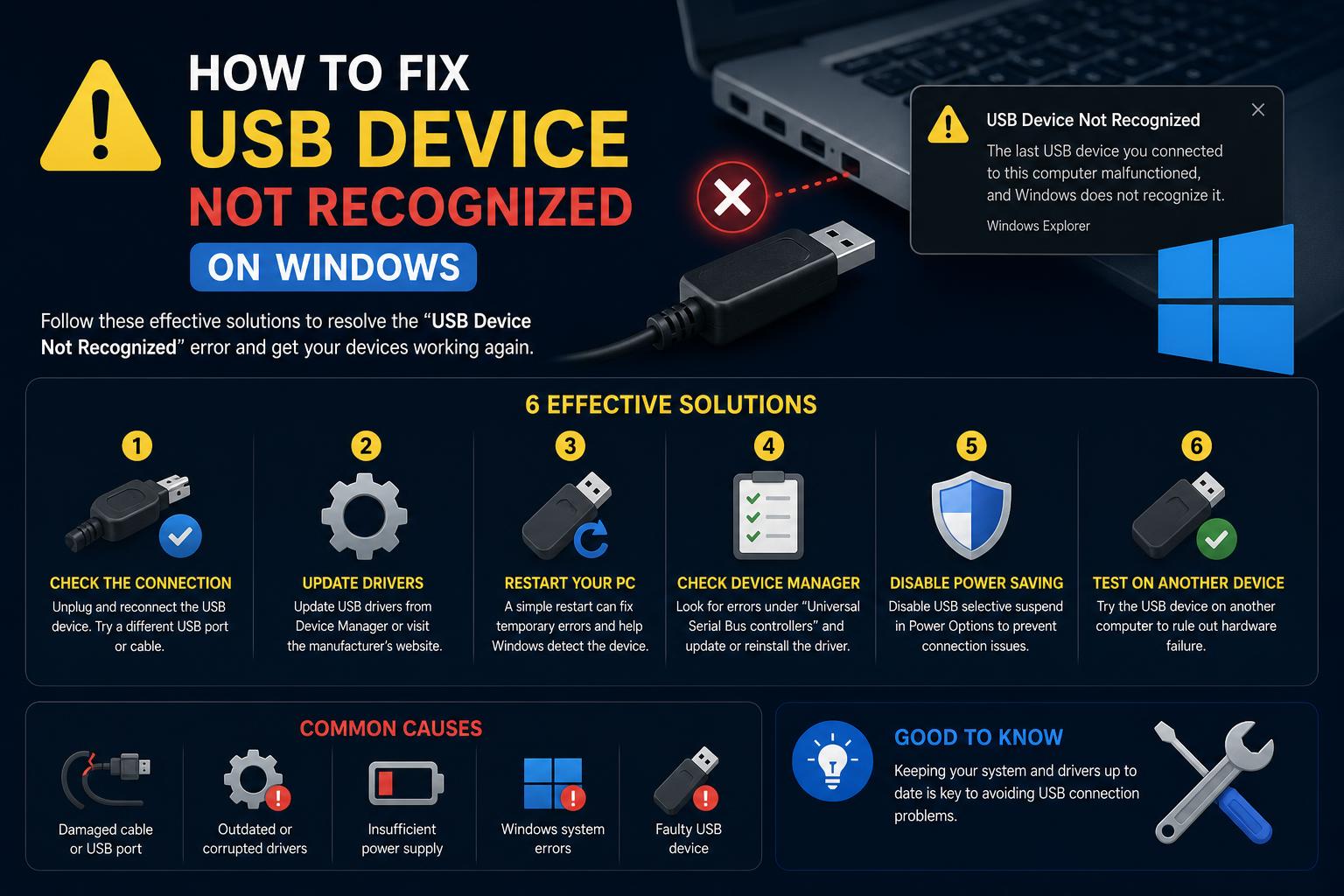
- Driver and power management settings are the leading causes of USB device recognition failures.
- Physical inspection and using high-quality cables can resolve many connectivity problems.
- Power management tweaks and BIOS updates may be required for persistent issues.
You’ve plugged in your USB device, expecting instant connectivity, but—nothing. Maybe you’re greeted by that dreaded pop-up: ‘USB Device Not Recognized.’ It’s a frustrating situation, especially when you need a file or want to use your favorite gadgets immediately. If you want to learn how to troubleshoot USB recognition issues, in this guide you might also be interested in learning how to repair Windows 11 using the command prompt to resolve system failures that may affect USB device recognition.
Let’s face it: USB port trouble is more common than most people think. With causes ranging from power issues to outdated drivers, here are some practical solutions. If you have tried multiple methods and want an advanced solution, it might also be helpful to check the page on Surface magnetic charger issues to verify if the USB ports on some Surface devices exhibit similar faults.
Main Symptoms of a USB Device Not Being Recognized
- “USB Device Not Recognized” or similar error messages appearing in notifications on Windows or another operating system.
- The device does not appear in File Explorer (Windows), Finder (Mac), or the Device Manager list.
- Connection sounds (a series of connect/disconnect chimes) but no device appears.
- Slow data transfers or intermittent connectivity—devices appear, disappear, and reappear.
- Yellow warning marks on USB devices in the Device Manager.
- Error codes such as Code 10, Code 28, or “Device Descriptor Request Failed”.
Once you have identified the symptom, you can be more effective in looking for the cause and the solution. Now, let’s dive into each contributing factor and what you can do about it.
Understanding What Causes USB Device Recognition Failures
USB recognition failures are usually the result of both hardware and software issues. Let’s look at the most frequent triggers, each with its specific solution:
1. Outdated, corrupted, or missing USB drivers
Drivers are the invisible translators between your operating system and the USB hardware. If a driver is missing, poorly installed, outdated, or incorrect, the device may refuse to work or be recognized. For example, if you are not connected to the internet during installation, the automatic driver download may fail.
What you can do:
- Check Device Manager (Windows) or System Information (Mac/Linux) for devices with errors or without identification.
- Right-click on the problematic item, select “Update driver”, or allow Windows to search for compatible drivers online.
- If automatic solutions fail, download the latest drivers directly from the device manufacturer’s website.
- Sometimes, uninstalling the problematic driver and restarting your computer will prompt the system to reinstall the correct version automatically.
Pro tip: For specific instructions and error codes, check out Microsoft’s official troubleshooting guide at Microsoft USB Troubleshooting.
2. Too many adapters or low-quality/long cables
A simple USB connection can get complicated with adapters, extenders, and long cables, causing signal degradation. Every adapter, hub, or extension between your device and the computer increases the chances of signal loss—and the older or cheaper the cables are, the worse it gets.
How to fix it:
- Always use high-quality, shielded cables of the shortest possible length.
- Whenever possible, connect devices directly to the computer, avoiding unnecessary adapters and hubs.
- If you need distance or multiple adapters, use active repeaters or powered hubs to boost the signal.
- Consult technical guides regarding the maximum recommended lengths for your USB version (generally under 5 meters for USB 2.0 without an active repeater).
Additional info: For complex setups (audio, video), review the detailed advice in Newnex’s USB troubleshooting tips.
3. Insufficient power to the USB device
Not all USB ports supply the same amount of power—some provide more, others less (especially on older computers or low-end laptops). Power-hungry devices, like external hard drives, often require more than the port can give, especially with long cables or unpowered hubs. The lack of adequate power can cause the device to disappear, malfunction, or generate repeated connection alerts.
Recommended actions:
- Use shorter and thicker cables (lower AWG) to reduce power loss.
- Connect devices directly to the rear ports of the computer, as they usually supply more power.
- Opt for externally powered USB hubs for multiple devices or those requiring a lot of power.
- On laptops, plug in the charger when using several USB devices (working on battery power alone can decrease the available power).
- Some devices need their own external power supply; always check the manufacturer’s instructions.
4. Windows power management settings and selective suspend
Modern Windows systems prioritize saving energy. USB selective suspend is designed to turn off unused ports to prolong battery life, but sometimes it disables a port in use without you noticing.
How to adjust it:
- Go to Control Panel > Power Options > Change plan settings > Change advanced power settings.
- Expand the ‘USB settings’ section, then ‘USB selective suspend setting’.
- Disable it for both options: On battery and Plugged in.
- Restart your computer for the changes to take effect.
If you use a desktop computer or frequently plug and unplug devices, disabling selective suspend can prevent mysterious disconnections.
5. Physical damage or malfunctioning USB ports/devices
Bent pins, worn contacts, or internal physical damage are common causes of connection issues. Dust, dirt, or corrosion in the port can also successfully block the connection.
Simple diagnosis:
- Visually inspect both the device and the port. Use compressed air to clean them, and avoid metal objects.
- Test your device on another computer or port. Does it work? If yes, the problem is with your computer.
- If other devices fail in the same port, it could be a physical issue or a motherboard problem.
- If your device does not work on multiple computers, it may be dead or require professional repair.
6. BIOS or UEFI settings and outdated BIOS
Newer computers allow enabling or disabling USB support on the motherboard. If these options are misconfigured or outdated, the operating system might not even detect the USB port.
Steps to fix in BIOS:
- Restart and press the appropriate key to enter BIOS (often F2, Del, or Esc).
- Look for settings named ‘USB Configuration’, ‘Integrated Peripherals’, or similar, and enable them if they are disabled.
- Check for BIOS updates on the manufacturer’s site and update if necessary.
- Save the changes and restart.
For Dell computers, the Dell SupportAssist tool makes updates much easier.
7. Alternate modes: Thunderbolt, USB-C, and others
With USB-C and Thunderbolt, there are additional variables. Cables, ports, and devices may only support certain profiles or alternate modes (such as video output or charging). Plugging into the wrong port, using an incompatible cable, or doing so through a basic hub instead of a Thunderbolt dock can cause recognition issues—even if the physical connection is correct.
Steps to troubleshoot advanced ports:
- Confirm that your computer and the device support the same specifications (Thunderbolt, USB 4, etc.).
- Use only certified cables or those recommended by the manufacturer.
- Connect directly, avoiding extra hubs or adapters.
- In Windows, look for the appropriate symbols: Thunderbolt ports have a lightning bolt icon.
- Update Thunderbolt drivers from your PC’s support page.
Common USB error codes in Windows and their meaning
When an error appears in Device Manager, it is usually accompanied by a code. Here we interpret the most important ones regarding USB recognition failures:
- Code 10 (“This device cannot start”): This can be a driver issue or, on rare occasions, faulty hardware. Try updating or reinstalling the driver.
- Code 28 (“The drivers for this device are not installed”): Missing driver. Download and install it from the manufacturer’s site.
- ‘Device Descriptor Request Failed’: Frequently indicates a hardware problem, faulty cable, or incompatible USB protocol.
- ‘The last USB device you connected to this computer malfunctioned’: This means the device may be failing, there is a power issue, or a conflict in the Windows USB stack.
- ‘Power surge on the USB port’: The device is trying to draw more power than the port can supply. Test on another port or use a powered hub.
How to identify the code:
- Open Device Manager.
- Look for warning marks on the devices.
- Right-click, select ‘Properties’, and check the ‘Device status’ for the code and description.
The step-by-step guide to troubleshooting USB recognition issues
This method combines techniques proven by manufacturers and official Microsoft solutions:
Step 1: Basic solutions and physical check
- Restart your computer (sometimes a simple reboot resolves the issue).
- Test on another USB port or a different computer.
- Inspect the port for dust, dirt, or bent pins. Clean with compressed air and avoid metal objects.
- Change the USB cable if it’s detachable; faulty cables are a frequent cause.
Step 2: Update drivers and Windows
- Check Windows for pending updates in Settings > Update & Security > Windows Update.
- Update drivers in Device Manager, preferably by downloading them from the manufacturer’s website.
Step 3: Adjust power settings
- Disable “Allow the computer to turn off this device to save power” for ‘USB Root Hubs’ in Device Manager.
- Plug the computer into a power outlet, especially on laptops.
- Disable USB selective suspend in the advanced power options.
How to Repair Windows 11 Using Command Prompt: Advanced Techniques & Best Practices
Step 4: Remove conflicting or corrupted devices
- In Device Manager, uninstall all devices under ‘Universal Serial Bus controllers’ and restart so Windows reinstalls them cleanly.
- Disconnect hubs or repeaters and test if the device is recognized directly.
Step 5: BIOS and firmware updates
- Consult the manufacturer’s page to update your BIOS or UEFI.
- Reset BIOS settings to default values if changes were previously made.
Step 6: Advanced troubleshooting for USB-C and Thunderbolt
- Verify compatibility in the specifications of both the computer and the device.
- Use only certified or recommended cables.
- Update Thunderbolt drivers and check BIOS settings.
Step 7: Verify specific devices
- Some devices require specific drivers or firmware; check the manufacturer’s websites.
- For USB-C audio issues, remember that many devices only accept digital adapters.
Frequently Asked Questions about USB ports and devices
How do I know if my USB ports support USB 2.0, 3.0, or 4.0? Check your computer’s manual or specifications; USB 3.0 ports are usually blue or marked “SS”.
Why does my device work on another computer but not mine? It is likely a driver issue, a disabled port, or a software configuration problem. Follow the troubleshooting steps above.
Can I use third-party utilities to update drivers? Tools like Driver Booster can help, but official manufacturer programs (Dell Command | Update, HP Support Assistant) are safer.
Is it safe to clean a USB port? Yes, using only non-conductive tools like compressed air. Avoid liquids or metal objects.
If a port is physically damaged, can I repair it? Only cleaning is fine; for severe physical damage, seek professional help.
Best practices to avoid USB issues in the future
- Always safely eject before disconnecting USB devices to prevent data loss.
- Keep drivers and your operating system updated; frequent updates solve many problems.
- Minimize the use of unpowered USB hubs or long daisy chains of adapters.
- For high power consumption devices (hard drives, large printers), use externally powered ports.
- Avoid low-quality cables or adapters as they cause failures and complicate troubleshooting.
What to do if nothing works?
If you have tried all the steps and your USB device or port still doesn’t work, you can:
- Test on another computer to verify if the problem lies with the device or your PC.
- Check if you still have a warranty; many brands offer repair or replacement.
- Use advanced diagnostic tools provided by the manufacturer.
- Consult specialized forums or communities, where solutions for brand or model-specific issues are often posted.
Complete table: error messages, causes, and common solutions
| Error | Probable cause | Recommended action |
|---|---|---|
| USB Device Not Recognized | Driver issues, faulty cable, failed port | Update drivers, test port, change cables |
| Power Surge on USB Port | Device consuming too much power | Use a powered hub, test on a higher-powered port |
| Device Descriptor Request Failed | Hardware or compatibility issue | Test with another cable, check firmware |
| This device cannot start (Code 10) | Corrupted or incompatible driver | Reinstall or update driver |
| Device appears/disappears repeatedly | Power issue or loose connection | Use a powered hub, verify contact |
| Yellow exclamation mark in Device Manager | Driver conflict or hardware failure | Check the error code and follow specific steps |
Additional resources
- Microsoft USB troubleshooting:
- Dell USB troubleshooting guide:
- Advanced wiring and hub tips on
Microsoft Surface Magnetic Charger Issues: Complete Troubleshooting & Fixes