
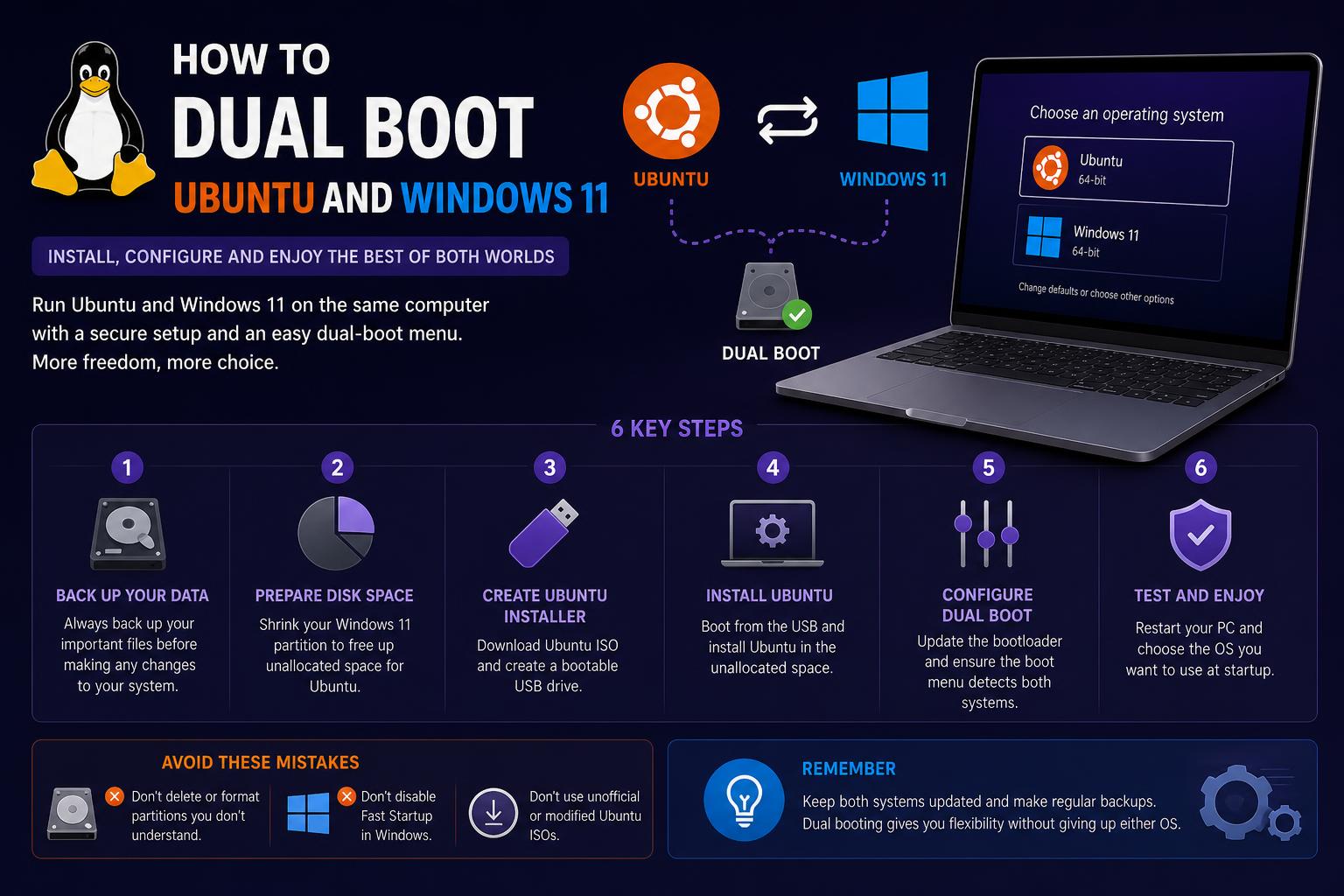
- Ensuring UEFI and BitLocker compatibility greatly reduces installation issues during Ubuntu and Windows 11 dual boot setups.
- Modern Ubuntu installers offer simple dual boot creation and full drive encryption via graphical wizards with LUKS and LVM.
- Bootloader (GRUB, EFI) troubleshooting, partitioning, and BIOS configuration are essential for maintaining system stability and OS accessibility.
Have you ever wanted the flexibility to use both Windows 11 and Ubuntu on a single machine, without the hassle of juggling two separate computers? Maybe you’re a gamer who needs access to Windows titles, but you also want to explore the robustness and privacy of Linux. Or perhaps you just want the peace of mind that comes from having an extra operating system if one goes down. Whatever your reason, dual booting Ubuntu and Windows 11 opens up a world of possibilities—if you do it right.
With advancements in both Windows and Ubuntu over the past few years, setting up a dual boot system has never been easier, but there are pitfalls and caveats to be aware of. State-of-the-art installers support full disk encryption, clever partitioning, and streamlined bootloader setups, but a lack of preparation can still leave you with a bricked bootloader or inaccessible data. This comprehensive guide covers everything—from the initial backup through installing with encryption, solving tricky boot issues, and even sharing folders between operating systems—mirroring the latest community knowledge, forum tips, and hands-on expert guides updated through 2026.
Why Dual Boot Ubuntu and Windows 11?
Dual booting gives you the power to choose your optimal working environment every time you start your PC. Whether you need Linux’s vast development toolkit or Windows’s unmatched compatibility with certain apps and games, a dual-boot setup combines the best of both worlds. Ubuntu, especially its latest LTS releases, provides long-term support, while Windows 11 offers seamless productivity and hardware support out-of-the-box. For privacy or security-concerned users, dual booting also allows you to leverage full disk encryption on both systems.
Planning a Dual Boot: Preparation is Everything
Before you dive into the actual OS installations, spending time on backups and up-to-date system configurations can save hours of frustration and lost files. Here’s what you need to know right from the get-go:
- Back Up All Critical Data: You will be manipulating disk partitions and possibly system bootloaders. Copy your essential files—documents, photos, code, anything irreplaceable—to an external drive or reliable cloud storage. Tools like rsync or SCP are excellent for transferring large amounts of data securely, especially if you already use Ubuntu or another Linux distro.
- Check System Compatibility: Modern guides, including the most up-to-date ones, assume your machine uses UEFI firmware (not legacy BIOS), which brings better compatibility with encryption and newer security standards. Boot into your system information panel on Windows (search for ‘System Information’) and verify that ‘BIOS Mode’ says UEFI.
- Disable BitLocker on Windows: BitLocker must be suspended or disabled while partitioning, otherwise the Linux installer will be unable to shrink the Windows partition. After the dual-boot is ready, BitLocker can be safely re-enabled from within Windows.
- Turn Off Windows Fast Startup: This Windows feature keeps your disk in a semi-hibernated state to speed up booting, but it severely interferes with Linux’s access to the Windows disk. Disable Fast Startup in Windows Power Options by unchecking ‘Turn on fast startup.’
- Update Your BIOS/UEFI Firmware: A recent BIOS update can address rare boot issues, fix UEFI bugs, and ensure compatibility across both OSes. While not always mandatory, it’s recommended for smooth installations, especially on laptops or newer hardware.
Choosing the Right Order: Windows First, Ubuntu Second
For virtually all setups, it is best practice to install Windows 11 first and Ubuntu second. The Windows 11 installer neither recognizes nor preserves Linux partitions or custom bootloaders, overwriting them if installed after Linux. Meanwhile, the latest Ubuntu installer is designed to detect existing Windows partitions and handle dual booting gracefully, even offering encrypted options out-of-the-box.
Partitioning: Making Room for Ubuntu
Most users have a single large Windows partition, but you’ll need to allocate some disk space for Linux. Here’s how:
- Manual Method (Recommended): Boot into Windows, launch ‘Disk Management’ (press Win+R, enter
diskmgmt.msc), right-click your C: drive and select ‘Shrink Volume.’ Decide how much free space to allocate—anywhere from 30GB for lightweight use to 100GB+ for serious development. The result will be ‘Unallocated Space’—don’t format this! The Ubuntu installer will recognize and offer to use it. - Automatic (Installer Handling): If you skip manual partitioning, the Ubuntu installer can usually shrink partitions for you, provided BitLocker is off and there is enough free space.
Never delete or format the Windows (C:) partition from within Linux. Always let the installer do the heavy lifting, unless you are an advanced user who understands GPT partition structures and EFI requirements.
Creating a Bootable Linux USB: Your Toolkit
Download the latest Ubuntu ISO from the official Ubuntu downloads page. You’ll need a USB stick (16GB+ is recommended, especially for larger Ubuntu/distribution ISOs, which are now up to 6GB for recent releases).
- Windows Users: Rufus is a top choice. Just open it, select your USB and the ISO, and hit ‘Start’ or ‘Flash.’
- Linux or Mac Users: BalenaEtcher is cross-platform, simple, and free. Alternatively, you can use command-line
dd(with extreme caution), or Ventoy, which supports multiboot USBs for power users.
Take care: This step will erase everything on the USB drive, so make sure you haven’t left important files on it.
Setting Up BIOS/UEFI: UEFI, Secure Boot, TPM & Boot Orders
Before booting your Ubuntu installer, check the following BIOS/UEFI settings:
- UEFI ONLY: Disable ‘Legacy Boot’ or ‘CSM,’ ensuring only UEFI mode is enabled. This avoids install conflicts later.
- Secure Boot: Most Ubuntu releases since 2022 are compatible with Secure Boot. You can generally leave this enabled unless you run into issues booting the live USB, in which case temporarily disabling it may help.
- TPM: Windows BitLocker expects TPM (Trusted Platform Module) to be enabled, but Linux can install without it. If you use BitLocker, ensure TPM is turned on.
- Boot Order: You can always change this post-install, but for now, set your USB device at the top of the list for the initial installation.
Starting the Ubuntu Installer
Plug in your bootable USB, reboot, and enter your laptop or desktop’s boot menu (usually F12, F10, ESC, or DEL—watch for prompts at startup). Choose the UEFI version of your USB stick (often labeled as ‘UEFI: brandname’).
Once the Ubuntu Live environment loads, click ‘Try Ubuntu’ or go directly to ‘Install Ubuntu’ to start the process.
Installer Walkthrough: Dual Booting with or Without Encryption (2024-2026)
The experience varies slightly by Ubuntu version, but for Ubuntu 24.04 and newer (including 25.04+), graphical dual boot with encryption is now supported out-of-the-box. Here’s how the process flows:
Bootloader Choices and Partitioning
- Proceed through keyboard, language, and updates screens. Connect to Wi-Fi if needed (to receive updates and drivers during install).
- At the disk setup screen, select ‘Install Ubuntu alongside Windows Boot Manager‘ if available. This is the recommended option and will automatically partition your unallocated space.
- If this option is not visible, choose ‘Something else‘ for manual partitioning. Select your unallocated space, create a new partition (ext4, mount point
/), and optionally add a swap partition if you wish. Make sure the existing EFI System Partition (usually 500–1000MB, FAT32) is mounted at/boot/efiand is not reformatted. - Encryption: In Ubuntu 25.04+ (and experimental 24.04 releases), you’ll see options to encrypt your Ubuntu installation with LUKS+LVM. Choose ‘Encrypt with a passphrase’ and provide your desired password. This will secure all Linux files and data at rest. Complete the user setup (create account, password, etc.). Remember this passphrase! It’s required on every Linux boot.
A summary screen will provide a preview of the final disk partitions, with Windows, Ubuntu, and EFI partitions all managed. Verify, then proceed.
Special Case: BitLocker and Handling Partition Encryption
If you want to maximize security and privacy, you can have both operating systems encrypted—Ubuntu with LUKS and Windows with BitLocker. Here’s the optimal order for this setup:
- First, disable BitLocker in Windows. If it’s already enabled, temporarily suspend it to allow the installer to shrink the Windows partition.
- Install Ubuntu alongside Windows using the steps above and select encryption when prompted. Complete installation.
- After Ubuntu is installed, boot back into Windows and re-enable BitLocker. Make sure to save your BitLocker recovery key somewhere outside of your PC. This can be essential if anything goes wrong with reboot order or bootloaders.
- If you encounter repeated BitLocker key requests, try booting directly into Windows from your UEFI boot menu, bypassing GRUB. Sometimes, chainloading through GRUB can confuse BitLocker’s security checks.
With both systems encrypted, your data remains secure even if your device is lost or stolen. Just remember: if you ever want to access a BitLocker-encrypted Windows drive from within Ubuntu, you’ll need your recovery key and additional NTFS-3G/cryptsetup tools.
Completing Installation: Final Steps
After Ubuntu finishes installing, remove the USB drive and reboot your system. If everything went according to plan, your PC should start with the GRUB menu showing both Ubuntu and Windows Boot Manager. Use arrows to select the preferred OS and hit Enter.
You might want to use tools like Grub Customizer after installation to order or edit the boot menu titles to your liking.
What if You Don’t See GRUB or Can’t Boot Ubuntu?
- If your machine boots directly into Windows: The UEFI boot order needs to be changed. Enter your BIOS (typically F2, Delete, or Esc), then make sure ‘Ubuntu’ or your Linux install sits above Windows Boot Manager. Save the changes and reboot.
- Missing Windows entry in GRUB: Boot into Ubuntu and run
sudo update-grubin the terminal. This forces the system to re-detect available operating systems. In rare cases, you may need to usesudo efibootmgror manually tweak /etc/default/grub.
Advanced: Troubleshooting Boot Issues and Rescue Scenarios
Even with clean installations, things don’t always go as planned. Here’s how to handle common boot problems, using advanced tricks from the Linux community and power users:
- No GRUB Menu or Boot Device Not Found: Sometimes, especially after a BIOS update or Windows feature upgrade, your firmware boot order resets. Rearranging boot priorities will usually fix this.
- Landing at ‘grub rescue>’ Prompt: This indicates a missing or misconfigured bootloader. The easiest fix is using the Boot-Repair live utility. Boot from this tool, select ‘Recommended Repair,’ and let it rebuild EFI boot entries and GRUB configuration.
- Partition Table Woes: On older MBR/Legacy BIOS machines, you’re limited to four primary partitions. Consider converting one to an extended partition, or, where feasible, migrate to GPT/UEFI for better flexibility.
- BitLocker Recovery Insanity: If you’re asked to provide the BitLocker recovery key every time you boot Windows after dual-booting, you may need to bypass GRUB when booting Windows (choose the Windows Boot Manager from UEFI directly) or try toggling Secure Boot/TPM settings per your vendor guide. Always keep your recovery key!
- Kernel or Driver Issues: Dual-booters with hardware like NVIDIA GPUs sometimes face driver-related glitches. The Ubuntu installer can add proprietary drivers during install, but you may need to boot into ‘safe graphics mode’ on first boot, then use ‘Additional Drivers’ in Ubuntu to grab official NVIDIA or Intel drivers. For detailed troubleshooting, the Ask Ubuntu and Linux Community forums are invaluable resources.
Special Topics: Using Multiple Linux Distros; Sharing Folders Between OSes
Multi-Booting: More Than Two OSes
Some expert users maintain triple-boot or multi-boot landscapes (e.g., Windows 11, Ubuntu, and Kali Linux on separate partitions or disks). The same principles apply: shrink existing volumes, leave unallocated space, and let each installer use/adapt EFI partitions for boot entries. Always install Windows first, then each Linux in turn, letting the most recently installed distribution manage GRUB and bootloader configurations.
One of the best ways to bridge your workflows is to set up common folders accessible from both OSes. Here’s how:
- On a shared NTFS partition: Create a ‘Data’ partition in Windows (format as NTFS), then mount it in Ubuntu (the OS handles NTFS read/write out-of-the-box these days). Using hwinfo can help you identify and troubleshoot hardware for best mount options.
- Use Symbolic Links: For advanced users, you can redirect your Documents, Downloads, etc., in both OSes to folders on the shared partition using symlinks. This keeps your files in sync without duplication.
- Cloud and NAS solutions: Tools like Nextcloud, Dropbox, or network-attached storage can be synced from both systems, although direct partition sharing is preferred for local-only workflows.
Systems built prior to 2013 or lacking UEFI firmware might require different configurations, often involving legacy BIOS and MBR partitioning. The key difference is that BIOS systems embed the bootloader in the Master Boot Record, limiting the number of primary partitions and often needing manual repair if boot issues occur. UEFI systems, utilizing the EFI System Partition, offer more flexibility, better stability, and support for multiple OSes without conflicts. Most recent guides and tools assume a UEFI setup to simplify dual-boot configurations.
Securing Your Setup: Full Disk Encryption
Security-conscious users can now encrypt both Ubuntu and Windows with little hassle thanks to recent advancements in installers. Ubuntu’s graphical installer now includes options for encrypting your Ubuntu install with LUKS (Linux Unified Key Setup) and LVM (Logical Volume Manager), making this process as simple as ticking a box and entering a password. Windows 11 Home may automatically enable BitLocker on some hardware, so double-check both OSes after setup.
Encrypted disks can’t be trivially read from another OS, protecting your files in the event of theft or loss. However, always save your recovery and encryption keys externally—cloud storage, an encrypted USB, or even a secure printout—for emergencies.
Staying Up-to-Date: Maintenance & Updates
Once dual boot is set up, keeping both systems current is the key to security and stability.
- Windows 11: Use Windows Update regularly and check BitLocker status after major feature upgrades.
- Ubuntu: LTS (Long Term Support) releases, like Ubuntu 24.04 LTS, receive security patches for five years, while Ubuntu Pro and ESM (Expanded Security Maintenance) can upgrade support to a full decade. Keep your system updated via
aptor Ubuntu’s graphical updater.
Upon booting into Ubuntu for the first time, you may get a prompt to enable Ubuntu Pro. Doing so adds access to advanced security patches (ESM), live kernel patching (Livepatch), and other commercial features. You can read more and subscribe through your Ubuntu One account at the official Ubuntu Pro site.
[relacionado url=”https://www.ikkaro.net/how-to-fix-windows-stop-code-errors-and-blue-screen-bsod-problems-the-complete-guide/”]
The Community Knows Best: Forums, Collaboration, and Help
For every challenge, there’s a Linux veteran or enthusiastic beginner on a forum ready to help. Both AskUbuntu and Linux Community are packed with proven solutions, workarounds, and configuration scripts. If you encounter unique hardware (NVIDIA graphics, touchpad quirks, or cryptic installer errors), don’t hesitate to check these platforms; many issues are already solved in detail.
Linux power users also enthusiastically share tips for multi-distro booting, partitioning strategies using fastboot or Pi-hole, and even methods for reverting bootloaders if you want to return to a Windows-only machine in the future.
Final Thoughts: Dual Boot is Easier and Safer Than Ever (2024–2026)
Today, dual booting Ubuntu and Windows 11 has evolved from a daunting, error-prone process to a straightforward operation thanks to smarter installers, improved cross-compatibility, and a collaborative tech community. The critical steps remain preparing reliable backups, configuring UEFI settings, handling partitions safely, and leveraging the ever-improving bootloader technology that lets you seamlessly jump between Linux and Windows at every startup. Whether you want deep privacy with full disk encryption, or simply the ability to develop code in Ubuntu and fire up a game in Windows, dual booting offers it all—with more reliability and fewer headaches than ever before.
Maintaining backups, securing your recovery keys, and seeking advice from community forums will help ensure your dual-boot setup remains stable and secure over time. Enjoy the flexibility and power of a machine capable of running multiple OS environments effortlessly.