
- Gboard is developing a shortcut that may paste the newest clipboard item while preserving bold, italic and other formatting.
- The keyboard already combines multilingual typing, translation, voice input, clipboard history, editing gestures, Emoji Kitchen and Wear OS support.
- Most crashes, lag and update failures can be addressed through cache management, settings adjustments, reinstalling or temporarily removing updates.
- Official Gboard protects ordinary typed content, while unofficial modified packages require careful scrutiny of routing and authentication.
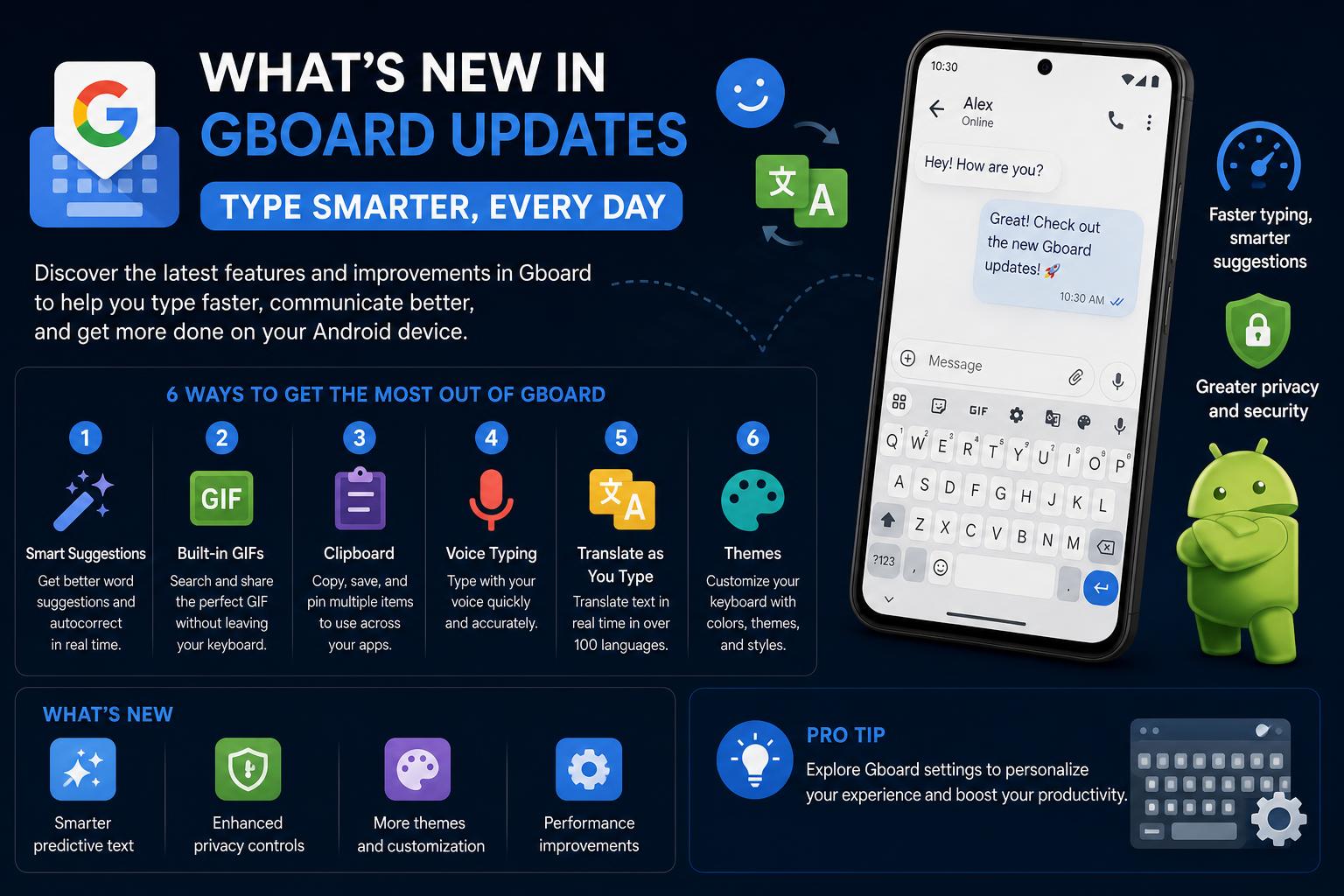
Gboard updates go far beyond adding a new button or changing the keyboard’s appearance. Google’s Gboard keyboard continues to evolve through interface experiments, smarter clipboard tools, voice-input improvements, compatibility fixes and features that are often released gradually. Some changes arrive publicly through Google Play, while others are discovered inside test versions of the application before Google announces or activates them for everyone.
Gboard availability can vary between two people using the same keyboard, who may not always see exactly the same interface or settings. Availability can depend on the installed version, device model, Android edition, language, account and server-side rollout. This guide brings together the latest reported developments, the keyboard’s established capabilities, useful tools that are easy to overlook, troubleshooting advice, privacy details and the questions users should ask before installing unofficial modifications.
What is changing in recent Gboard updates?
Formatted clipboard content is one of the most interesting changes currently under development. Evidence found during an examination of the application indicates that Google is preparing a toolbar shortcut for pasting text while preserving elements such as bold styling and italics. Ordinary pasting can strip this formatting, so a dedicated command would make it easier to move rich text between compatible applications without rebuilding its appearance manually.
[relacionado url=”https://www.ikkaro.net/what-is-gboard-keyboard/”]
The proposed formatting option may be limited to the most recently copied passage. Older entries stored in Gboard’s clipboard history would apparently not receive the same treatment. The feature has been identified in application code rather than announced as a universally available release, which means its design, restrictions or launch schedule could change before a public rollout.
Android already supports formatted pasting, but the process is less immediate. Users generally need to press and hold inside the destination text field and then choose the relevant paste command from the contextual menu. Placing that action directly on Gboard’s toolbar would make it more visible and reduce the number of taps, especially for people who regularly move styled text between editors, email applications and productivity tools.
Two substantial Gboard upgrades have also been mentioned in reports, although the available headline does not provide enough technical information to identify them responsibly. A headline alone should not be treated as confirmation of specific capabilities. Until Google documents those changes or they become functional in a public build, users should distinguish between released updates, limited experiments and features merely found during application analysis.
The core features available in Gboard
Gboard combines conventional typing with alternative input methods. Gboard Glide Typing lets users enter words by moving a finger continuously from one letter to another. Voice typing converts speech into text, while handwriting support accepts both printed characters and cursive writing. The keyboard also includes emoji search and GIF discovery, although some of these functions are unavailable on devices running Android Go.
Multilingual input reduces manual keyboard switching. When several supported languages are enabled, the keyboard can offer predictions and corrections based on them. Its catalogue covers hundreds of varieties, including English, Spanish, French, German, Italian, Portuguese, Dutch, Greek, Polish, Romanian, Russian, Ukrainian and Turkish.
Language coverage extends beyond European options. Examples include Afrikaans, Amharic, Arabic, Assamese, Azerbaijani, Bavarian, Bengali, Bhojpuri, Burmese, Cebuano, Chhattisgarhi, Chittagonian, Czech, Deccan, Filipino, Gujarati, Hausa, Hindi, Igbo, Indonesian, Javanese, Kannada, Khmer, Kurdish, Magahi, Maithili, Malay, Malayalam, Marathi, Nepali, Northern Sotho, Odia, Pashto, Persian, Punjabi, Saraiki, Sindhi, Sinhala, Somali, Southern Sotho, Sundanese, Swahili, Tamil, Telugu, Thai, Tswana, Urdu, Uzbek, Vietnamese, Xhosa, Yoruba and Zulu. Chinese input includes Mandarin, Cantonese and other varieties, while Japanese and Korean are supported as well.
Built-in Google Translate enables in-keyboard translation. This does not eliminate the need to review context, tone and names, but it can make multilingual conversations considerably faster. Combined with language-aware suggestions, it turns the keyboard into a practical communication tool rather than a simple grid of letters.
Clipboard history, pinned text and reusable phrases
Gboard’s clipboard keeps recent copies accessible. It can be enabled by opening the keyboard toolbar, selecting Clipboard and switching the function on. For privacy reasons, ordinary clipboard entries are removed automatically after approximately one hour. This limits the time that potentially sensitive copied information remains visible inside the keyboard.
Pinned content remains available longer. Pressing and holding an entry opens the relevant controls, allowing an address, a standard email response or another recurring passage to remain available after normal history has expired. This can replace separate clipboard applications for users who need only straightforward storage and one-tap pasting.
Personal dictionary shortcuts speed up repeated phrases. A user can associate a long expression with a short custom abbreviation. Typing that abbreviation then surfaces the complete phrase among the suggestions. Entries can be created by opening Gboard settings, visiting the personal dictionary, selecting the appropriate language and adding the full text together with its shortcut.
Clipboard preservation and dictionary shortcuts serve different purposes. Pinned clipboard items are convenient for material that has already been copied, whereas dictionary shortcuts are better for predictable phrases that need to be produced repeatedly. The upcoming formatted-paste shortcut could add another layer by retaining styling for the newest copied item.
Gestures and controls that make editing faster
Hidden gestures provide several useful editing controls. Sliding a finger across the space bar moves the cursor through the current text. Swiping left from the backspace key can select and remove several words quickly, avoiding a long sequence of individual deletions. Pressing and holding the period key also exposes a selection of symbols that can be chosen by sliding to the desired character and releasing.
Letter-key gestures can provide quick number entry. Depending on the active configuration, users can press and hold or swipe on letter keys to reach associated digits. A permanent number row can also be enabled through Settings and Preferences. It uses additional vertical space, but it is often worthwhile for spreadsheets, passwords, prices and other number-heavy tasks.
Long-press symbol hints expose additional characters. They are available from the preferences area under the long-press symbols setting. Themes can also be changed, with options that display or remove borders around individual keys. These adjustments do not transform the underlying input engine, but they can make frequently used characters easier to find and improve visual clarity.
The text-editing layout improves precise navigation. Gboard includes a dedicated text-editing layout that replaces the ordinary keys with a large directional control and editing commands. The cursor can move one character at a time, while holding a control can skip through text by words. Once a range is selected, cut, copy and paste actions are readily available. After certain pastes or deletions, a temporary undo button may appear on the toolbar so that an accidental operation can be reversed immediately.
Keyboard size, position and one-handed use
One-handed mode moves the keyboard toward either side. An on-screen arrow changes it from left to right, making distant keys easier to reach with the thumb. Additional editing controls allow its position and size to be adjusted more precisely, which is useful when a default layout feels too tall or sits awkwardly.
The Resize tool changes keyboard height. Users can drag its blue handle vertically. Width adjustment is not supported in the same way. Increasing the height can create larger touch targets, while reducing it leaves more room for the application above. Users should balance visibility and accuracy rather than assuming that the smallest keyboard will always be the most efficient.
Floating mode detaches Gboard from the screen edge. The keyboard can then be moved to a more convenient location. This is particularly helpful with split-screen or multi-window layouts when a fixed keyboard covers information that must remain visible while typing.
Emoji Kitchen, GIFs and expressive input
Emoji Kitchen creates sticker-like emoji combinations. Choosing two compatible symbols can generate several visual mashups, allowing users to select a variation that fits the intended reaction. The results depend on application support, and not every pair produces the same number of choices, but the feature adds considerably more expression than a standard emoji catalogue.
Emoji and GIF search avoids manual browsing. Gboard supports searching for these media instead of browsing manually through long lists. These tools sit alongside ordinary text entry, which means users can find a reaction without leaving the conversation. As with other functions, availability may vary on Android Go devices or in applications that do not accept a particular media format.
Voice typing and language requirements
Voice input depends on microphone permission. On Android, users can open the system application settings, select Gboard, visit Permissions and allow microphone access while the application is in use. Inside the keyboard, Voice typing must also be activated from the relevant settings screen.
Advanced voice typing may improve responsiveness. Pixel 6 and newer devices may additionally offer advanced voice-input capabilities. For these advanced features to work correctly, the phone’s primary system language and Gboard’s main language should match. Gboard languages can be changed with the globe key, while pressing and holding that key opens a broader language selection.
New Pixel devices may need time to download voice components. If advanced dictation is missing immediately after setup, Google recommends connecting the phone to Wi-Fi, restarting it and leaving it charging overnight. This allows pending keyboard, language and system resources to finish installing.
Gboard on Wear OS
Gboard brings alternative input to Wear OS watches. The wearable version includes Glide Typing, voice input and emoji entry, providing alternatives to tapping tiny individual keys. Its language support includes Chinese varieties, Czech, Danish, Dutch, English, Finnish, French, German, Hindi, Indonesian, Italian, Korean, Norwegian, Polish, Portuguese, Russian, Spanish, Swedish, Thai, Turkish and Vietnamese, among many others.
The watch interface is adapted to a smaller screen. Voice input may be preferable for longer messages, while gliding can make short replies faster. Actual availability still depends on the watch, Wear OS version, language and application receiving the text.
How to fix crashes, freezes and update problems
Restarting the device is the first recovery step. Android runs many background applications and services, and a reboot can clear a temporary conflict. Users should also check Google Play for the newest Gboard release because updates commonly include reliability corrections, performance work and compatibility changes.
Clearing the cache removes damaged temporary data. Open Android Settings, go to Apps or Apps and notifications, select Gboard, choose Storage and cache, and clear the cache. If the problem remains, clearing storage or application data resets Gboard to its default state, so customized preferences may need to be configured again.
Force stopping and reopening Gboard is another simple recovery measure. If that fails, the keyboard can be reinstalled from Google Play. Anyone whose only installed keyboard is Gboard should add a secondary keyboard before uninstalling it; otherwise, entering text during the reinstall process may become difficult.
Uninstalling a recent update may restore stability. From Gboard’s application information page, open the additional menu and select Uninstall updates. This returns the application to an earlier packaged version and can provide temporary stability, although it also removes newer fixes and features.
Fixing lag, wrong key presses and unwanted corrections
Clearing the cache or disabling personalization can sometimes reduce input delay. Personalization adapts Gboard to typing and voice-use patterns, but turning it off under Advanced settings may help on devices struggling with performance. Keeping only one or two active languages can also reduce complexity and make suggestions smoother.
Correction settings control unexpected text changes. From the keyboard settings, open Text correction and disable Smart Compose or automatic capitalization if either causes unwanted edits. The suggestion strip can be enabled when predictive words and completions are desired.
Incorrect taps may result from the layout. Adjusting keyboard height, leaving one-handed mode, changing the floating position or choosing a clearer theme may improve accuracy. Android 8 Go edition users should note that some troubleshooting steps or features may not function in the same way.
Restoring Gboard when it disappears
Gboard may occasionally disappear from the enabled list. To switch back, open an application with a text field, activate the keyboard, press and hold the globe or keyboard selector, and choose Gboard. If it is absent, open Android Settings, navigate to System, Keyboard and On-screen keyboard, and enable Gboard again.
Privacy, learned words and data sent to Google
Learned words are stored on the device. They can be erased from Settings by opening Dictionary and selecting the command to delete learned words. Gboard presents a confirmation number that must be entered before the deletion is completed.
Ordinary typing remains on the device. Google states that ordinary typing, including passwords and private conversations, is not sent merely because Gboard is being used. Saved learned words also remain on the device. Searches entered through Google-related functions can be transmitted to return results, usage statistics may be collected to understand feature adoption, and audio used for speech-to-text is sent to Google for transcription.
Clipboard and voice features require care. Automatic clipboard expiration helps, but pinned entries remain available until removed. Highly sensitive information should not be pinned unnecessarily, and microphone permission can be disabled when voice typing is not needed.
Submitting a useful Gboard bug report
Detailed feedback helps Google reproduce problems. Open Gboard’s toolbar menu, select Feedback and describe the issue in the form marked as a quality bug report. The feedback icon can be dragged to the main toolbar for quicker future access. An alternative route is to press and hold the comma key, open Settings, choose Help and feedback, and then select Send feedback.
A useful report should describe the failure clearly. It should explain what happened, what was expected and which action triggered the failure. Device model, Android version, Gboard version, active language and whether the issue appeared after an update can all provide valuable context.
Unofficial Gboard modifications and security questions
PixelBoard is an unofficial Gboard modification. It has been described as a GitHub-based Gboard modification that unlocks Pixel-oriented dictation and AI writing tools on non-Pixel phones. The discussion provided does not establish how this package works internally, so claims about its security, authentication or network routing should not be treated as verified.
Modified keyboards require careful security checks. Before installing one, users should determine whether voice and AI requests go directly to official Google infrastructure or pass through a private proxy. They should also establish whether authentication uses their own account and device tokens or shared credentials embedded by a third party. These questions are especially important because a keyboard can interact with extremely sensitive text.
Source inspection and traffic analysis are preferable to relying on assurances. Inspecting source changes, package signatures and network traffic can reveal risks. A modified APK that bypasses hardware checks may behave differently from the official application, may not receive normal updates and could introduce account or privacy risks. For most users, the signed Google Play release remains the safer choice.
Gboard’s main value lies in its integrated tools. The keyboard brings input, editing, translation, clipboard management, layout controls, voice typing and expressive media into one place. The developing formatted-paste shortcut could make that workflow even more convenient, while established features such as pinned clipboard items, personal shortcuts, cursor gestures and one-handed layouts are already available to many users. Keeping the official app updated, checking feature availability carefully and applying the appropriate recovery steps when something breaks provides the best balance of new capabilities, reliability and privacy.