
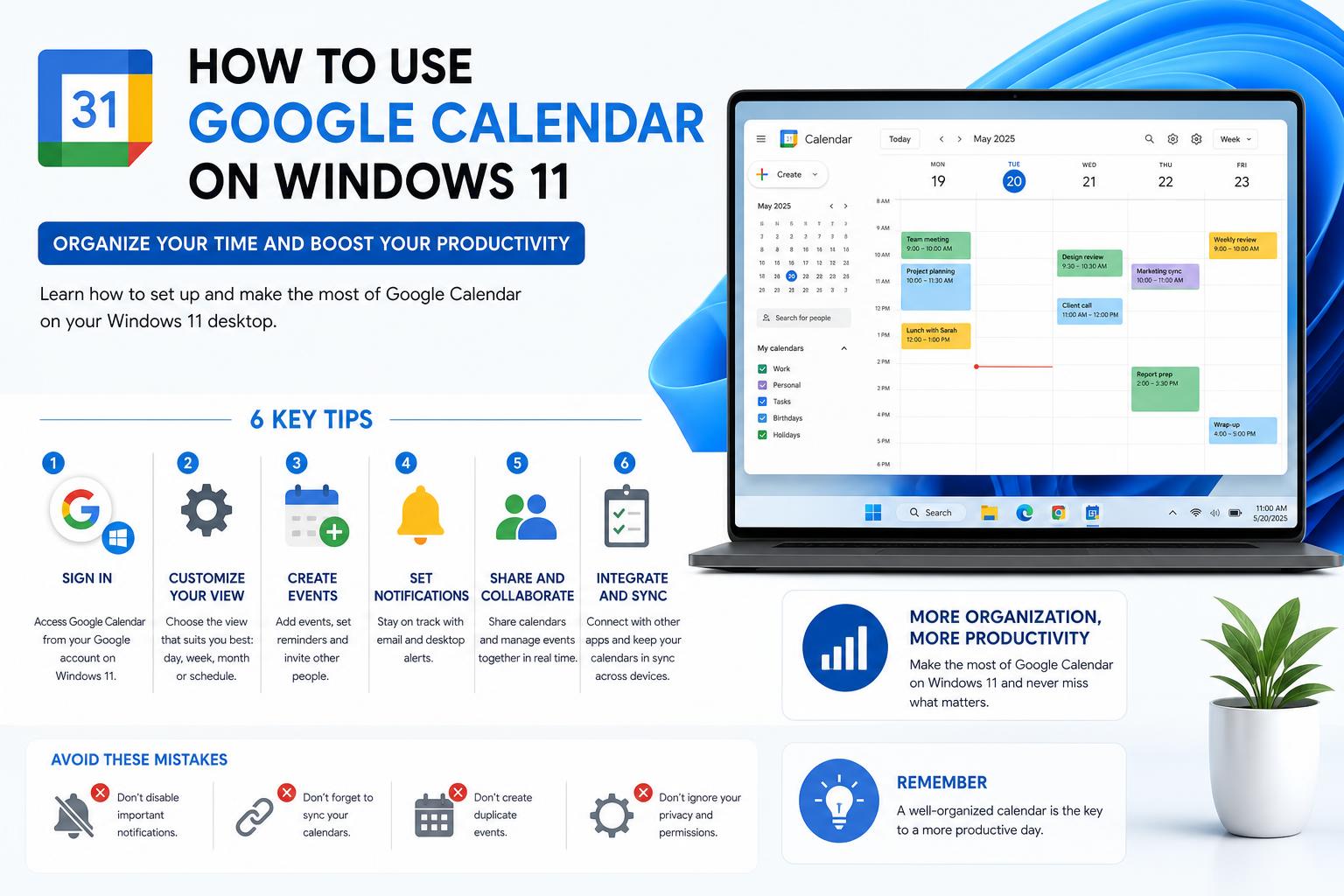
- Google Calendar can be used on Windows 11 desktops via browser, PWA, or sync with native apps.
- Progressive Web Apps and Windows Calendar integration provide a near-native experience.
- Offline access and extensive sharing capabilities are available through browser and app options.
Google Calendar has become an indispensable tool for organizing work, school, and personal life. Yet, many Windows 11 users are left scratching their heads, wondering how they can use Google Calendar efficiently from their desktop—without needing to juggle browser tabs or resort to clunky workarounds. In this detailed guide, we’re going to explore every possible method to bring Google Calendar to your Windows 11 desktop experience. Whether you’re seeking just a quick view of your upcoming events, full synchronization across apps, or offline access, this article covers it all. We’ll compare native Windows options, browser tricks, synchronization with built-in apps like Outlook, third-party apps, and browser extensions. By the end, you’ll know not only how to get your calendar events visible at your fingertips, but also which approach best fits your workflow and privacy preferences. Let’s dig into the details and finally bring Google Calendar straight onto your Windows 11 desktop.
Why Use Google Calendar on Desktop?
If you’re deep within the Google ecosystem, Google Calendar likely plays a key role in your life. But constantly bouncing between your browser and other Windows applications is a real hassle, especially if you need quick access to your schedule throughout the day. With the right integration, you can:
- Streamline your daily planning by seeing your events alongside email, tasks, and notifications.
- Boost productivity with fast, one-click access to Google Calendar from your taskbar or desktop.
- Work more efficiently offline by leveraging browser features and apps that sync data.
- Customize notifications so you never miss an important event, whether you’re working from your PC or away.
How can you achieve this in Windows 11?
Primary Ways to Access Google Calendar on Windows 11 Desktop
Let’s look at the main strategies users employ to make Google Calendar work seamlessly from their desktop environment:
- Access via any browser at Google Calendar Web
- Integration with the native Windows Calendar app
- Syncing with the new Outlook for Windows
- Installation as a Progressive Web App (PWA)
- Browser extensions and third-party desktop applications
Direct Access Using Your Browser
The simplest way to use Google Calendar from your desktop is, unsurprisingly, through your browser. Just navigate to calendar.google.com and sign in. Most modern browsers (Chrome, Edge, Firefox, Opera) are fully compatible. Make sure you have JavaScript and cookies enabled for Calendar to work properly. Google’s official recommendation is to use the latest version of your browser to ensure security and performance. You can even work offline. Google Calendar supports offline access—this means your schedule will always be accessible, even when you lose your internet connection.
Add Google Calendar as a Shortcut or PWA on Your Desktop
If you want a more native experience, you can install Google Calendar as a Progressive Web App (PWA). This method gives you a dedicated window for your calendar, plus a desktop icon, just like any other application:
- Open Google Calendar in Chrome or Microsoft Edge
- Click the More menu (three dots) in your browser
- Select “Install Google Calendar” or “App” and follow the prompts
- A new window will open with Google Calendar, and you’ll have a shortcut on your desktop for quick access
This gives you instant access to your calendar from the Start menu or desktop, without needing browser tabs. PWAs even allow notifications and offline access, providing an experience similar to a native app. You can read more about this method on the Chrome Web Store (Calendar App).
Syncing Google Calendar with the Windows 11 Calendar App
Windows 11 includes its own Calendar application that can integrate with various accounts, including Google! This is great for viewing all your events in one place. Here’s how to set it up:
- Open the Windows Calendar app (search for “Calendar” in the Start Menu)
- Go to account settings and select “Add account”
- Choose Google and sign in with your Gmail credentials
- Allow synchronization of your calendar (and email, if desired)
This syncs your Google Calendar events directly into the native app, offering you a quick view without opening the browser. You will be able to view, add, and edit events from here. As explained in official Microsoft forums, syncing your Google account also syncs your Gmail emails. If you prefer not to sync emails, consider using only the online calendar or other integrations. Helpful tip: Windows 11 does not yet display third-party calendar events (like Google Calendar) in the taskbar calendar flyout. Many users have requested this feature through the Feedback Hub. For now, using the Windows Calendar app or other solutions described below is the best alternative.
Google Calendar with Outlook for Windows
If you use Outlook, you can display your Google Calendar alongside your work and personal calendars. There are two main methods:
- Native sync: Add your Google account under Settings inside the new Outlook for Windows app, as explained in the Calendar section. Your Google Calendar will sync and display alongside your Outlook calendars.
- Read-only import: Import a public link of your Google Calendar for view-only access (no editing). This is useful if you don’t want to sign in with Google or expose your email. Here is the official support link for configuration.
This method is widely used by those who work in Outlook but want to avoid switching applications multiple times a day. Keep privacy settings in mind—making your calendar public for sharing can expose sensitive details.
Third-Party Desktop Applications and Extensions
Although Microsoft and Google have not released an official Google Calendar app for Windows, several third-party solutions exist. Some popular options in the Chrome Web Store or Windows Store mimic or extend the Google Calendar web interface:
- Chrome Web Store – Calendar App: Offers a quick way to open Google Calendar from your desktop as an app. Lightweight and effective if you want a dedicated window without a full browser experience. Check the official listing here.
- Windows Store Solutions: Some applications promise compatibility with Google Calendar, but always check reviews and privacy practices before entering your credentials. Google does not currently officially endorse any third-party calendar client for Windows.
Caution: Be careful when providing your credentials to third-party applications. Always opt for official apps or those with good reviews and transparent privacy policies.
Offline Use
You won’t always have a stable connection, but sometimes you need to check your schedule on the go. The good news is that Google Calendar supports offline use through the web and PWA. Just activate offline mode in your browser (there’s a quick setting in Google Calendar’s settings). The next time you lose connection, you will still be able to view your events and appointments until you reconnect. No additional app needed!
Multiple Google Calendars and Sharing
One of the advantages of Google Calendar is managing multiple calendars—personal, work, birthdays, projects, and more. From the browser or PWA app, you can create and assign colors to multiple calendars. Additionally, you can:
- Share calendars with family or colleagues
- Control access—private, public, or restricted
- Embed calendars in other apps or websites via public links
For advanced sharing features or integrations (like read-only in Outlook), make sure to configure permissions in Google Calendar before generating public links.
Browser Compatibility and Security Considerations
According to official Google documentation, it is important to use only updated browsers for Calendar to work smoothly. Supported browsers include:
- Google Chrome (Windows, Mac, Linux)
- Microsoft Edge
- Mozilla Firefox
- Apple Safari (on Mac)
- Opera
Always enable JavaScript and cookies. This is essential for core Calendar features, including notifications, offline support, and account login. Disabling these features may cause bugs or disruptions in the app.
Is There a Standalone Google Calendar App for Windows?
Despite high demand, Google Calendar is not available as a standalone desktop application for Windows. All current solutions rely on web access (browser, PWA) or integrations with Outlook or the Windows Calendar app, with third-party app functionality being limited. If you find programs claiming to be “desktop apps” for Google Calendar, be careful—many redirect to browser versions or unofficial software, and may be outdated. Only trust reliable sources.
Frequently Asked Questions and Troubleshooting
- Can I have Google Calendar events on the Windows 11 taskbar calendar? Not yet. This feature is highly requested, but it is not yet available natively. Send feedback via the Feedback Hub if you want Microsoft to prioritize this in future updates.
- Will syncing my Google Calendar also sync my emails? If you add your Google account to Windows Calendar, yes. Google and Microsoft will sync both by default. If you don’t want emails to sync, use web or PWA solutions strictly for the calendar, or import public links into Outlook.
- Are there privacy concerns? Always review application permissions. Never share your password with unofficial apps. The option to make a calendar public allows anyone with the link to view all events—use this option only if necessary and without sensitive data.
Helpful Tips for Power Users
- Create multiple calendars with different colors to separate projects or personal categories—this facilitates visual organization of events.
- Set up notifications and desktop reminders directly in Google Calendar, which are delivered through Chrome or the PWA if enabled.
- Integrate your Google Calendar with Zoom or Microsoft Teams to schedule meetings quickly—many integrations are available in Google Calendar Add-ons.
- Sync the calendar on your mobile device to keep events updated across all your devices, not just on Windows.
Integrating Google Calendar into your Windows 11 can be simple and efficient if you choose the method that best suits your needs, preferences, and privacy requirements. Whether through browser-based solutions and PWAs, leveraging native integrations with Outlook or Windows Calendar, or exploring reliable third-party tools, these strategies will help you stay organized. The important thing is finding the approach that best fits your workflow, giving Google Calendar the desktop presence it deserves.