
- Unlock hidden options and original interfaces for enhanced Steam user experience.
- Integrate advanced Steam API functionalities to tailor how Steam connects and behaves.
- Explore how to safely tweak registry settings for customizing Steam's startup and visual interface.
Sitting down at your PC, launching Steam, and seeing that classic interface brings back the nostalgia like nothing else. But with regular updates, UI changes, and new features being dropped almost monthly, users often find themselves looking for a way to return to earlier layouts or unlock new customization options that aren’t front and center. Whether you’re a gamer wanting a distraction-free environment, a developer tinkering with Steam’s APIs, or someone just curious about interface tweaks, you might have searched endlessly through forums and official docs, finding only fragmented advice and sparse guides. This is your all-in-one deep dive into the Steam interface: from registry edits and API documentation to tips on restoring classic looks and using Steam’s full potential, you’ll get everything you need to feel at home—no matter which version or device you use Steam on. Let’s break down all the lesser-known features, hidden commands, and clever tweaks, with examples and step-by-step advice, while also clearing up common misconceptions circulating in many community spaces.
Understanding the Steam Interface: Old and New Versions
Valve’s Steam client interface has evolved significantly over the years. Some users love the modern look, while others long for the simpler aesthetics and efficiency of previous releases. Adapting the interface to personal tastes or hardware needs can offer substantial benefits, such as faster load times, less clutter, and a more direct experience focused on gaming rather than social or store interactions. If you’ve been wondering how to get that original Steam look from years ago (as seen in 2003) or simply want to streamline your Steam startup process, the solutions do exist—even if they’re not official settings toggles. Now let’s explore what you can customize and how, based on a blend of developer insights, real-world advice from forums, and proven workflows.
Restoring the Classic Steam Interface with Startup Commands
Few things rile up seasoned Steam users more than radical UI overhauls and forced feature updates. The good news? There’s a surprisingly straightforward way to coax Steam back to its old-school appearance using command-line switches, especially powerful for Windows users. These switches can be set right where Windows tells your computer to launch Steam on startup—using the Windows Registry Editor. Step-by-step: Setting Old UI Startup via the Registry
- Enable Auto Start: Ensure Steam is set to start automatically when you log in. You can check this inside Steam’s own settings panel under the ‘Interface’ or ‘General’ tabs. This creates the needed registry entry.
- Access the Registry Editor: Press the Windows key, type ‘regedit’, and run it. Be careful—editing the registry can impact system behavior, so proceed with caution.
- Find Steam’s Startup Command: Navigate to the following registry key:
Computer\HKEY_CURRENT_USER\Software\Microsoft\Windows\CurrentVersion\Run - Edit Steam’s Entry: Find the entry called ‘Steam’, right-click and select ‘Modify’. You’ll see a value similar to this:
"C:\Program Files (x86)\Steam\steam.exe" -silent - Add Your Custom Parameters: Extend the value data at the end with:
-minimized -vgui- -minimized: Starts Steam minimized—so it doesn’t pop up and clutter your screen as it loads. Great for streamlining startup routines especially on slower PCs.
- -vgui: Forces Steam to use the legacy VGUI interface, bringing back a visual style from before major UI updates. This is the golden switch for retro fans.
- Example Full Entry:
"C:\Program Files (x86)\Steam\steam.exe" -silent -vgui -minimized
Watch out: Any changes you make directly to Steam settings from within the app may reset this registry tweak. If Steam applies an update or you tinker with auto-start options, double-check the registry again to reapply your tailored launch parameters. This tweak remains a favorite trick for power users wanting less flash and more function out of their Steam experience.
Anatomy of the Steam Interface: What Each Component Does
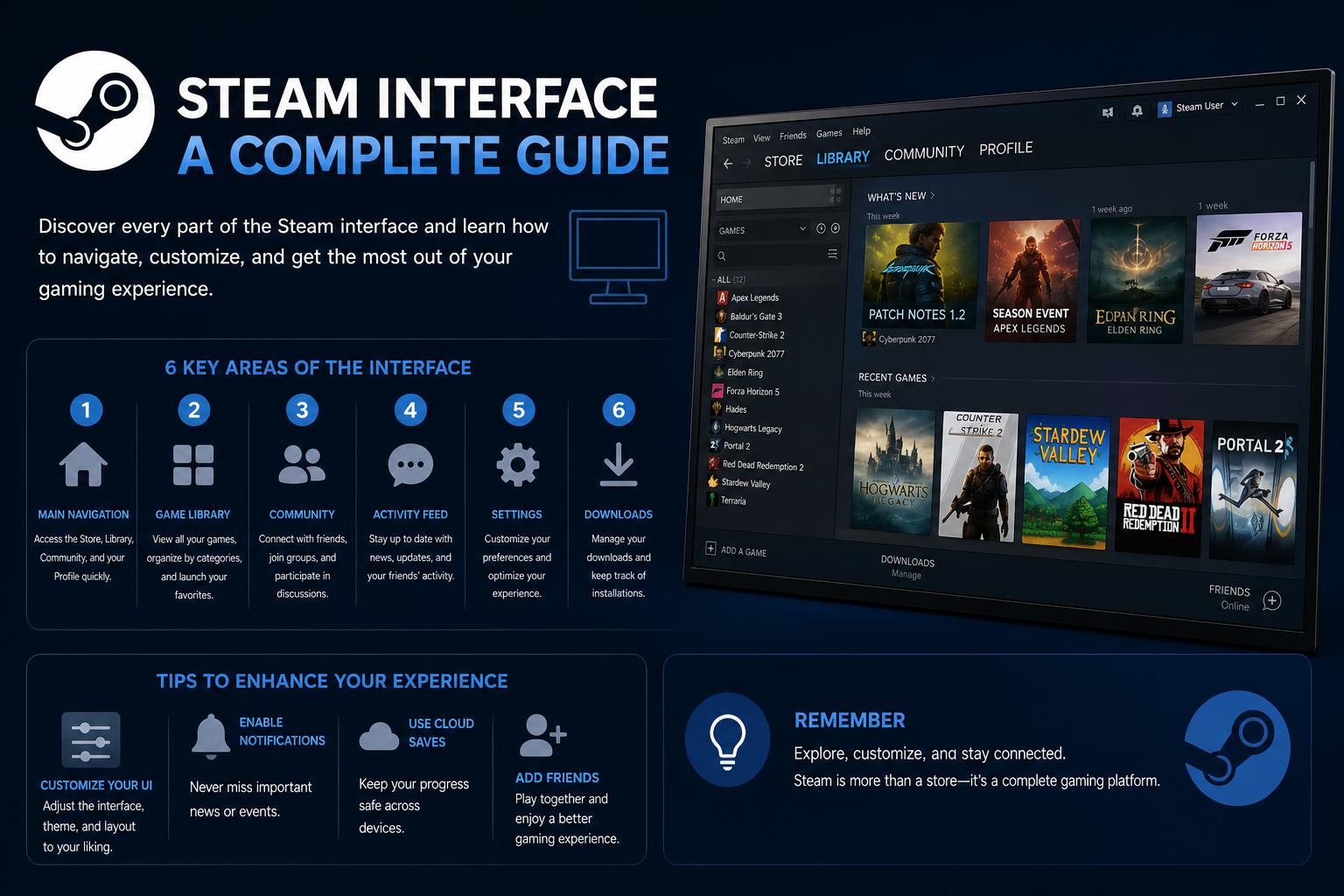
Even if you’re using the latest version, understanding the different sections of the Steam interface makes it easier to navigate, troubleshoot issues, and tap into advanced customization. Steam’s main interface is split into several core areas:
- Library: Where you access all your owned games, sort them, install or uninstall, and see your recent activity. Here you’ll find screenshots, achievements, and often community guides.
- Store: The default starting point for many; packed with featured games, discounts, and user recommendations based on complex algorithms and personal preferences.
- Community: Your portal to forums, groups, market, and more. It is the center of social activity and connects you to the wider Steam ecosystem.
- Overlay: A unique feature that you can bring up in-game (Shift+Tab by default), showing friends lists, browser, chat, and more without leaving your game session.
- Settings: The nerve center for all preferences—downloads, account management, controller options, overlays, in-home streaming, privacy settings, and so on.
For a comprehensive and always up-to-date list of all Steam features, check out the official Steam website.
Diving into Steam’s API and ISteamClient Interface
Behind Steam’s familiar buttons and panels lies a powerful set of developer APIs, opening doors for custom integrations, mods, and advanced community functionality. Of particular interest is the ISteamClient interface, part of the Steamworks SDK, which provides deep programmatic control over how the Steam client interacts both with local users and remote services. What ISteamClient Actually Does
- Create and Connect Steam Instances: Lets applications either spin up a brand-new Steam instance or connect to an existing one, even if it’s running in a separate process or different context. This is typically managed automatically but is crucial for specialized setups—like game servers handling multiple Steam sessions.
- Access to Modular Interfaces: Through ISteamClient, a developer can grab pointers to a wide array of component interfaces—everything from SteamFriends for social features, SteamApps for license and DLC checks, to SteamRemoteStorage for cloud data management.
- Handling Advanced Networking and Messaging: Provides hooks for initializing communication pipes, managing IPC (inter-process communication) for debugging or optimizing network traffic, and safely cleaning up users and sessions in custom multiplayer solutions.
Most players never interact with these commands directly, but modders and developers frequently rely on these functions for plugin development, overlay customizations, and performance tweaking.
Key Functions of ISteamClient – Explained Simply
The ISteamClient interface, as detailed in the official Steamworks documentation, consists of a suite of methods structured to modularize the client’s capabilities. Here are some high-value highlights explained in plain language:
- BReleaseSteamPipe: Releases a communication channel/pipeline that your application opened up previously. Important for memory and resource management—especially in multi-client or server contexts. It’s not threadsafe, so never call it while other threads use the Steam API.
- ConnectToGlobalUser/ CreateLocalUser: Either link to the currently logged-in Steam user or create a self-contained user for highly specialized use-cases (like servers running multiple games for different accounts).
- GetIPCCallCount: Returns the number of inter-process communication calls made since your last check. Super useful for tracking down performance bottlenecks in Steam-integrated games.
- GetISteamApps/ GetISteamFriends/ GetISteamInventory: These and similar methods provide access to other modules. For example, ISteamInventory allows programmatic browsing, giving, or receiving items.
Most of these functions return pointers or handles, so managing memory and ensuring correct synchronization is essential for stability.
Understanding API Rate Limits and Debugging Performance
Steam’s API pipes can become performance chokepoints if mismanaged. Since each IPC call at minimum requires a thread context switch (or even a full process switch), careless polling or repetitive calls in your game code will cause lag. That’s why Valve provides explicit access to call count metrics. Using the API sparingly and batching requests intelligently is critical for smooth gameplay and overlays.
Unlocking More Through Lesser-Known Interfaces
Beyond the primary APIs, Steam provides niche interfaces for everything from music and audio control (ISteamMusic, ISteamMusicRemote) to overlaying web browsers (ISteamHTMLSurface), handling screenshots, controlling matchmaking, or managing user-generated content (ISteamUGC).
- ISteamRemoteStorage: Synchronizes your game’s save states across devices with Steam Cloud. Ideal for gamers switching between desktop and Steam Deck or laptop.
- ISteamScreenshots: Captures and submits in-game screenshots, associating them with the right title and friends.
- ISteamMatchmaking: Handles quick-play, lobbies, and online matches—key features for multiplayer titles.
Integrating Controllers and Other Devices
Steam’s extensive controller support includes plug-and-play compatibility for Xbox, PlayStation, Switch Pro, and generic gamepads. Through the ISteamController interface, developers can support custom mappings, haptics, and legacy modes. This simplifies the creation of accessibility features and e-sports toggles.
The Steam Overlay: The Underrated In-Game Tool
Steam’s overlay offers in-game access to chats, browser, achievements, and guides—without exiting the game. Press Shift+Tab to bring it up. Many users overlook its utility. Developers can also leverage it for mods and notifications.
Reviving or Changing Steam Skins: Community and Official Barriers
Custom skins used to be a popular way to overhaul Steam’s look and feel. Valve has since tightened restrictions, and community resources may be behind protections to prevent abuse. The Steam Skins wiki remains an entry point, but access can be limited. When available:
- Use skins compatible with your client version—outdated skins may cause glitches or instability.
- Most modern skins change colors, backgrounds, fonts, or layout.
- Install by placing skin folders into
Steam/skins/and enabling them via interface settings when possible. - Some skins need advanced steps; consult reputable sources or community guides.
Security Tip: Always scan third-party skins for malware before installation. Visual customization should never compromise your data or accounts.
Managing Your Steam Startup: Registry and Beyond
Understanding how Steam attaches to your system startup isn’t just about aesthetics—it also affects login speed and stealth. Modifying the Run key in Windows Registry controls how Steam starts at login. The earlier setup can be customized for faster or silent launches. Advanced users can combine this with script launchers or external apps to automate Steam behaviors at startup.
Steam On Other Platforms: What’s Possible?
While Windows offers the greatest flexibility, MacOS and Linux have their own options. On Linux, community scripts can launch Steam with parameters like -no-browser or -silent. Mac users can edit launch arguments via Terminal or third-party tools.
The Importance of Keeping Steam Updated (and When to Hold Back)
Staying on the latest Steam version provides new features but can also break legacy tweaks. If a command-line switch or registry tweak stops working, check community forums for solutions. Sometimes, -vgui or other flags become obsolete after updates, requiring new methods. Tips for update management:
- Join beta branches only if you accept potential instability or compatibility issues.
- Backup your registry, skins, and configs before major updates if you rely on customizations.
Steam Store Pages vs. Interface Tweaks: Keeping Scope Clear
Sometimes, searching for UI tips leads to Steam store game pages like Stellar Interface—which aren’t related to patches or tweaks. Don’t confuse these with technical guides. Store pages focus on gameplay and features, not interface hacking. Still, they’re useful for understanding developer UI implementations.
Common Issues and Troubleshooting Steam’s Interface
Even with documentation, issues can arise. Here are common troubleshooting steps:
- Steam reverts to the new UI after changes: Verify your startup parameters aren’t overwritten during updates.
- Incompatibility with Skins: Remove outdated skins causing conflicts; restart Steam.
- Overlay not working in-game: Check global and game-specific settings; third-party overlays may interfere. Para entender más sobre la optimización del sistema y cómo afecta a aplicaciones como Steam
- Steam no lanza en el inicio: Review auto-start configurations y cambios en el registro.
- API-related anomalies: Developers should monitor SDK updates y probar en entornos controlados.
Steam Community Features: Groups, Forums, and Overlays
Steam’s community portal keeps the platform vibrant. Forums and discussions are full of tips on interface tweaks and troubleshooting. Always verify information with official resources, especially for registry or command-line advice. Reddit remains popular for sharing screenshots and mod ideas but is less focused on technical accuracy.
Protecting Your Account and Data When Customizing Steam
Modifying Steam with command lines, mods, or APIs involves risks. To avoid issues:
- Verify sources before downloading or applying modifications.
- Back up configurations, registry, and skins beforehand.
- Heed protections around community resources; wait to engage if site access is limited.
- Never share credentials or use untrusted auto-login scripts.
Steam Interface on Game Servers: Multiplexing and Advanced Use
For advanced setups, ISteamClient enables managing multiple sessions, sandboxed states, and custom analytics. Methods like CreateLocalUser and ReleaseUser allow efficient handling of multiple game instances or dedicated servers, essential for large-scale multiplayer operations. Consult the for detailed implementation strategies.
Most Overlooked Features and Power User Shortcuts
- -silent: Launches Steam without popups, ideal for minimal environments.
- -no-browser: Disables built-in web browser, reducing resource use.
- Family View / Parental Controls: Protects shared computers with PINs.
- Cloud Sync options: Keeps your progress consistent across devices.
The Future of Steam Interface Customization
Steam continues to innovate with new features, community overlays, and deeper integrations, especially with devices like the Steam Deck.
Why is Windows 11 so slow? Complete guide to speed up your PC instantly