
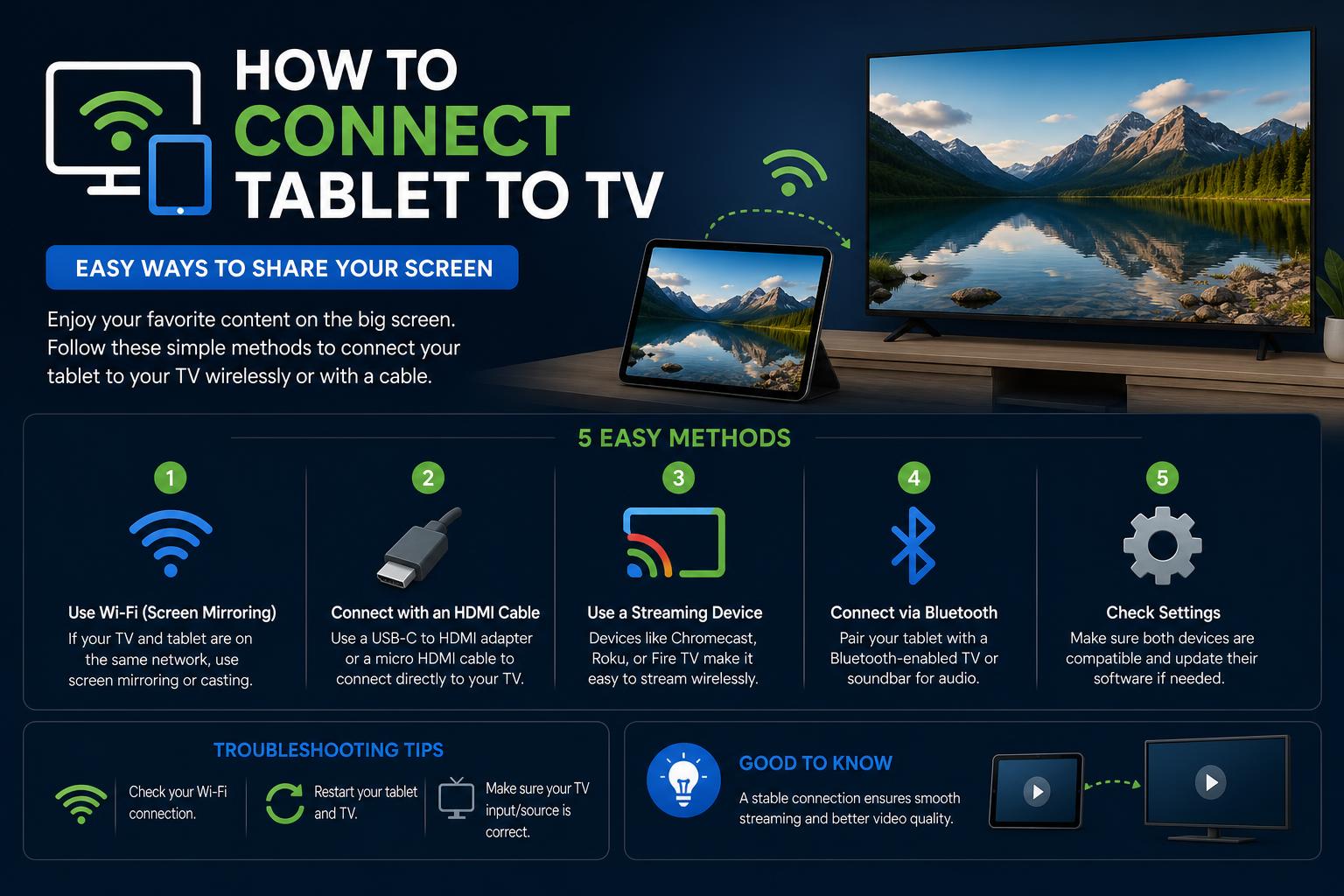
- Tablets can connect to TVs via HDMI with suitable adapters or wirelessly using screen mirroring and casting technologies.
- Streaming devices like Chromecast, Roku, and Fire TV make it easy to mirror or cast tablets to both smart and non-smart TVs.
- Bluetooth is useful for sharing audio, while troubleshooting tips help resolve compatibility and connection issues.
Turning your living room into a personal cinema or big-screen gaming space doesn’t have to be rocket science. If you’ve ever wished you could enjoy those epic tablet videos, mobile games, or show off your latest holiday snaps on your TV, you’re not alone—and you’re definitely not out of luck! There are reliable, straightforward ways to connect a tablet to your TV, whether you’re tech-savvy or just getting started, and you don’t have to empty your wallet (or patience) in the process.
This deep-dive guide will walk you through every method under the sun—cables, adapters, wireless streaming, smart TV options, even Bluetooth tricks. We’ll blend the best advice from official guides, tech communities, and leading device brands so that whatever your setup, you’ll find a solution that works seamlessly for you. Let’s get your tablet content up on the big screen, step by step!
How Tablets Connect to TVs: Main Methods
Tablets are flexible, but TVs come in all shapes and tech generations. Your connection solution depends on the ports, features, and networks both devices support. We’ll break down every major method—from old-school wired connections to the latest casting options—so you can pick the one that suits your needs and gear.
1. Wired Connections: HDMI & USB-C Adapters
If you value stability and zero lag, wired connections are the gold standard. This is perfect for binge-watching, gaming, or giving a business presentation.
- HDMI Cables: Most modern TVs have multiple HDMI ports—check along the sides or back. Tablets rarely have a full-size HDMI port, but many can output video via their USB-C (or Micro USB) with the right adapter.
- What adapter do you need? For most tablets made in the last few years, a USB-C to HDMI adapter is the easiest solution. Older models with Micro USB require an MHL (Mobile High-Definition Link) adapter, though these are less common on recent devices.
Step-by-step:
- Identify your tablet’s port. Does it use USB-C or Micro USB? Check your model’s manual or the port’s shape.
- Get the corresponding adapter. E.g., USB-C to HDMI (the HONOR MagicPad2 and most newer Androids) or an MHL adapter for older tablets (check if your tablet supports MHL). Apple iPads often require a Lightning-to-HDMI (Apple Digital AV Adapter).
- Plug everything in. Connect the adapter to your tablet, HDMI cable to the adapter, and the other end of the cable to your TV’s HDMI port.
- Select the correct HDMI source on your TV using your remote. If the screen doesn’t appear automatically, toggle the input/source until you spot your tablet’s display mirrored.
- Your tablet should now mirror to your TV. You’ll get full lag-free display, perfect for apps, videos, presentations, and more.
Troubleshooting: If your TV stays blank, recheck connections, make sure you’re on the right HDMI input, and verify adapter compatibility. Tablets must support “HDMI Alt Mode” through their USB-C or work with MHL if using Micro USB. Not all tablets offer video output, so it’s worth double-checking your device’s spec sheet.
2. Wireless Mirroring: Screen Mirroring with Wi-Fi
Hate cables? Most smart TVs and tablets support wireless screen mirroring, letting you send content directly over Wi-Fi. It’s a clutter-free setup and convenient for quick sharing or controlling the big screen from the comfort of your couch.
- Smart TVs: Look for features in your TV’s menu labeled “Screen Mirroring,” “Casting,” “Miracast,” or “Wireless Projection.”
- Enable screen mirroring/casting on your TV first.
- On your tablet, head to Settings. Look for options like: “Wireless Projection,” “Smart View,” “Cast,” or “Screen Share.”
For example, on many HONOR tablets, you’ll find it under Settings → More connections → Wireless Projection.
- Confirm that both tablet and TV are on the same Wi-Fi network.
- Enable the mirroring/casting function on both devices.
- Your tablet should detect and list available TVs nearby—tap your TV, then accept the connection prompt on the TV screen if needed.
- Once paired, your entire tablet screen appears on the TV, ready for photos, apps, calls, or streaming your favorite videos!
Troubleshooting: If the devices don’t see each other, double-check the Wi-Fi connection, restart both devices, or consult their manuals for specifics on enabling screen casting. Some TVs require manual acceptance of the connection for added security.
3. Casting with Streaming Devices (Chromecast, Roku, Amazon Fire TV)
If your TV isn’t smart or its wireless features are limited, streaming devices provide a fast, modern solution. They’re inexpensive, plug right into HDMI, and bring instant screen sharing, app streaming, and even remote control to older TVs.
- Chromecast: Plug the dongle into your HDMI port and set it up using the Google Home app on your tablet. Both must be on the same Wi-Fi network.
- Roku and Amazon Fire TV: Similar process. Each device has its own setup app and screen-mirroring capabilities. Look for “Screen Mirroring” or “Casting” options within their respective menus or companion apps.
- Connect and power the streaming device.
- Complete initial setup using the manufacturer’s app (such as Google TV for Chromecast).
- On your tablet, use the appropriate app or built-in casting function to “Cast” (mirror) your display.
- Pick your streaming device from the list and your screen appears on the TV!
Bonus: Many streaming sticks support direct app streaming (e.g., YouTube, Netflix, Spotify), so you can launch videos or music on your tablet and send them instantly to the TV, all while using your tablet for other tasks.
4. Connecting Tablets and TVs with Bluetooth
While Bluetooth isn’t designed for full video mirroring, it works well for streaming audio or sharing certain apps’ content.
- Activate Bluetooth on both TV and tablet. Find the option in each device’s “Settings” menu.
- Set your TV to “Bluetooth pairing” mode and select your tablet from the available device list.
- Once paired, send audio, music, or select media from your tablet to your TV’s speakers—perfect for listening to podcasts, playlists, or hands-free calls on a larger sound system!
Limitations: Bluetooth does not support high-quality video or full screen mirroring, but it’s a handy solution if all you need is better sound or quick file sharing.
Managing Problems: Troubleshooting Guide
Sometimes, even the best-laid plans go awry. If your tablet won’t talk to your TV, try these tips:
- Hardware Compatibility: Not all tablets support video output. Research your model’s specs before purchasing adapters or expect screen mirroring. USB-C does not always mean HDMI support!
- Outdated Software: Make sure your tablet’s OS and your TV or streaming device’s firmware are updated to the latest versions—compatibility and streaming reliability often require it.
- Check Cables & Adapters: Use quality adapters (not all third-party models are created equal!). Swap cables or try another port if you’re getting no signal.
- Correct Input/Source: Manually select the HDMI or casting input on your TV if it doesn’t auto-switch.
- Network Issues: Wireless casting & mirroring demands that both devices are on exactly the same Wi-Fi network. Dual-band routers (2.4GHz vs 5GHz) can confuse devices.
- Restart Devices: The classic “turn it off and on again” fixes many discovery and pairing hiccups!
Using Your Tablet as a TV Remote
Some apps—like the Google TV app—let you control your Android TV or Google Chromecast directly from your tablet. This can include launching content, pausing, rewinding, changing volume, or entering search terms.
- Install the Google TV app on your Android device.
- Open the app and select TVs nearby, then pick your TV from the list and follow on-screen instructions to pair.
- Once connected, your tablet works as a remote for navigating apps or entering text, and you can even turn the TV off/on.
Special Tips, Workarounds & Extra Features
- Your video continues playing via Chromecast even if your tablet’s battery dies—you can reconnect with another device to regain controls.
- To save energy, it’s fine to turn your tablet’s screen off after casting via Chromecast; playback on the TV continues uninterrupted.
- If you sign into YouTube, use the same Google account on both tablet and casting device to avoid access issues.
- For non-smart TVs, investing in an affordable streaming stick instantly unlocks wireless sharing and app controls.
- Bluetooth is best for audio, but for full video, stick to HDMI or reliable wireless methods.
Common FAQs Answered
- Can all tablets connect to TV via HDMI? Most recent tablets can, if they support video output through USB-C (HDMI Alt Mode) or an MHL adapter for Micro USB. Always check your device’s manual or official support before buying accessories.
- How can I connect if I don’t have a smart TV? Try using an HDMI cable with the right adapter—or grab a streaming device like Chromecast, Amazon Fire TV, or Roku.
- Is wireless casting better than a wired connection? Wired HDMI gives you less lag and a more stable connection, but wireless is neater and more convenient for quick sharing.
- What if my tablet can’t find the TV? Double-check the Wi-Fi networks, restart both devices, and make sure both support screen mirroring features.
- Can I send content directly from an app? Many video and music apps (like YouTube, Netflix, Spotify) have their own “Cast to TV” feature—look for the Cast icon and select your device.
With just a little preparation, you can transform your tablet and TV into a powerhouse entertainment combo. Whether you go wired for rock-solid stability or wireless for effortless flexibility, there’s a method that fits your gear and your lifestyle. Troubleshooting is rarely more than a network tweak or an adapter swap away, so don’t hesitate to experiment or combine multiple approaches. Grab your favorite adapter, flex your Wi-Fi, or tap into the world of Chromecast/Roku, and get ready to make your next movie night, presentation, or gaming session bigger and better without the guesswork.