
- Built-in dual app features and trusted clone apps allow safe WhatsApp cloning
- Multiple independent WhatsApp accounts require unique phone numbers
- WhatsApp Business and Linked Devices offer official dual/mirrored access
Ever wondered if you can truly clone WhatsApp on your Android or iPhone and keep work and personal chats separated? It’s a question more and more users are asking as the lines between work, social, and family life become ever more tangled on our phones. Trying to keep multiple WhatsApp accounts on a single device sounds like a headache, but with the right tools and a bit of know-how, it’s surprisingly manageable—and even safe when done right.
Below, you’re going to discover not only how to set up two (or even more) WhatsApp accounts on one phone, but also how to switch between them seamlessly, the tools that make this possible, and which method is best suited to your device. Whether you’re a Samsung loyalist, an Android enthusiast, or juggling both iOS and Android, there’s a solution for keeping your identities—with their chats, calls, and notifications—separate, organized, and always accessible.
Understanding WhatsApp Cloning: More Than Just Copying
Cloning WhatsApp doesn’t mean hacking or bypassing security—it means running two or more instances of WhatsApp with distinct numbers on one device. Businesses, remote workers, and parents monitoring digital safety all have their reasons for wanting to set up and manage more than one account. WhatsApp’s limitations mean you can usually only run one account per device, but thanks to system features and trustworthy cloning apps, that’s no longer a brick wall.
Method 1: Built-in Dual Apps, App Clone, and Dual Messenger Features
Many modern Android phones, especially from manufacturers like Samsung, Huawei, Xiaomi, and OPPO, offer a built-in way to create an independent ‘clone’ of WhatsApp. This approach leverages your phone’s firmware without needing any third-party downloads.
- Navigate to your device’s settings: Look for menus titled Apps, Advanced Features, Special Features, or Device Management depending on your brand.
- Enable the cloning option: The feature could be called Dual Apps, App Clone, App Twin, or Dual Messenger. Switch it on for WhatsApp, which will immediately generate a duplicate app icon on your home screen.
- Register with a new phone number: Open the second WhatsApp and sign up using a different SIM, eSIM, or virtual phone number. Both original and clone apps remain independent, with their own icons, notifications, and chat histories.
This method is seamless, keeps your messages and calls strictly divided, and is by far the safest way (for both Android and data security) to run two accounts. For Samsung users, Samsung’s Dual Messenger stands out—no risk of malware and complete system integration. Any modern Android that supports App Twin or Dual Apps will have a very similar process.
Method 2: Third-Party App Cloning Tools (e.g. Parallel Space, WhatsClone, Clone App – Multiple Account)
If your phone lacks a native dual app feature, powerful, lightweight cloning apps from the Google Play Store save the day. The two most established are WhatsClone and Parallel Space, but there are others like Clone App – Multiple Account and Shelter as well.
- Download your cloning app: Search for Parallel Space, WhatsClone, or Clone App – Multiple Account and install the one with the highest ratings and verified developer listings.
- Open and grant permissions: Every clone app needs permissions to access the apps it’s managing—this is normal, but always review privacy policies and check for recent updates.
- Select WhatsApp to clone: Tap ‘Add App’ or ‘Clone,’ pick WhatsApp from your installed apps, and watch as the app duplicates itself within a separate secure environment.
- Log in to your secondary WhatsApp account: Again, you need a second, unique phone number. The clone app keeps this account’s data, chats, media, and notifications completely separate.
The perks of a dedicated cloning tool go beyond WhatsApp: You can run dual accounts for many social apps (Instagram, Messenger, Facebook, etc.) for both personal and professional use. There’s also customizable app icons, one-tap switching, privacy lockers, and a ‘Lite’ mode to minimize battery impact. According to WhatsClone, you can even operate three or more WhatsApp accounts using their tool!
However, there are caveats: Cloning apps can display ads or require subscriptions, and rarely, WhatsApp may temporarily restrict accounts if it detects activity it deems suspicious. Always keep apps updated and avoid using sketchy or modified APKs to prevent data leaks or bans.
Method 3: Using WhatsApp Business Side by Side with Standard WhatsApp
WhatsApp Business isn’t just for entrepreneurs or companies—it’s a free, official second WhatsApp app that anyone can use right alongside personal WhatsApp.
- Install WhatsApp Business from the Play Store or App Store.
- Register with a different phone number: Any number not already associated with another WhatsApp account can be used—including VoIP or virtual SIMs.
- Enjoy two fully independent accounts: Both WhatsApp Messenger and WhatsApp Business run in parallel, supporting messaging, calls, media sharing, and even video conferencing. WhatsApp Business adds features like business profiles and away messages, but is otherwise feature-identical for personal use.
This solution is ideal if you want complete separation without complicated setup, and both apps are updated and supported by Meta (Facebook). You can easily distinguish between the two by renaming the shortcut or using the business profile’s unique logo.
Method 4: WhatsApp Linked Devices/Companion Mode
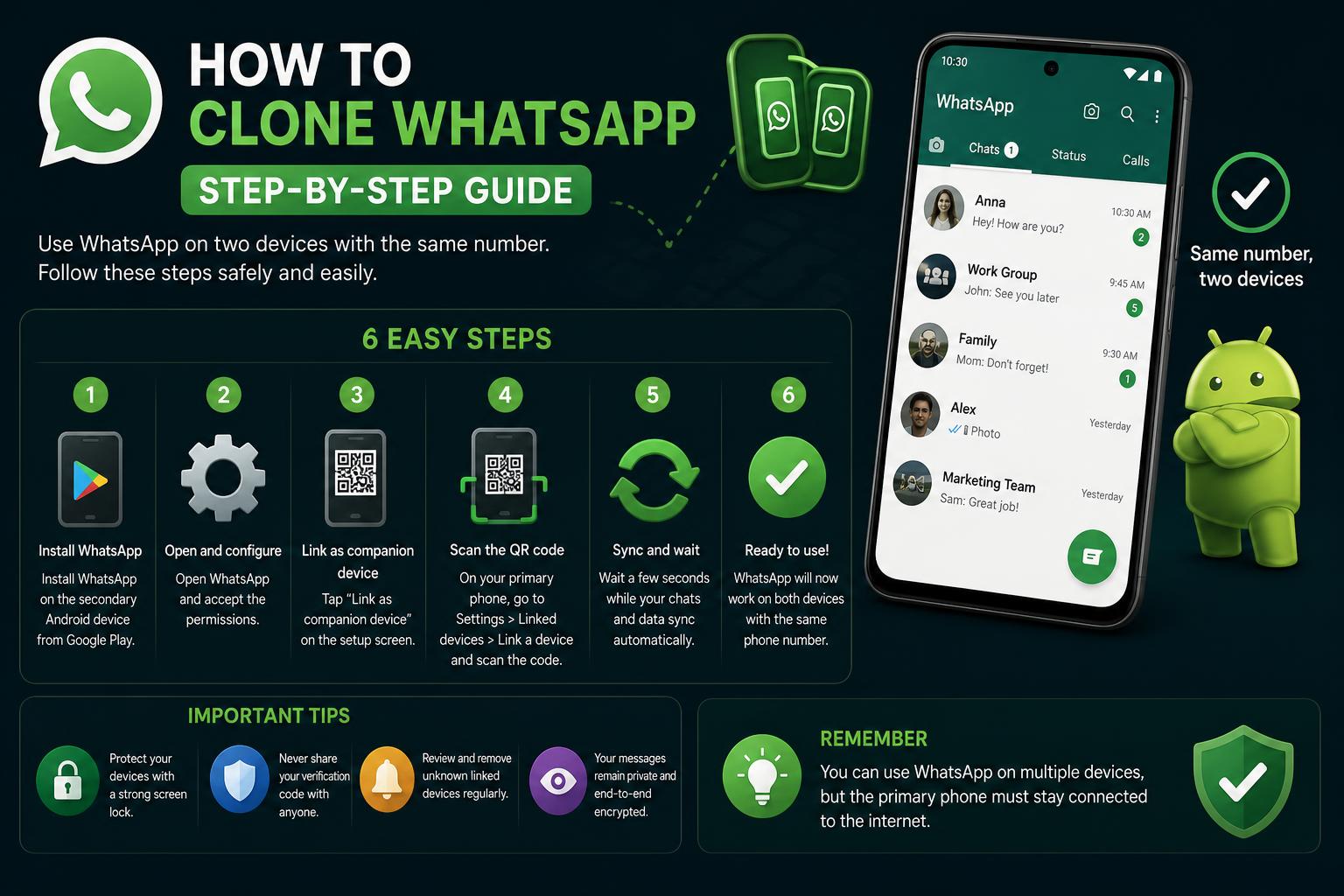
If your goal is to access the same WhatsApp account from more than one phone at once, WhatsApp’s Link Devices feature—formerly known as WhatsApp Web and now called ‘Companion Mode’—makes this possible.
- Open WhatsApp on the secondary device: Look for ‘Link to existing account’ or, in some Android versions, tap the three-dot menu and choose ‘Link as companion device.’ A QR code will pop up.
- On your main phone: Go to WhatsApp > Settings > Linked Devices and hit ‘Link a Device.’ Scan the QR code on the second device.
- Both devices now sync: You’ll receive all messages, calls, and group chats in real time on both phones, with no need for a second number or log-out/log-in juggling.
Note: While this mirrors one account across multiple devices (great for tablets, secondary phones, or work/home separation), it doesn’t create a completely ‘new’ WhatsApp instance, so chat histories and numbers remain the same.
Transferring WhatsApp Chats: Full Data Migration Between Phones
If you’re moving to a new phone and want every message, picture, and video ported over, WhatsApp’s own backup system (Google Drive for Android, iCloud for iOS) usually works well. For more advanced needs—such as cross-platform transfer (Android⇔iPhone)—third-party utilities like Social App Transfer provide seamless, error-free migration.
- Download Social App Transfer on your PC: Install the software, connect both phones via USB, and select WhatsApp for transfer.
- Designate the source and destination devices—the tool makes it easy to flip these if you swap cables by mistake.
- Click to initiate the transfer, which will copy everything from messages to media, keeping your conversations fully intact regardless of platform.
This approach is perfect if just cloning your WhatsApp isn’t enough and you need a complete data migration, for example when switching devices before reselling, gifting, or wiping a phone.
Additional Insights: FAQs and Pro Tips
- Is it safe to clone WhatsApp? If you use your phone’s built-in dual app feature or trusted third-party apps like Parallel Space, the process is safe. Avoid unauthorized APKs or mods, which can compromise your privacy or trigger bans.
- Do you need two phone numbers to clone WhatsApp? Yes, unless you’re using Companion Mode. Every independent WhatsApp instance requires its own number for activation and verification.
- Will both WhatsApp accounts be fully functional? Absolutely! Cloned apps support all core features like calls, group chats, locations, and media, as long as each has a legitimate number.
- Is there any risk of ban for using third-party cloning apps? Small, but possible, especially with risky APK downloads. Stick to Google Play apps with transparent privacy and security policies, and never use modified WhatsApp versions (like GBWhatsApp) if you value your account’s longevity.
- Can both WhatsApp apps update automatically? Updates work best with native dual app features. Some third-party clones may require manual updates or a re-cloning process after major app changes.
- What’s the difference between Dual Apps and Parallel Space? Dual Apps is a phone manufacturer’s built-in feature; Parallel Space (and similar apps) creates a virtual running space within your phone to run duplicates of virtually any app.
- How many WhatsApp accounts can I clone? With some cloning apps, more than two accounts are possible—WhatsClone, for example, boasts support for three or more instances as long as you have unique numbers for each.
- Can you clone WhatsApp on iPhone? iOS lacks built-in dual app features, and cloning is far less flexible than on Android, but you can run WhatsApp and WhatsApp Business together or use WhatsApp Web/Companion Mode for mirrored access on another device.
Advantages and Disadvantages of Each Method
- Built-in Dual App/Dual Messenger: Clean, secure, little impact on system resources, but limited to one additional account.
- Third-Party Cloning Apps: High flexibility, multi-account support across different apps, potential for ads, glitches, or higher device resource use.
- WhatsApp Business: Easiest official solution, but less suitable for devices needing more than two accounts.
- Companion Mode/Linked Devices: Great for mirroring one account on several devices, but doesn’t provide true ‘multi-account’ setup.
Security and Best Safety Practices
WhatsApp’s official policy discourages the use of any unofficial or modified clones, especially APKs offering added features or ‘spy’ capabilities. To keep your accounts and data safe:
- Always use official Play Store apps and avoid sideloaded APKs.
- Create regular backups through WhatsApp’s built-in functions so you never lose important messages or media.
- Be cautious with permissions—any app asking for more than necessary (device admin, microphone, camera for a cloning tool!) should be avoided.
- If switching numbers or migrating devices, verify new devices using SMS/call verification only, never via unknown links or unofficial tools.
With the right information and a focus on official or highly-trusted solutions, cloning WhatsApp is simple, robust, and secure. Whether you’re splitting up your work and personal life, managing a family account, or conducting business and support via WhatsApp, these methods offer flexibility without putting your privacy at risk. Experiment with the available tools—Dual Messenger if you’re on Samsung, WhatsApp Business for a quick dual setup, or Parallel Space and WhatsClone for extra accounts—and enjoy seamless multi-account WhatsApp messaging on the move, with control in your hands and no endless logging in and out.