
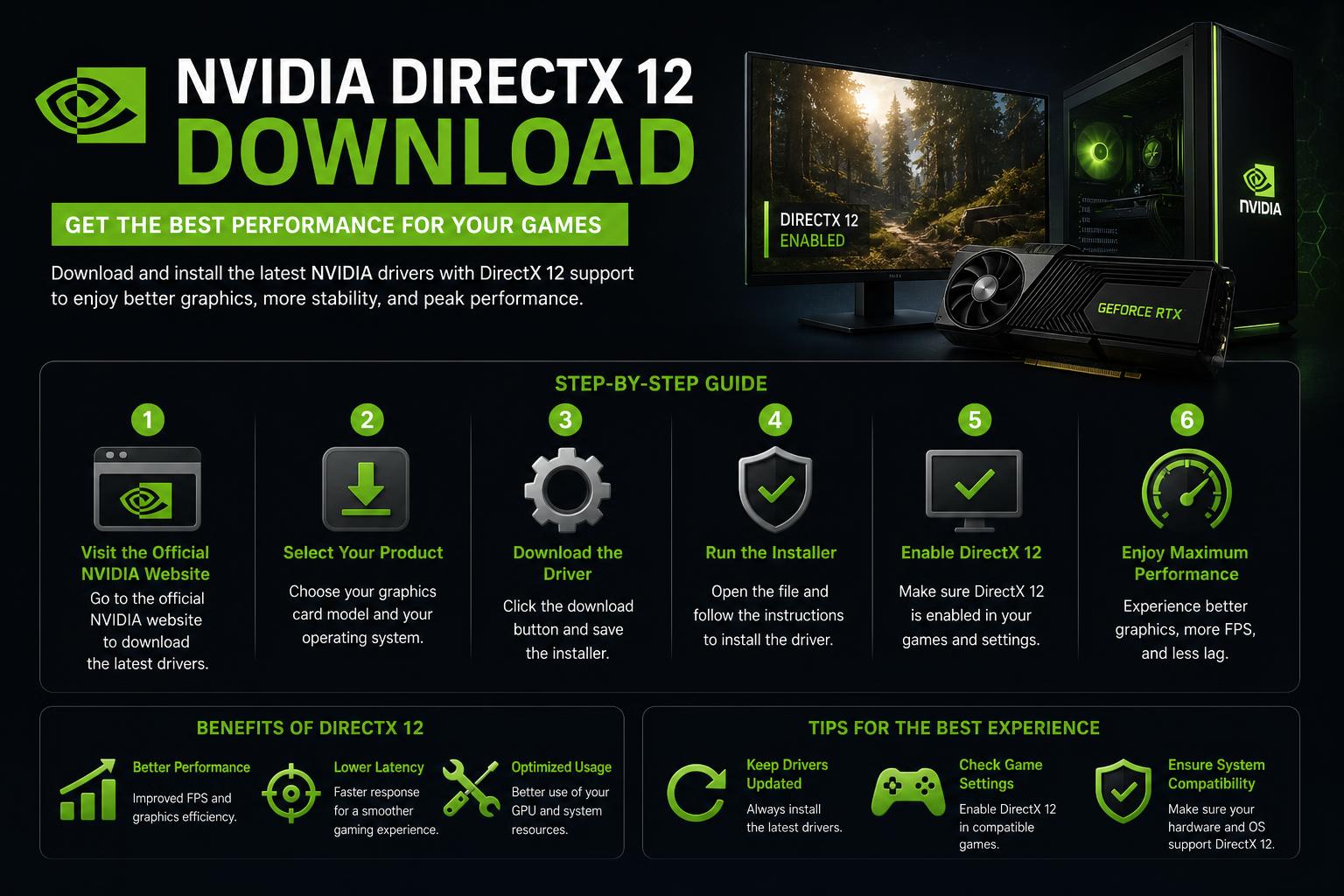
- NVIDIA’s latest GPUs fully leverage DirectX 12 and DirectX 12 Ultimate features.
- DirectX 12 is auto-installed on most Windows PCs, but driver updates are key to unlocking its potential.
- Manual installation, troubleshooting, and developer tools enable users and creators to get the most from their hardware.
Are you looking to unlock the full potential of your NVIDIA graphics card with DirectX 12? If you’re a gamer, developer, or just hungry for the best graphics performance on your PC, you’re not alone. Whether you’re chasing those silky-smooth frame rates, eager to try out next-gen graphical features like ray tracing, or simply need a reliable way to get DirectX 12 up and running on your system, you’ve come to the right place.
In this thorough guide, we’ll break down everything you need to know about downloading, installing, and optimizing DirectX 12 for NVIDIA GPUs, combining the most up-to-date details and expert insights. By the end, you’ll have everything set for next-level visuals and top-tier gaming or creative work.
DirectX 12 isn’t just another software update. It’s a technological leap that changed how games and graphics applications work on Windows, offering a direct path to improved efficiency, performance, and breathtaking visuals. NVIDIA cards, particularly those under the GeForce RTX brand, are built to make the most of what DirectX 12 brings. From automatic installation quirks to step-by-step installation, free access questions, and performance tweaks, this article will guide you through every scenario you might encounter.
What is DirectX 12 and Why Does it Matter for NVIDIA Users?
DirectX 12 is Microsoft’s advanced graphics API, designed specifically to squeeze every ounce of power from modern GPUs and CPUs, especially when it comes to gaming and professional graphics work. It first shipped with Windows 10 but has seen broader compatibility and evolution as Microsoft released new tools and updates. For NVIDIA users, the benefits are tangible: better multi-core CPU utilization, dramatically improved rendering performance, mind-blowing ray tracing, and much more. Features like Variable Rate Shading and Sampler Feedback are now at your fingertips—giving you both higher frame rates and more visually stunning worlds.
DirectX 12 Ultimate: Pushing the Boundaries
With the advent of DirectX 12 Ultimate, NVIDIA’s GeForce RTX series has taken a front seat in supporting the newest advancements. The GeForce Game Ready Driver release with DirectX 12 Ultimate support unlocked four game-changing technologies:
- Ray Tracing: Real-time, lifelike lighting and reflections.
- Variable Rate Shading (VRS): Adjusts shading rates in real time for improved performance without sacrificing image quality.
- Mesh Shading: More efficient geometry processing, allowing for larger, more detailed worlds.
- Sampler Feedback: Lets developers and engines handle massive textures smoothly for stunning environments, preventing stutter and texture-pop.
These features combine to deliver next-level visuals and efficiency for demanding games and applications. Only NVIDIA’s RTX line was positioned to deliver all of these at launch, making it a huge win for anyone sporting green hardware.
Downloading and Installing DirectX 12 for NVIDIA Graphics Cards
If you’re running Windows 10 or later, DirectX 12 is generally installed automatically with the operating system and receives updates via standard Windows Updates. However, there are times when you’ll need to double-check or manually force an install—especially if facing compatibility issues, errors, or building a legacy system.
Here’s how you can follow the manual installation steps for DirectX 12, using guidance adapted from several leading sources:
- Open Microsoft’s DirectX End-User Runtime Web Installer (find the official download at this DirectX 12 Download page).
- Click the “Download” button. Ignore any irrelevant product offers and hit “Next”.
- When prompted, choose “Save File” to download the installer (dxwebsetup.exe).
- Run the downloaded file and follow the on-screen instructions step-by-step until setup completes.
- Restart your PC—this step is vital to finalize any driver or software changes.
Bonus tip: DirectX 12 is supported not just on Windows 10, but also on Windows 7 (with some limitations), Windows 8.1, and newer builds of Windows 11. The software installs both 32-bit and 64-bit components as needed.
DirectX 12 Compatibility for NVIDIA Cards
Before diving into downloads, it’s crucial to verify your GPU model. DirectX 12 works with a broad range of NVIDIA graphics cards, though some of its most advanced features—like ray tracing and mesh shading—are only available on modern RTX series and select GTX cards.
If you’re not certain about your GPU:
- Open Device Manager (press the Windows key, type “Device Manager”, hit Enter).
- Expand the Display adapters list to reveal all GPUs installed on your system.
- Your NVIDIA card will be listed by name; check the NVIDIA official site for specific DirectX 12 feature support.
Why Your PC Can’t Detect Your GPU: Troubleshooting Steps and Fixes
If you see multiple GPUs (for example, an integrated Intel plus NVIDIA), be sure you’re updating and using the right drivers for your NVIDIA hardware for the best DirectX 12 experience.
Driver Download Links and Installation for DirectX 12 Features
Latest drivers are essential, as several DirectX 12 features (such as ray tracing or DX12 Ultimate extensions) depend on support from your vendor. For NVIDIA cards, you’ll always want the latest Game Ready Driver from the official source:
| Manufacturer | Official Driver Download |
|---|---|
| NVIDIA | GeForce Drivers |
| AMD | AMD Drivers |
| Intel | Intel Drivers |
| Qualcomm | Qualcomm |
Once these updated drivers are installed, Windows and DirectX will automatically detect and unlock all available features for your configuration.
Key Features of DirectX 12 on NVIDIA Hardware
Some of the standout DirectX 12 features you can expect on supported NVIDIA GPUs include:
- Ray Tracing: Provides next-level dynamic lighting and realistic reflections, making every game world more immersive.
- Variable Rate Shading (VRS): Dynamically changes shading detail, so performance is boosted without visual sacrifices.
- Mesh Shading: Optimizes the way complex game models are processed, letting developers fill scenes with more geometric detail.
- Sampler Feedback: Cuts down GPU workload, allowing textures to load more efficiently and transitioning seamlessly between high-res environments.
- Explicit Multi-adapter: Lets you combine multiple GPUs in new ways, for even greater performance or flexibility.
- Hardware-accelerated GPU Scheduling: Added in recent Windows updates, this feature allows the graphics card to manage its own memory, trimming latency and increasing smoothness.
All in all, DirectX 12 isn’t just about raw speed—it’s about smarter allocation of graphics horsepower, paving the way for breathtaking visuals with no compromise.
Troubleshooting Common Issues: Compatibility and Crashes
Despite the sophistication, users sometimes face issues ranging from installation hiccups to hardware compatibility errors. Here’s what you need to know:
- Hardware Compatibility: Some older GPUs may not support all DirectX 12 features, particularly ray tracing or mesh shaders. Always check your GPU’s official spec sheet.
- Frequent Crashes: Outdated drivers or mixing incompatible GPUs can trigger stability issues. Clean installs of graphics drivers often provide a fix.
- Failed Installations: If running the web installer fails, consider reviewing common missing DLL errors on Windows 11 or using an offline DirectX 12 installer for environments with no internet or problematic connections.
- Operating System Limitations: Some features, or even DX12 itself, may not be fully supported on older versions of Windows. Make sure your system is up-to-date.
The goal is to ensure stability and unlock every graphics improvement DirectX 12 and NVIDIA hardware offer. If problems persist, consulting the manufacturer’s support or community forums can provide fast solutions.
DirectX 12 in Windows Subsystems and Virtualized Environments
Microsoft has made strides bringing DirectX 12 features to Windows Subsystems, such as the Windows Subsystem for Linux (WSL), Android, and more. To enable these features in subsystem environments:
- Check your GPU using “Device Manager” as previously explained.
- Make sure you’ve installed the latest drivers for your preferred GPU (NVIDIA/AMD/Intel/Qualcomm)—this is especially important for automation or containerized environments.
- Once up-to-date, the subsystem will recognize your DirectX 12 capability and enable support automatically for running intensive graphics or mobile apps.
Links to official manufacturer pages and further instructions are almost always found on the official GPU manufacturer’s pages.
Development: SDKs and Tools for Harnessing DirectX 12 on NVIDIA
For developers, DirectX 12 offers a playground of new opportunities. Microsoft’s DirectX 12 Agility SDK allows quick access to the latest rendering features, ahead of major Windows updates. Developers can:
- Access cutting-edge APIs for ray tracing, AI-driven shading, and high-efficiency shader compilation.
- Tap into hardware-backed scheduling and memory features to maximize runtime performance.
- Build photorealistic applications or games, supporting future architectures and feature updates with minimal friction.
On the NVIDIA side, using developer tools ensures your applications will scale as new cards and features come to market, making it easier to stay on the bleeding edge.
DirectX 12 in Multi-Core and Multi-GPU Setups
One of DirectX 12’s biggest breakthroughs involves multi-core CPU and multi-GPU support. The technology allows all CPU cores to feed tasks to the graphics card simultaneously, creating less bottleneck and more parallelism. With NVIDIA hardware and the right system, you’ll find that:
- Games and renderers experience less latency and higher frame rates.
- DirectX’s “Explicit Multi-adapter” can merge multiple GPUs—even mixed-vendor—so you can squeeze power from every bit of your hardware investment.
This approach unleashes new possibilities for demanding users and ambitious developers—game streaming, real-time visualization, and more all become much smoother and more scalable.
DirectX 12 and Free Access: What Should You Know?
DirectX 12 itself is freely available, built into Windows, and is updated automatically. There are no paid versions or licensing requirements for individual users. This free access extends to all supported Windows systems, whether you’re on a 32-bit or 64-bit OS.
Some unofficial installer sites may offer DirectX installers—always use official sources to avoid security risks or stability problems. Third-party offline installers (like those on ) can help when standard installs fail, but use them judiciously and verify integrity before execution.
Pros and Cons of DirectX 12 for NVIDIA GPU Users
- Pros: Seamless OS integration, major performance boosts, multi-adapter flexibility, enhanced graphics fidelity, and no cost. Features like hardware-accelerated scheduling work with both gaming and creative applications.
- Cons: Occasional hardware compatibility gaps on older GPUs, the potential for driver-induced crashes, and the need for regular updates to unlock the latest features.
The benefits far outweigh the drawbacks, especially as the platform and drivers mature. Most issues stem from legacy setups or infrequent updating.
Advanced Performance Tweaks: Getting More from DirectX 12 on NVIDIA
If you’re a power user, you can tweak further:
- Enable Hardware-accelerated GPU Scheduling: Go to “Graphics Settings”, toggle it on, and restart.
- Regularly update graphics drivers: NVIDIA’s official always posts new updates in sync with Windows and DX12 releases.
- Experiment with in-game settings: Many titles expose granular DirectX 12 options, including ray tracing, VRS, and multi-GPU optimizations.
- Monitor via developer tools: Use tools such as the Radeon GPU Profiler (also insightful for NVIDIA users) or NVIDIA’s in-house suite for real-time performance tuning and diagnostics.
Armed with all of this, you’re ready to make DirectX 12 and your NVIDIA hardware sing, whether it’s gaming, content creation, or development work.
Finding your way through the maze of graphics technology can initially seem daunting, but by consolidating what’s scattered across official documentation, community guides, and expert analysis, you get a clear roadmap. DirectX 12 on NVIDIA cards is a straightforward upgrade with significant rewards—just stay diligent about hardware compatibility, driver updates, and using trusted sources for installers. If you’re running an RTX card on Windows 10 or 11, you’re already positioned to enjoy features that turn games and creative projects into truly next-gen experiences. For developers and enthusiasts, tools like the Agility SDK fast-track you to upcoming innovations. The journey to better graphics starts now—and you’re well-equipped to enjoy every frame of it.